As soon as I installed Windows 8.1 on my laptop, I noticed a pretty big annoyance: the absence of the "Forget this network" option in the Networks pane. I was left with no intuitive way of removing wireless networks that no longer worked because their password has been changed. How do you get around this problem and remove wireless networks in Windows 8.1? Let's find out in this tutorial.
How It Worked in Windows 8
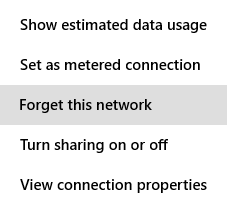
In Windows 8, when you want to remove a wireless network, you open the Networks pane (this tutorial explains how: How to Manage Wireless Network Connections & Profiles in Windows 8) and right-click or press and hold the network you wanted removed.
A contextual menu is opened and it includes the option to "Forget this network".
Windows 8, forget, wireless, network, profile
Easy, isn't it?
Unfortunately, in Windows 8.1 you can no longer right-click in the Networks pane and there is no contextual menu to display. However, you do have several new methods for doing the same thing.
How to Forget a Wireless Network in Windows 8.1, from the Networks List
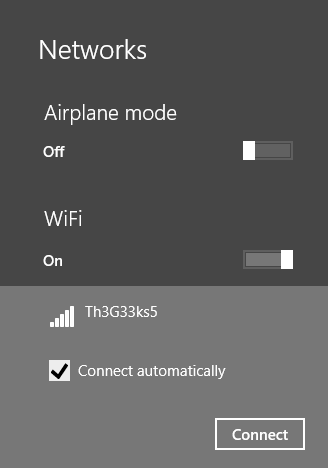
In Windows 8.1 you can remove/forget a wireless network after you try to connect to it. The network has to be in range and visible to your laptop or tablet. If it isn't, you can't remove it using this method. If the network is available, here's how its done:
In the Networks pane, select the network you want removed and press Connect.
Windows 8.1, forget, wireless, network, profile
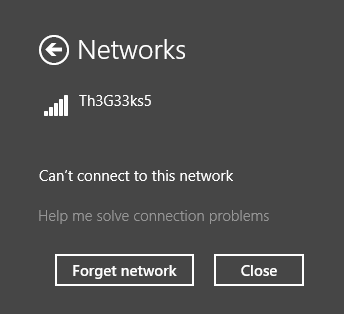
If Windows 8.1 can't connect to it, you will see an error message and a button that says "Forget network".
Windows 8.1, forget, wireless, network, profile
Press on it and the network is removed. You can reconnect to the network as if it were a newly detected network.
How to Forget a Wireless Network in Windows 8.1, from PC Settings
If you have Windows 8.1 Update installed, which was released for free to all Windows 8.1 users as of April 8th 2014, then you have one more way of forgetting a wireless network. This method doesn't work on Windows 8.1 devices without this update.
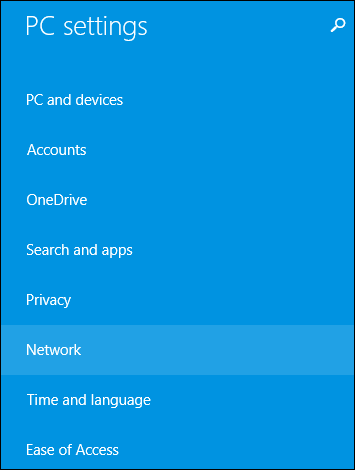
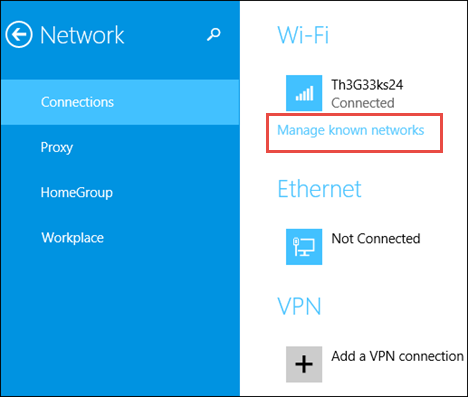
Open PC Settings and go to Network.
Windows 8.1 Update, forget, wireless, network, profile
In the Connections section, look for Wi-Fi and the "Manage known networks" link. Click or tap on it.
Windows 8.1 Update, forget, wireless, network, profile
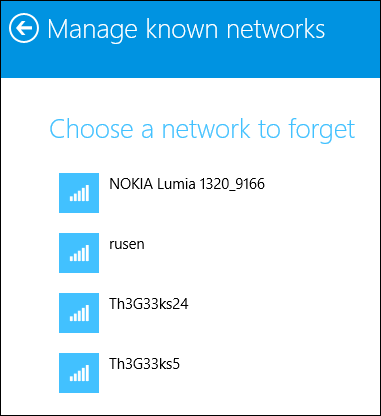
Windows 8.1 displays a list with the wireless networks for which its stores connection details.
Windows 8.1 Update, forget, wireless, network, profile
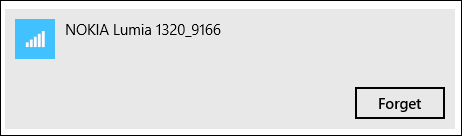
Select the network you want to forget and press Forget.
Windows 8.1 Update, forget, wireless, network, profile
The selected network is no longer stored by Windows 8.1 and the next time you connect to it, you will have to enter its password again.
How to Forget a Wireless Network in Windows 8.1, from the Command Prompt
You can remove any wireless network profile stored by Windows 8.1, even if the network is not in range, with the help of the Command Prompt.
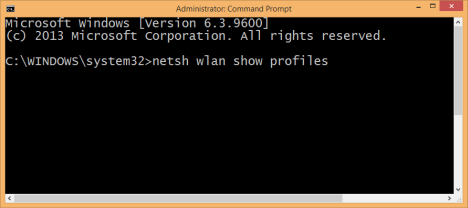
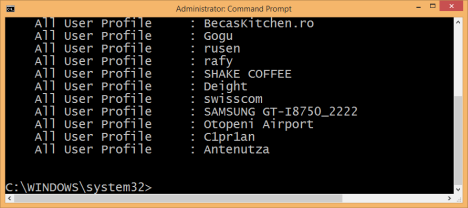
Start the Command Prompt as administrator and type the following command: netsh wlan show profiles.
Windows 8.1, forget, wireless, network, profile
It will display all the wireless network profiles stored by Windows 8.1. The list can be long if you used your laptop or tablet for more than a couple of weeks.
Windows 8.1, forget, wireless, network, profile
Identify the name of the wireless network profile you want removed, then type the following command to remove it: netsh wlan delete profile name="profile name".
Windows 8.1, forget, wireless, network, profile
As an example, I wanted to remove a wireless network profile named swisscom and I typed: netsh wlan delete profile name="swisscom".
Feeling geeky? 🙂
How to Forget All Wireless Networks in Windows 8.1
In some scenarios you may need to remove all the wireless network profiles stored in Windows 8.1. Luckily, you don't have to remove them one by one. That would be really awful.
All you have to do is to type this command: netsh wlan delete profile name=* i=*.
Windows 8.1, forget, wireless, network, profile
You will see it deleting all profiles in less than a second.
NOTE: The netsh command has many other parameters than the ones shared in this article. If you want to learn more about it, I recommend reading its documentation on TechNet: Netsh Commands for Wireless Local Area Network (WLAN).
Conclusion
The initial release of Windows 8.1 made it hard to forget wireless networks but, luckily, this Windows 8.1 Update fixes this problem as well as a couple of other problems. I hope that you have found this guide useful. If you know other ways of forgetting wireless networks in Windows 8.1, don't hesitate to share them using the comments form below.
The extra network doesn’t show an SSID, just says Hidden Network. Can’t get rid of it, please help. I can’t get anything to load when it’s on.
Ciro Coleman ·
Thank you!!
It is such a relief to find a cogent answer to a question, which isn’t a ‘non’ answer as so many people like to give or has no bearing on the question that was put forward. As my teachers used to say, READ the question!!
Why Windows, by design or chance, makes some of their processes, which aren’t the essential types, so hard to find is beyond me but, thanks to people like you, we mere ‘mortals’ can understand.
cheers
Ciro
Anonymous ·
Happy to help. Do not hesitate to subscribe to our newsletter, for more useful tutorials.
Pat ·
Thanks! After an hour of headache and confusion your advice led me straight to the solution. Easy in retrospect, as always, heh.
manish ·
“netsh wlan delete profile name=* i* ” i used this code to delete all the profiles from cmd …. but after that when i entered the code “netsh wlan show profiles” it shows
group profile policy
:none
user profiles
:none
I’m tired of this thing now ……please give me the solution………
I;m using windows 8.1
dtdf ·
hello
abdullah ·
Worked 100% !!
thanks for this solution !
Jeh Fran Huelar ·
Wonderful! This was very helpful!
Rohit ·
How to forget all network in just one cammand
jane555 ·
Brilliant! Installed easily,used an office product key from &&& windows 8.1 key sale@@@on bing and then it worked fine , perfect torrent ,
Randy1 ·
Did The job, deleting the profiles got me input the network key, all good now.
nikki ·
ive only seen my problem on windows community but when you pull up wifi connections they are all on auto connect and wont uncheck, soon as you uncheck it, it checks itself back no matter what we do (ive done everything) nothing works. i am going to try this and hope for the best lol its literally my last resort, ive refreshed the computer and installed windows 8.1 again and went through every connection setting there was to go through 🙁
Joseph ·
hi there ,
thanx for the useful tutorial i find your tips very useful…great work!
PS ·
I am running Windows 8.1. I have been annoyed that my wireless network name shows a “2” behind it. I remembered from Windows 7, that this would occur if I would have multiple profiles for the same SSID.
However, when doing a netsh wlan show profiles, I could not find any profile with a 2 behind it. Deleting the profile, and creating a new one and the network name still shows it with a 2 behind it.
Looking at the registry under NetworkListProfiles, I find much more profiles than is listed with netsh and yes, it does show “Network Name” and “Network Name 2”.
Any thoughts on what is going on?
Jax ·
Deleting WiFi profile data from Windows Registry
1. Press the Win key + R combination from the keyboard, type ‘regedit’ in the run dialogue box and then click on OK.
2. In the registry editor, navigate to the following path:
HKEY_LOCAL_MACHINESOFTWAREMicrosoftWindows NTCurrentVersionNetworkListProfiles
3. In the left pane, you can see all the sub keys under the Profiles key related to the network connections, both for Ethernet and Wlan type.
delete-unused-wifi-data-from-registry
4. Highlight every sub-key by clicking on it from the left pane and check the ProfileName at the right pane. If it matches with the name that you deleted earlier through command prompt, simply delete that sub-key by right-clicking on it from the left pane.
This deletes the WiFi profile data completely from your system.
sam ·
Thank you so much for your providing the information here… You’ve many great day ahead. Thank you again!!!
Rajan KC ·
Hello there,
I mistakenly pressed forget my wireless network profile. I tried it through cmd, but it doesn’t shows my wireless network but shows all others WiFi network. Please help me recover it..
kiper ·
use the built in windows network finder.if its your own router plug it in with an ethernet cable to find your password if its not your get the password from whomever you got it from in the first place.if your hacking it you are at the wrong page.
OS ·
Shame on Microsoft and Thank you!
Jayme ·
I was completely confused on how to use my wifi when I upgraded from 8 to 8.1. This was amazing, it helped incredibly. I had to reset my internet modem to factory default, and the password was different from what it I had changed on my computer. I couldn’t left click it to change it. This explained it all wonderfully, thanks!!
Ciprian Adrian Rusen ·
I’m happy that our article has helped you. Don’t hesitate to subscribe and read our content. You might discover other useful guides.
George ·
Beginner, that I am, none of this helped me. How do I forget a whole heap of networks my computer detects but that I don’t want? These methods only work for networks you have installed in the first place.
Ankit Gupta ·
great solution
John ·
As a tech support agent you can’t go installing 3rd party equipment on customer’s computers, so that would be out of the question. Thanks for this post, though. Very helpful.
That doesn’t work for me. When I type in netsh wlan delete profile name=”ProfileName”. I get….”One or more parameters for the command are not correct or missing”. The name is correctly spelled. I’ve tried this about 5 times.
Tracey ·
You don’t need to put in the ” ” and also don’t add the full stop at the end
Ken ·
Thanks for the reply, but I didn’t put in ” ” or the period and it still didn’t work.
kiper ·
You do not use the period put it exactly as written and remove the period do not forget you have to run cmd as an administrator.
P Loomis ·
Very helpful solution for an annoying Windows problem. Thanks!
Ciprian Adrian Rusen ·
Happy to help!
imran ·
great solution
Gwenole ·
I found a tool for users to manage their network profiles (change priority, make default, forget, view properties, etc.) without using those command line methods. I believe this is a much more user-friendly solution! You can find it here: https://main.kerkia.com/Products/WinFi/description.aspx.
Albert Cardona II ·
This is awesome, I hate the fact they took that out is there someway to download something to this for us.



















Discussion (34)
The extra network doesn’t show an SSID, just says Hidden Network. Can’t get rid of it, please help. I can’t get anything to load when it’s on.
Thank you!!
It is such a relief to find a cogent answer to a question, which isn’t a ‘non’ answer as so many people like to give or has no bearing on the question that was put forward. As my teachers used to say, READ the question!!
Why Windows, by design or chance, makes some of their processes, which aren’t the essential types, so hard to find is beyond me but, thanks to people like you, we mere ‘mortals’ can understand.
cheers
Ciro
Happy to help. Do not hesitate to subscribe to our newsletter, for more useful tutorials.
Thanks! After an hour of headache and confusion your advice led me straight to the solution. Easy in retrospect, as always, heh.
“netsh wlan delete profile name=* i* ” i used this code to delete all the profiles from cmd …. but after that when i entered the code “netsh wlan show profiles” it shows
group profile policy
:none
user profiles
:none
I’m tired of this thing now ……please give me the solution………
I;m using windows 8.1
hello
Worked 100% !!
thanks for this solution !
Wonderful! This was very helpful!
How to forget all network in just one cammand
Brilliant! Installed easily,used an office product key from &&& windows 8.1 key sale@@@on bing and then it worked fine , perfect torrent ,
Did The job, deleting the profiles got me input the network key, all good now.
ive only seen my problem on windows community but when you pull up wifi connections they are all on auto connect and wont uncheck, soon as you uncheck it, it checks itself back no matter what we do (ive done everything) nothing works. i am going to try this and hope for the best lol its literally my last resort, ive refreshed the computer and installed windows 8.1 again and went through every connection setting there was to go through 🙁
hi there ,
thanx for the useful tutorial i find your tips very useful…great work!
I am running Windows 8.1. I have been annoyed that my wireless network name shows a “2” behind it. I remembered from Windows 7, that this would occur if I would have multiple profiles for the same SSID.
However, when doing a netsh wlan show profiles, I could not find any profile with a 2 behind it. Deleting the profile, and creating a new one and the network name still shows it with a 2 behind it.
Looking at the registry under NetworkListProfiles, I find much more profiles than is listed with netsh and yes, it does show “Network Name” and “Network Name 2”.
Any thoughts on what is going on?
Deleting WiFi profile data from Windows Registry
1. Press the Win key + R combination from the keyboard, type ‘regedit’ in the run dialogue box and then click on OK.
2. In the registry editor, navigate to the following path:
HKEY_LOCAL_MACHINESOFTWAREMicrosoftWindows NTCurrentVersionNetworkListProfiles
3. In the left pane, you can see all the sub keys under the Profiles key related to the network connections, both for Ethernet and Wlan type.
delete-unused-wifi-data-from-registry
4. Highlight every sub-key by clicking on it from the left pane and check the ProfileName at the right pane. If it matches with the name that you deleted earlier through command prompt, simply delete that sub-key by right-clicking on it from the left pane.
This deletes the WiFi profile data completely from your system.
Thank you so much for your providing the information here… You’ve many great day ahead. Thank you again!!!
Hello there,
I mistakenly pressed forget my wireless network profile. I tried it through cmd, but it doesn’t shows my wireless network but shows all others WiFi network. Please help me recover it..
use the built in windows network finder.if its your own router plug it in with an ethernet cable to find your password if its not your get the password from whomever you got it from in the first place.if your hacking it you are at the wrong page.
Shame on Microsoft and Thank you!
I was completely confused on how to use my wifi when I upgraded from 8 to 8.1. This was amazing, it helped incredibly. I had to reset my internet modem to factory default, and the password was different from what it I had changed on my computer. I couldn’t left click it to change it. This explained it all wonderfully, thanks!!
I’m happy that our article has helped you. Don’t hesitate to subscribe and read our content. You might discover other useful guides.
Beginner, that I am, none of this helped me. How do I forget a whole heap of networks my computer detects but that I don’t want? These methods only work for networks you have installed in the first place.
great solution
As a tech support agent you can’t go installing 3rd party equipment on customer’s computers, so that would be out of the question. Thanks for this post, though. Very helpful.
Just use Classic Shell’s Start Menu to access the functions of the old wireless folder: https://winaero.com/blog/how-to-manage-wireless-networks-in-windows-8-1-and-windows-8-using-classic-shell/
That doesn’t work for me. When I type in netsh wlan delete profile name=”ProfileName”. I get….”One or more parameters for the command are not correct or missing”. The name is correctly spelled. I’ve tried this about 5 times.
You don’t need to put in the ” ” and also don’t add the full stop at the end
Thanks for the reply, but I didn’t put in ” ” or the period and it still didn’t work.
You do not use the period put it exactly as written and remove the period do not forget you have to run cmd as an administrator.
Very helpful solution for an annoying Windows problem. Thanks!
Happy to help!
great solution
I found a tool for users to manage their network profiles (change priority, make default, forget, view properties, etc.) without using those command line methods. I believe this is a much more user-friendly solution! You can find it here: https://main.kerkia.com/Products/WinFi/description.aspx.
This is awesome, I hate the fact they took that out is there someway to download something to this for us.