



When browsing the web in Google Chrome or any other browser, you often encounter pop-ups from the websites you’re visiting for things like subscribing to their newsletter, donating to support their work, or allowing them to send you notifications. Most people do their best to close these pop-ups and turn them off, but if they don’t pay enough attention, they end up allowing some websites to send them notifications. Those are then shown each time you open Google Chrome on your Windows computer. And they’re sure to annoy you. If you’re in a similar situation, here’s how to turn off all Google Chrome notifications from all websites, and how to stop notifications from a specific site:
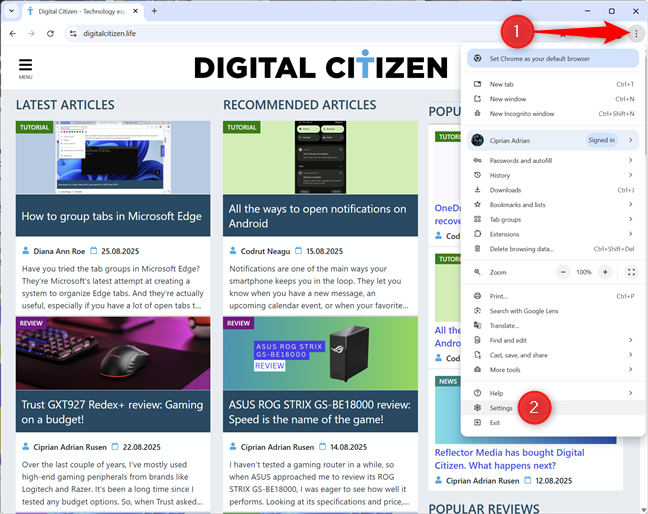
 Go to Customize and control Google Chrome > Settings
You see the Settings tab in Google Chrome. On the left, go to Privacy and security. Then, on the right, click or tap Site settings.
Go to Customize and control Google Chrome > Settings
You see the Settings tab in Google Chrome. On the left, go to Privacy and security. Then, on the right, click or tap Site settings.
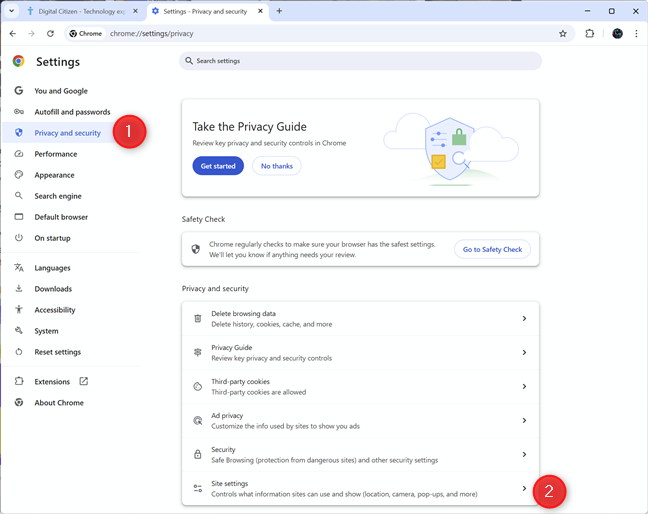 Choose Privacy and security > Site settings
Finally, scroll down to Notifications, and click or tap this section.
Choose Privacy and security > Site settings
Finally, scroll down to Notifications, and click or tap this section.
 Click or tap Notifications
Now, you see the options for configuring how notifications work in Google Chrome. At the top, you can change the browser’s Default behavior.
In the Customized behaviors section, you can change the individual websites that are allowed or blocked from sending notifications to your Windows computer.
Click or tap Notifications
Now, you see the options for configuring how notifications work in Google Chrome. At the top, you can change the browser’s Default behavior.
In the Customized behaviors section, you can change the individual websites that are allowed or blocked from sending notifications to your Windows computer.
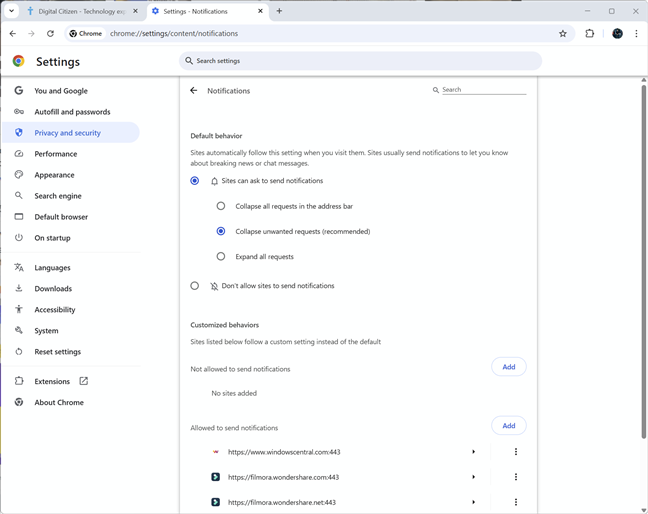 Change Google Chrome's notifications settings
\
TIP: You may also want to know how to change the default search engine in Google Chrome.
Change Google Chrome's notifications settings
\
TIP: You may also want to know how to change the default search engine in Google Chrome.
 Turn off all notifications in Google Chrome
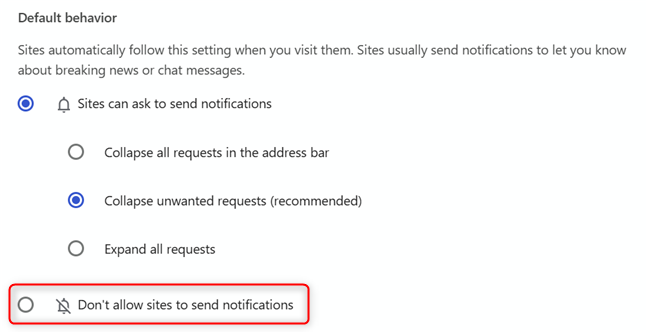
Google Chrome turns off all notifications from all sites.
Turn off all notifications in Google Chrome
Google Chrome turns off all notifications from all sites.
 Find the site that annoys you with notifications
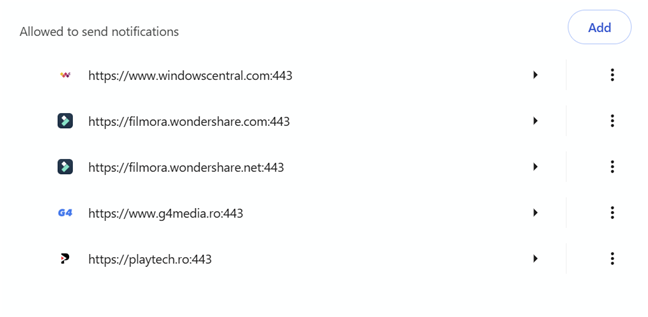
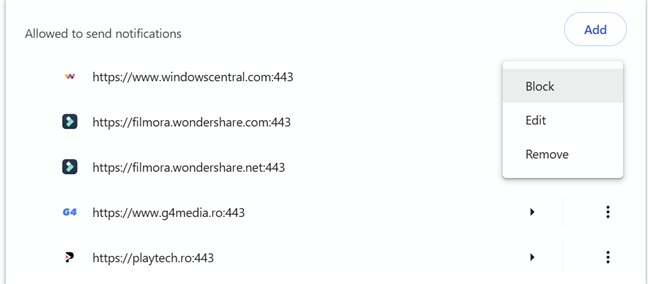
Find the website you want to block in the list, and click or tap the three stacked dots next to it (it’s called More options). In the menu that opens, choose Block.
Find the site that annoys you with notifications
Find the website you want to block in the list, and click or tap the three stacked dots next to it (it’s called More options). In the menu that opens, choose Block.
 Choose Block
The site is removed from the Allowed list and added to the Not allowed list.
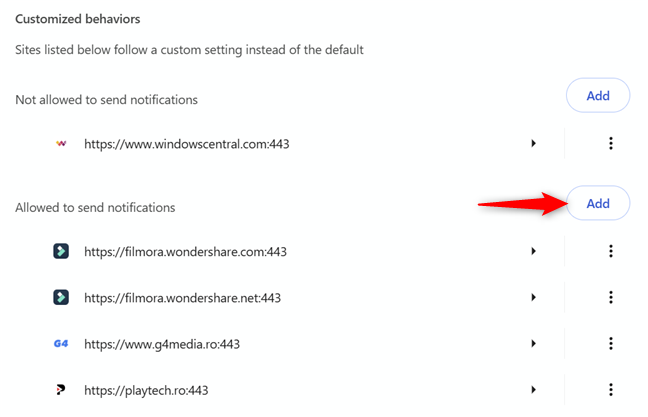
If the website is now shown in the Allowed list, you can manually add it by pressing the Add button.
Choose Block
The site is removed from the Allowed list and added to the Not allowed list.
If the website is now shown in the Allowed list, you can manually add it by pressing the Add button.
 You can manually Add a site
Complete its URL, and click or tap Add.
You can manually Add a site
Complete its URL, and click or tap Add.
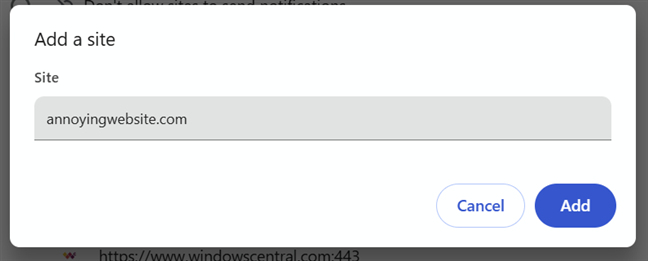
 Type its URL and press Add
TIP: If you have trouble seeing a web page clearly, here’s how to zoom in and out of a web page.
Type its URL and press Add
TIP: If you have trouble seeing a web page clearly, here’s how to zoom in and out of a web page.

 The View site information menu allows you to block notifications
That website will no longer be sending notifications to Google Chrome on your Windows PC.
The View site information menu allows you to block notifications
That website will no longer be sending notifications to Google Chrome on your Windows PC.
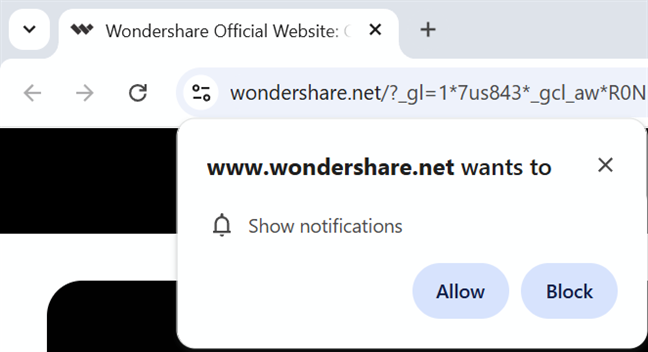
 Always choose Block
Unfortunately, this doesn’t guarantee that you’ll never see unwanted notifications in Google Chrome. That’s because some of the apps you install on Windows can set the browser to send you notifications for specific websites. A couple of weeks ago, I tried several apps for video editing, including one named Wondershare Filmora. To my surprise, this app also changed my Google Chrome notification settings, and annoyed me each time I started the web browser. Uninstalling the app didn’t fix the issue, as I also had to go through the steps shared in this tutorial. Annoying, isn’t it? If you have a similar horror story, don’t hesitate to comment using the options below and share it with me.
Always choose Block
Unfortunately, this doesn’t guarantee that you’ll never see unwanted notifications in Google Chrome. That’s because some of the apps you install on Windows can set the browser to send you notifications for specific websites. A couple of weeks ago, I tried several apps for video editing, including one named Wondershare Filmora. To my surprise, this app also changed my Google Chrome notification settings, and annoyed me each time I started the web browser. Uninstalling the app didn’t fix the issue, as I also had to go through the steps shared in this tutorial. Annoying, isn’t it? If you have a similar horror story, don’t hesitate to comment using the options below and share it with me.
How to stop unwanted notifications in Google Chrome
It doesn’t matter whether you’re using Windows 10 or Windows 11. The best way to stop all the annoying notifications you receive in Google Chrome is from the browser itself, not from the Settings of the Windows version you’re using. So open the Chrome browser and click or tap the ellipsis icon in the top-right corner. This button opens the Customize and control Google Chrome menu. In this menu, click or tap Settings.How to turn off all notifications in Google Chrome
If you don’t want to receive notifications at all, you can change Google Chrome’s default behavior. The web browser is set to Collapse unwanted requests, meaning that it allows sites to send you notifications, but it collapses those you may not want. To block all sites from sending unwanted notifications in Google Chrome, choose Don’t allow sites to send notifications, and close the Settings tab.How to block notifications from specific sites in Google Chrome
If you want to block notifications only from a particular website, scroll down to the Allow to send notifications section. You see all the sites that have been allowed to send notifications when using Google Chrome.How to block notifications from a website you’re visiting in Google Chrome
Suppose you have loaded a website that sends notifications in Google Chrome. In that case, you can block it from doing so in just a few clicks: click or tap the View site information button next to the address bar, then click or tap the Notifications switch to turn it off.Sometimes, paying attention to notification prompts is not enough
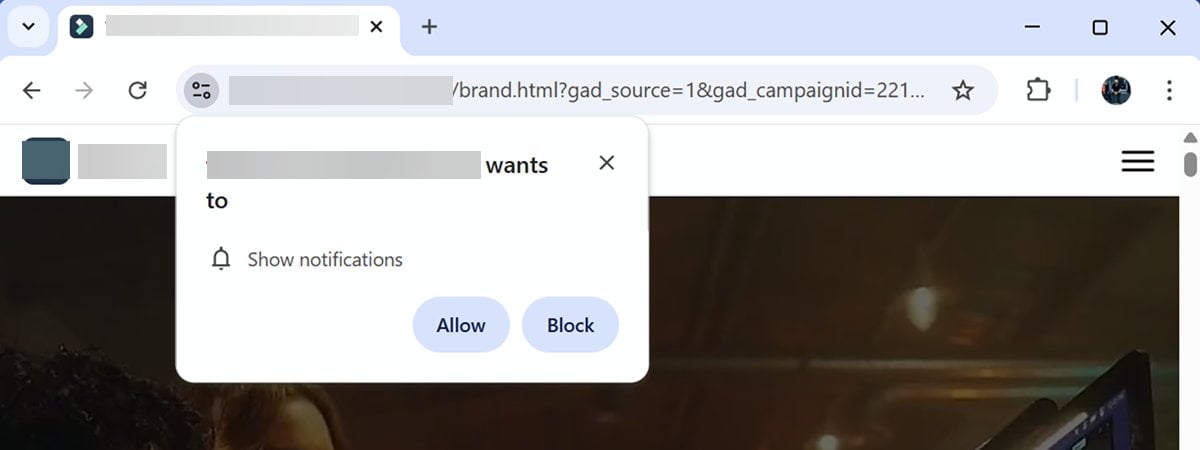
I’m the type of person who never allows websites to show notifications. When I see a prompt similar to the one below, I always click or tap Block. And you should do the same thing, unless you’re very interested in a specific site and its notifications.

Discussion (7)
I have never seen this switch (for blocking all websites from asking for permission to push notifications) to be working. I always turn it off and still get prompts from websites for permission to push notifications. It is really annoying.
Weird bug
Very clear and helpful, thank you!
Happy to help. 😉
If I block Notifications from a website, what is the duration till the next time pop-up is been shown to me?
Thank you!!! I have a website that I visit and every time it asks me to allow notifications. I followed your instructions and blocked it and now it doesn’t ask me to allow the notifications.
I’m glad we could help! 🙂