


 Modified on 11.10.2025
You can easily view information about your computer using Windows graphical tools like Task Manager or System Information. However, some users prefer terminal environments like the Command Prompt or PowerShell for almost everything. If you're curious about how to get system info in CMD (Command Prompt) or want to learn how to view and manage running processes from Windows’ CMD, keep reading. I'll show you how to do all of these things:
NOTE: The information in this tutorial applies to Windows 10 and Windows 11, and the commands work both in Command Prompt and PowerShell.
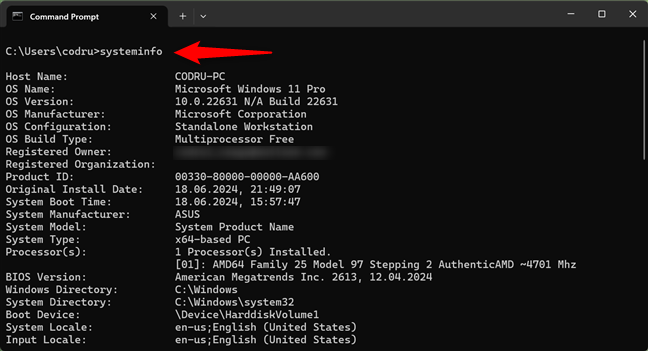
 Systeminfo is the command that lets you check PC specs
Do you see what’s happening? The systeminfo command reveals details about your operating system, computer hardware, and software components. You’ll see details such as the version of the operating system version on your computer, RAM status, and processor model, as well as network information like the IP and MAC addresses.
TIP: If you’d like to find out even more information about the systeminfo command, Microsoft offers excellent documentation for it: Microsoft Learn Systeminfo.
Systeminfo is the command that lets you check PC specs
Do you see what’s happening? The systeminfo command reveals details about your operating system, computer hardware, and software components. You’ll see details such as the version of the operating system version on your computer, RAM status, and processor model, as well as network information like the IP and MAC addresses.
TIP: If you’d like to find out even more information about the systeminfo command, Microsoft offers excellent documentation for it: Microsoft Learn Systeminfo.
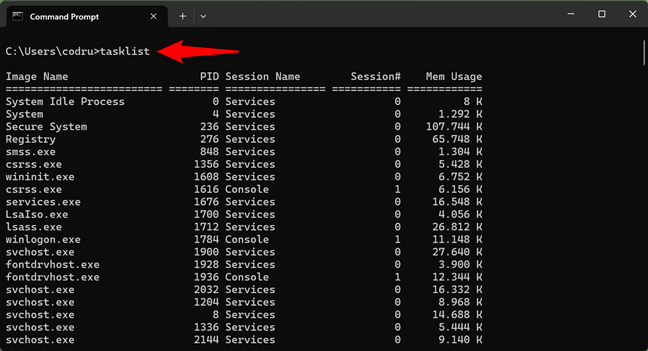 Tasklist lets you view running processes in Windows' CMD
The command lists the processes running on your computer. In addition to their names, the list includes details like the processes’ PIDs (Process identifiers) and the memory they use.
TIP: For more information on how the tasklist command works and what parameters it accepts, check the Microsoft Learn Tasklist documentation.
Tasklist lets you view running processes in Windows' CMD
The command lists the processes running on your computer. In addition to their names, the list includes details like the processes’ PIDs (Process identifiers) and the memory they use.
TIP: For more information on how the tasklist command works and what parameters it accepts, check the Microsoft Learn Tasklist documentation.
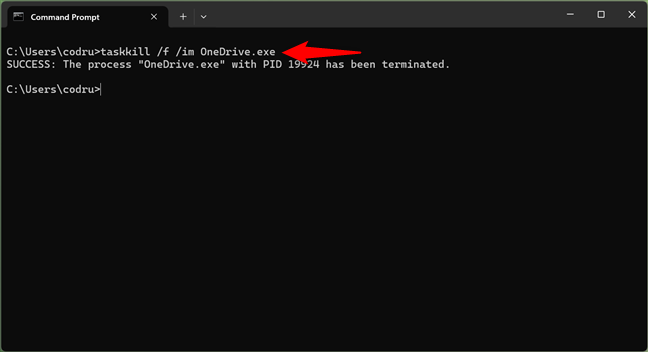
 How to stop a process from CMD
There are times when you need to open a program multiple times. Every new window and sometimes the tabs of a specific program (for example, Microsoft Edge) creates a separate process called instance with a unique PID (Process identifier).
To stop a single instance, specify its PID (Process identifier). For example, there are a couple of instances of Microsoft Edge open on my computer. The process’s name is msedge.exe, but I only want to close one of its running instances (tabs, windows).
How to stop a process from CMD
There are times when you need to open a program multiple times. Every new window and sometimes the tabs of a specific program (for example, Microsoft Edge) creates a separate process called instance with a unique PID (Process identifier).
To stop a single instance, specify its PID (Process identifier). For example, there are a couple of instances of Microsoft Edge open on my computer. The process’s name is msedge.exe, but I only want to close one of its running instances (tabs, windows).
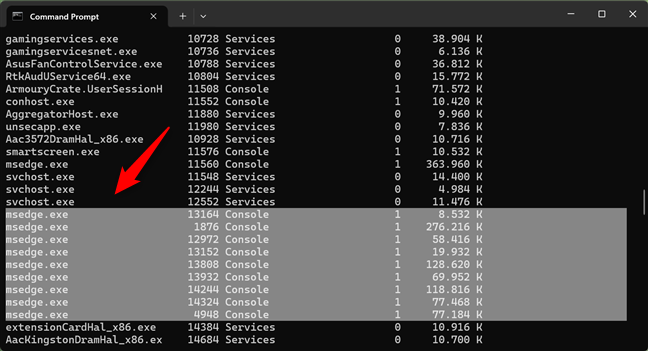 Multiple instances of a process have unique process identifiers
If I want to kill the process with the 12820 PID, I must run the command:
Multiple instances of a process have unique process identifiers
If I want to kill the process with the 12820 PID, I must run the command:
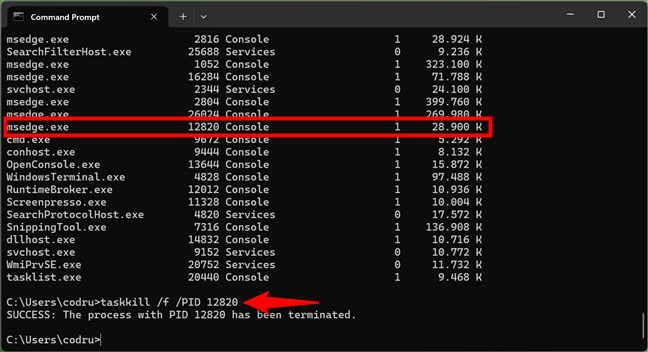 Killing a process in CMD using its PID
Another useful parameter for the taskkill command is /t, which terminates a specified process and any child processes it started.
Take the same example: the Microsoft Edge process. To kill all instances of Microsoft Edge, run the command:
Killing a process in CMD using its PID
Another useful parameter for the taskkill command is /t, which terminates a specified process and any child processes it started.
Take the same example: the Microsoft Edge process. To kill all instances of Microsoft Edge, run the command:
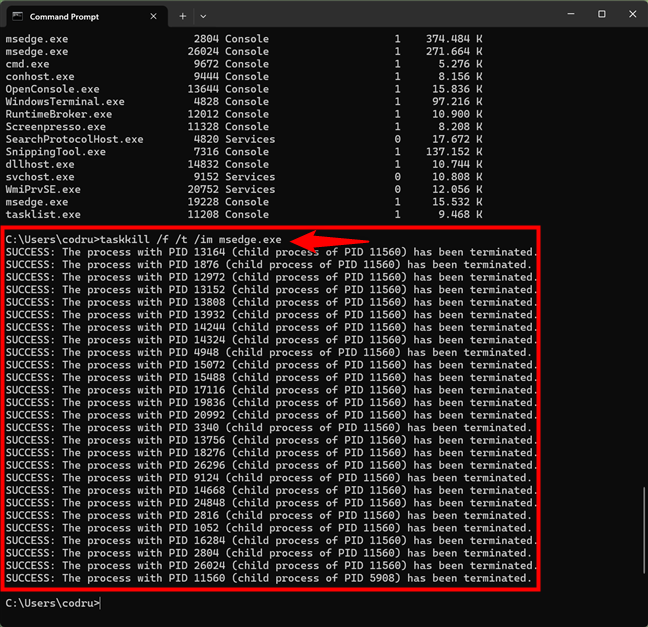
 Kill all the instances of an app from CMD
TIP: If you’d like to discover all the ins and outs of the taskkill command, including advanced uses for it, read its documentation: Microsoft Learn Taskkill.
Warning! Misusing these kill commands can result in data loss in running processes. Always proceed carefully and make sure you’ve backed up your data.
Kill all the instances of an app from CMD
TIP: If you’d like to discover all the ins and outs of the taskkill command, including advanced uses for it, read its documentation: Microsoft Learn Taskkill.
Warning! Misusing these kill commands can result in data loss in running processes. Always proceed carefully and make sure you’ve backed up your data.
1. How to get system information in CMD with the Systeminfo command
Windows has a built-in command to check the system configuration called systeminfo. Running this command displays a long list of information about your computer. Open Command Prompt or PowerShell, and run the command as-is:systeminfo
2. How to see the list of running processes using the Tasklist command
To view the list of currently running processes in Command Prompt or PowerShell, run the command:tasklist
3. How to stop a process using the Taskkill command
To kill or stop a running process from Command Prompt or PowerShell, use the taskkill command. For example, to stop OneDrive, whose process is called OneDrive.exe, run the command:taskkill /f /im OneDrive.exe
The /f parameter forcefully terminates the process, and the /im parameter identifies and stops a process by its name.
taskkill /PID 12820
taskkill /t /im msedge.exe

Discussion (8)
I love it. Thank you. I’m fighting a hacker that has control over my whole computer. Has me locked out. Grrr.
How to use cmd to start the needed processes to connect to internet, connect media just the proper commands to get the windows 10 working, connect wireless and LAN adapters and more for beginners?
I enjoy using the command line. It’s pretty intriguing to feel geeky. haha Awesome article.
We can see the computer performance from the command prompt. We can also handle the all running software from the command prompt. According to our need, we can start or stop a process.
It was very helpful for me.
Thank you very much
Happy to help. 😉
wow nice post. this post very helpful for me
VEry USeful for Learners.