


 Modified on 11.10.2025
One of the easiest ways to manage your disks in Windows is by using the Disk Management tool. However, if you prefer command-line interfaces, you can perform several disk management tasks using Command Prompt or PowerShell. In this guide, I’ll show you how to use Diskpart and its commands to create, format, delete, hide, and unhide partitions. I’ll also show you how to use Chkdsk to check partitions for errors and Defrag to optimize them.
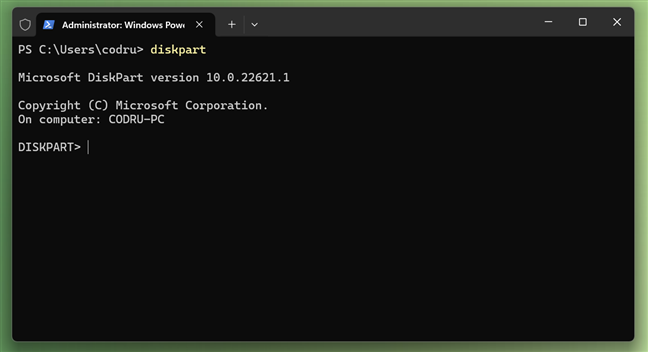
 The Diskpart tool in PowerShell
You must run Command Prompt or PowerShell with administrative privileges to use Diskpart. You can also use Windows Terminal as an admin and open a Command Prompt or PowerShell tab in it. Once you have your favorite command-line tool running as an administrator, carefully read the next sections of this guide to learn the disk management commands and how to execute them. Also, be cautious: misusing these commands can result in data loss, so I strongly recommend backing up your data before making any changes. Having said all that, here’s how to use Diskpart in Windows:
The Diskpart tool in PowerShell
You must run Command Prompt or PowerShell with administrative privileges to use Diskpart. You can also use Windows Terminal as an admin and open a Command Prompt or PowerShell tab in it. Once you have your favorite command-line tool running as an administrator, carefully read the next sections of this guide to learn the disk management commands and how to execute them. Also, be cautious: misusing these commands can result in data loss, so I strongly recommend backing up your data before making any changes. Having said all that, here’s how to use Diskpart in Windows:
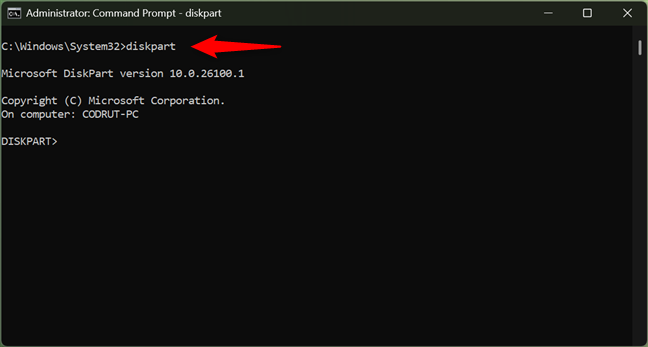
 Launching Diskpart in Command Prompt
After launching Diskpart, you need to establish which hard disk or solid state drive you want to use for creating a new partition. You can select the drive with the select command. Before that, however, you need to view the available disks on your system, so run this command to check the disk list in CMD:
Launching Diskpart in Command Prompt
After launching Diskpart, you need to establish which hard disk or solid state drive you want to use for creating a new partition. You can select the drive with the select command. Before that, however, you need to view the available disks on your system, so run this command to check the disk list in CMD:
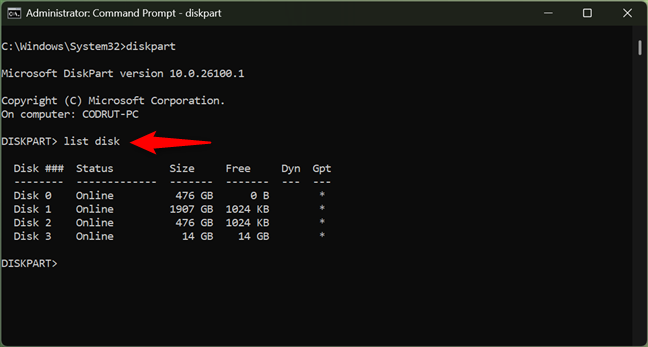 Using Diskpart to list the drives from a PC
To select the disk you want to work with, type:
Using Diskpart to list the drives from a PC
To select the disk you want to work with, type:
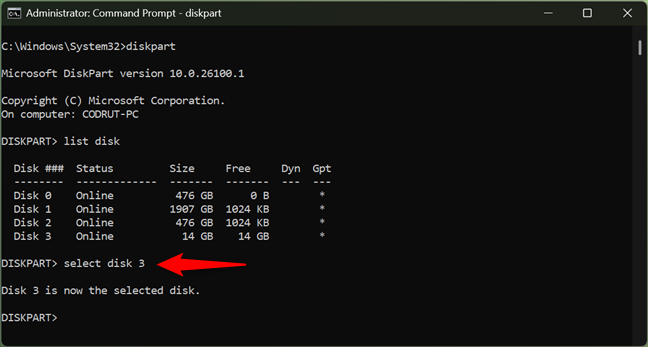 Using Diskpart to select the disk on which the following commands are applied to
To create a new partition, you need to use the create partition command followed by the partition type and size. Note that the list command used previously also displays the available free space on each hard disk. Your new partition must be of a size equal to or less than the amount of available free space.
For instance, to make a new primary partition with the size of 10240 MB (10 GB), you must run the following disk management command:
Using Diskpart to select the disk on which the following commands are applied to
To create a new partition, you need to use the create partition command followed by the partition type and size. Note that the list command used previously also displays the available free space on each hard disk. Your new partition must be of a size equal to or less than the amount of available free space.
For instance, to make a new primary partition with the size of 10240 MB (10 GB), you must run the following disk management command:
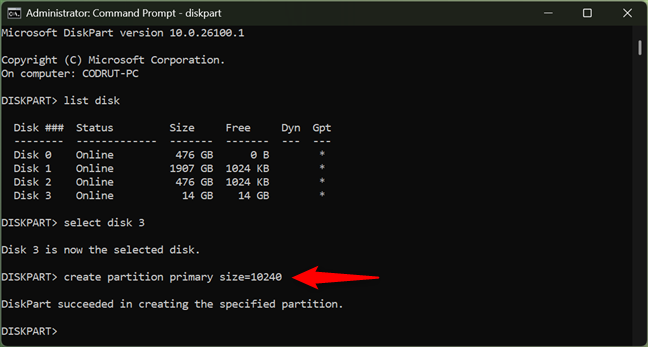 Using Diskpart to create a primary partition
You can use the same command and change the size according to your needs and the available free space on your hard disk.
Using Diskpart to create a primary partition
You can use the same command and change the size according to your needs and the available free space on your hard disk.
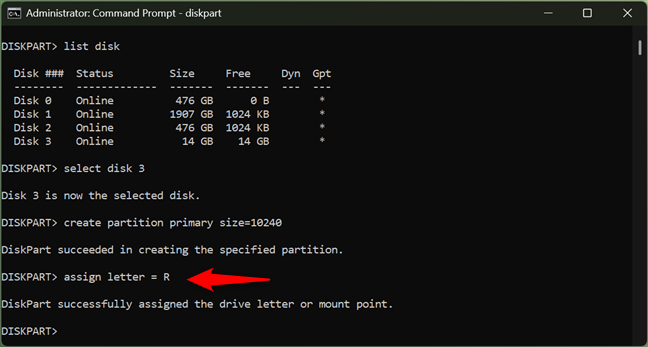 Using Diskpart to assign a letter to a partition (unhide a partition)
Please remember that before assigning a drive letter, you need to start Diskpart and select the disk to which you want to assign the letter.
Using Diskpart to assign a letter to a partition (unhide a partition)
Please remember that before assigning a drive letter, you need to start Diskpart and select the disk to which you want to assign the letter.
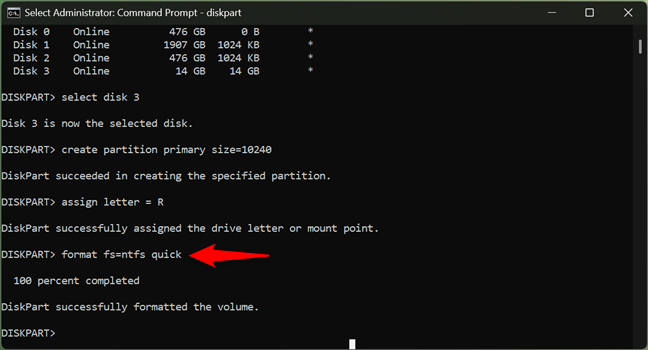
 Formatting a partition with Diskpart in Command Prompt
This command should be used after you start Diskpart and select the disk that you want to format.
TIP: You can use help format to find out more about this command.
Formatting a partition with Diskpart in Command Prompt
This command should be used after you start Diskpart and select the disk that you want to format.
TIP: You can use help format to find out more about this command.
 Using Diskpart in Command Prompt to delete a partition
TIP: You can use the delete partition command in CMD to clean up an entire disk if that’s what you want. Just repeat the steps above for every partition on the drive.
Using Diskpart in Command Prompt to delete a partition
TIP: You can use the delete partition command in CMD to clean up an entire disk if that’s what you want. Just repeat the steps above for every partition on the drive.
 Exiting Diskpart in Command Prompt
Alternatively, you can simply close the Command Prompt, PowerShell, or Terminal window and be done.
NOTE: If you want to learn more about this powerful tool and see what else you can do with it, Microsoft offers excellent documentation here: Microsoft Learn Diskpart.
Exiting Diskpart in Command Prompt
Alternatively, you can simply close the Command Prompt, PowerShell, or Terminal window and be done.
NOTE: If you want to learn more about this powerful tool and see what else you can do with it, Microsoft offers excellent documentation here: Microsoft Learn Diskpart.
 Using the Chkdsk command to check a drive for errors
Finally, you can also learn about using the Check Disk app from this tutorial on testing for hard disk errors, and fixing them.
Using the Chkdsk command to check a drive for errors
Finally, you can also learn about using the Check Disk app from this tutorial on testing for hard disk errors, and fixing them.
 Running defrag to trim an SSD or defragment an HDD
NOTE: The Defrag command can offer many other options and switches that you can use to alter its behavior. To find them all, read its official documentation: Microsoft Learn Defrag.
Running defrag to trim an SSD or defragment an HDD
NOTE: The Defrag command can offer many other options and switches that you can use to alter its behavior. To find them all, read its official documentation: Microsoft Learn Defrag.
How to manage disks in CMD or Powershell
The terminal-based tool you can use to manage disks right from the command line is called Diskpart. It’s a command-line utility included by Windows 10 and Windows 11 that allows you to manage your computer's drives, including disks, partitions, volumes, or virtual hard disks. Diskpart can perform a variety of disk management tasks, such as creating and deleting partitions, formatting drives, and assigning drive letters.How to create a partition with Diskpart
In Command Prompt or PowerShell, run the command:diskpart
list disk
select disk x
…where x is the number of the hard disk you want to use. For example, to select the Disk 3 on my desktop PC, I run the command:
select disk 3
create partition primary size=10240
How to assign a letter to a partition with Diskpart
You can and probably want to also assign a letter to the newly created partition. Assigning a letter to a partition makes it visible in File Explorer so that you can easily access it. To assign a letter to a partition, use the assign command. For instance, if you wanted to assign the R letter to the partition you just created, you should type:assign letter = R
How to format a partition with Diskpart
You now have a new partition created on your computer or device and it also has a letter assigned. So it is easy to access it, but you are still unable to use it until you also format that partition. To do that too, use the command:format fs=ntfs quick
How to delete a partition with Diskpart
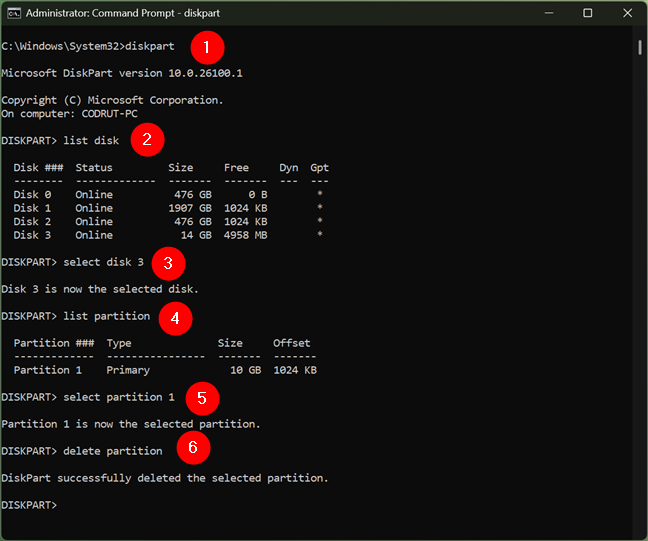
When you need to delete a drive from your computer, the procedure is quite simple. First, open the Diskpart tool. Then, select the partition that you want to delete and type the command:delete partition
Below, you can see an example of how the delete operation works. It is a matter of selecting the disk where the partition is found, then selecting the volume to be deleted and running the delete command.
How to exit Diskpart
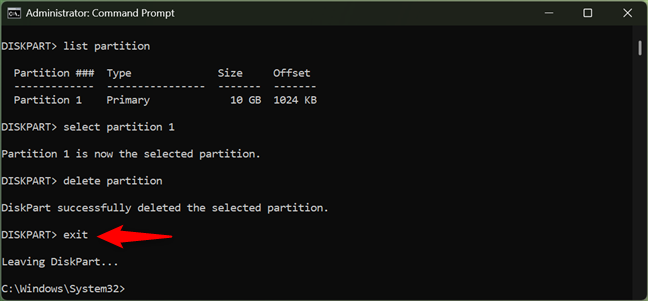
When you are done working with Diskpart, you can close it by running the command:exit
How to check a drive for errors with Chkdsk
To check a disk for errors, you can use the command:chkdsk
Type chkdsk followed by the drive’s letter. I recommend that you always use this command in combination with the /f parameter. This enables the tool to automatically fix any errors it finds.
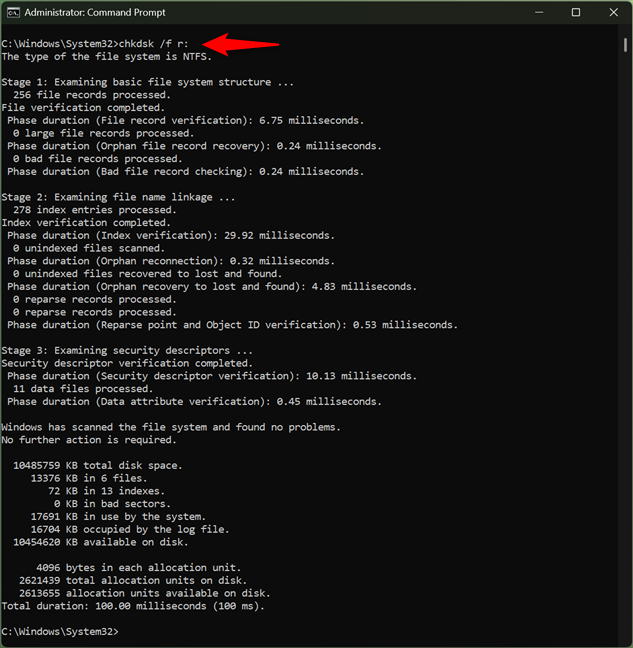
For example, to scan my R: drive for errors and have them fixed, I run the command like this:
chkdsk /f r:
The scan process starts immediately. After it’s done, you see a report similar to the one in the next screenshot, summarizing how much disk space the partition has, how many files are in use by the system, how much free space is available on the disk, how many bad sectors were identified and so on.
NOTE: If you’d like to learn more about the Chkdsk command and all its supported parameters, check Microsoft’s official documentation: Microsoft Learn Chkdsk.
How to optimize a drive with Defrag
Command Prompt and PowerShell also give you a way of optimizing (trimming or defragmenting) a partition. All you have to do is type the command:defrag
…followed by the drive’s letter. For example, if you wanted to optimize the R: partition, you would use:
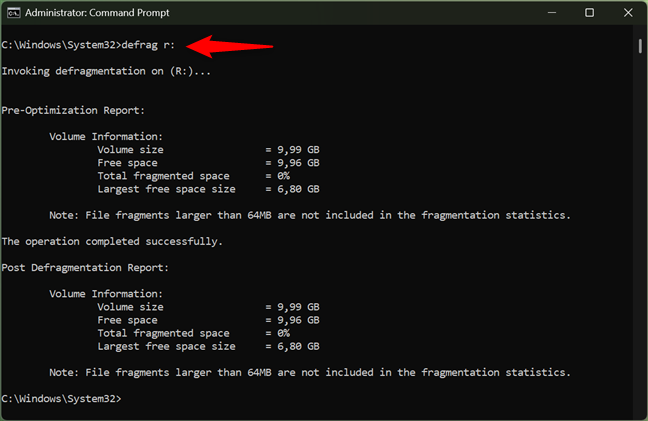
defrag r:
If everything works well, after the volume you selected has been optimized (trimmed if it is an SSD, or defragmented if it is a hard disk), you get a report like the one below. The report includes information prior to the optimization process and after it was completed, like the volume size, free space, total fragmented space, and the largest free space size.
Discussion (29)
DIGITAL CITIZEN: PROBABLY THE BEST, MOST INFORMATIVE, CONCISE TUTORIAL EVER….NO PROBLEM WITH UNDERSTANDING THE CLEARLY WORDED STEP-BY-STEP INSTRUCTIONS!!!!!
THIS WAS GREAT! HOW TO GET YOUR DISK OR PARTITION BACK. I JUST HAVE 232 GB OUR OF 1TB AND CAN NOT INSTALL WINDOWS 10
this was so helpful. thank you! 🙂
i tried everything and finally i used partition wizard tool and its worked for me
It is good that you found a solution that worked. 😉
Please tell the command for fregmentation of disk
Ok, I followed instructions per your site. And may I say first that the hard drive that I am trying to fix came from a machine that I bought performance HDD for. So now I am using another machine and hdd dock station. All went well to the point when I tryed to delete the partition. This is what command propt tells me. (Virtual disk service error:
Cannot delete a protected partition without the force protected parameter set.
So how do I set the force protected parameter?
If you know how and do not mind helping me learn more about my machine, I would be very gratful.
Hi, try to use the “delete partition override” command instead.
Great article. Love all the articles I read from D.C. One comment though: I would have mentioned, in the defrag section, that one should not defrag an SSD. This puts extra wear & tear on the drive and is actually unnecessary because of the speed of the drive. Keep up the good work & thank you.
Nice Article
Thanks!
how to restore all disk partitions ! how to recover severel operating systems when disk partion cmd prompt cmd has been ussd by unotherized user left no disk keeping storage. on any letter
How to format a write protected disk?
will i lose my date after deleting volume
i only have disk 0 and disk 1. disk 0 is 298gb but no free space and disk 1 is 0gb. I cant get windows os 8.1 to reinstall my system crashed. I need to create a partition I guess can u help?
Im trying to recover data from my sd card that says that its damaged and needs to be reformatted. Looked up the solutions and it says to go thru Cmd and type in diskpart and then enter, then list disk. Well, the problem is, after i hit diskpart then enter, the next window comes up and doesn’t let me type anything. Not sure what to do at this point. Please, help!
i have one doubt. In my laptop i have 1TB hard disk but i have one disk only. i do like this command partition means is their any chance to get the OS corrupt?
If you work with the commands shared in this article and you want to re-partition your hard disk, make sure that your data is backed up so that you don’t lose it, in case something goes wrong.
How to in large hard disk
Hi, very useful information. Got a question though.
when I use “list partition” I can see three partitions which I used to have. However, one of them on which I have my operating system is missing or somehow got inactivated, i.e when type “list volume” I am not able to see the driver or programs. How can I recover it or making it available again so that I can have my Pc work again?
Tnx
how can i do this commands by batch file?
Hi… Your site is very good and the descriptions are very much easy and understandable… Hats off to you.
Hi,i have a problem,when i try the list disk,the free space shown is 0…so what is the problem?
Hi, this is deff helpful. However, I just build a barebones comp and when I give the LIST DISK command it tells me there are no fixed disks to show. I know my hdd is working properly, and the BIOS recognizes it too, but I’m stuck and don’t know what to do. Any help is much appreciated
Hi this was great because I am currently stuck in command line, trying to back up key files from my c: drive before i do a factory restore of win7. (i’m here because I can’t get windows to boot so i’m going to nuke it). I’d like to make another partition so that I can put the backup files (like 10-20gb) onto that drive (like I’ll call it F:) so the windows restore doesnt blow it away.
question – I got to the part where I was going to create a partition, but it says I have no free space.
List Disk says 300gb hard drive has no free space (size: 298gb, free: 0b).
List Volume says D: Recovery 14gb, C: OS 283gb
but – when I look at the drive space actually available on C (c: dir) there’s about 180gb free.
is there a way to use that 180gb of free space to create another partition/virtual drive with a different drive letter / mount?
thanks!
If Windows seems to be reporting your free space incorrectly, it is good to perform a scan disk and repair any errors on it. Info about this tool can be found here: https://www.digitalcitizen.life/test-partition-errors-check-disk
Personally, I recommend using a more visual tool to manage your partitions and create new ones, like the Disk Management Tool: https://www.digitalcitizen.life/how-manage-your-disks-using-disk-management-utility
The command line is trickier to use and more error prone if you don’t know very well what you are doing.
what do you do if it says there are no fixed disks to show.
i have a doubt that if i have to create a partition in GB scale then how many zeros must i add , i know the question is silly but i face a lot problems when i try to partition my disk using CMD
How to resizing a partition using the command prompt? are there any article about this? thx