




The ASRock X870E Taichi is a premium motherboard built for gamers and enthusiasts who want the best in performance and features. Designed to handle AMD’s latest processors, this motherboard brings impressive upgrades, like support for ultra-fast PCIe 5.0, DDR5 memory, and USB4 connectivity. However, it’s not just about speed; ASRock has also focused on durability, cooling, and power to ensure stability even during intense use. In this review, I’ll go over the ASRock X870E Taichi’s design, performance, connectivity options, and cooling capabilities. By the end, you’ll know if this motherboard is the right fit for building a powerful and reliable PC. Let’s start!

 The packaging for ASRock X870E Taichi promotes some of its key features
Open the box, and you’re greeted by the motherboard itself, securely packed to prevent any damage during transit. Underneath the motherboard, you find the following accessories: four SATA cables, a Wi-Fi antenna, one ARGB splitter cable, three thermistor cables, a quick installation guide, and warranty documents.
The packaging for ASRock X870E Taichi promotes some of its key features
Open the box, and you’re greeted by the motherboard itself, securely packed to prevent any damage during transit. Underneath the motherboard, you find the following accessories: four SATA cables, a Wi-Fi antenna, one ARGB splitter cable, three thermistor cables, a quick installation guide, and warranty documents.

 All the accessories bundled with ASRock X870E Taichi
Unboxing the ASRock X870E Taichi is an experience that showcases the quality and attention to detail that ASRock has put into this product. The bundle of accessories feels a bit underwhelming, but it’s okay considering this motherboard’s lower price compared to its competitors.
All the accessories bundled with ASRock X870E Taichi
Unboxing the ASRock X870E Taichi is an experience that showcases the quality and attention to detail that ASRock has put into this product. The bundle of accessories feels a bit underwhelming, but it’s okay considering this motherboard’s lower price compared to its competitors.

 The ASRock X870E Taichi has an E-ATX format
The motherboard is designed with high-quality components, including an 8-layer PCB with 2 oz copper layers, which enhances signal stability and offers higher energy efficiency for overclocking. Moreover, the 24+2+1 power phase design ensures stable power delivery to the computer processor, which also translates into great overclocking potential.
The ASRock X870E Taichi has an E-ATX format
The motherboard is designed with high-quality components, including an 8-layer PCB with 2 oz copper layers, which enhances signal stability and offers higher energy efficiency for overclocking. Moreover, the 24+2+1 power phase design ensures stable power delivery to the computer processor, which also translates into great overclocking potential.

 The motherboard uses a 24+2+1 power phase design
The ASRock X870E Taichi comes with an AMD AM5 socket, compatible with Ryzen 9000, 8000, and 7000 Series processors built on the Zen 5 and Zen 4 architectures. This makes it a future-proof option for those looking to get one of AMD’s latest processors.
The motherboard uses a 24+2+1 power phase design
The ASRock X870E Taichi comes with an AMD AM5 socket, compatible with Ryzen 9000, 8000, and 7000 Series processors built on the Zen 5 and Zen 4 architectures. This makes it a future-proof option for those looking to get one of AMD’s latest processors.

 The board supports AMD Ryzen 7000, 8000, 9000 Series processors
One of the motherboard’s best features is its support for PCIe 5.0 on both the primary and secondary PCIe x16 slots, plus one M.2 slot for extremely fast NVMe SSDs. This provides huge bandwidths for next-generation graphics cards and storage devices, ensuring your system is ready for future tech.
The board supports AMD Ryzen 7000, 8000, 9000 Series processors
One of the motherboard’s best features is its support for PCIe 5.0 on both the primary and secondary PCIe x16 slots, plus one M.2 slot for extremely fast NVMe SSDs. This provides huge bandwidths for next-generation graphics cards and storage devices, ensuring your system is ready for future tech.

 You can use one PCIe 5.0 NVMe SSD
The motherboard supports DDR5 memory, with four DIMM slots that can handle up to 256 GB of RAM, and overclocked speeds up to 8200 MT/s (mega transfers per second).
You can use one PCIe 5.0 NVMe SSD
The motherboard supports DDR5 memory, with four DIMM slots that can handle up to 256 GB of RAM, and overclocked speeds up to 8200 MT/s (mega transfers per second).

 The board supports overclocked DDR5 memory
On the storage front, the ASRock X870E Taichi offers a total of four M.2 slots. As I mentioned earlier, one of them (the one between the CPU socket and the GPU slot) supports PCIe 5.0 x4 speeds, while the others support PCIe 4.0 x4.
Additionally, there are six SATA III ports for traditional HDDs and SSDs, offering plenty of storage expansion options.
The board supports overclocked DDR5 memory
On the storage front, the ASRock X870E Taichi offers a total of four M.2 slots. As I mentioned earlier, one of them (the one between the CPU socket and the GPU slot) supports PCIe 5.0 x4 speeds, while the others support PCIe 4.0 x4.
Additionally, there are six SATA III ports for traditional HDDs and SSDs, offering plenty of storage expansion options.

 There are four M.2 slots on the motherboard
The motherboard comes equipped with wireless connectivity, featuring Wi-Fi 7 technology and offering faster speeds, lower latency, and more stable connections compared to older Wi-Fi standards. In addition, it also includes a Realtek RTL8126 network card for wired network connectivity at 5 Gbps.
The rear I/O panel is equipped with a variety of connectivity options, including two USB4 Type-C ports (up to 40Gbps), five USB 3.2 Gen2 Type-A ports (10 Gbps), three USB 3.2 Gen1 Type-A ports, and two USB 2.0 ports. There’s also an RJ-45 Ethernet port, an HDMI port, two antenna ports, one optical SPDIF Out port, one Line Out jack, one microphone jack, one Clear CMOS button, and one BIOS Flashback button.
There are four M.2 slots on the motherboard
The motherboard comes equipped with wireless connectivity, featuring Wi-Fi 7 technology and offering faster speeds, lower latency, and more stable connections compared to older Wi-Fi standards. In addition, it also includes a Realtek RTL8126 network card for wired network connectivity at 5 Gbps.
The rear I/O panel is equipped with a variety of connectivity options, including two USB4 Type-C ports (up to 40Gbps), five USB 3.2 Gen2 Type-A ports (10 Gbps), three USB 3.2 Gen1 Type-A ports, and two USB 2.0 ports. There’s also an RJ-45 Ethernet port, an HDMI port, two antenna ports, one optical SPDIF Out port, one Line Out jack, one microphone jack, one Clear CMOS button, and one BIOS Flashback button.

 The I/O panel on the rear
TIP: The BIOS Flashback feature lets you update the motherboard’s UEFI without booting into the operating system, while the Clear CMOS button allows you to reset the UEFI settings to default, which can be handy if overclocking or other settings cause boot issues.
ASRock’s Polychrome RGB lighting allows you to customize the motherboard’s lighting effects, and there are headers available for adding other RGB components.
The I/O panel on the rear
TIP: The BIOS Flashback feature lets you update the motherboard’s UEFI without booting into the operating system, while the Clear CMOS button allows you to reset the UEFI settings to default, which can be handy if overclocking or other settings cause boot issues.
ASRock’s Polychrome RGB lighting allows you to customize the motherboard’s lighting effects, and there are headers available for adding other RGB components.
 The ASRock X870E Taichi has beautiful RGB lighting
The ASRock X870E Taichi has a robust yet premium design with a sleek black finish and RGB accents. Furthermore, it offers pretty much everything you may want in this day and age in terms of specs and features.
For more detailed information, visit the official product page of the ASRock X870E Taichi.
The ASRock X870E Taichi has beautiful RGB lighting
The ASRock X870E Taichi has a robust yet premium design with a sleek black finish and RGB accents. Furthermore, it offers pretty much everything you may want in this day and age in terms of specs and features.
For more detailed information, visit the official product page of the ASRock X870E Taichi.

 The system I built for this review
For as long as I had it, the ASRock X870E Taichi performed great. Its boot times were fast, and the system ran very reliably, even when handling heavy tasks like the benchmarks you’ll see in the next section of this review.
The system I built for this review
For as long as I had it, the ASRock X870E Taichi performed great. Its boot times were fast, and the system ran very reliably, even when handling heavy tasks like the benchmarks you’ll see in the next section of this review.
 An inside look at the PC built upon the ASRock X870E Taichi
For gaming, the performance was excellent, handling demanding games like Cyberpunk 2077, Final Fantasy XVI, and Ghost of Tsushima smoothly at ultra graphics settings and 4K resolution. The motherboard’s solid power delivery and effective cooling kept the CPU and power components at safe temperatures, even under load.
An inside look at the PC built upon the ASRock X870E Taichi
For gaming, the performance was excellent, handling demanding games like Cyberpunk 2077, Final Fantasy XVI, and Ghost of Tsushima smoothly at ultra graphics settings and 4K resolution. The motherboard’s solid power delivery and effective cooling kept the CPU and power components at safe temperatures, even under load.
 Playing Final Fantasy XVI on a PC based on an ASRock X870E Taichi
The ASRock X870E Taichi offers reliable performance and excellent cooling. It works great in any demanding situation and handles gaming without breaking a sweat.
On the next page, I’ll go over benchmark results to see how the ASRock X870E Taichi compares with another motherboard designed to work with the latest AMD Ryzen processors, the ASUS ROG Strix X870-A Gaming WiFi.
Playing Final Fantasy XVI on a PC based on an ASRock X870E Taichi
The ASRock X870E Taichi offers reliable performance and excellent cooling. It works great in any demanding situation and handles gaming without breaking a sweat.
On the next page, I’ll go over benchmark results to see how the ASRock X870E Taichi compares with another motherboard designed to work with the latest AMD Ryzen processors, the ASUS ROG Strix X870-A Gaming WiFi.
 Benchmark results in CPU-Z Single Thread
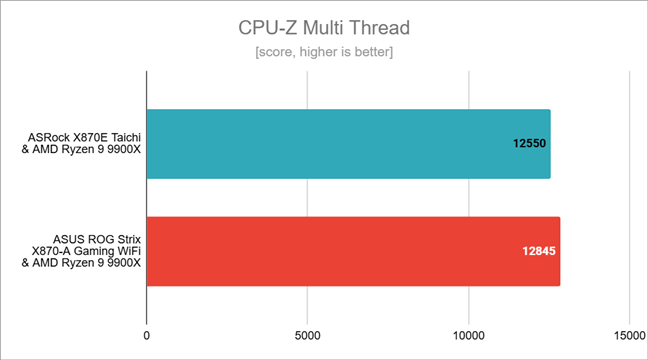
In CPU-Z’s Multi-Thread test, I got a slightly lower score on the ASRock X870E Taichi. The AMD Ryzen 9 9900X mounted on the ASUS ROG Strix X870-A Gaming WiFi motherboard was faster by around 2.35%. It’s a small gain for the ASUS board, but it’s still a gain.
Benchmark results in CPU-Z Single Thread
In CPU-Z’s Multi-Thread test, I got a slightly lower score on the ASRock X870E Taichi. The AMD Ryzen 9 9900X mounted on the ASUS ROG Strix X870-A Gaming WiFi motherboard was faster by around 2.35%. It’s a small gain for the ASUS board, but it’s still a gain.
 Benchmark results in CPU-Z Multi-Thread
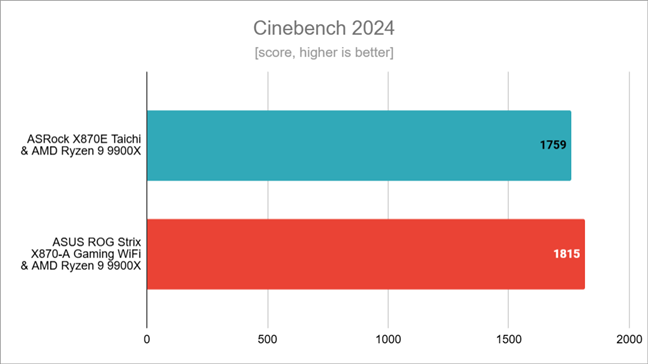
In Cinebench 2024, it was a similar story: the ASRock X870E Taichi was outperformed by the ASUS ROG Strix X870-A Gaming WiFi by approximately 3.18%.
This indicates that the ASRock board is a bit less efficient in harnessing the Ryzen 9 9900X’s processing power than the ASUS board. However, the margin isn’t substantial enough to significantly users.
Benchmark results in CPU-Z Multi-Thread
In Cinebench 2024, it was a similar story: the ASRock X870E Taichi was outperformed by the ASUS ROG Strix X870-A Gaming WiFi by approximately 3.18%.
This indicates that the ASRock board is a bit less efficient in harnessing the Ryzen 9 9900X’s processing power than the ASUS board. However, the margin isn’t substantial enough to significantly users.
 Benchmark results in Cinebench 2024
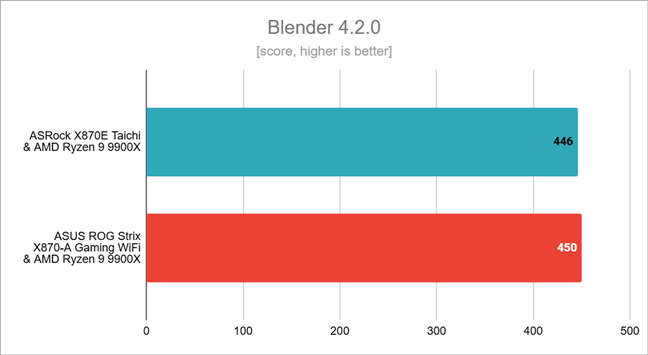
In Blender, another rendering benchmark, the Ryzen 9 9900X CPU performed similarly on both motherboards. Still, when mounted on the ASUS board, it was a bit faster, delivering 0.9% more performance than with the ASRock X870E Taichi.
Benchmark results in Cinebench 2024
In Blender, another rendering benchmark, the Ryzen 9 9900X CPU performed similarly on both motherboards. Still, when mounted on the ASUS board, it was a bit faster, delivering 0.9% more performance than with the ASRock X870E Taichi.
 Benchmark results in Blender
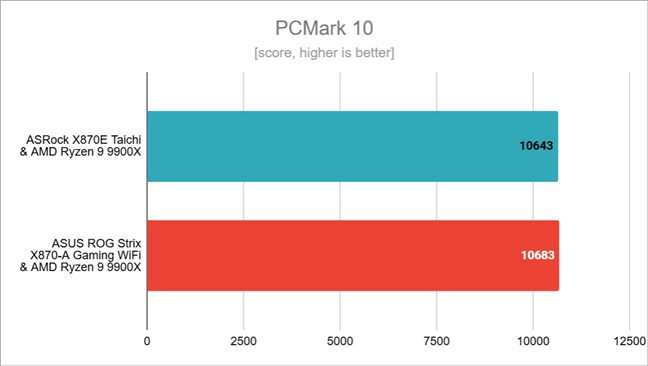
PCMark 10 tests, which cover typical daily computing tasks, showed very close results between the two motherboards. The ASRock X870E Taichi trailed by only 0.38%, offering similar performance in productivity and general use scenarios. This negligible difference confirms that both motherboards provide solid performance for everyday tasks.
Benchmark results in Blender
PCMark 10 tests, which cover typical daily computing tasks, showed very close results between the two motherboards. The ASRock X870E Taichi trailed by only 0.38%, offering similar performance in productivity and general use scenarios. This negligible difference confirms that both motherboards provide solid performance for everyday tasks.
 Benchmark results in PCMark 10
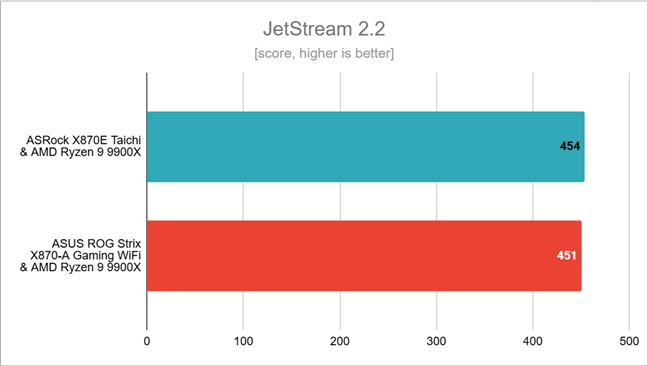
In the JetStream 2.2 test, differences remained minimal, with the Ryzen 9 9900X scoring 0.67% more with the ASRock X870E Taichi than when mounted on the ASUS ROG Strix X870-A Gaming WiFi. Both motherboards handle web-based workloads effectively, which makes either of them a great choice for those working with browser-intensive applications.
Benchmark results in PCMark 10
In the JetStream 2.2 test, differences remained minimal, with the Ryzen 9 9900X scoring 0.67% more with the ASRock X870E Taichi than when mounted on the ASUS ROG Strix X870-A Gaming WiFi. Both motherboards handle web-based workloads effectively, which makes either of them a great choice for those working with browser-intensive applications.
 Benchmark results in JetStream 2.2
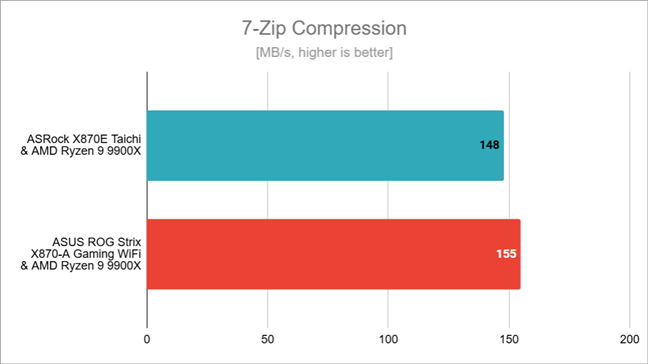
When benchmarking 7-Zip, the AMD Ryzen 9 9900X with the ASUS ROG Strix X870-A Gaming WiFi pair proved to have a 4.73% lead over the compression speed achieved by the system based on the ASRock X870E Taichi.
Benchmark results in JetStream 2.2
When benchmarking 7-Zip, the AMD Ryzen 9 9900X with the ASUS ROG Strix X870-A Gaming WiFi pair proved to have a 4.73% lead over the compression speed achieved by the system based on the ASRock X870E Taichi.
 Benchmark results in 7-Zip Compression
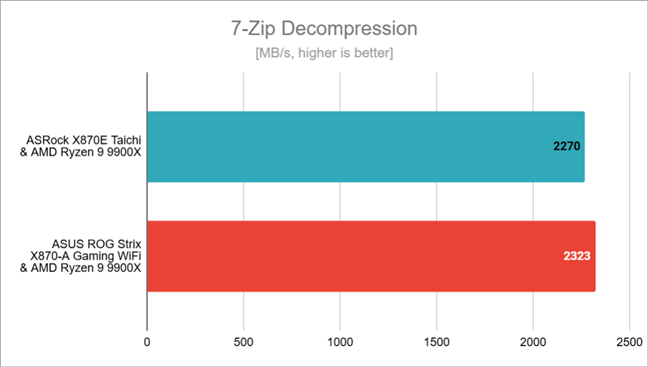
For decompression tasks, the performance gap narrowed, with the ASUS board only 2.33% faster than the ASRock X870E Taichi. These findings suggest that while the ASRock performs well, the ASUS board has a slight edge in tasks involving file compression and decompression.
Benchmark results in 7-Zip Compression
For decompression tasks, the performance gap narrowed, with the ASUS board only 2.33% faster than the ASRock X870E Taichi. These findings suggest that while the ASRock performs well, the ASUS board has a slight edge in tasks involving file compression and decompression.
 Benchmark results in 7-Zip Decompression
Next, I tested a few games at 1080p resolution with the graphics quality set to the lowest, in an attempt to avoid immediate bottlenecks caused by the AMD Radeon RX 7900 XT graphics card.
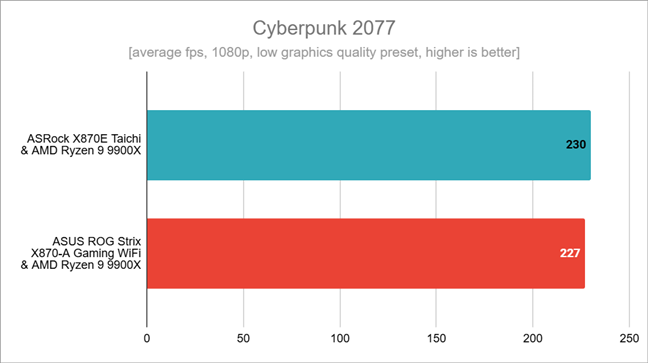
In Cyberpunk 2077, the system using the ASUS ROG Strix X870-A Gaming WiFi reached an impressive 227 fps, while with the ASRock X870E Taichi I recorded a slightly higher average of 230 fps. At 1.32%, the ASRock board’s advantage isn’t huge, but it’s there.
Benchmark results in 7-Zip Decompression
Next, I tested a few games at 1080p resolution with the graphics quality set to the lowest, in an attempt to avoid immediate bottlenecks caused by the AMD Radeon RX 7900 XT graphics card.
In Cyberpunk 2077, the system using the ASUS ROG Strix X870-A Gaming WiFi reached an impressive 227 fps, while with the ASRock X870E Taichi I recorded a slightly higher average of 230 fps. At 1.32%, the ASRock board’s advantage isn’t huge, but it’s there.
 Benchmark results in Cyberpunk 2077
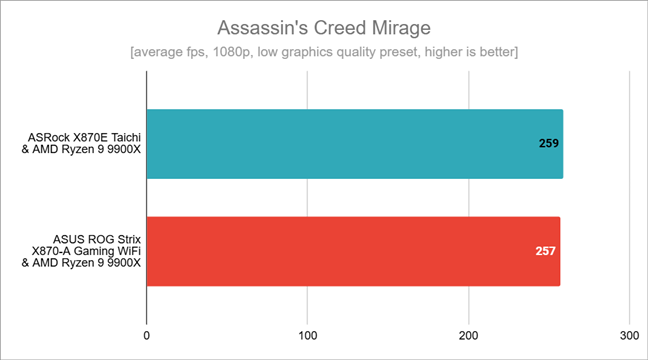
In Assassin’s Creed Mirage, both motherboards performed nearly identically, with the ASRock X870E Taichi averaging only 2 fps more than the ASUS board. A 0.78% difference is negligible for most players.
Benchmark results in Cyberpunk 2077
In Assassin’s Creed Mirage, both motherboards performed nearly identically, with the ASRock X870E Taichi averaging only 2 fps more than the ASUS board. A 0.78% difference is negligible for most players.
 Benchmark results in Assassin's Creed Mirage
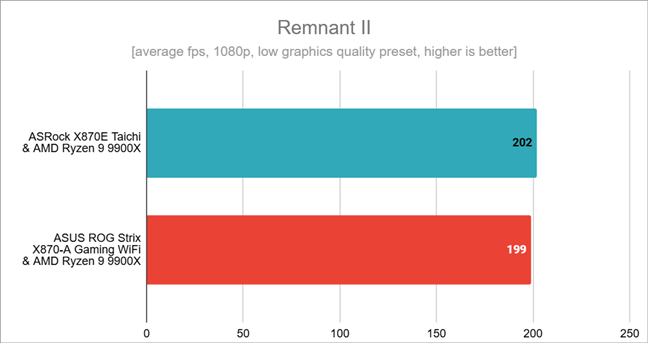
On a similar note, in Remnant II, the ASRock X870E Taichi displayed a 1.5% higher frame rate than the ASUS board, maintaining a similar gaming performance.
Benchmark results in Assassin's Creed Mirage
On a similar note, in Remnant II, the ASRock X870E Taichi displayed a 1.5% higher frame rate than the ASUS board, maintaining a similar gaming performance.
 Benchmark results in Remnant II
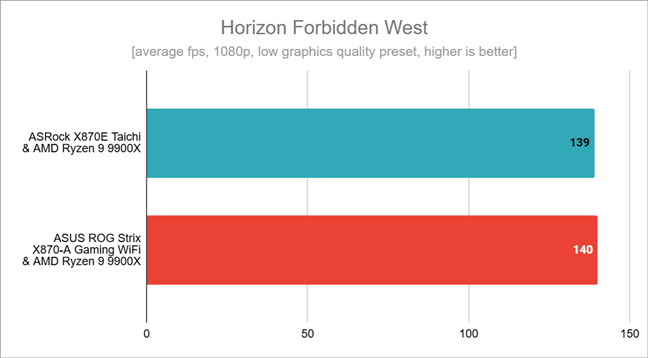
Last but not least, Horizon Forbidden West: the ASRock X870E Taichi averaged 139 fps, close to the ASUS ROG Strix X870-A Gaming WiFi’s 140 fps. This marginal 0.72% difference underscores that either motherboard can deliver a solid gaming experience with minimal frame rate differences.
Benchmark results in Remnant II
Last but not least, Horizon Forbidden West: the ASRock X870E Taichi averaged 139 fps, close to the ASUS ROG Strix X870-A Gaming WiFi’s 140 fps. This marginal 0.72% difference underscores that either motherboard can deliver a solid gaming experience with minimal frame rate differences.
 Benchmark results in Horizon Forbidden West
Both motherboards, the ASRock X870E Taichi and ASUS ROG Strix X870-A Gaming WiFi, excel in stability and performance, with minor differences in benchmarks. The ASRock X870E Taichi proves it can sustain high-end processors like the AMD Ryzen 9 9900X and that it can deliver top-notch multi-core performance and gaming results.
Benchmark results in Horizon Forbidden West
Both motherboards, the ASRock X870E Taichi and ASUS ROG Strix X870-A Gaming WiFi, excel in stability and performance, with minor differences in benchmarks. The ASRock X870E Taichi proves it can sustain high-end processors like the AMD Ryzen 9 9900X and that it can deliver top-notch multi-core performance and gaming results.
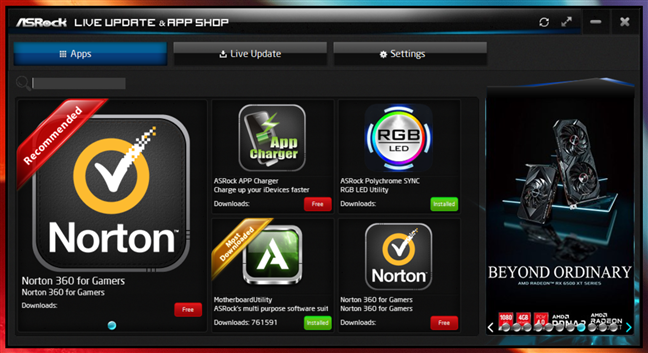
 ASRock App Shop
However, I installed the other two applications: ASRock Polychrome SYNC and MotherboardUtility:
ASRock App Shop
However, I installed the other two applications: ASRock Polychrome SYNC and MotherboardUtility:
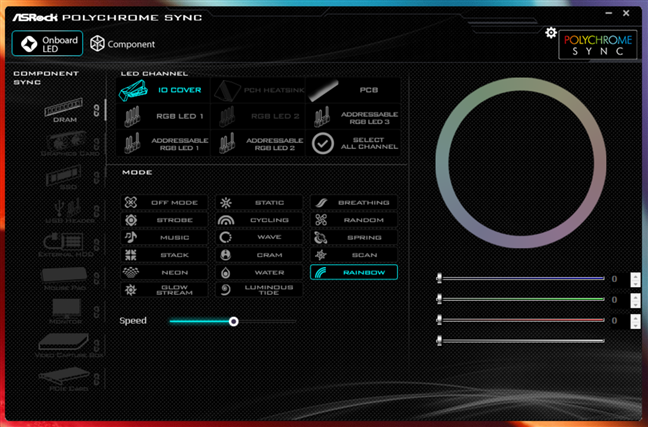
 ASRock Polychrome Sync
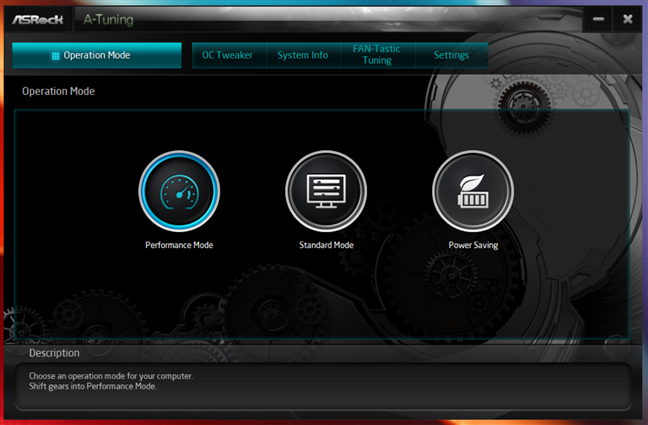
 ASRock A-Tuning
Some of the bundled software tools can be useful, helping you adjust your system’s looks and performance.
ASRock A-Tuning
Some of the bundled software tools can be useful, helping you adjust your system’s looks and performance.
ASRock X870E Taichi: Who is it good for?
The ASRock X870E Taichi is an excellent motherboard for:- Gamers and PC enthusiasts who want top-tier performance and advanced features
- Overclockers looking for robust power delivery and cooling solutions
- Users building a high-end system with AMD Ryzen 9000 Series processors
- Systems with a Full Tower PC case
Pros and cons
These are the main pros of this motherboard:- It supports AMD’s latest Ryzen 7000, 8000, and 9000 Series processors
- PCIe 5.0 support for both graphics cards and NVMe SSDs
- It supports DDR5 memory with overclocking capabilities
- USB4 for high-speed data transfer and connectivity
- Robust power design for stable overclocking
- Premium build quality with stylish design and RGB lighting
- Integrated Wi-Fi 7 and 5G LAN for high-speed networking
- Competitive pricing vs. alternatives
- Underwhelming bundle of accessories
- The software provided by ASRock could benefit from a visual overhaul
Verdict
The ASRock X870E Taichi is a solid choice for PC builders looking for a high-end motherboard with the latest technology. Priced at $450, it doesn’t require you to break the closest bank branch, and it offers an attractive mix of connectivity options, cooling features, and design elements. The board shines in areas like M.2 and VRM cooling, as well as with its inclusion of Wi-Fi 7 and USB4. ASRock X870E Taichi is a robust motherboard that offers plenty of features for those who want to build a computer capable of delivering high performance and top-notch connectivity. Before buying it, keep in mind it has an E-ATX (Extended ATX) format that’s wider than regular ATX boards. This makes it an ideal choice for Full Tower PCs that require more space for complex configurations, such as water-cooling loops and multiple GPU layouts. While it can be used in Mid Tower PC cases, you may have some trouble fitting it inside, depending on the specific case you’re using.Unboxing the ASRock X870E Taichi
The ASRock X870E Taichi comes in a good-looking package that immediately lets you know you’re going to deal with a high-end hardware component. The front of the box features a stylish design, with the Taichi logo highlighting some of its key features like PCIe 5.0 and WiFi 7 support.Hardware specifications and design
As soon as you take it out of the box, the ASRock X870E Taichi impresses with its premium build quality and looks. The motherboard has an E-ATX format which means it’s larger than standard ATX boards, so you need to make sure your case is compatible with it. In terms of looks, the board features a predominantly black color scheme with gold accents. The gear-shaped heat-sinks and Taichi logos add to all that, giving the motherboard an elegant “tech stylish” look.Using the ASRock X870E Taichi motherboard
Building a PC with the ASRock X870E Taichi is straightforward, thanks to its smart design and clear labeling on each component slot. The layout offers plenty of room around the CPU socket, so installing my all-in-one (AIO) liquid cooler was easy. I believe that will be your experience too, even if you’re new to building computers. For my testing, I used the following setup:- Processor: AMD Ryzen 9 9900X
- Cooler: ASUS ROG Ryuo III 240 ARGB
- Memory: G.Skill Trident Z5 Neo RGB DDR5-6000
- Graphics Card: AMD Radeon RX 7900 XT
- Storage: Samsung 990 PRO PCIe 4.0 NVMe SSD 1TB
- Monitor: ASUS ROG Strix XG32UQ (4K UHD)
- PSU: Seasonic Focus GX-1000
ASRock X870E Taichi - Benchmark results
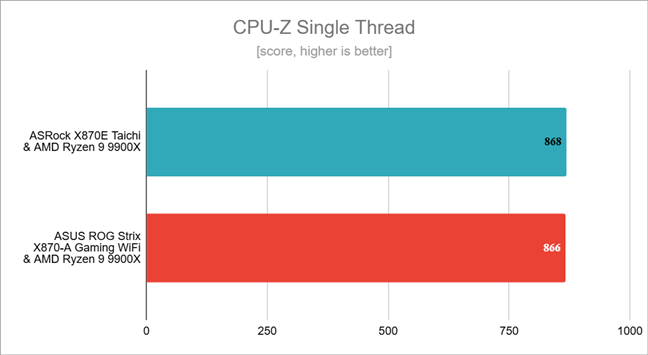
The ASRock X870E Taichi and the ASUS ROG Strix X870-A Gaming WiFi motherboards provided nearly identical scores for the AMD Ryzen 7 9900X processor in CPU-Z’s Single-Thread test, with only a minor difference of 0.23% in favor of the ASRock board. This shows that the processor can handle single-threaded tasks effectively on both motherboards.Software bundled with the ASRock X870E Taichi
ASRock provides a suite of software utilities to enhance your experience with the X870E Taichi motherboard. From what I’ve seen, nothing is installed automatically; instead, you can choose what to download and install on your own. This is done from the ASRock APP Shop, which is a centralized hub for managing and updating your motherboard’s drivers, UEFI/BIOS, and software utilities. Beyond updates, the APP Shop also provides access to a selection of ASRock-recommended applications: Norton 360 for Gamers, ASRock APP Charger, ASRock Polychrome SYNC, and MotherboardUtility. Although ASRock recommends the Norton 360 for Gamers anti-malware software, I don’t think it’s that good a choice. First, because you only get a trial, and second, because the Windows Security in Windows 10 and Windows 11 works great without having to pay extra. It didn’t install Norton and I didn’t install ASrock App Charger (a tool that helps to faster charge Apple devices connected to your computer) either because I didn’t need them.- ASRock Polychrome SYNC gives you control over the RGB lighting on the X870E Taichi motherboard, allowing you to create and sync effects for various components. The software supports synchronization with compatible RGB-enabled components and peripherals, including graphics cards, RAM, and LED strips. The interface feels pretty old-school but provides plenty of customization options, including static colors, dynamic effects, and custom profiles.
- MotherboardUtility (or ASRock A-Tuning once installed) is a utility that lets you manage and tune your system from Windows. A-Tuning lets you choose how you want your computer to run: performance mode, standard mode, or power-saving mode. It also shows you real-time information about your system, like CPU temperature, voltage, and other important details. You can also use it for overclocking, allowing you to adjust things like CPU speed, voltage, and fan settings right in Windows, so you don’t have to restart and enter the UEFI/BIOS.


Discussion (0)
Be the first to comment.