Are you struggling to boot Windows 8 or Windows 8.1 into Safe Mode? Have you tried pressing both F8 and Shift + F8 and they do not work? That is because the boot procedure in Windows 8 is different compared to older versions of Windows such as Windows 7. The boot is so fast that it literally cannot be interrupted by any of your keypresses. Here are nine different ways in which you can boot into Safe Mode, that do not involve any special hacks or manual configuration:
NOTE: If you want to find out all the methods which you can use to boot Windows 8 or Windows 8.1 into Safe Mode, read this entire tutorial. However, we first show you how to boot into Safe Mode when you cannot log into Windows 8.1, and after that, how to boot into Safe Mode when you can still log into Windows 10. If you cannot log into Windows 8.1, read methods 1 to 5.If you can log into Windows 8.1, read methods 6 to 8. The ninth method works only on computers with old hardware.
1. Use Shift + Restart on the Windows 8 sign in screen
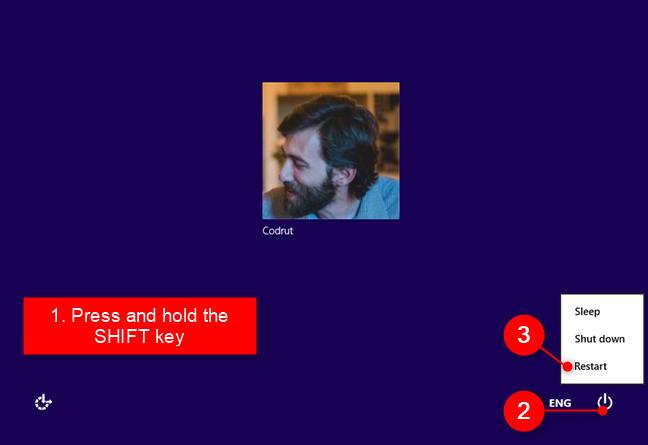
This method works in Windows 8.1 even if you cannot log into a user account. On the sign in screen (or in the Settings charm, if you can log in), press and hold the SHIFT key. While keeping it pressed, click or tap the Power button and then Restart.
Boot into Windows 8.1 Safe Mode from the Sign In screen
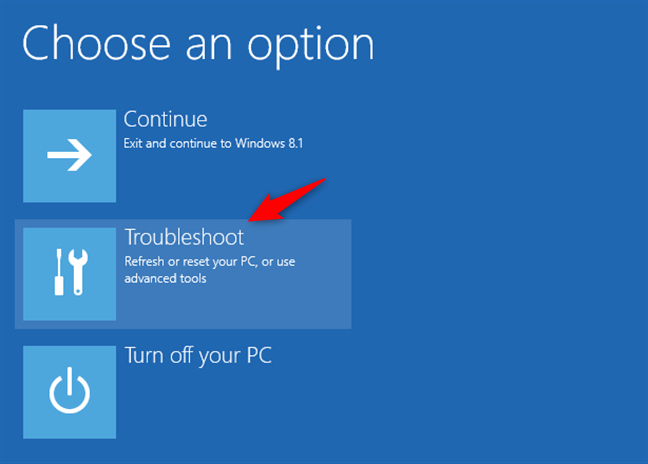
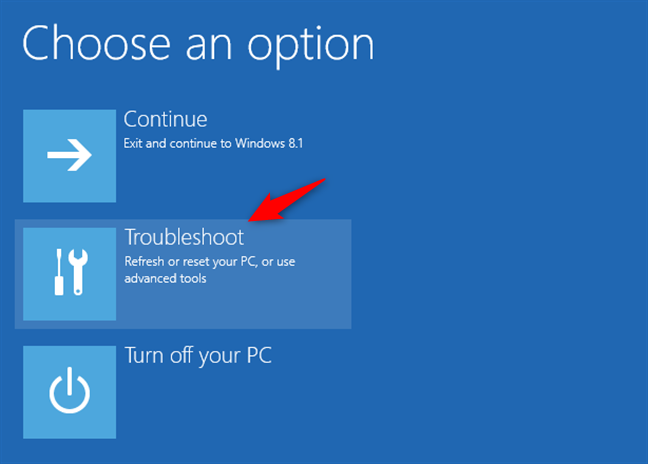
Windows asks you to select an option. Choose Troubleshoot.
Troubleshooting Windows 8.1
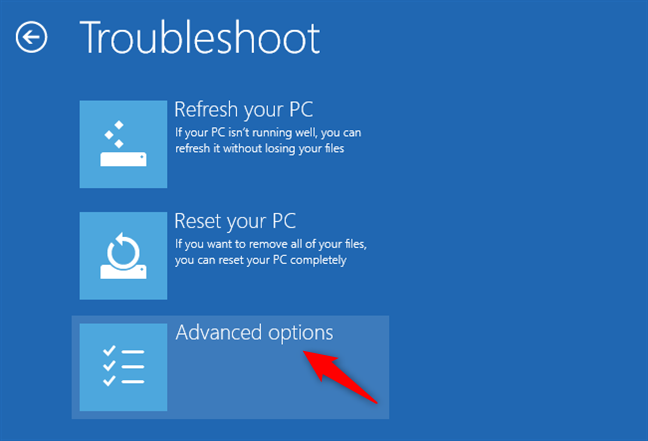
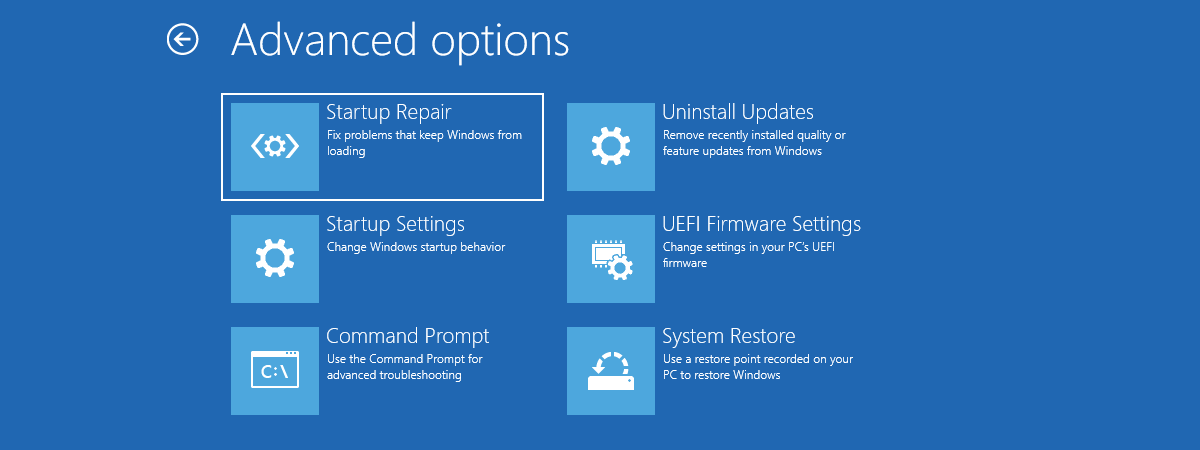
On the Troubleshoot screen, choose Advanced options.
Accessing the advanced options
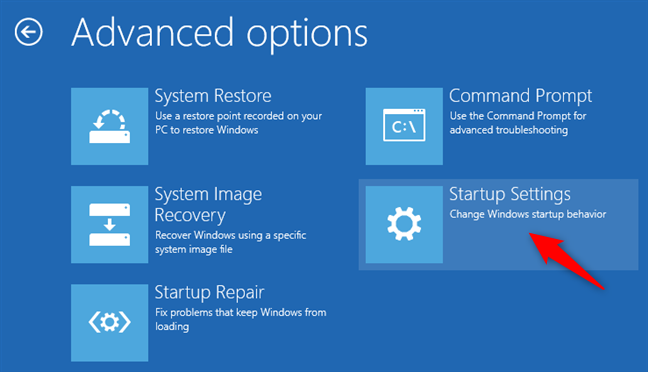
On the Advanced options screen, click or tap Startup Settings.
Opening the Windows 8 or 8.1 Startup Settings
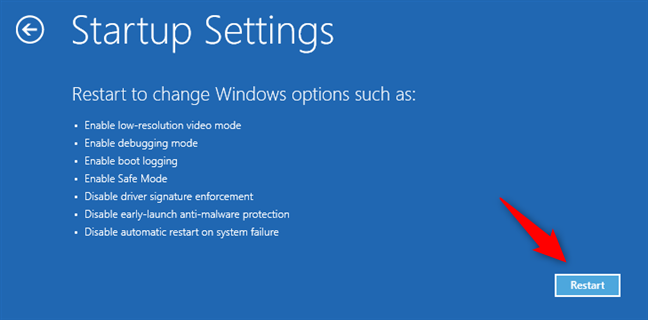
Windows informs you that it is about to restart so that it can change several boot options. Among other things, it also enables Safe Mode. Click or tap Restart.
The Windows 8.1 Startup Settings
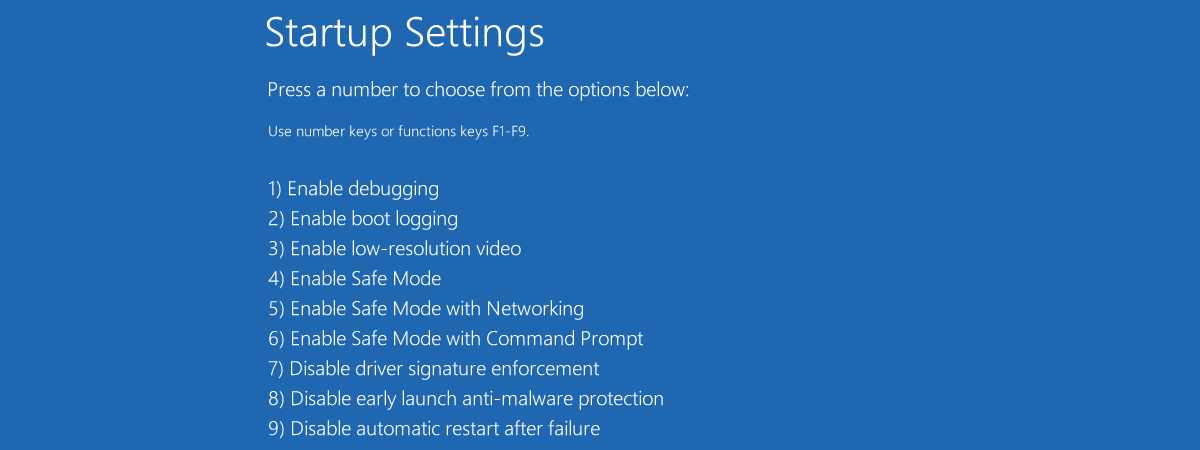
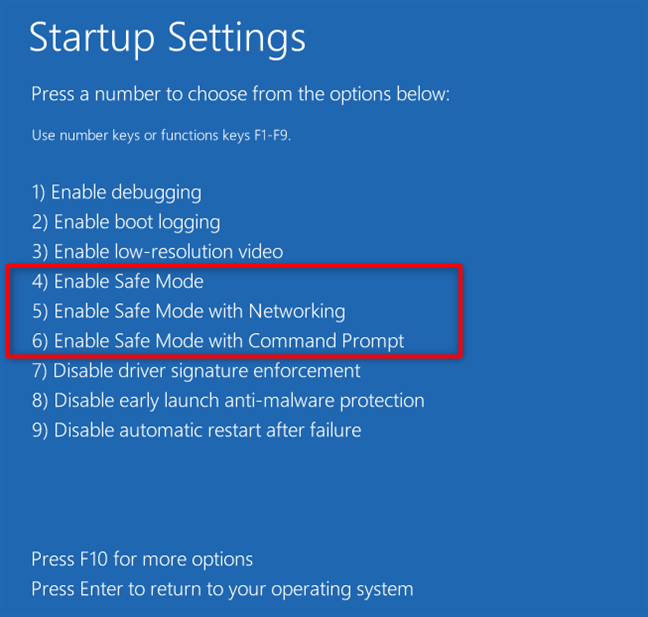
After your PC or device reboots, it displays nine different startup settings, including:
Safe Mode - press the 4 or the F4 key on your keyboard
Safe Mode with Networking - press the 5 or the F5 key on your keyboard
Safe Mode with Command Prompt - press the 6 or the F6 key on your keyboard
Boot Windows 8.1 into Safe Mode
Windows 8.1 now boots according to the Safe Mode environment that you selected.
2. Interrupt the normal boot process of Windows 8 or 8.1, three times in a row
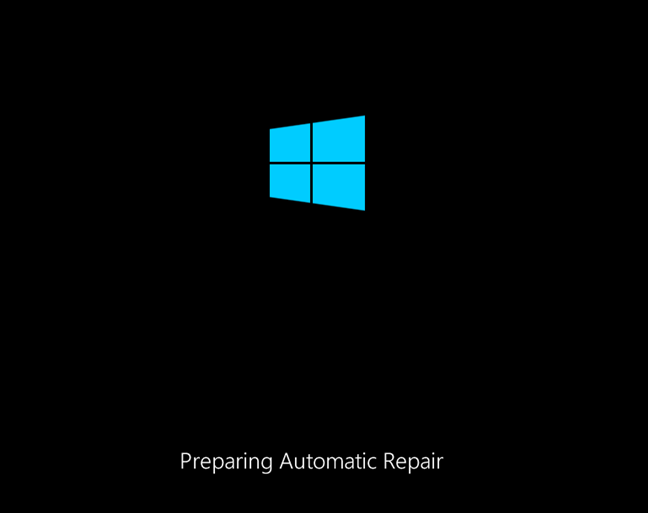
Another method to boot into Safe Mode is somewhat automatic. When Windows 8 fails to boot three times in a row, it automatically starts its Automatic Repair procedure. If you want to force Windows 8.1 to do so, you can interrupt its normal boot 3 times over. That means that you must stop your PC or device while booting. You can do that by pressing the physical Reset or Power button on your PC or device. If you choose to press the Power button, note that you might have to press it for at least 4 seconds to stop your PC/device. The fourth time your PC or device tries to boot, it should automatically enter into its Automatic Repair mode, and the first thing you see on your screen is a message that says "Preparing Automatic Repair."
Preparing Automatic Windows 8.1 Repair
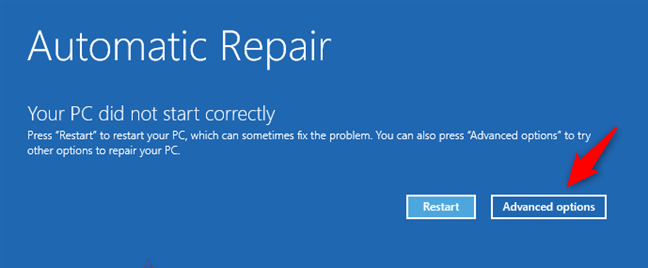
After a while, Windows 8 displays the Automatic Repair screen. On it, click or tap Advanced options.
Accessing the advanced troubleshooting options
On the next screen, click or tap Troubleshoot.
Troubleshooting Windows 8 or 8.1
The following steps you need to take are the same as in the first method from this guide. Go to "Advanced options -> Startup Settings -> Restart." Once you get to the Startup Settings screen, press the 4 or the F4 key on your keyboard boot into Safe Mode, press 5 or F5 to enter "Safe Mode with Networking," or press 6 or F6 to enable "Safe Mode with Command Prompt."
3. Use a Windows 8 installation media and the Command Prompt
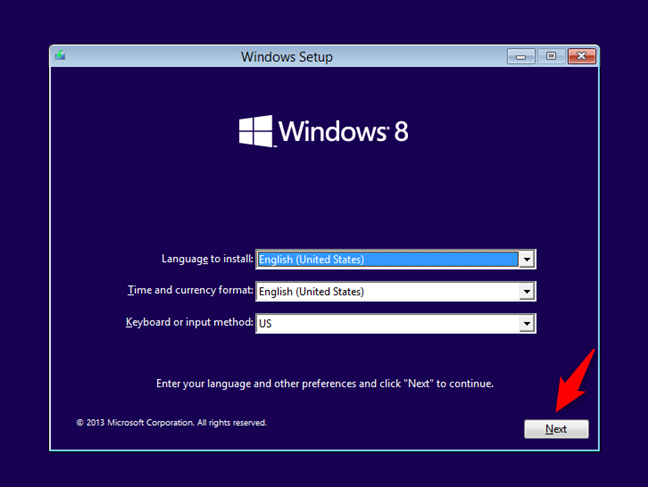
If you can create a Windows 8 or 8.1 bootable media such as a DVD or USB memory stick, or if you already have one around, you can use it to boot your PC or device into Safe Mode. Insert it into your PC or device and boot from it. When the Windows 8 installation wizard starts, select the language and keyboard layout you prefer, and press Next.
The Windows 8 Setup
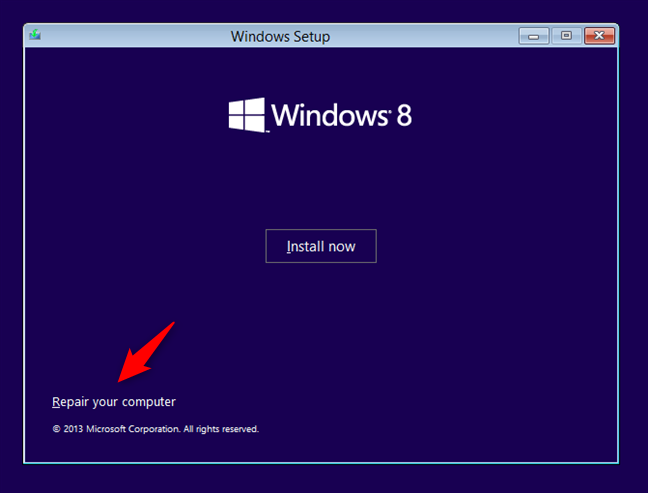
On the next screen, click or tap the "Repair your computer" link from bottom-left corner.
Repairing a Windows 8 computer
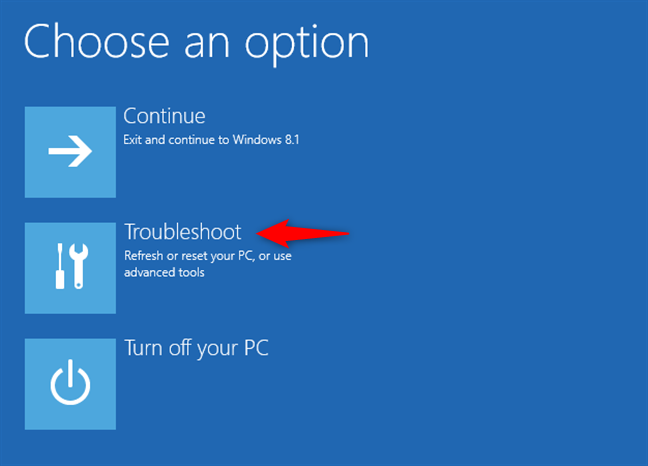
On the "Choose an option" screen, click or tap Troubleshoot.
Troubleshooting Windows 8.1
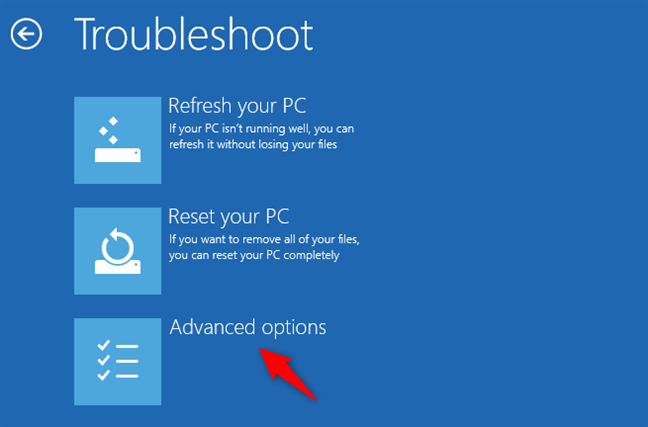
On the Troubleshoot screen, press the Advanced options button.
Opening the Advanced Options
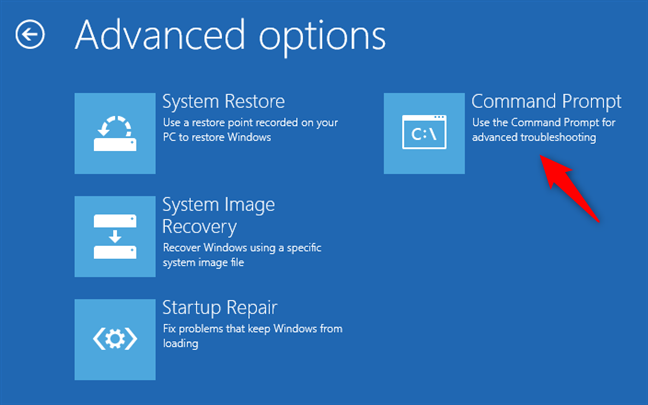
Click or tap Command Prompt.
Starting the Command Prompt
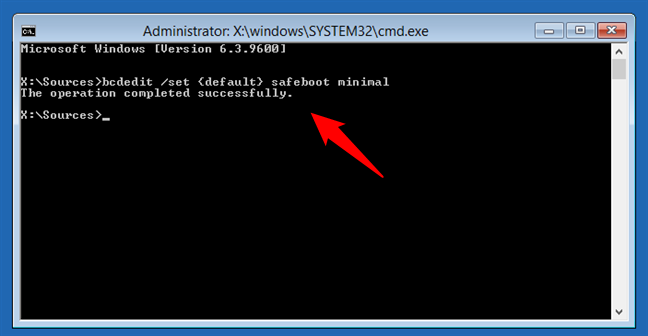
The previous action opens Command Prompt as administrator. Inside it, type the following command: bcdedit /set {default} safeboot minimal. Press Enter on your keyboard and wait to see if Command Prompt tells you that "The operation completed successfully."
Enabling Safe Mode using the Command Prompt
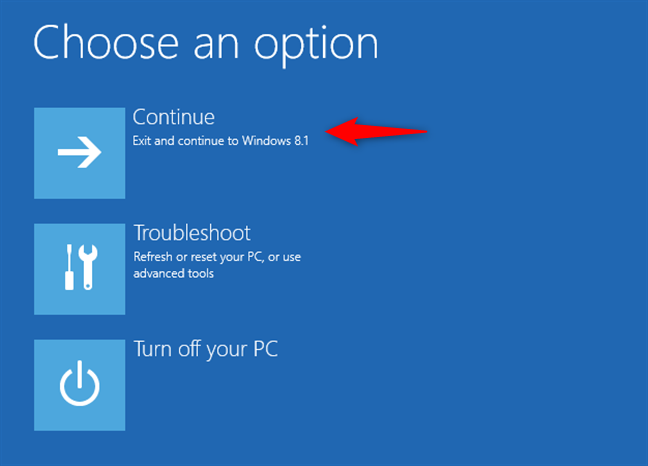
Close the Command Prompt, and Windows 8 should take you back to the "Choose an option" screen. There, click or tap Continue.
Continuing to Windows 8.1
The PC or device reboots and automatically goes into Safe Mode.
IMPORTANT: This method almost always works, but it makes Windows 8.1 go into Safe Mode every time it starts. To disable it and make Windows 8.1 to boot normally again, open Command Prompt and run this command: bcdedit /deletevalue {default} safeboot.
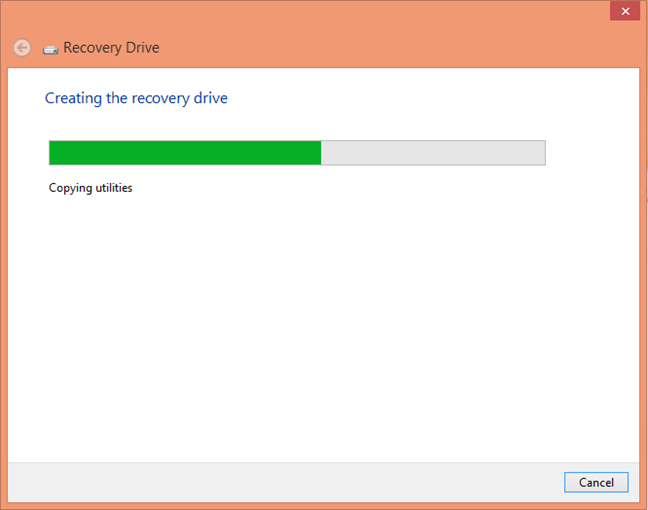
4. Boot from a Windows 8.1 flash USB system recovery drive
Boot from the USB memory stick. On the first screen, select the keyboard layout you prefer using and, on the "Choose an option" screen, click or tap Troubleshoot. The next steps are the same as the steps we have shown you in the first method from this guide. In short, you have to follow this path: "Advanced options -> Startup Settings -> Restart." Then press 4 or F4 key on your keyboard to boot to Safe Mode, 5 or F5 to go into "Safe Mode with Networking," or 6 or F6 to enter "Safe Mode with Command Prompt."
5. Use a System Recovery CD/DVD to boot into Safe Mode (this method works only in Windows 8, not in Windows 8.1)
In Windows 8, but not in Windows 8.1, you can create a system recovery CD or DVD. Here is the tutorial that shows how it is done: What is a system repair disc and how to create one in Windows.
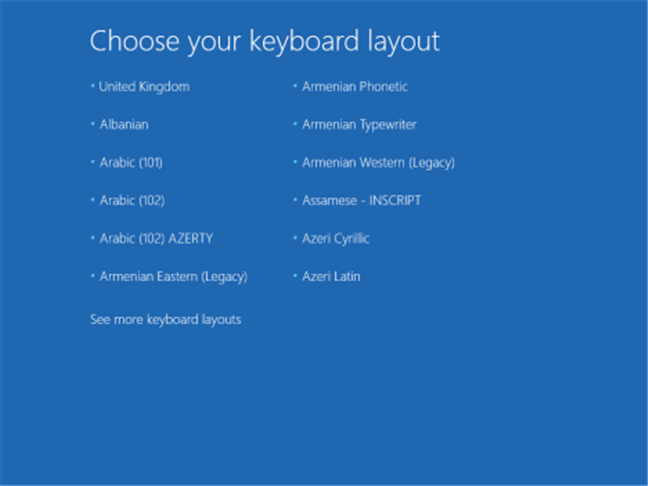
Once you have that disc created, boot from it. When asked to press any key to load its content, do so. Then, choose your keyboard layout.
Choosing the keyboard layout for the recovery CD/DVD
Once you have done that, the "Choose an option" screen is shown. From here on, the steps are identical to those we have shown in method 1. Go to "Advanced options -> Startup Settings -> Restart". Then, press 4 or F4 on your keyboard to boot into Safe Mode, 5 or F5 to get into "Safe Mode with Networking," or 6 or F6 to enter "Safe Mode with Command Prompt."
6. Use the System Configuration tool (msconfig.exe) to enable Safe Mode
Maybe one of the easiest methods for booting into Safe Mode is to use the System Configuration tool, also known as msconfig.exe.
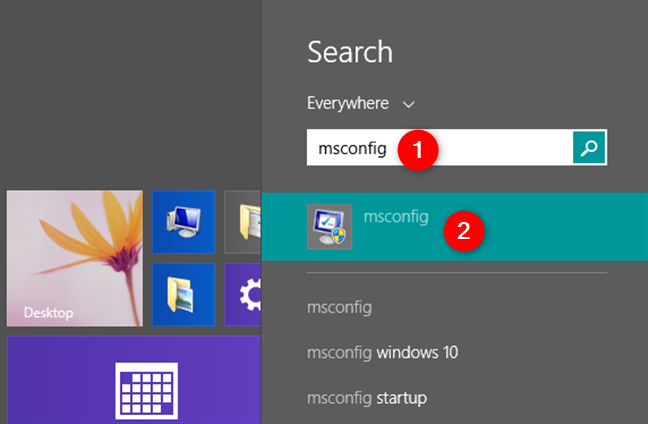
On the Start Screen, type msconfig and click or tap on the result bearing the same name. Also, if you want to see other ways to open the System Configuration tool, you can read this article: 8 ways to start System Configuration in Windows (all versions).
Searching for System Configuration (msconfig)
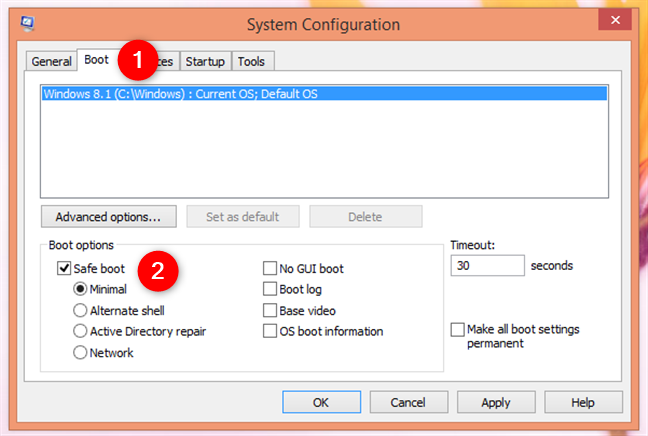
In System Configuration, go to the Boot tab and, in the Boot options area, check the box that says "Safe boot." Then, click or tap OK.
The System Configuration app in Windows 8
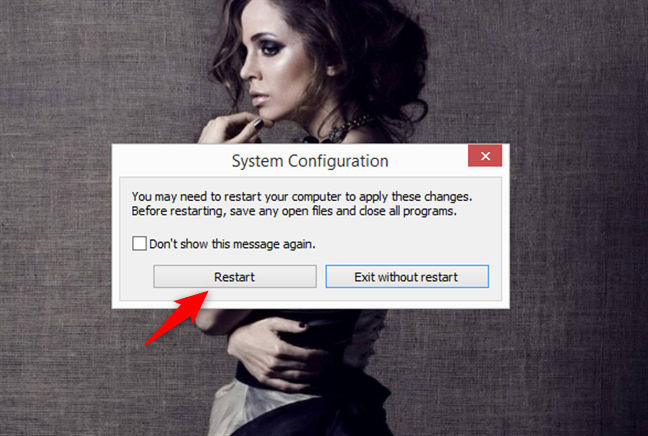
Windows 8 now tells you that you need to reboot your PC. Click or tap on Restart to reboot right now, or click/tap on "Exit without restart" if you want to restart later.
System Configuration prompt
The next time Windows 8.1 boots, it automatically enters Safe Mode.
7. Use "Shift + Restart" on the Windows 8.1 Start screen
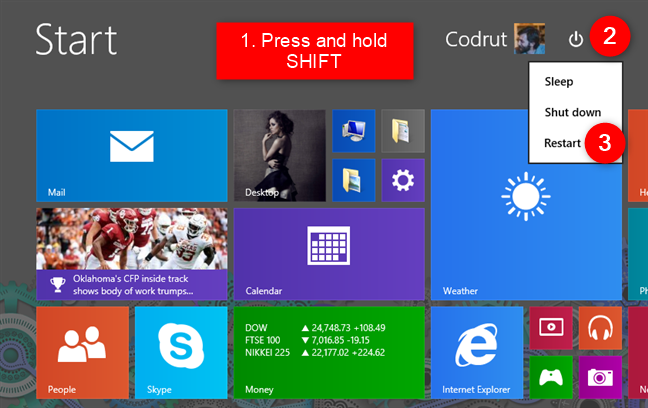
Windows 8 or 8.1 also let you enable Safe Mode with just a few click or taps on its Start screen. Head to the Start screen and press and hold the SHIFT key on your keyboard. Then, while still holding SHIFT, click/tap the Power button and then the Restart option.
Going into Safe Mode from the Windows 8.1 Start screen
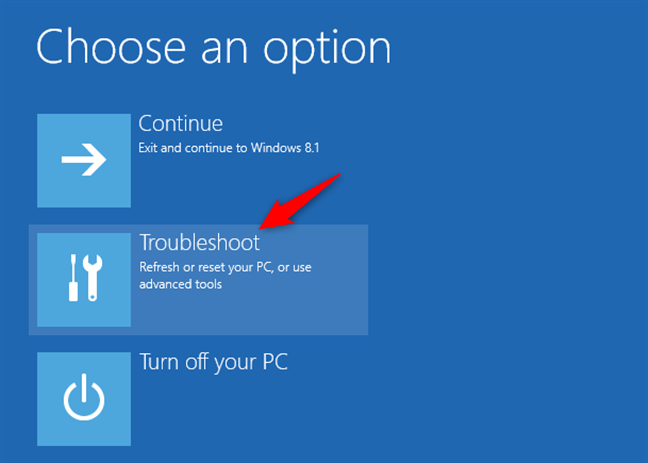
Windows 8 then takes you to the "Choose an option" screen. On it, click or tap Troubleshoot.
Troubleshooting Windows 8.1
From here on, follow the same steps as the ones from the first method in this guide. That means that you must go to "Advanced options -> Startup Settings -> Restart." Then, press 4 or F4 on your keyboard to go into Safe Mode, 5 or F5 to go into "Safe Mode with Networking," or 6 or F6 to enter "Safe Mode with Command Prompt."
8. Use the PC Settings to access the Recovery options and start Safe Mode
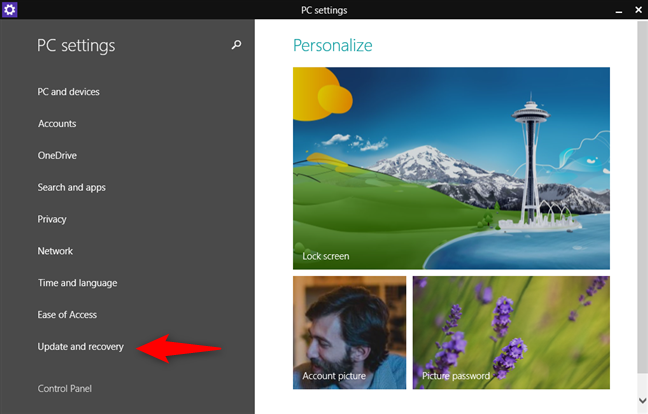
If your Windows 8 or 8.1 PC or device still works and you can log in to it, you can also use the PC Settings to go into Safe Mode. Open the PC Settings and go to "Update and recovery."
The PC Settings screen in Windows 8
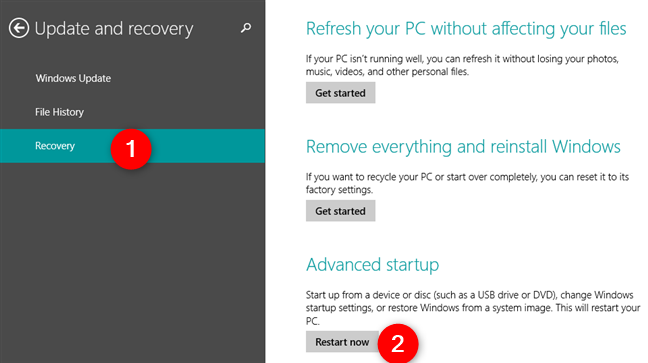
On the left sidebar, click or tap on Recovery and, on the right side of the screen, press the "Restart now" button from the "Advanced startup" section.
Windows 8 Recovery options
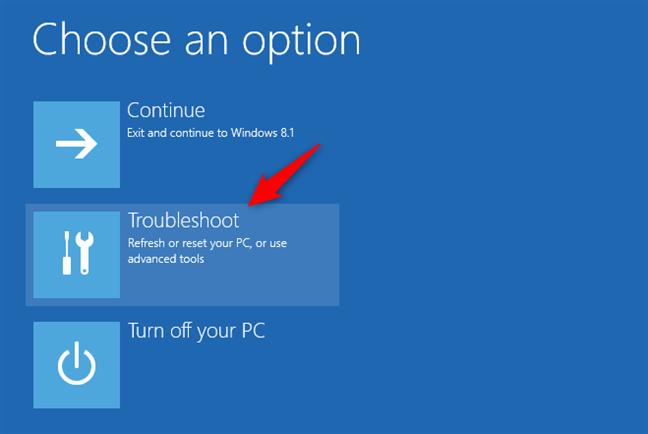
Windows 8.1 then shows you the "Choose an option" screen. On it, click or tap Troubleshoot.
Troubleshooting Windows 8
Then, must follow the same steps as the ones from the first method in this guide. Go to "Advanced options -> Startup Settings -> Restart". Then, press 4 or F4 on your keyboard to boot into Safe Mode, 5 or F5 to get into "Safe Mode with Networking," or 6 or F6 to enter "Safe Mode with Command Prompt."
9. Use F8 or Shift + F8 (does not work when using UEFI BIOS and SSD drives)
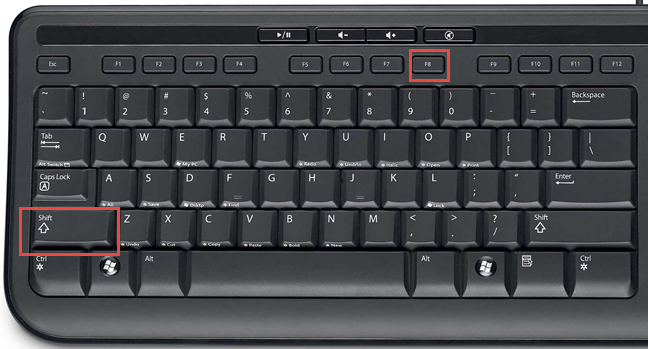
If your PC or device is rather old (has a classic BIOS and does not use an SSD drive), you might also have some luck trying to boot into Safe Mode using the old ways of pressing the F8 or Shift + F8 keys on your keyboard during the boot of your PC.
The SHIFT and F8 keys on a keyboard
However, they often do not work because Microsoft changed the way that Windows 8 and 8.1 boot. They tried to make the whole boot process faster than before (in Windows 7 and prior), but that also stopped Windows 8 and 8.1 from being able to record any key presses during startup. You can read more about it in this Microsoft blog post: Designing for PCs that boot faster than ever before.
Which method do you prefer for booting Windows 8 or 8.1 into Safe Mode?
We hope you found this guide useful. If you know other ways in which you can make Windows 8 or Windows 8.1 boot into Safe Mode, do not hesitate to share them in the comments section below. Many readers are going to find them useful.
If your car doesnt start, drive it to the closest shop and check your oil.
Love these stupid non helpful articles.
chuck stumpf ·
didnt work, if I press the shift key the progress bar freezes until I release it then it comes up select proper boot device, my PC doesnt see the Dell flash drive program
robert ·
thanks. but how do you fix choose your keyboard layout when it is stuck on the screen
Greg ·
Option 3 simply doesn’t work. After setting command successfully the system booted normally again.
Hiteshi ·
My laptop screen still shows automatic repair fails
Could not restart your laptop.
Mark Dent ·
FANTASTIC INFORMATION, VERY WELL LAYED OUT – MANY THANKS
Nkanyiso ·
Thank you guys. You’ve tremendously helped.
Mike T ·
Thanks but my problem is that nothing works that I have seen posted. First of all, it is a tower desktop, not a laptop. Not sure if that makes a difference. Second, I have nothing but a blank screen. I have a GTX 1060 graphic card with 4 monitors connected and I see the cursor on all of them but that is it. I have tried every F key on the keyboard but nothing. I worked on a project a few hours ago and it ran smooth as silk. Now nothing at all. Any ideas?
Anonymous ·
That sounds like an issue with your video card.
Syed Mansoor Ali ·
Restart Plus shift worked for Me
Thanks Guzs 🙂
Cynical Jones ·
So you get it in safe mode. That’s great. Now on the next restart out of safe mode does it go back to normal?
Anonymous ·
Yes, it does go back to normal.
xlettera ·
Easy Solution:
– POWER ON your pc.
– While windows 8.x is starting press POWER ON button until the pc will power off.
(this will cause a booting error)
– POWER ON again and windows will bring you to Safe Mode.
It works like a charm!
by xlettera
joven gatchalian ·
if my computer have a user password can i reboot the system? and can i work in safe mode? because my pc have user accnt password/ admin password i didnt change my password but my computer say’s “incorrect password” plss can you help me..
Nice article ·
Holding shift then choosing Power Button > Restart did work! Thanks!
jason ·
Thanks but it didn’t help somehow when my sister updated it it erased a file
Useless, this all assumes you can get far enough to initiate any of it
GURPREET SINGH ·
HI GUYS
I M HAVING TROUBLE ACCESSING MY WD ELEMENTS 2TB WHICH GIVES ME THE MESSAGE WHENEVER I TRY TO ACCESS IT”DRIVE L: IS NOT ACCESSIBLE, ACCESS IS DENIED”, ALTHOUGH I CAN ACCESS IT IN SAFE MODE AND PERFORM ALL THE BASIC FUNCTIONS . ONE MORE THING I ALREADY PERFORMED CHECK DISK OPERATION USING COMMAND PROMT. KINDLY HELP ME OUT
THANK YOU
Kathleen ·
The instructions DID NOT WORK AT ALL. I did not get any instructions by pushing F4, F5 OR F6. PC restarted as usual asking for a password I do not have. ZERO HELP
Mathew ·
Hold down the power button to turn off/restart your computer and wait for it to load up and then restart it again repeating the procedure. Do this for s total of three times in a row and it will boot you into advanced options/safe mode/recovery mode, etc…
Just Joe. ·
I’m always so fkn greatful when I find exactly what I want, when I want it, you Nailed it. Wicked greatful here. Thanks
Dani ·
Methods 1-2 are useless since they require a running computer. Normally you need safe boot if the system fails to start.
vivekpandiaraj ·
Thanks Its Worked well for me
james ·
hi I need help I re install my windows 8.1 single language with bing build 9600 after it needs the product key and im unable to activate it so can I get a free product key please
bob ·
that malware was flagged by malwarebytes again & its called ‘Optional Malware protection. exe & think it was imbedded in a german YouTube downloader, no idea but it don’t like being got at FYI just go’s round shutting things down when U update or change things
bob ·
I cant get in 2 windows to do that as It did not restore / virus stops logging on & gui is a blank screen w a cursor arrow no windows IE etc so I have to get to safe mode before it hits the login screen w 8. who gives a shit ‘bill the fuckin twat gates’
Rafael ·
Is there another far possibility when no keyboard nor mouse in Windows (only during boot) due to USB driver issue?
Gareth Saputra ·
My os is win8.1 ,SSD drive ,and I have some trouble with “application error logonUI.exe” before log on screen and my screen goes blue. I can`t use Safemode hotkey shift+f8 or f8. Anyone can help me please?
Eddie Blair ·
none of these work for me on restart I do not get a proper reboot the tower is on but no signal is sent to my monitor and the tower turns off with one touch.
Eileen ·
I have a Dell Inspiron 15- laptop. I recently put in a new hard drive. Re-installed windows 8.1. There are no internet connections. What do I need to do. Any help will be appreciated. Thanks
joseph ·
i’m very thankful to you, nice tips !
cee ·
My Proline windows8 screen is blank, I switch it on nd after its logo the screen becomes blank with a cursor. When I press F8 after restarting it, it displays options but when I press F4 or F5 for safe mode it reboot but nothing heppens the remain blank, now I don’t know what to do. If I try command prompt then it says I must put password but only 3 buttons works when I try to enter it “m,space and backspace but when m not entering the password all buttons works nicely.
Help plz
Anon ·
FYI for the F8 or Shift+F8 to work immediately after pressing the power button press and hold the key(s) to get into recovery with windows 8/8.1
Paulo Melo ·
Way number 2 was ok for me…i have a ssd and needed to reboot in safe mode…Shift+Restart was a great tip…Many thanks..
hhhh ·
By tapping the F8 key you can do it
Damique ·
hello from Jamaica,
i have found a way to boot to safe mode in win8.1 and 8.what you are to to is immediately power off the pc at the wondows icon,power the pc off by any means necessary to let window windows fail to boot a couple of times. Then you should see an advance repair option, select it and thats it…….. boom!
SHlT ·
I would just like to add that if you have a UEFI computer and can’t actually access Windows, you can Ctrl+Alt+Delete during the boot process a few times to reset the computer forcefully and Startup Repair will eventually start. You can then access advanced options from there.
Mag ·
Oh thank you for posting this. I downloaded and installed Windows 10. And was unable to sign in to my account due to windows 10 not recognizING the password. I had to reinstall windows 8. Wouldn’t of been able to if you didn’t post this. Thanks again.
azeez ·
Thank a lot.
very use full information.
adigrt ·
i hav win8.1 now prblm is
when i start it the hardware gets started
but there nothing on screen .My caps lock starts blinking…..i use caps lock in my password…….
when i connect it to my led by hdmi it detects a system but display is same as the laptop .
laptop – hp pavilion series
Peggy ·
Had a message from the HP support that I needed to “restart” my 18 mos old HP touchsmart 17t-l100 quad edition lapto, running 8.1. Started the restart which took almost 1.5 hours, then got a screen indicating it would need restart but ‘collecting info’, also got a additional message indicating, ‘system thread exception not handled’ with a bit of something else ‘ia StorA.sys’……………..After 2 more hrs, I turned the darn thing off and went to bed……….(it was getting very late). Does this mean I need a new laptop? What’s going with this thing, and do you do phone support? Thank you for your assistance.
Richard ·
Omg thanks! The bootmenupolicy is a life saver!
Some seriously mentally retarded people at microsoft these days.
2 steps forward 5 steps back. Such a shame.
BINISH CJ ·
Thanks a lot…..
wandasue ·
wow – i remain completely underwhelmed – the safe mode process gets more and more complicated and time consuming and complicated simply for the sake of justifying some techie job … safe mode used to just be an option easily accessed by F8 – this is ‘progress’? AND i have to look at some lame commercial before i get the security code to enter to send this email? millennials=sheep
tabsheer ·
i hav windows8 os in my samsung laptop. My screen turns black colour after showing the windows symbol. I cant do anything to it. I cant go to the boot menu. How i change my os? Any one please reply
Hank ·
This was looking promising until I started reading — wtf is a “boot tab”? Where would I get to it? And wtf is a “charm”? I stopped reading there as I was hoping for instructions in English but suffice to say holding F8 on restart doesn’t do a damn thing.
Hank ·
Also tried restarting holding Shift. That didn’t work either.
david ·
Hi, Can anyone help please? My acer won’t boot up. It goes straight to “preparing automatic repair”, “diagnosing your pc” “attempting repairs” then to the blue screen “Automatic repair”. I can get into the trobleshoot>advanced options>start-up settings, and hit “restart”. But on restart it does not go to safe mode. Anyone know a way to get it into safe mode? The start-up repairs does not work, and it can’t find a restore point. I think something seriously went wrong. Thanks
tema ·
my acer win 8.1 is stuck on the booting loop. i cant access anything, it just keeps on booting again and again.. plzzzzzz help me. im definitely going back to win7
bbk ·
I used step 1 to select safe mode, now my lenovo laptop attempts to boot but freezes before getting to windows. What should I do to get to my data? System recovery will erase my data. Please help!
Mustafa ·
you’re the boss right you nailed the safe mode subject
Rosier ·
Windows 8.1.
Thank you for your help. For a week I have been trying to boot into my computer without success. I have Googled numerous website for help and tried many solutions but none worked. Then I came across your site and saw your suggestion to hold down the shift key and press restart, it worked like a dream, the menu appeared and although I am having to refresh Windows 8.1. which means I will have to reinstall all my software, at least I will have a working computer again.
YourMoma ·
good page except for the part where you made me cringe by saying ‘UEFI BIOS”, UEFI and BIOS are both interfaces to firmware and there is no such thing as a “UEFI BIOS”
Emily Dicson ·
No doubt, Windows 7 Professional 64bit is a Pro version of Microsoft, Which has all recommended functions, So you can install it with low specs of your system, As you can see; 1GB Processor, 512mb Ram and 8Gb HDD is required to install Windows 7 Professional, But with these low specs, Your system will not slow, If you’re not using any apps, which required high specs.
Microsoft released many new OS, But I’m using windows 8.1 professional version and suggest for others to install with its legal license, Which you can buy cheap at: ODosta Store.
Using Boot into UEFI mode or legacy BIOS-compatibility mode when installing Windows from your USB, DVD, or network location, You’ll have full command to use it after having a legal version.
Legal OS will be full & functional with Microsoft updates and make your data safe and sound. Hope to understand.
cdfdsdsa ·
windows 8.1. another piece of shi…. of microsoft. bring back old 7 to me… always…
Paige ·
If ctrl + f8 doesn’t work try fn + f8
James ·
Thank you very much!
Friendship ·
Hi there
I was having problem booting after i restart my pc system because one app got lock in won’t delete so i rebooted the windows 8 and after i rebooted it load then i can not see the metro and desktop and this is so unexpected for to have this problem and good thing i have a tablet and suddenly the safe mode would not work on windows 8 not able to interrupt so i end up searching google for option and i found this site and it did help a lot the first option did work and tried the second option it did work thanks a lot for the tip..
Persio ·
It seems to be an speed challenge!
If you have the following combination: UEFI + SSD + W8.1 SAFE MODE
Try out a team work!
I asked a friend to turn the computer on while I pressed the SHIFT+F8.
Crazy, but BINGO!
Hope you enjoy and have success as well,
; )
gamalaleem ·
thanks a lot
you are great
chris402 ·
Failure I.d.# uoeoom7k87khmfpm6k61re03
Product I.d.f3e48aa#aba this code was given after failure to boot after I ran system to repair. Can someone please help me just keeps saying failure to boot??
Jarrett Embry ·
DUDE! THANK YOU SO MUCH! I couldn’t get to safe mode or even remotely access my laptop, and I NEEDED to for an important project for school. I am able to fix my pc using the shift + restart trick. Thank you so much. I was even calling my nerdy friends on skype and they couldn’t do it, I couldn’t even access msconfig!
Joe ·
Guy can you provide me the serial number of windows 8.1 I’m trying to reboot my computer but the system asks the key!
Josh ·
Can somebody help me, I made partition on my Pc after formating it (reboot) then when I was done with partition I activate my windows, while restarting it won’t restart, i tried to use other system but a message apear”this computer need to be repaire”or boot failed, what can I do for this plaez i need help now!
Computer mark is TOSHIBA
Stephen Johston ·
Try holding down F8. Worked for me.
Yama ·
Is there any way to go on safe mode when the computer just start (by pressing any key)?
because my computer is not coming up. it goes black, when I turn it on. and I want to go on safe mode first, to fix the problem.
peter rasin ·
Hey everyone, there is a way to re-enable the f8 function. As an administrator in command prompt type and execute the command bcdedit /set {default} bootmenupolicy legacy
You should be able to use the f8 key to enter safe mode options.
dzhiuge ·
Question: how do I get to safe mode without logging in? I have a problem with my keyboard and can’t log in. That’s why I’m hoping to get to a safe mode and try to fix the problem. But how do I do that?
Jarrett Embry ·
Shift-click and push the restart button after you restart and the wallpaper goes up. Press and hold shift and left-click on restart and then go to troubleshoot
maneesh b.s ·
Thank you very much..you guys save my life
Jake ·
And to the person who wanted to go back to factory defaults but keep their files. Once you are in the recovery options, you can choose to “Refresh” your PC. This seems reasonably successful in rolling back software and updates but not data. System Restore in Win8.x is a joke so this is often the best option for that.
Jay W ·
I unexpectedly ended up getting through to Microsoft support (for whatever reason it’s impossible without product ID #s, on a cell phone) and made some scteenshots of what was said for my IT friend.
I was told that I had to have an installation disc (no idea what the point of burning 6 recovery discs is even for… haha!) and a product key – to perform a clean install, and my files would be lost.
I asked why 8.1 was made like this… that a person could be locked out of their own machine permanently yet their current passwird works EVERYWHERE else but on this HP notebook. The tech support member (though not her fault) was apologetic and even a bit honest with me about the login problems Microsoft created with this and, between the lines herself sounded a bit frustrated about it and some sort of fix not being addressed. Now what does that tell you? Head office couldn’t care a less!
My IT friend however urged me not to contact HP for the OEM disc and product key (the first was definitely not included with my phone/net/tv company’s promo, the key I think is on paperwork I’ve lost since a recent move, somehow)… yet at least. He’s convinced he can crack in (with a remote assistance program through Ubuntu) and be able to recover my files.
If there’s any good out of this… I am pretty sure weeks prior to being locked out after tge password change, I’m pretty sure when I last used the notebook I transferred most, if not alk, my files onto my desktop as browsers were running insanely slow on it online. Still… you just never know what you may lose. Just waiting now for my buddy to have enough free time for us to try out a new attack plan.
Jay W ·
Apologies for the typos… can’t type the best on cell.
Jake ·
This goes back to the horrifying video driver issue that MS still, in February doesnt’ seem to be properly addressing. If you remove the battery and then pull power while windows is booting, it will reboot into the “repairing startup problems” mode and allow you access to safe mode. This is a rather extreme method, but in some cases I’ve seen no other option.
Even trying to follow click by click through the black screen that should be the desktop can fail when people have logon bypassed and apps opening on startup.
Dennis ·
Yes, thanks for you article.
But I wonder if the brain trust at Microsoft addressed the issue of what do you do when you machine will not boot up so you can get use the window based option into safe mode? hmmm. guess not.
I have a machine that was working fine, I applied a single update to it and it started to do the restart process. Two hours later, it was still trying to log off. So I turned off and tried a restart. Now it boots to a blank screen. I can run task manager, but I can not start explore.exe or any other process.
Yancy ·
first I’d like to say thank you for the comments but unfortunately you’re solutions has not worked for my issue I got a similar issue that and when I was having with them on the revolution but of course I cannot access a tease men use for the reply me to first read into the first login menu which I am unable to do it can I get this error message at the time
Brian KUKHTA ·
Windows 8.1 Acer lap top (without touch screen) / To attempt to repair a Java issue and I wanted to boot in safe mode. From searching the web on how to boot in safe mode I did ‘Run’ entered ‘msconfig.exe’ then in pop up window clicked boot options ‘safe mode’ ///// there was 4 options were available: Minimal; Alternate Shell; Active Directory Repair; Network. I NOW realized this is were I went wrong; I click ‘Active Directory Repair’.
Now when I start the computer, I get a blue screen with the following options: (bottom right corner icon) shut down/restart; (bottom left corner icon) Narrator/Magnifier/High Contrast/Sticky Keys/ Filter Keys. THOSE ARE MY ONLY OPTIONS. I can get into the Bios setting when booting up. How do I turn off ‘Safe Mode’ and start Window 8.1 normally? ………… I detest Windows 8.1!!!!!!!!!
Please Help
Jay W ·
Does not work when computer locks you out.
I had changed my password while not logging into my 8.1 notebook for a month or few. For whatever reason, my current password works online even on my cell to sign into Windows Live, but hits a titanium wall on my HP notebook.
I try logging into it and am fully locked out. My memory isn’t the best… couldn’t remember whatever the last password I used while on the notebook was. Tried every one I could remember… no progress.
I can get to the pale blue pages, “Choose an option” (as you showed above) but every option I try tells me that I am locked out of the drive my OS and hard drive are stored on.
To make matters more frustrating… I try the Microsoft support option and get so far as needing product ID #s that I can’t access because the bloody machine fully has locked me out… so infuriating to be locked out of a device I own…
That’s what these new paranoid security features have become for me. Feel like tossing the damn machine out a window right now… but that’s definitely not your fault.
Maybe posting here can help me get back in. I can’t even get into safe mode… would be willing to go back to factory default if I could at least get to my files to save them off first.
John Witt ·
Restore Windows 8.1
Restore runs 10 to 15 minutes, then restarts. Get message system restore not complete. Probable cause anti-virus program running. Error occured during restore (0x80070005). Disabled Eset security, disabled internet access, tried different restore points, nothing works.
Anything else I should try?
I was thinking about maybe trying it in SAFE MODE.
Thanks, John
Jennifer Davis ·
I have windows 8, i changed my windows password and i cant remeber what i changed it too. Also I did start my outlook but i closed it out before completing i have tried the f8 option and i was uinsuccessfull and i dont have a recovery disc. Can anyone help and if so thank you
Brian KUKHTA ·
Jennifer: Void Safe Mode! I am in a similar boat as you. In safe mode, I can get to the screen to enter my password BUT ……. the 4 digit pin (number) code I have been using for over 6 months does not work as a password. Since I do not use outlook .com for emails, I forgot my (letter) password. I reset my password at outlook.com but the new password will not log me onto the computer because it has not can not connect to the internet. That is where I am stuck. Hopefully people at outlook.com can pass on my old password to get me out of safe mode.
Every other Windows operating system will start normally when you re-boot; Window 8.1 will continue to reboot in safe mode. I emailed Microsoft in an attempt to retrieve my old password without it I am screwed.
Maybe Windows 8.1 works well on a tablet but I sucks for a laptop.
Karlos ·
I have been trying to start safe mode on a Samsung notebook with little success, tried all of the ideas in the posts. However I finally tried ctrl+alt+ delete and kept tapping it on boot up much like you would tap F8 and strangely enough it took me to Automatic repair mode which has at least allowed me to continue past the BSOD. Hope this helps
SHoOKii ·
msconfig
thanks , again thanks 🙂
Ken Caron ·
The #1 method to access safe mode worked well. But now I can’t get back to normal mode. Is my operating system 8.1 messed up or is the method using advanced settings, startup method, the wrong place to go to take out of safe mode? Even if I completely shut down the machine it continues to open in safe mode.
SHoOKii ·
to go back to the normal mode you have to run msconfig.exe again and remove the check box of the safe boot in the boot tap under the boot options and then restart your system.
Brian KUKHTA ·
Ken: I am in a similar boat as you. I can get to the screen to enter my password BUT ……. the 4 digit pin (number) code I have been using for over 6 months does not work as a password. Since I do not use outlook .com for emails, I forgot my (letter) password. I reset my password at outlook.com but the new password will not log me onto the computer because it has not can not connect to the internet. That is where I am stuck. Hopefully people at outlook.com can pass on my old password to get me out of safe mode.
Every other Windows operating system will start normally when you re-boot; Window 8.1 will continue to reboot in safe mode. I emailed Microsoft in an attempt to retrieve my old password without it I am screwed.
Maybe Windows 8.1 works well on a tablet but I sucks for a laptop.
kimkoceja ·
When at command prompt I typed the msconfig.exercise and it states “msconfig.exercise is not recognized as an internal or external command.”
When I was originally trying to start in safe mode before I found this page, I got a message that my hard drive was locked. Is this why it’s giving me this message because it isn’t recognizing my hard drive? I have 8.1 on my computer.
Ziad ·
Hello, I can’t access my windows 8 to recover it same as the safe mode as the PC block on a back screen when I turn it on with an error message appear, any advice?
Me ·
whoever posted this thread i would like to hug you tightly
Ziba ·
thank you
kix ·
i can’t access to safemode. i try hitting the key f8.. doesn’t work also try hold shift +f8 still it doesn’t work and i try another option. while starting my windows 8 i directly unplug the power cable try to access safemode still that doesn’t help me. what i did was start up my computer login to my windows . i go to RUN (win + R) –> msconfig–> boot–>select saft boot. thats the way i did it.
My question is if can’t start up my pc (windows) what option do i have to go safemode. can anyone tell me.?
desperate john ·
I’ m using win 8.1 and at the advanced options, I was presented with the UEFI Firmware Settings option instead of the Startup Setting. Anyway to go around this… Without the startup setting there is no way I can make it to boot into safe mood. Thanks for any advice and suggestion.
Maypex ·
Guys I have a problem that I cannot fix with these six steps. My problem is that my laptop startsup and then displays the hp logo and the windows 8 loading sign. I then wait about a minute then the lockscreen does not appear, there’s a black screen where the network icon and the ENG US would blink from time to time. Oh and the cursor appears when you’ve touch the mouse pad and then disappear after a few seconds. How can I fix this…????
Jake ·
This goes back to the horrifying video driver issue that MS still, in February doesnt’ seem to be properly addressing. If you remove the battery and then pull power while windows is booting, it will reboot into the “repairing startup problems” mode and allow you access to safe mode. This is a rather extreme method, but in some cases I’ve seen no other option.
Even trying to follow click by click through the black screen that should be the desktop can fail when people have logon bypassed and apps opening on startup.
Labrat0116 ·
I obviously deleted a wrong file in the Registery and now after Booting my PC, I get this as my Start screen.
I’ve tried most all suggested fixes posted in this thread and NOTHING works.
I can not get to any screen that has anything readable what-so-ever.
How do I unbrick my PC ?
TIA
Dan Boyd ·
Hey can someone let me know the sequence of keyboard commands to do this in Windows 8.1 from the log in screen? I have a home server running Windows 8 that only shows a black display when it should show the log in screen. I am running Windows 10 Tech Preview on my laptop. The correct keyboard sequence to boot safe mode from the log in screen there is as follows: Once you start the computer and the background comes up under Windows 10, the select sequence is:
1. Hit “Spacebar” (this will lift the screen so you can log in)
2. Hit Tab, Tab, Tab, Tab (this hovers over the power button)
3. Hit Enter (this opens the power menu)
4. Hit the Up arrow key (this selects Restart)
5. Hold down the Shift key and hit Enter (this says “Please Wait”, then opens the start up options)
6. Hit Tab, Tab, Enter (selects Troubleshoot)
7. Hit Tab, Tab, Tab, Tab, Enter (selects Advanced Options)
8. Hit Tab, Tab, Tab, Tab, Tab, Enter (Selects Start-up Settings)
9. Hit Tab, Enter (selects Restart)
10 Wait a couple minutes, this lets the advanced start-up menu to come up
11. Hit 5 on your keyboard. This selects Safe Mode with Networking
vitor ·
I found a way To enter recover mode With F8. Before turn on your PC keep pressing F8 as fast as your can, and at same time turn on your PC. For me it worked, when i turned on my laptop it automaticaly entered in recover menu. Hoje it helps for you.
John Roscoe ·
My Tower PC, Win 8.1 64 bit , driving TV, so no touch-screen, now only boots to black screen displaying time & date in bottom left corner, with a small icon I cannot access as no input accepted from keyboard, trackball, mouse, anything. Help!
dimitri vanhaecke ·
how i got my pc working again
interrupt startup: Power off during windows logo
then reboot then menu for repair is there again !!!
LOL
Por favor
debraj ·
i am having a problem with win 8.1. really i want to remove it and want to install win 7. is any idea to do this if so please guide me. it will be appreciate……
ann ·
Many people advise to use the ` bcdedit /set {default} bootmenupolicy` legacy command
for makig F8 key work while booting on Windows 8.1, but for me didn’t work like this.
If the bcdedit /set {default} bootmenupolicy legacy gives you the following output
“The boot configuration data store could not be opened. The system cannot find the file specified.”, as
it did for me follow the instructions from [1](the answer marked as the right one).
If you do not want to document yourself reading the answer from [1], just type the following command:
bcdedit /store c:BootBCD /set bootmenupolicy legacy
It worked for me.
Explanations:
Boot Configuration Data (BCD) files provide a store that is used to describe boot applications and boot application settings. The objects and elements in the store effectively replace Boot.ini.
BCDEdit is a command-line tool for managing BCD stores. It can be used for a variety of purposes, including creating new stores, modifying existing stores, adding boot menu options, and so on. BCDEdit serves essentially the same purpose as Bootcfg.exe on earlier versions of Windows, but with two major improvements.
Administrative privileges are required to use BCDEdit to modify BCD.
/set Sets an entry option value.
/store
This option can be used with most BCDedit commands to specify the store to be used. If this option is not specified, then BCDEdit operates on the system store.
So when you open cmd with the option “Run as adminstrator” you are in C:Windowssystem32
and that is why system cannot find the file specified, so you must specigy it c:BootBCD.
bootmenupolicy [ Legacy | Standard ]
Defines the type of boot menu the system will use. For Windows 8.1, Windows 8 and Windows RT the default is Standard. For Windows Server 2012 R2, Windows Server 2012, the default is Legacy. When Legacy is selected, the Advanced options menu (F8) is available. When Standard is selected, the boot menu will appear only under certain conditions: for example, if there is a startup failure, if you are booting up from a repair disk or installation media, if you have configured multiple boot entries, or if you manually configured the computer to use Advanced startup. When Standard is selected, the F8 key is ignored during boot. Windows 8 PCs start up quickly so there isn’t enough time to press F8. For more information, see Windows Startup Settings (including safe mode).
Note The option is available starting with Windows 8 and Windows Server 2012. You can also use the onetimeadvancedoptions to use the Advanced options (F8) menu (Legacy) one time on the next boot.
Paul Zavadski ·
Hi !
I just discovered how to enter safe mode even if you did not have such option when boot from stick or etc… ( On logon screen I had NO power off button so shift-restart did not go! )
When booting windows – shut down PC incorrectly several times ( hold power button or press reset ) – after that my windows booted in recovery mode without stick & missing option “Startup settings” in Advanced options was enabled!!!
TerryTibbs ·
Awesome article – clear, consise & resolved my 8.1 freezing on login problem.
Keep up the good work – many thanks!
louise parker ·
I have an advent monza t 200 laptop and it will not boot up. Power lights are on when switching laptop on the advent screen comes on and a dot of white circles show then that goes off and left with blank blackish colour screen. Have tried all function keys and even inserted recovery disc and powers on but nothing appears. Have tried taking battery out and starting just with power cable but still nothing how can I get into any recovery mode when nothing appears on screen laptop screen must be working as I see advent logo when first powered up. Running windows 8.1 thanks
spike ·
Can you get into BIOS?
louise parker ·
Hi spike thanks for your response however managed to sort problem but did have to do a complete factory reset. I managed to get into utility page by pressing and holding f2 when powering up then had to change boot system to cd/dvd drive. Then I put in recovery disc and then rebooted again by powering on then this took me to recovery menu I tried many different restore points however my anti virus program was stopping it from restoring and as I couldn’t get into windows to disable the anti virus program I had not alternative than to factory reset so back to windows 8 at the moment and having to start a fresh with everything very frustrating but at least didn’t have a laptop that was scrap! Thanks anyway
Bahram ·
Thank you, Very much, This is the best post on net which i found.
Micks Moggie ·
I was unable to update from Windows 8 to Windows 8.1 because Mcafee was preventing it, I had to uninstall Mcafee then it updated OK.
Pouria ·
thanks a lot…
Ramy ·
Hey, it Tried going to safe mode in my windows 8 using the steps you provided but my laptop will not restart on safe mode. Is the any other way on how I can get my laptop to go on safe mode??
marvin ·
stupid – windows 8
running same loop cannot install updates reverting back …. error 12 hrs straight and no real simple fix.
Keiran John Charlesworth ·
Just a quick note:-
i was having probs booting into safemode with Windows 8.1
I use a VGA video splitter to run my monitor AND my 42″ Plasma TV to watch movies off my HD
I found the Acer Aspire XC-603 would not boot into safemode until i took out the splitter
hope this may help others
xxxxxx ·
Thanks man. it works perfectly….
subhash jha ·
If i am not able to login to windows 8 desktop screen,,then what is the procedure to boot into safe mode….
Ciprian Adrian Rusen ·
Try number 2 or 4.
Anang Rizkie ·
Thanks,, nice info 🙂
Jonas Steinberg ·
Beautiful! Completely ridiculous that MS removed this feature stock as it can be powerful for getting around BSODs. Yes, I know there are many other ways, blah blah blah, but in enterprise desktop / laptop environments where local backup / system restore policies are often neglected, the advanced startup options, especially LKGC, can be a real life saver.
bcdedit /set {default} bootmenupolicy standard
Npc ·
Thanks for the great article. I was wondering , however, previously in Win 7 or below using BIOS, if the OS had crashed and won’t boot then we could enter into the setup mode and choose to boot from a disc and by using recovery or installation disc restore the problem. What about Win8, if we cannot interrupt boot, and it fails, how to enter into setup mode (F2 AND F12)????????
Imran ·
thank alottttttttttt…. thank you soo muchhh…
that thing works for me
MF ·
No luck.
New laptop with Win8.1, less than 24 hours after I get it, it goes into “User Profile Service service failed. Could not load user profile.” I can’t get into the system to use MSConfig, power button at login screen doesn’t have restart option, have no system recovery CD or memory stick yet, and I have an SSD.
I’d be interested to hear if there are any options that don’t involve paying somebody $200 to service a $250 machine.
This is pretty effing stupid. The world’s biggest operating system, not in beta, can’t get out of the house without a fatal failure. I haven’t chosen to use a MS product in four years. It looks like it’ll be that long again, unless there’s some simple fix that nobody out there has listed yet.
Ciprian Adrian Rusen ·
Why don’t you return it if this has happened less than 24 hours after you got it? Maybe the SSD is corrupted and not working well and that’s why Windows is not able to function correctly. Also, fixing this problem should be free and covered by the warranty you have for the device.
MAW ·
You solved my problem. Thanks for the tutorials.
Tien ·
Thank you. I’m on windows 8.1 and was trying to smash F8 to get it to the advanced boot menu in vain. The shift+restart trick works for me. Again, thank you.
i updated win 8.1 but there is no image on the screen. i tried to enter safe mode but there is no startup settings on advanced options. what can I do.
thanks.
Henkenator68NL ·
It is possible in Windows 8.1 to get to the safe boot option if you cannot enter the OS.
Wait until the windows screen appears stating: It it appears that your PC did not start correctly (something like this, mine is in Dutch so a rough translation). You can than select restart or advanced options.
Choose advanced options, then you get to the same menu as shown in pictures 7 (In the Advanced options screen, press Startup Settings.). After that samething for picture 8 (You are informed that you are about to restart in order to change several Windows options, including enabling Safe Mode. Press Restart).
Hit enter it will reboot and the menu shown in picture 9 (Your computer or device restarts again and displays nine startup settings, including Safe Mode, Safe Mode with Networking and Safe Mode with Command Prompt) appears.
This way you can still enter save mode without any dvd or whatsoever.
Krvin ·
I’ve done this and it still takes me back to login screen instead of safe mode why
mikewilson ·
“The boot has become so fast that it literally cannot be interrupted by any of your keypresses”
Most stupidest excuse for poor programming.
Boot loading can be fast and also check if F8 is pressed – it wouldn’t slow down the loading process.
Stupid.. Soo stupid….
Bobby B ·
I agree. It sounds like they’re trying to make the fact that it is harder to boot into safe mode a selling point.
Even it that was the case I’m sure no one would be bothered if they incorporated something like a 1/4 second pause during boot that could recognize certain keypresses. I think that would go a long way.
bobTheBuilder ·
I was possibly about to throw this tablet out the window. Thanks for the “Hold Shift and Select Restart”!!
Ciprian Adrian Rusen ·
I’m glad that this guide was useful to you. Don’t hesitate to pay us a visit from time to time, or subscribe to our weekly newsletter.
kavya ·
Hi
I have windows 8.1. It asked me for an update of rebooting of antivirus I agreed.. and now it is taking a lot of time.. hours together. . I tried restarting the system in safe mode it didn’t work. I tried restarting using ctrl+alt+del even that didn’t work..
Please help me I have to complete my project work and I am struck with this problem 🙁
Goytá ·
I’ve just installed Windows 8.1 and I’m *trying* to get used to it. I’m almost going back to 7, but I’ve decided that I’ll give it at least one week before I decide. The lack of the Safe Mode by usual means is yet another serious problem with it. Well, methods 1 and 2 assume Windows is minimally working and usable, but if one needs to enter Safe Mode, more often than not Windows will be frozen and/or won’t boot normally, so they’re no use. Method 3 doesn’t apply to me, as I’m on 8.1. Method 5 won’t work either (my mobo is not UEFI yet, but I do boot from a fast SSD). So, only method 4 is left, and I’d better spare a USB stick for that before I need it. You should indicate the necessary size; I’m going to try a 4-GB stick. Thanks a lot.
Randy Lay ·
you might want to download classic shell it makes windows 8 look and act like windows 7 but much faster
Bobby B ·
I think you’re missing his point. As good as classic shell is, it will not change the way windows 8 boots into safe mode. Which is the problem he was talking about.
Ann ·
Thanks – I don’t have another pc with same software. But I did find advice specific to Samsung pc (which I have) that took me to a restore option … wiped everything to last restore point, fortunately I had backed up recently … but who’d want to upgrade to Windows 8.1 when this might happen?! I won’t be trying it again anytime soon. Thanks for advice!
Ann ·
Thanks for these tips… I just installed 8.1 and upgraded an intel driver that windows asked me to do – now reboot only takes me to a black screen. If I hover mouse cursor over the screen I get the little swirly that says it’s thinking, but it never goes further.
How on earth can I start in safe mode from here?!
Any suggestions so welcome. Have searched Web but can only find how to start safe mode when you are already logged in, so I’m really stuck…
Ciprian Adrian Rusen ·
Create a System Recovery Memory Stick on another PC that works. See step 4 for a link to more detailed instructions.
tom ·
but if you have 32-bit windows, the windows on the other pc have to be 32-bit too, similar for 64-bit
tom ·
but if you have 32-bit windows, the windows on the other pc have to be 32-bit too, similar for 64-bit
Joe ·
Use F8 or Shift+ F8 while booting. You will be presented with multiple boot options, including Safe Mode.
If you are using UEFI Boot, then F8 and Shift + F8 won’t be captured, so follow the instructions below to fix this.
You will have to boot from Windows setup disk. If you cannot fire up the bios setup because of fast boot being enabled, unplug your computer’s power and battery, so you perform a cold start. Pressing shift + Shut down button is supposed to also disable Fast boot on some machines. You will be able to enter bios to allow boot from external drive now.
After windows setup is launched, click Continue
(Next) and then Repair mode.
In Repair mode go to Troubleshoot then Advanced options then Command prompt.
Here type bcdedit /set {default} bootmenupolicy legacy
This will enable F8 support for Windows 8.1 UEFI installs.
Flem ·
Dear lord thank you so much. Spent three hours on this issue and bootmenupolicy legacy did the trick <3.
SoftUserz ·
Once used correct command, worked a treat!!
did the F8 thing just in case I have any probs!!
“bcdedit /set bootmenupolicy legacy”
Nice one!!!
Ron ·
My laptop seem to be stuck on safe mode. I only have a blank black screen. What do I do
Clever Mind ·
To get the old F8 option back in Windows 8 – 8.1, even for UEFI boot, from an elevated command prompt type:
bcdedit /set bootmenupolicy legacy
Fixed spelling error in ” bootmenypolicy to bootmenupolicy”
Aidan ·
I believe it should actually be
bcdedit /set {default} bootmenupolicy legacy
And
bcdedit /set {default} bootmenupolicy standard
to get back to the usual Windows 8 tile recovery menu.
Dale ·
Thank you! This worked when nothing else would. Seems like a lot of people assume you haven’t corrupted the video drivers…
Gwailo ·
Yup that worked for me, thanks for the correction and I can tell you that this works on Windows 10, or the “technical preview” depending how pedantic you are. I knew what was stopping 10 from working but needed to get it into safe mode to fix it and this advice was perfect…… Thanks.
John C ·
YES! This worked brilliantly. You’re a lifesaver. Once I was able to get into safe mode it was easy to fix my computers problems. Thanks so much.
Chris ·
No it can’t be that because I have the same problem. Except I have no recovery partition, only the USB recovery drive and there is NO option for starting in Safe Mode.
Joe Polito ·
I am having trouble updating my laptop to Win 8.1. I finally got it to go all the way to the end. It started 8.1, reloaded the app store apps, and started the desktop. then the screen flickered and went blank. I forced stop and rebooted. After the splash screen it goes blank I know that it starts normally, because if I wait a few minutes, I can enter my password and then the keystrokes to shut down, and it does shut down. I suspect it downloaded a bad video driver. I made a system recovery flash drive on my desktop (it is running 8.1), and I want to start in safe mode. When I boot to the recovery environment, there is no Startup Settings option in Advanced Options (???) Any idea why? Thanks.
Ciprian Adrian Rusen ·
I remember having a similar issue. But it was caused by the fact that I did not pay attention and the system was booting from the system recovery partition that was made by Windows and not from my recovery USB drive.
Lucifer ·
try to load windows in V.G.A mode.The VGA MODE option will be enlisted along with the safe mode.
Anonymous ·
It didn’t download properly did u download it from the official Microsoft page?
HA ·
In the 5th to the last sentence you probably mean “no way’, not “now way”.
Ciprian Adrian Rusen ·
Fixed. Thank you for sharing this problem.
semaj ·
-i did every step, but when i hit f6 to enter safe mode i get pushed back onto the login screen. why?
Spike ·
Because your supposed to hit f8 not F6
Charles ·
I am trying with F5 and it doesn’t work!
gledi ·
it doesnt work for me either I got a toshiba satellite and cant get on safe mode 🙁
Clever Mind ·
To get the old F8 option back in Windows 8, even for UEFI boot, from an elevated command prompt type:
bcdedit /set bootmenypolicy legacy
Tony Z ·
bcdedit /set bootmenupolicy legacy
gledi ·
mine says.. error occurred .. system cannot find the file specified… cmd title says X:windowssystem32cmd.exe , im just trying to change or remove forgotten password
Abdur Rehman ·
thanks for this awesome tip making me able to boot OS when my PC stuck in normal mode





























Discussion (167)
If your car doesnt start, drive it to the closest shop and check your oil.
Love these stupid non helpful articles.
didnt work, if I press the shift key the progress bar freezes until I release it then it comes up select proper boot device, my PC doesnt see the Dell flash drive program
thanks. but how do you fix choose your keyboard layout when it is stuck on the screen
Option 3 simply doesn’t work. After setting command successfully the system booted normally again.
My laptop screen still shows automatic repair fails
Could not restart your laptop.
FANTASTIC INFORMATION, VERY WELL LAYED OUT – MANY THANKS
Thank you guys. You’ve tremendously helped.
Thanks but my problem is that nothing works that I have seen posted. First of all, it is a tower desktop, not a laptop. Not sure if that makes a difference. Second, I have nothing but a blank screen. I have a GTX 1060 graphic card with 4 monitors connected and I see the cursor on all of them but that is it. I have tried every F key on the keyboard but nothing. I worked on a project a few hours ago and it ran smooth as silk. Now nothing at all. Any ideas?
That sounds like an issue with your video card.
Restart Plus shift worked for Me
Thanks Guzs 🙂
So you get it in safe mode. That’s great. Now on the next restart out of safe mode does it go back to normal?
Yes, it does go back to normal.
Easy Solution:
– POWER ON your pc.
– While windows 8.x is starting press POWER ON button until the pc will power off.
(this will cause a booting error)
– POWER ON again and windows will bring you to Safe Mode.
It works like a charm!
by xlettera
if my computer have a user password can i reboot the system? and can i work in safe mode? because my pc have user accnt password/ admin password i didnt change my password but my computer say’s “incorrect password” plss can you help me..
Holding shift then choosing Power Button > Restart did work! Thanks!
Thanks but it didn’t help somehow when my sister updated it it erased a file
Try this tutorial too: Fix problems that keep Windows from loading, with Startup Repair. It might help!
Useless, this all assumes you can get far enough to initiate any of it
HI GUYS
I M HAVING TROUBLE ACCESSING MY WD ELEMENTS 2TB WHICH GIVES ME THE MESSAGE WHENEVER I TRY TO ACCESS IT”DRIVE L: IS NOT ACCESSIBLE, ACCESS IS DENIED”, ALTHOUGH I CAN ACCESS IT IN SAFE MODE AND PERFORM ALL THE BASIC FUNCTIONS . ONE MORE THING I ALREADY PERFORMED CHECK DISK OPERATION USING COMMAND PROMT. KINDLY HELP ME OUT
THANK YOU
The instructions DID NOT WORK AT ALL. I did not get any instructions by pushing F4, F5 OR F6. PC restarted as usual asking for a password I do not have. ZERO HELP
Hold down the power button to turn off/restart your computer and wait for it to load up and then restart it again repeating the procedure. Do this for s total of three times in a row and it will boot you into advanced options/safe mode/recovery mode, etc…
I’m always so fkn greatful when I find exactly what I want, when I want it, you Nailed it. Wicked greatful here. Thanks
Methods 1-2 are useless since they require a running computer. Normally you need safe boot if the system fails to start.
Thanks Its Worked well for me
hi I need help I re install my windows 8.1 single language with bing build 9600 after it needs the product key and im unable to activate it so can I get a free product key please
that malware was flagged by malwarebytes again & its called ‘Optional Malware protection. exe & think it was imbedded in a german YouTube downloader, no idea but it don’t like being got at FYI just go’s round shutting things down when U update or change things
I cant get in 2 windows to do that as It did not restore / virus stops logging on & gui is a blank screen w a cursor arrow no windows IE etc so I have to get to safe mode before it hits the login screen w 8. who gives a shit ‘bill the fuckin twat gates’
Is there another far possibility when no keyboard nor mouse in Windows (only during boot) due to USB driver issue?
My os is win8.1 ,SSD drive ,and I have some trouble with “application error logonUI.exe” before log on screen and my screen goes blue. I can`t use Safemode hotkey shift+f8 or f8. Anyone can help me please?
none of these work for me on restart I do not get a proper reboot the tower is on but no signal is sent to my monitor and the tower turns off with one touch.
I have a Dell Inspiron 15- laptop. I recently put in a new hard drive. Re-installed windows 8.1. There are no internet connections. What do I need to do. Any help will be appreciated. Thanks
i’m very thankful to you, nice tips !
My Proline windows8 screen is blank, I switch it on nd after its logo the screen becomes blank with a cursor. When I press F8 after restarting it, it displays options but when I press F4 or F5 for safe mode it reboot but nothing heppens the remain blank, now I don’t know what to do. If I try command prompt then it says I must put password but only 3 buttons works when I try to enter it “m,space and backspace but when m not entering the password all buttons works nicely.
Help plz
FYI for the F8 or Shift+F8 to work immediately after pressing the power button press and hold the key(s) to get into recovery with windows 8/8.1
Way number 2 was ok for me…i have a ssd and needed to reboot in safe mode…Shift+Restart was a great tip…Many thanks..
By tapping the F8 key you can do it
hello from Jamaica,
i have found a way to boot to safe mode in win8.1 and 8.what you are to to is immediately power off the pc at the wondows icon,power the pc off by any means necessary to let window windows fail to boot a couple of times. Then you should see an advance repair option, select it and thats it…….. boom!
I would just like to add that if you have a UEFI computer and can’t actually access Windows, you can Ctrl+Alt+Delete during the boot process a few times to reset the computer forcefully and Startup Repair will eventually start. You can then access advanced options from there.
Oh thank you for posting this. I downloaded and installed Windows 10. And was unable to sign in to my account due to windows 10 not recognizING the password. I had to reinstall windows 8. Wouldn’t of been able to if you didn’t post this. Thanks again.
Thank a lot.
very use full information.
i hav win8.1 now prblm is
when i start it the hardware gets started
but there nothing on screen .My caps lock starts blinking…..i use caps lock in my password…….
when i connect it to my led by hdmi it detects a system but display is same as the laptop .
laptop – hp pavilion series
Had a message from the HP support that I needed to “restart” my 18 mos old HP touchsmart 17t-l100 quad edition lapto, running 8.1. Started the restart which took almost 1.5 hours, then got a screen indicating it would need restart but ‘collecting info’, also got a additional message indicating, ‘system thread exception not handled’ with a bit of something else ‘ia StorA.sys’……………..After 2 more hrs, I turned the darn thing off and went to bed……….(it was getting very late). Does this mean I need a new laptop? What’s going with this thing, and do you do phone support? Thank you for your assistance.
Omg thanks! The bootmenupolicy is a life saver!
Some seriously mentally retarded people at microsoft these days.
2 steps forward 5 steps back. Such a shame.
Thanks a lot…..
wow – i remain completely underwhelmed – the safe mode process gets more and more complicated and time consuming and complicated simply for the sake of justifying some techie job … safe mode used to just be an option easily accessed by F8 – this is ‘progress’? AND i have to look at some lame commercial before i get the security code to enter to send this email? millennials=sheep
i hav windows8 os in my samsung laptop. My screen turns black colour after showing the windows symbol. I cant do anything to it. I cant go to the boot menu. How i change my os? Any one please reply
This was looking promising until I started reading — wtf is a “boot tab”? Where would I get to it? And wtf is a “charm”? I stopped reading there as I was hoping for instructions in English but suffice to say holding F8 on restart doesn’t do a damn thing.
Also tried restarting holding Shift. That didn’t work either.
Hi, Can anyone help please? My acer won’t boot up. It goes straight to “preparing automatic repair”, “diagnosing your pc” “attempting repairs” then to the blue screen “Automatic repair”. I can get into the trobleshoot>advanced options>start-up settings, and hit “restart”. But on restart it does not go to safe mode. Anyone know a way to get it into safe mode? The start-up repairs does not work, and it can’t find a restore point. I think something seriously went wrong. Thanks
my acer win 8.1 is stuck on the booting loop. i cant access anything, it just keeps on booting again and again.. plzzzzzz help me. im definitely going back to win7
I used step 1 to select safe mode, now my lenovo laptop attempts to boot but freezes before getting to windows. What should I do to get to my data? System recovery will erase my data. Please help!
you’re the boss right you nailed the safe mode subject
Windows 8.1.
Thank you for your help. For a week I have been trying to boot into my computer without success. I have Googled numerous website for help and tried many solutions but none worked. Then I came across your site and saw your suggestion to hold down the shift key and press restart, it worked like a dream, the menu appeared and although I am having to refresh Windows 8.1. which means I will have to reinstall all my software, at least I will have a working computer again.
good page except for the part where you made me cringe by saying ‘UEFI BIOS”, UEFI and BIOS are both interfaces to firmware and there is no such thing as a “UEFI BIOS”
No doubt, Windows 7 Professional 64bit is a Pro version of Microsoft, Which has all recommended functions, So you can install it with low specs of your system, As you can see; 1GB Processor, 512mb Ram and 8Gb HDD is required to install Windows 7 Professional, But with these low specs, Your system will not slow, If you’re not using any apps, which required high specs.
Microsoft released many new OS, But I’m using windows 8.1 professional version and suggest for others to install with its legal license, Which you can buy cheap at: ODosta Store.
Using Boot into UEFI mode or legacy BIOS-compatibility mode when installing Windows from your USB, DVD, or network location, You’ll have full command to use it after having a legal version.
Legal OS will be full & functional with Microsoft updates and make your data safe and sound. Hope to understand.
windows 8.1. another piece of shi…. of microsoft. bring back old 7 to me… always…
If ctrl + f8 doesn’t work try fn + f8
Thank you very much!
Hi there
I was having problem booting after i restart my pc system because one app got lock in won’t delete so i rebooted the windows 8 and after i rebooted it load then i can not see the metro and desktop and this is so unexpected for to have this problem and good thing i have a tablet and suddenly the safe mode would not work on windows 8 not able to interrupt so i end up searching google for option and i found this site and it did help a lot the first option did work and tried the second option it did work thanks a lot for the tip..
It seems to be an speed challenge!
If you have the following combination: UEFI + SSD + W8.1 SAFE MODE
Try out a team work!
I asked a friend to turn the computer on while I pressed the SHIFT+F8.
Crazy, but BINGO!
Hope you enjoy and have success as well,
; )
thanks a lot
you are great
Failure I.d.# uoeoom7k87khmfpm6k61re03
Product I.d.f3e48aa#aba this code was given after failure to boot after I ran system to repair. Can someone please help me just keeps saying failure to boot??
DUDE! THANK YOU SO MUCH! I couldn’t get to safe mode or even remotely access my laptop, and I NEEDED to for an important project for school. I am able to fix my pc using the shift + restart trick. Thank you so much. I was even calling my nerdy friends on skype and they couldn’t do it, I couldn’t even access msconfig!
Guy can you provide me the serial number of windows 8.1 I’m trying to reboot my computer but the system asks the key!
Can somebody help me, I made partition on my Pc after formating it (reboot) then when I was done with partition I activate my windows, while restarting it won’t restart, i tried to use other system but a message apear”this computer need to be repaire”or boot failed, what can I do for this plaez i need help now!
Computer mark is TOSHIBA
Try holding down F8. Worked for me.
Is there any way to go on safe mode when the computer just start (by pressing any key)?
because my computer is not coming up. it goes black, when I turn it on. and I want to go on safe mode first, to fix the problem.
Hey everyone, there is a way to re-enable the f8 function. As an administrator in command prompt type and execute the command bcdedit /set {default} bootmenupolicy legacy
You should be able to use the f8 key to enter safe mode options.
Question: how do I get to safe mode without logging in? I have a problem with my keyboard and can’t log in. That’s why I’m hoping to get to a safe mode and try to fix the problem. But how do I do that?
Shift-click and push the restart button after you restart and the wallpaper goes up. Press and hold shift and left-click on restart and then go to troubleshoot
Thank you very much..you guys save my life
And to the person who wanted to go back to factory defaults but keep their files. Once you are in the recovery options, you can choose to “Refresh” your PC. This seems reasonably successful in rolling back software and updates but not data. System Restore in Win8.x is a joke so this is often the best option for that.
I unexpectedly ended up getting through to Microsoft support (for whatever reason it’s impossible without product ID #s, on a cell phone) and made some scteenshots of what was said for my IT friend.
I was told that I had to have an installation disc (no idea what the point of burning 6 recovery discs is even for… haha!) and a product key – to perform a clean install, and my files would be lost.
I asked why 8.1 was made like this… that a person could be locked out of their own machine permanently yet their current passwird works EVERYWHERE else but on this HP notebook. The tech support member (though not her fault) was apologetic and even a bit honest with me about the login problems Microsoft created with this and, between the lines herself sounded a bit frustrated about it and some sort of fix not being addressed. Now what does that tell you? Head office couldn’t care a less!
My IT friend however urged me not to contact HP for the OEM disc and product key (the first was definitely not included with my phone/net/tv company’s promo, the key I think is on paperwork I’ve lost since a recent move, somehow)… yet at least. He’s convinced he can crack in (with a remote assistance program through Ubuntu) and be able to recover my files.
If there’s any good out of this… I am pretty sure weeks prior to being locked out after tge password change, I’m pretty sure when I last used the notebook I transferred most, if not alk, my files onto my desktop as browsers were running insanely slow on it online. Still… you just never know what you may lose. Just waiting now for my buddy to have enough free time for us to try out a new attack plan.
Apologies for the typos… can’t type the best on cell.
This goes back to the horrifying video driver issue that MS still, in February doesnt’ seem to be properly addressing. If you remove the battery and then pull power while windows is booting, it will reboot into the “repairing startup problems” mode and allow you access to safe mode. This is a rather extreme method, but in some cases I’ve seen no other option.
Even trying to follow click by click through the black screen that should be the desktop can fail when people have logon bypassed and apps opening on startup.
Yes, thanks for you article.
But I wonder if the brain trust at Microsoft addressed the issue of what do you do when you machine will not boot up so you can get use the window based option into safe mode? hmmm. guess not.
I have a machine that was working fine, I applied a single update to it and it started to do the restart process. Two hours later, it was still trying to log off. So I turned off and tried a restart. Now it boots to a blank screen. I can run task manager, but I can not start explore.exe or any other process.
first I’d like to say thank you for the comments but unfortunately you’re solutions has not worked for my issue I got a similar issue that and when I was having with them on the revolution but of course I cannot access a tease men use for the reply me to first read into the first login menu which I am unable to do it can I get this error message at the time
Windows 8.1 Acer lap top (without touch screen) / To attempt to repair a Java issue and I wanted to boot in safe mode. From searching the web on how to boot in safe mode I did ‘Run’ entered ‘msconfig.exe’ then in pop up window clicked boot options ‘safe mode’ ///// there was 4 options were available: Minimal; Alternate Shell; Active Directory Repair; Network. I NOW realized this is were I went wrong; I click ‘Active Directory Repair’.
Now when I start the computer, I get a blue screen with the following options: (bottom right corner icon) shut down/restart; (bottom left corner icon) Narrator/Magnifier/High Contrast/Sticky Keys/ Filter Keys. THOSE ARE MY ONLY OPTIONS. I can get into the Bios setting when booting up. How do I turn off ‘Safe Mode’ and start Window 8.1 normally? ………… I detest Windows 8.1!!!!!!!!!
Please Help
Does not work when computer locks you out.
I had changed my password while not logging into my 8.1 notebook for a month or few. For whatever reason, my current password works online even on my cell to sign into Windows Live, but hits a titanium wall on my HP notebook.
I try logging into it and am fully locked out. My memory isn’t the best… couldn’t remember whatever the last password I used while on the notebook was. Tried every one I could remember… no progress.
I can get to the pale blue pages, “Choose an option” (as you showed above) but every option I try tells me that I am locked out of the drive my OS and hard drive are stored on.
To make matters more frustrating… I try the Microsoft support option and get so far as needing product ID #s that I can’t access because the bloody machine fully has locked me out… so infuriating to be locked out of a device I own…
That’s what these new paranoid security features have become for me. Feel like tossing the damn machine out a window right now… but that’s definitely not your fault.
Maybe posting here can help me get back in. I can’t even get into safe mode… would be willing to go back to factory default if I could at least get to my files to save them off first.
Restore Windows 8.1
Restore runs 10 to 15 minutes, then restarts. Get message system restore not complete. Probable cause anti-virus program running. Error occured during restore (0x80070005). Disabled Eset security, disabled internet access, tried different restore points, nothing works.
Anything else I should try?
I was thinking about maybe trying it in SAFE MODE.
Thanks, John
I have windows 8, i changed my windows password and i cant remeber what i changed it too. Also I did start my outlook but i closed it out before completing i have tried the f8 option and i was uinsuccessfull and i dont have a recovery disc. Can anyone help and if so thank you
Jennifer: Void Safe Mode! I am in a similar boat as you. In safe mode, I can get to the screen to enter my password BUT ……. the 4 digit pin (number) code I have been using for over 6 months does not work as a password. Since I do not use outlook .com for emails, I forgot my (letter) password. I reset my password at outlook.com but the new password will not log me onto the computer because it has not can not connect to the internet. That is where I am stuck. Hopefully people at outlook.com can pass on my old password to get me out of safe mode.
Every other Windows operating system will start normally when you re-boot; Window 8.1 will continue to reboot in safe mode. I emailed Microsoft in an attempt to retrieve my old password without it I am screwed.
Maybe Windows 8.1 works well on a tablet but I sucks for a laptop.
I have been trying to start safe mode on a Samsung notebook with little success, tried all of the ideas in the posts. However I finally tried ctrl+alt+ delete and kept tapping it on boot up much like you would tap F8 and strangely enough it took me to Automatic repair mode which has at least allowed me to continue past the BSOD. Hope this helps
msconfig
thanks , again thanks 🙂
The #1 method to access safe mode worked well. But now I can’t get back to normal mode. Is my operating system 8.1 messed up or is the method using advanced settings, startup method, the wrong place to go to take out of safe mode? Even if I completely shut down the machine it continues to open in safe mode.
to go back to the normal mode you have to run msconfig.exe again and remove the check box of the safe boot in the boot tap under the boot options and then restart your system.
Ken: I am in a similar boat as you. I can get to the screen to enter my password BUT ……. the 4 digit pin (number) code I have been using for over 6 months does not work as a password. Since I do not use outlook .com for emails, I forgot my (letter) password. I reset my password at outlook.com but the new password will not log me onto the computer because it has not can not connect to the internet. That is where I am stuck. Hopefully people at outlook.com can pass on my old password to get me out of safe mode.
Every other Windows operating system will start normally when you re-boot; Window 8.1 will continue to reboot in safe mode. I emailed Microsoft in an attempt to retrieve my old password without it I am screwed.
Maybe Windows 8.1 works well on a tablet but I sucks for a laptop.
When at command prompt I typed the msconfig.exercise and it states “msconfig.exercise is not recognized as an internal or external command.”
When I was originally trying to start in safe mode before I found this page, I got a message that my hard drive was locked. Is this why it’s giving me this message because it isn’t recognizing my hard drive? I have 8.1 on my computer.
Hello, I can’t access my windows 8 to recover it same as the safe mode as the PC block on a back screen when I turn it on with an error message appear, any advice?
whoever posted this thread i would like to hug you tightly
thank you
i can’t access to safemode. i try hitting the key f8.. doesn’t work also try hold shift +f8 still it doesn’t work and i try another option. while starting my windows 8 i directly unplug the power cable try to access safemode still that doesn’t help me. what i did was start up my computer login to my windows . i go to RUN (win + R) –> msconfig–> boot–>select saft boot. thats the way i did it.
My question is if can’t start up my pc (windows) what option do i have to go safemode. can anyone tell me.?
I’ m using win 8.1 and at the advanced options, I was presented with the UEFI Firmware Settings option instead of the Startup Setting. Anyway to go around this… Without the startup setting there is no way I can make it to boot into safe mood. Thanks for any advice and suggestion.
Guys I have a problem that I cannot fix with these six steps. My problem is that my laptop startsup and then displays the hp logo and the windows 8 loading sign. I then wait about a minute then the lockscreen does not appear, there’s a black screen where the network icon and the ENG US would blink from time to time. Oh and the cursor appears when you’ve touch the mouse pad and then disappear after a few seconds. How can I fix this…????
This goes back to the horrifying video driver issue that MS still, in February doesnt’ seem to be properly addressing. If you remove the battery and then pull power while windows is booting, it will reboot into the “repairing startup problems” mode and allow you access to safe mode. This is a rather extreme method, but in some cases I’ve seen no other option.
Even trying to follow click by click through the black screen that should be the desktop can fail when people have logon bypassed and apps opening on startup.
I obviously deleted a wrong file in the Registery and now after Booting my PC, I get this as my Start screen.
https://6g6.eu/sih0-15810115911-6aa4f3848a-z.jpg
The mouse works and I’m able to get these (2) other screens from the first screen. All apparently variations off the initial Start Screen.
https://6g6.eu/sih0-15812001865-f176799e48-z.jpg
https://6g6.eu/sih0-15626807187-4fb0c059a1-z.jpg
I’ve tried most all suggested fixes posted in this thread and NOTHING works.
I can not get to any screen that has anything readable what-so-ever.
How do I unbrick my PC ?
TIA
Hey can someone let me know the sequence of keyboard commands to do this in Windows 8.1 from the log in screen? I have a home server running Windows 8 that only shows a black display when it should show the log in screen. I am running Windows 10 Tech Preview on my laptop. The correct keyboard sequence to boot safe mode from the log in screen there is as follows: Once you start the computer and the background comes up under Windows 10, the select sequence is:
1. Hit “Spacebar” (this will lift the screen so you can log in)
2. Hit Tab, Tab, Tab, Tab (this hovers over the power button)
3. Hit Enter (this opens the power menu)
4. Hit the Up arrow key (this selects Restart)
5. Hold down the Shift key and hit Enter (this says “Please Wait”, then opens the start up options)
6. Hit Tab, Tab, Enter (selects Troubleshoot)
7. Hit Tab, Tab, Tab, Tab, Enter (selects Advanced Options)
8. Hit Tab, Tab, Tab, Tab, Tab, Enter (Selects Start-up Settings)
9. Hit Tab, Enter (selects Restart)
10 Wait a couple minutes, this lets the advanced start-up menu to come up
11. Hit 5 on your keyboard. This selects Safe Mode with Networking
I found a way To enter recover mode With F8. Before turn on your PC keep pressing F8 as fast as your can, and at same time turn on your PC. For me it worked, when i turned on my laptop it automaticaly entered in recover menu. Hoje it helps for you.
My Tower PC, Win 8.1 64 bit , driving TV, so no touch-screen, now only boots to black screen displaying time & date in bottom left corner, with a small icon I cannot access as no input accepted from keyboard, trackball, mouse, anything. Help!
how i got my pc working again
interrupt startup: Power off during windows logo
then reboot then menu for repair is there again !!!
LOL
Por favor
i am having a problem with win 8.1. really i want to remove it and want to install win 7. is any idea to do this if so please guide me. it will be appreciate……
Many people advise to use the ` bcdedit /set {default} bootmenupolicy` legacy command
for makig F8 key work while booting on Windows 8.1, but for me didn’t work like this.
If the bcdedit /set {default} bootmenupolicy legacy gives you the following output
“The boot configuration data store could not be opened. The system cannot find the file specified.”, as
it did for me follow the instructions from [1](the answer marked as the right one).
If you do not want to document yourself reading the answer from [1], just type the following command:
bcdedit /store c:BootBCD /set bootmenupolicy legacy
It worked for me.
[1]https://answers.microsoft.com/en-us/windows/forum/windows_7-performance/bcdedit-the-system-cannot-find-the-file-specified/7135b90a-c6a4-4a31-b752-822029671075
Explanations:
Boot Configuration Data (BCD) files provide a store that is used to describe boot applications and boot application settings. The objects and elements in the store effectively replace Boot.ini.
BCDEdit is a command-line tool for managing BCD stores. It can be used for a variety of purposes, including creating new stores, modifying existing stores, adding boot menu options, and so on. BCDEdit serves essentially the same purpose as Bootcfg.exe on earlier versions of Windows, but with two major improvements.
Administrative privileges are required to use BCDEdit to modify BCD.
/set Sets an entry option value.
/store
This option can be used with most BCDedit commands to specify the store to be used. If this option is not specified, then BCDEdit operates on the system store.
So when you open cmd with the option “Run as adminstrator” you are in C:Windowssystem32
and that is why system cannot find the file specified, so you must specigy it c:BootBCD.
bootmenupolicy [ Legacy | Standard ]
Defines the type of boot menu the system will use. For Windows 8.1, Windows 8 and Windows RT the default is Standard. For Windows Server 2012 R2, Windows Server 2012, the default is Legacy. When Legacy is selected, the Advanced options menu (F8) is available. When Standard is selected, the boot menu will appear only under certain conditions: for example, if there is a startup failure, if you are booting up from a repair disk or installation media, if you have configured multiple boot entries, or if you manually configured the computer to use Advanced startup. When Standard is selected, the F8 key is ignored during boot. Windows 8 PCs start up quickly so there isn’t enough time to press F8. For more information, see Windows Startup Settings (including safe mode).
Note The option is available starting with Windows 8 and Windows Server 2012. You can also use the onetimeadvancedoptions to use the Advanced options (F8) menu (Legacy) one time on the next boot.
Hi !
I just discovered how to enter safe mode even if you did not have such option when boot from stick or etc… ( On logon screen I had NO power off button so shift-restart did not go! )
When booting windows – shut down PC incorrectly several times ( hold power button or press reset ) – after that my windows booted in recovery mode without stick & missing option “Startup settings” in Advanced options was enabled!!!
Awesome article – clear, consise & resolved my 8.1 freezing on login problem.
Keep up the good work – many thanks!
I have an advent monza t 200 laptop and it will not boot up. Power lights are on when switching laptop on the advent screen comes on and a dot of white circles show then that goes off and left with blank blackish colour screen. Have tried all function keys and even inserted recovery disc and powers on but nothing appears. Have tried taking battery out and starting just with power cable but still nothing how can I get into any recovery mode when nothing appears on screen laptop screen must be working as I see advent logo when first powered up. Running windows 8.1 thanks
Can you get into BIOS?
Hi spike thanks for your response however managed to sort problem but did have to do a complete factory reset. I managed to get into utility page by pressing and holding f2 when powering up then had to change boot system to cd/dvd drive. Then I put in recovery disc and then rebooted again by powering on then this took me to recovery menu I tried many different restore points however my anti virus program was stopping it from restoring and as I couldn’t get into windows to disable the anti virus program I had not alternative than to factory reset so back to windows 8 at the moment and having to start a fresh with everything very frustrating but at least didn’t have a laptop that was scrap! Thanks anyway
Thank you, Very much, This is the best post on net which i found.
I was unable to update from Windows 8 to Windows 8.1 because Mcafee was preventing it, I had to uninstall Mcafee then it updated OK.
thanks a lot…
Hey, it Tried going to safe mode in my windows 8 using the steps you provided but my laptop will not restart on safe mode. Is the any other way on how I can get my laptop to go on safe mode??
stupid – windows 8
running same loop cannot install updates reverting back …. error 12 hrs straight and no real simple fix.
Just a quick note:-
i was having probs booting into safemode with Windows 8.1
I use a VGA video splitter to run my monitor AND my 42″ Plasma TV to watch movies off my HD
I found the Acer Aspire XC-603 would not boot into safemode until i took out the splitter
hope this may help others
Thanks man. it works perfectly….
If i am not able to login to windows 8 desktop screen,,then what is the procedure to boot into safe mode….
Try number 2 or 4.
Thanks,, nice info 🙂
Beautiful! Completely ridiculous that MS removed this feature stock as it can be powerful for getting around BSODs. Yes, I know there are many other ways, blah blah blah, but in enterprise desktop / laptop environments where local backup / system restore policies are often neglected, the advanced startup options, especially LKGC, can be a real life saver.
bcdedit /set {default} bootmenupolicy standard
Thanks for the great article. I was wondering , however, previously in Win 7 or below using BIOS, if the OS had crashed and won’t boot then we could enter into the setup mode and choose to boot from a disc and by using recovery or installation disc restore the problem. What about Win8, if we cannot interrupt boot, and it fails, how to enter into setup mode (F2 AND F12)????????
thank alottttttttttt…. thank you soo muchhh…
that thing works for me
No luck.
New laptop with Win8.1, less than 24 hours after I get it, it goes into “User Profile Service service failed. Could not load user profile.” I can’t get into the system to use MSConfig, power button at login screen doesn’t have restart option, have no system recovery CD or memory stick yet, and I have an SSD.
I’d be interested to hear if there are any options that don’t involve paying somebody $200 to service a $250 machine.
This is pretty effing stupid. The world’s biggest operating system, not in beta, can’t get out of the house without a fatal failure. I haven’t chosen to use a MS product in four years. It looks like it’ll be that long again, unless there’s some simple fix that nobody out there has listed yet.
Why don’t you return it if this has happened less than 24 hours after you got it? Maybe the SSD is corrupted and not working well and that’s why Windows is not able to function correctly. Also, fixing this problem should be free and covered by the warranty you have for the device.
You solved my problem. Thanks for the tutorials.
Thank you. I’m on windows 8.1 and was trying to smash F8 to get it to the advanced boot menu in vain. The shift+restart trick works for me. Again, thank you.
We’re the heck is “restart”?
See here: https://www.digitalcitizen.life/5-ways-shut-down-or-restart-windows-8-computer-or-device/
Thanks for the tips!
Hello
i updated win 8.1 but there is no image on the screen. i tried to enter safe mode but there is no startup settings on advanced options. what can I do.
thanks.
It is possible in Windows 8.1 to get to the safe boot option if you cannot enter the OS.
Wait until the windows screen appears stating: It it appears that your PC did not start correctly (something like this, mine is in Dutch so a rough translation). You can than select restart or advanced options.
Choose advanced options, then you get to the same menu as shown in pictures 7 (In the Advanced options screen, press Startup Settings.). After that samething for picture 8 (You are informed that you are about to restart in order to change several Windows options, including enabling Safe Mode. Press Restart).
Hit enter it will reboot and the menu shown in picture 9 (Your computer or device restarts again and displays nine startup settings, including Safe Mode, Safe Mode with Networking and Safe Mode with Command Prompt) appears.
This way you can still enter save mode without any dvd or whatsoever.
I’ve done this and it still takes me back to login screen instead of safe mode why
“The boot has become so fast that it literally cannot be interrupted by any of your keypresses”
Most stupidest excuse for poor programming.
Boot loading can be fast and also check if F8 is pressed – it wouldn’t slow down the loading process.
Stupid.. Soo stupid….
I agree. It sounds like they’re trying to make the fact that it is harder to boot into safe mode a selling point.
Even it that was the case I’m sure no one would be bothered if they incorporated something like a 1/4 second pause during boot that could recognize certain keypresses. I think that would go a long way.
I was possibly about to throw this tablet out the window. Thanks for the “Hold Shift and Select Restart”!!
I’m glad that this guide was useful to you. Don’t hesitate to pay us a visit from time to time, or subscribe to our weekly newsletter.
Hi
I have windows 8.1. It asked me for an update of rebooting of antivirus I agreed.. and now it is taking a lot of time.. hours together. . I tried restarting the system in safe mode it didn’t work. I tried restarting using ctrl+alt+del even that didn’t work..
Please help me I have to complete my project work and I am struck with this problem 🙁
I’ve just installed Windows 8.1 and I’m *trying* to get used to it. I’m almost going back to 7, but I’ve decided that I’ll give it at least one week before I decide. The lack of the Safe Mode by usual means is yet another serious problem with it. Well, methods 1 and 2 assume Windows is minimally working and usable, but if one needs to enter Safe Mode, more often than not Windows will be frozen and/or won’t boot normally, so they’re no use. Method 3 doesn’t apply to me, as I’m on 8.1. Method 5 won’t work either (my mobo is not UEFI yet, but I do boot from a fast SSD). So, only method 4 is left, and I’d better spare a USB stick for that before I need it. You should indicate the necessary size; I’m going to try a 4-GB stick. Thanks a lot.
you might want to download classic shell it makes windows 8 look and act like windows 7 but much faster
I think you’re missing his point. As good as classic shell is, it will not change the way windows 8 boots into safe mode. Which is the problem he was talking about.
Thanks – I don’t have another pc with same software. But I did find advice specific to Samsung pc (which I have) that took me to a restore option … wiped everything to last restore point, fortunately I had backed up recently … but who’d want to upgrade to Windows 8.1 when this might happen?! I won’t be trying it again anytime soon. Thanks for advice!
Thanks for these tips… I just installed 8.1 and upgraded an intel driver that windows asked me to do – now reboot only takes me to a black screen. If I hover mouse cursor over the screen I get the little swirly that says it’s thinking, but it never goes further.
How on earth can I start in safe mode from here?!
Any suggestions so welcome. Have searched Web but can only find how to start safe mode when you are already logged in, so I’m really stuck…
Create a System Recovery Memory Stick on another PC that works. See step 4 for a link to more detailed instructions.
but if you have 32-bit windows, the windows on the other pc have to be 32-bit too, similar for 64-bit
but if you have 32-bit windows, the windows on the other pc have to be 32-bit too, similar for 64-bit
Use F8 or Shift+ F8 while booting. You will be presented with multiple boot options, including Safe Mode.
If you are using UEFI Boot, then F8 and Shift + F8 won’t be captured, so follow the instructions below to fix this.
You will have to boot from Windows setup disk. If you cannot fire up the bios setup because of fast boot being enabled, unplug your computer’s power and battery, so you perform a cold start. Pressing shift + Shut down button is supposed to also disable Fast boot on some machines. You will be able to enter bios to allow boot from external drive now.
After windows setup is launched, click Continue
(Next) and then Repair mode.
In Repair mode go to Troubleshoot then Advanced options then Command prompt.
Here type bcdedit /set {default} bootmenupolicy legacy
This will enable F8 support for Windows 8.1 UEFI installs.
Dear lord thank you so much. Spent three hours on this issue and bootmenupolicy legacy did the trick <3.
Once used correct command, worked a treat!!
did the F8 thing just in case I have any probs!!
“bcdedit /set bootmenupolicy legacy”
Nice one!!!
My laptop seem to be stuck on safe mode. I only have a blank black screen. What do I do
To get the old F8 option back in Windows 8 – 8.1, even for UEFI boot, from an elevated command prompt type:
bcdedit /set bootmenupolicy legacy
Fixed spelling error in ” bootmenypolicy to bootmenupolicy”
I believe it should actually be
bcdedit /set {default} bootmenupolicy legacy
And
bcdedit /set {default} bootmenupolicy standard
to get back to the usual Windows 8 tile recovery menu.
Thank you! This worked when nothing else would. Seems like a lot of people assume you haven’t corrupted the video drivers…
Yup that worked for me, thanks for the correction and I can tell you that this works on Windows 10, or the “technical preview” depending how pedantic you are. I knew what was stopping 10 from working but needed to get it into safe mode to fix it and this advice was perfect…… Thanks.
YES! This worked brilliantly. You’re a lifesaver. Once I was able to get into safe mode it was easy to fix my computers problems. Thanks so much.
No it can’t be that because I have the same problem. Except I have no recovery partition, only the USB recovery drive and there is NO option for starting in Safe Mode.
I am having trouble updating my laptop to Win 8.1. I finally got it to go all the way to the end. It started 8.1, reloaded the app store apps, and started the desktop. then the screen flickered and went blank. I forced stop and rebooted. After the splash screen it goes blank I know that it starts normally, because if I wait a few minutes, I can enter my password and then the keystrokes to shut down, and it does shut down. I suspect it downloaded a bad video driver. I made a system recovery flash drive on my desktop (it is running 8.1), and I want to start in safe mode. When I boot to the recovery environment, there is no Startup Settings option in Advanced Options (???) Any idea why? Thanks.
I remember having a similar issue. But it was caused by the fact that I did not pay attention and the system was booting from the system recovery partition that was made by Windows and not from my recovery USB drive.
try to load windows in V.G.A mode.The VGA MODE option will be enlisted along with the safe mode.
It didn’t download properly did u download it from the official Microsoft page?
In the 5th to the last sentence you probably mean “no way’, not “now way”.
Fixed. Thank you for sharing this problem.
-i did every step, but when i hit f6 to enter safe mode i get pushed back onto the login screen. why?
Because your supposed to hit f8 not F6
I am trying with F5 and it doesn’t work!
it doesnt work for me either I got a toshiba satellite and cant get on safe mode 🙁
To get the old F8 option back in Windows 8, even for UEFI boot, from an elevated command prompt type:
bcdedit /set bootmenypolicy legacy
bcdedit /set bootmenupolicy legacy
mine says.. error occurred .. system cannot find the file specified… cmd title says X:windowssystem32cmd.exe , im just trying to change or remove forgotten password
thanks for this awesome tip making me able to boot OS when my PC stuck in normal mode