Do you know how excellent the System Configuration (msconfig.exe) tool from Windows is? Although it is a small and somewhat hidden tool, it allows you to change quite a few things about the way Windows works. Among other things, the System Configuration tool lets you configure how Windows starts, change the boot procedure, select startup services, and programs, and also start a series of useful administrative programs. If you want to know more about the things you can do with System Configuration, read this article:
1. Choose what drivers and services are loaded at Windows startup
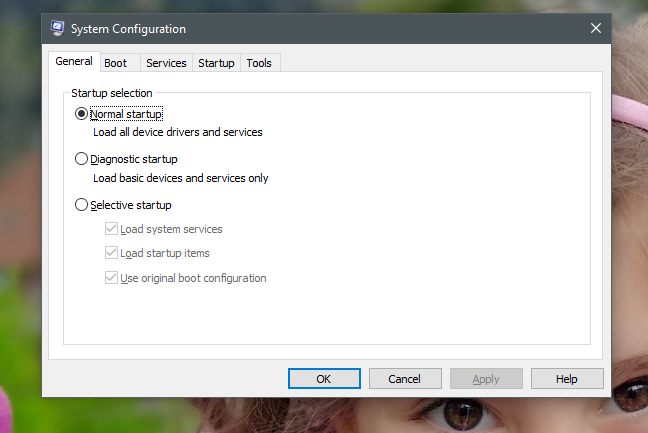
The System Configuration tool, also known as msconfig.exe, is a window with settings and shortcuts. They are all split into several tabs, and each tab gives you access to different things. The first tab in the System Configuration window is called General, and it is the place where you can configure how Windows starts.
System Configuration, msconfig, Windows
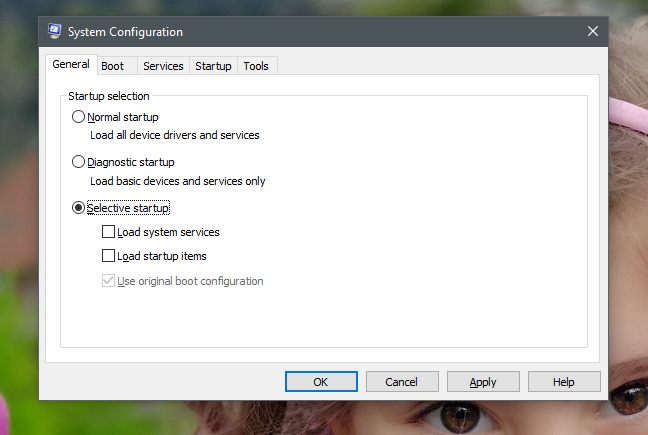
In the "Startup selection" list from the General tab, you can choose to make Windows do a:
"Normal startup": meaning that Windows starts as is, with ALL the installed startup items, drivers, and services. This mode should be selected by default on most Windows devices, except when you have already made some changes to what drivers, services or apps are loaded atboot time.
"Diagnostic startup": this mode is similar to booting into Safe Mode. Safe Mode runs only Windows services and drivers. Besides them, the Diagnostic startup might also run, on top of them, networking services or important services from third-party applications such as your antivirus, firewall or security suite. This mode is useful if you want to rule out Windows files and services as being the source of system instability problems. Note that if you select the "Diagnostic startup" and then click or tap Apply, the "Selective startup" is the one shown as selected. However, there is nothing to worry about, as this is quite normal. It happens because the "Diagnostic startup" is a "Selective startup" with a predefined set of settings.
"Selective startup": makes Windows start only with its essential services and drivers. Furthermore, it also allows you to select other services and startup items that you want to run, from the Services and Startup tabs.
System Configuration, msconfig, Windows
It is also important to note that if you switch between startup modes, do some troubleshooting and then go back to using the "Normal startup" again, all the services and startup items are going to be enabled at startup.
If what you want is to stop some apps, drivers or services from starting automatically with Windows, you need to go through the list of services and startup items and edit them again. You can see how to do that, later in this guide. For now though, note that once you make changes, the "Selective startup" is going to be checked as the active startup selection.
2. See what operating systems are installed on your PC and choose which one is the default
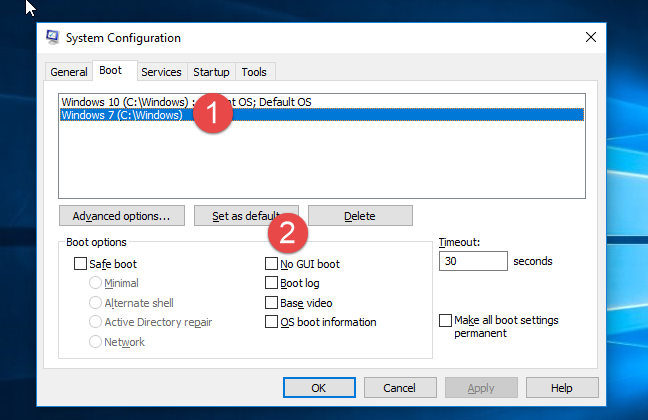
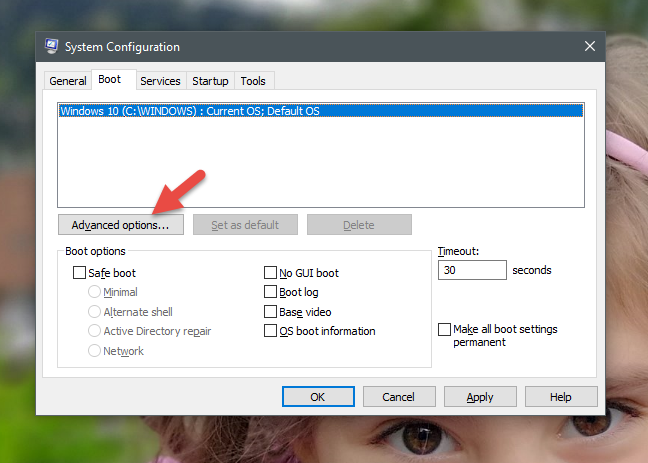
The System Configuration tool also offers a graphical way of choosing which of the operating systems installed on your PC loads first. In the System Configuration tool, switch to the Boot tab, and you can view all the operating systems installed on your computer and select the default one if you have a multi-boot setup. To select a new default operating system, click or tap on it and then on "Set as default."
System Configuration, msconfig, Windows
3. Choose how long the PC waits for you to select the operating system to be booted
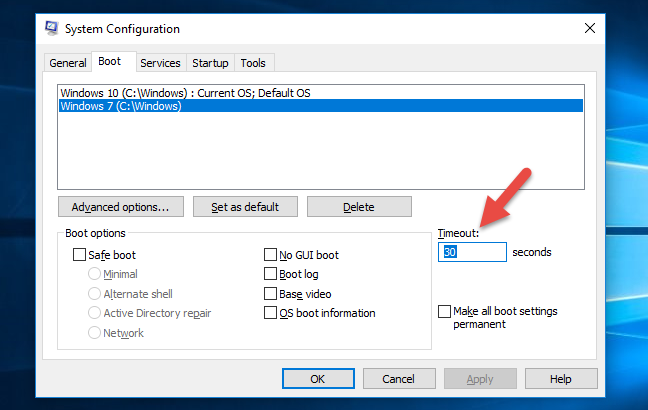
If you have a multi-boot setup, another important setting is the Timeout setting. The number of seconds you set represents how long your PC waits for you to select one of the available operating systems when booting. If no choice is made during the set time, the default operating system starts.
System Configuration, msconfig, Windows
By default, the Timeout is set to 30 seconds. If you have a multi-boot setup, you might want to set it to a smaller value. We, for instance, prefer to set the Timeout to only 10 seconds. This way, if we do not select another operating system, the total boot timing of the default one is not affected that much.
4. Change some advanced settings about how Windows boots, like how many processor cores or how much RAM it can use
For the Windows operating system installed on your computer, the System Configuration tool also lets you configure complicated details about the way it boots.
System Configuration, msconfig, Windows
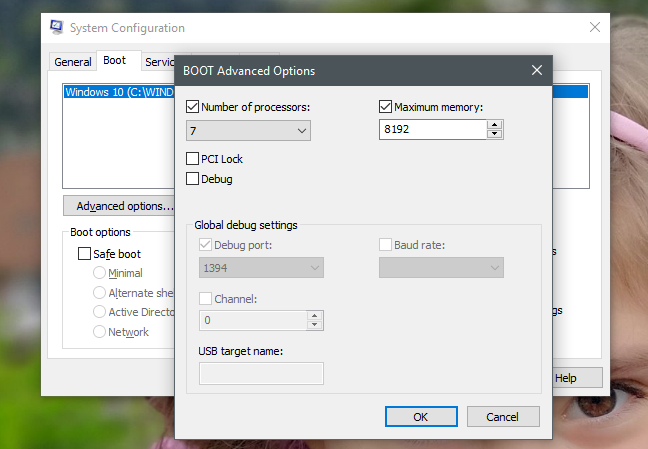
For each of the existing operating systems, if you click or tap on the "Advanced options" button, you can set things such as the number of processors (cores) allocated to the operating system at boot, or the maximum amount of RAM available to it.
System Configuration, msconfig, Windows
If you set a maximum number of processor cores and RAM, Windows continues to correctly identify the real number of cores that the processor has and the amount of physical RAM. However, it can only use the limited number of processor cores and the maximum memory that you have set.
5. Make Windows boot into Safe Mode
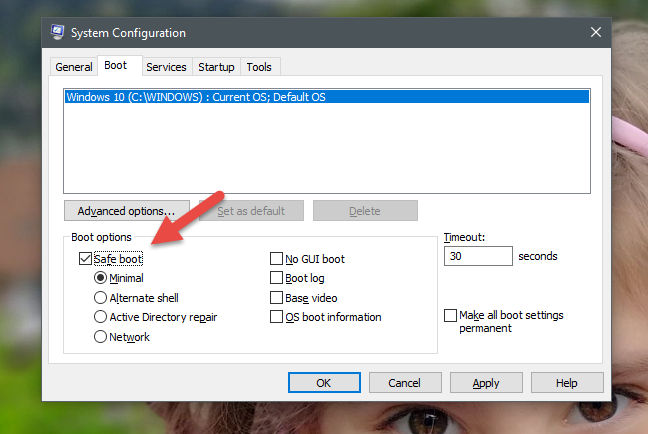
For each Windows operating system installed on your PC, the System Configuration tool also lets you select if you want to make it boot into Safe Mode. To do that, in the Boot tab, you must check the option called "Safe boot" and select one of its available options:
Minimal - the normal safe boot, with a user interface and no networking services enabled.
Alternate shell - opens the Command Prompt in Safe Mode. The networking services and the graphical user interface are disabled.
Active Directory repair - a normal safe boot which runs, additionally, the Active Directory services and features.
Network - the normal safe boot with networking services enabled.
System Configuration, msconfig, Windows
If you want to read more about the Safe Mode in Windows, these guides might interest you:
6. Disable the Windows boot loading screen, log the startup process, use standard video drivers and others
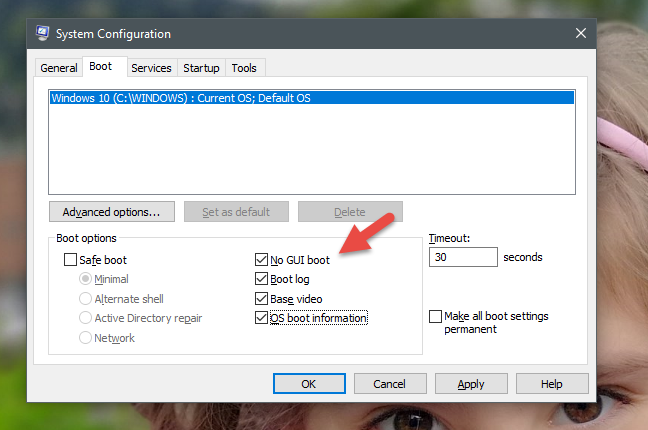
Also in its Boot tab, the System Configuration tool gives you a set of advanced options which can be applied to both standard and Safe Mode boot procedures:
System Configuration, msconfig, Windows
"No GUI boot" - during boot, you are not shown the usual loading screen, only a black screen with no information.
"Boot log" - during boot Windows writes a complete log with information about the startup process. Usually, it can be found at this location: "C:WindowsNtbtlog.txt."
"Base video" - this option is handy if you just installed lousy video drivers. It makes a standard Windows startup, with the difference that it loads only the standard video drivers that come with Windows, instead of the ones specific to your video card.
"OS boot information" - this option should be used together with "No GUI Boot." The usual Windows loading screen will get replaced with a black screen, displaying complete information about the drivers that are loaded during the startup process. If your Windows crashes during boot, this visualization mode can be useful to identify the driver that causes the crash.
7. Select what services are started with Windows
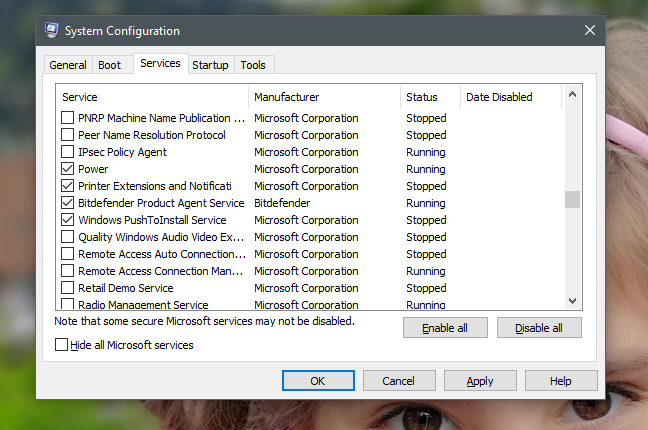
The Services tab from the System Configuration tool shows a list of all the services that start when Windows starts. For each service, you see its name, the manufacturer, the current status and the date when it was disabled if it was disabled.
You can check the services you want to run at startup and uncheck the ones you do not. If you desire to see only third-party services, installed by your applications, check the box that says "Hide all Microsoft services."
System Configuration, msconfig, Windows
The selections you make in this tab are applied only to your current startup selection, from the General tab. If you were using a "Normal startup," and then you disabled some services, the startup selection gets changed automatically to "Selective startup."
If you need help in deciding which services to stop from running at startup, read this guide: Which Windows services are safe to disable and when?.
8. Manage the startup programs (only in Windows 7)
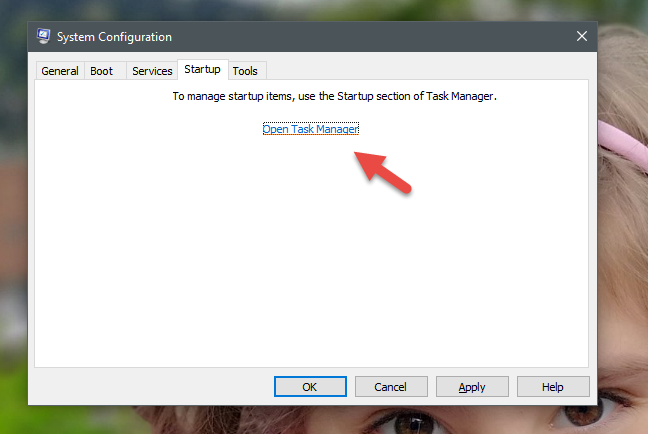
If you are using Windows 10 or Windows 8.1, the Startup tab gives you just a link to "Open Task Manager." This is because the management of your computer's startup apps is done using the Task Manager.
System Configuration, msconfig, Windows
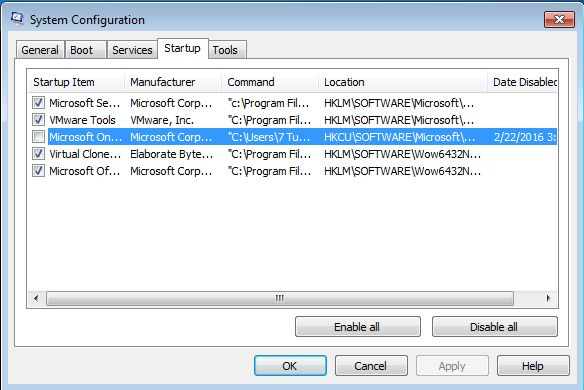
However, if you are using Windows 7, the Startup tab shows a list of all the programs and files that start when Windows starts. For each item, you see its name, the manufacturer, the command used to start it, which is usually the path towards the program and additional parameters if used, and the registry startup location where it is stored and the date when it was disabled if it was disabled.
System Configuration, msconfig, Windows
One thing to remember about the registry location is that, if you see one starting with HKLM, it means that the startup item is "global" - applied to all user accounts defined on the active operating system. Disabling them from one user account means that they get disabled for all user accounts.
The locations starting with HKCU are for startup items active only for the current user account. They might not be starting up for other user accounts. Also, they need to be disabled individually, for each user account, if you want to prevent them from starting altogether.
Just like the Services tab, the selections you make are applied to your current startup selection, from the General tab.
9. Launch administrative programs and panels
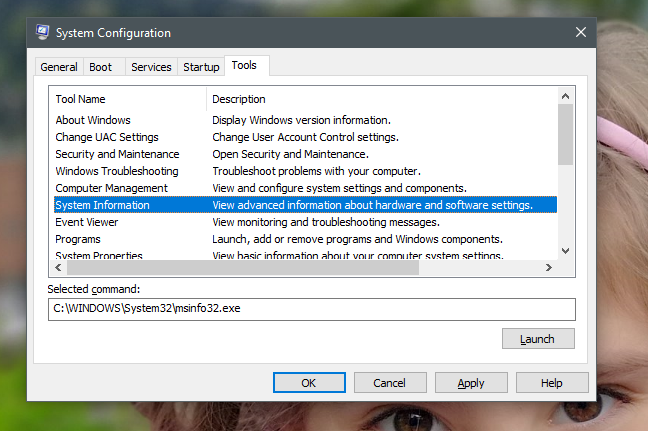
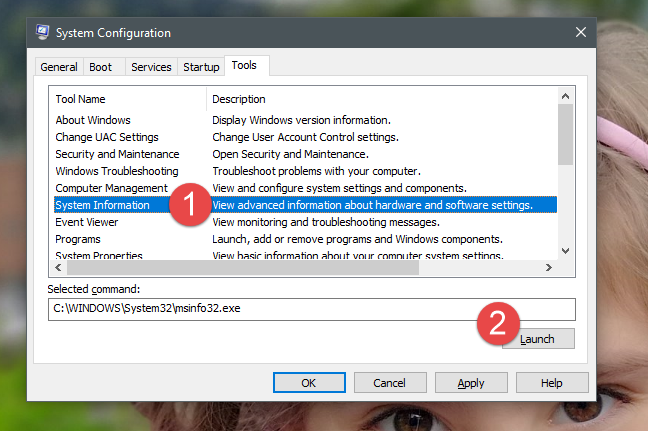
Few people know about the Tools tab in System Configuration and what it does. If you click on it, you get a list of Windows administrative tools such as System Information, the Registry Editor, Event Viewer, Performance Monitor and so on.
System Configuration, msconfig, Windows
For each tool, System Configuration shows its name and description. If you click or tap on it, you can see the command used to start it, in the Selected command field. To run any of the available tools, select the one you want and click or tap Launch.
System Configuration, msconfig, Windows
As you can see, the Tools tab from System Configuration is handy as it lists administrative tools generally used during troubleshooting system stability or performance problems.
Save the changes you have made in System Configuration
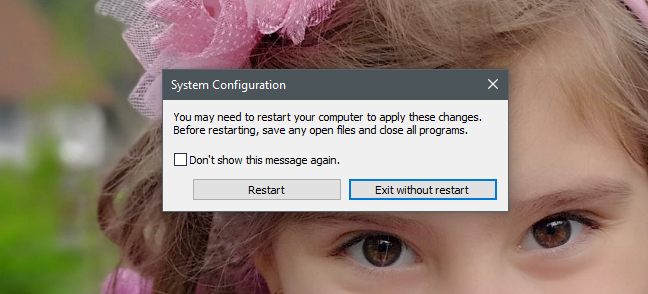
After you are done making all the changes you wanted, do not forget to press Apply or OK, so that they are applied. Also, if you are using the tool for the first time, when you close it, you might be informed that you need to restart your PC for the new settings to take effect.
System Configuration, msconfig, Windows
If you do not want to see this message again, check the box that says "Don't show this message again" and choose the restart option you prefer.
Are you using the System Configuration tool to change the way Windows works?
As you can see, the System Configuration (msconfig.exe) utility is a versatile tool that offers useful features for people who want to change the way Windows starts and works. It can be an excellent tool for managing the startup process of your Windows computer but also for troubleshooting stability and performance problems. Are you using it to configure Windows? Have you had any issues with it? Let's discuss in the comments section below.
Is there a way to save the services choices in Selective Startup? If I switch to Normal Startup to run a particular program that needs Normal Startup, I lose the choices I have made in selective startup.In other words, if I change from Normal Startup to Selective Startup, all the services are checked; I lost my services choices that I set the last time I used Selective Startup.
aGeek ·
You fail royally, though you provide quite a lengthy expose… too wordy… all of this can be compacted in less than half the babble AND you omitted a key ingredient(WIN7, possibly other versions).
Where DOES the data in the Startup list come from!?
Since it is the source to the Registry! (makes no sense, does it!?)
…and why one must start msseces.exe manually without the -hide switch, to get the system tray icon to work!
Raymond Wylde ·
an excellent article, well written for all to understand and covers all those points which we never appreciated or existed.
well done.
Dan Visan ·
In 2018, still very usefull information and well presented.
Robert Goltz ·
Hi Mr. Rusen: I hope you’re still monitoring the thread here. As familiar as I am with using System Config. to adapt my startup services, I don’t know of any way to “Save” a particular configuration for future use? When I need extra memory for programming/compiling I stop a lot of the unnecessary “stuff” windows pours on! Any advice or comment will be appreciated. Thank you for your site.
Cheers,
Robert
W. Howard ·
Robert,
I am not Mr. Rusen but I solved memory and speed problems in Win 10 on my new 64 bit laptop by inserting a 64 gig usb 3.0 thumbdrive into one of the usb 3.0 slots and turning on ‘Ready Boost’. I now have effectively 40 gigs of memory (8 from the machine and 32 from Ready Boost) and the machine runs twice as fast. Not sure if this would work for you, but it did for me.
Good Luck
Woody
Robert Goltz ·
Hi Woody:
Thanks for the feedback. I’m upgrading my RAM and I have a small USB drive for that little extra boost. As soon as I can I’m gonna replace this boat anchor, until then your suggestion is appreciated.
Cheers,
Robert
M Johnston-Mullaney ·
First I would like to say that the tutorial was extremely helpful and illuminating. Why do I say illuminating? Because last night at around 9pm when I was just winding down for the night, I was just going to check my email and then go to bed. For the longest time I have been having trouble with Chrome spitting out this awful “You have a virus or malware, you must call the 800…. bluh blub blub” so loud my dog would start howling! I can’t get rid of it no matter what I try. So I figured, maybe I have all these Viruses and I am running, every Ccleaner and products my Computer Manager(does maintenance on my computer) leaves around to wipe them out. But still I can’t get rid of it. So I stopped using Chrome, and ironically, figuring to get the same problem with Internet Explorer only worse. But no, no problem, I precede to have this awesome experience for the next month with IE. I frankly, couldn’t believe it, it was fast and did everything I wanted and no warnings, errors or dropouts, but that is just an aside.
So, last night I tried Chrome and sure enough the Screamer came on and I said I know your game. So with all this confidence I call this 800 number and tell them to get this off. Well they convince me, that I am doomed and that I need to be boarded in order to remove that Message because it wouldn’t go off unless it caught a sniff of trouble. So, I let him and watch that curser and yes it disappeared for a bout 10 seconds and I said you better reappear really fast and the next thing I know System Configuration opens and he says, who is responsible for this computer because they turned off all your products see? I am astounded, they are all stopped. He said these are my programs and your guy has not bothered to keep them on in fact he turned most of them off, look your scanners are off for McAfee. You can’t even tell if you have viruses. That is where he had me. So I said turn them back on. He said only a Windows Certified Technician could turn them back on. No one can just touch this page but a WCT and you didn’t pay enough for a WCT you are not protected. on and on he went I ended up paying him $249.99 and with a promise to pay $100 more. for two years of service. The high cost was due to their employees being only WCT’s. I feel so stupid. This morning I noticed that my resolution was the same as I had set it that morning and my guy always harped on me about changing the resolution to make everything bigger and why and how, and I forget but when he did his maintenance he always fixed it to what it should be and left me a note. So if their guy was so Windows Certified and my guy is so bad why didn’t he notice it when he “overhauled” my system last night? Yet, does that resolution really matter and is that not worth mentioning.forget that… The fact is, I have been had. They took advantage of my ignorance and I got what I deserved. But that doesn’t mean the world doesn’t need to hear about it. It also doesn’t mean that my bank doesn’t have to go after them for fraud. And it doesn’t mean that you can’t mention it in your super duper tutorial!! So that other not so learnered individuals can warn there ignorant counterparts and friends? The sad part is I don’t even know the name of their Company. But I will and I will take them down, because I have nothing better to do with my time. I don’t work, I am a disabled Veteran. I have no legs. But I have a mind. So people think I am not so smart but I am telling you right now, I am not going to let this guy take my last money. Because he scared me, my computer is my only way of seeing or going about in this world. IF you take that away, you might have just taken the rest of me. get it? I am so mad, I am so angry. Please spread the word. But more important keep teaching, keep educating so people will learn about their own computers and know what to do in situation’s like this.
Bill ·
In System Configuration, under the Services tab, many of the services are stopped. I assume the computer was delivered this way. Anyway, the “enable all” button will not work. Is that normal?
ron ·
hello,
my brother accidentally changed my msconfig in boot section the number of processor into 4 ang then when restarted my windows 8 can not boot i always ask for repair and i tried all the advance option but still didnt work…
my question is:
– How can i reset my msconfig without entering the windows since i can’t enter the windows, pls help…thanks
Earl Stump ·
Note: my web site is currently under construction and inactive.
This tutorial was extremely well done. It was both informative and clearly laid out visually so as to be very understandable. The only confusing part was at the end, and when it asked me for my Website. I thought, “wait, everyone doesn’t have a web site. What does this mean?” And especially the CAPTCHA part. I did love the clear explanation of what the security question was for, but then I got lost in trying to understand the example page, thinking it was the real page, which I couldn’t get back to. So it took me a long time there (probably just me). Also, the CAPTCHA kept incorrectly saying my answer was wrong (in Chrome), but it gave me an entire page of helpful things to try when I filed the error report, so I’m trying Firefox. Thanks for all your hard work. I hope to see you continue with more tutorials. You might pole the public for the areas of Win7 & 8 they’d like to see covered, and even charge a small fee to download the tutorial itself, explaining that it helps cover your costs and time so you can continue doing what so many people find so helpful. I’m a teacher (34 years mostly computer science and also math). Your wording and explanations are so well thought out – some of the best I’ve seen anywhere in books OR on the net!
Ciprian Adrian Rusen ·
Thank you for the kind words. Highly appreciated! 😀
If you enjoy our content, don’t hesitate to subscribe using one of options available on the top-right of our website.
Regarding the commenting system – next year we will launch a new version of our website. The commenting system will be smoother, faster and easier to use. Until then we have to stick with what we have. Sorry about that.
Bill W. ·
Thank you, just what I was looking for.
Ossie C ·
Very helpful. have used msconfig for years to control startup, was not aware of some of the additional functionality.
Byron ·
first time I have clioked on one of your links and very helpful, thanks.















Discussion (16)
Is there a way to save the services choices in Selective Startup? If I switch to Normal Startup to run a particular program that needs Normal Startup, I lose the choices I have made in selective startup.In other words, if I change from Normal Startup to Selective Startup, all the services are checked; I lost my services choices that I set the last time I used Selective Startup.
You fail royally, though you provide quite a lengthy expose… too wordy… all of this can be compacted in less than half the babble AND you omitted a key ingredient(WIN7, possibly other versions).
Where DOES the data in the Startup list come from!?
Since it is the source to the Registry! (makes no sense, does it!?)
…and why one must start msseces.exe manually without the -hide switch, to get the system tray icon to work!
an excellent article, well written for all to understand and covers all those points which we never appreciated or existed.
well done.
In 2018, still very usefull information and well presented.
Hi Mr. Rusen: I hope you’re still monitoring the thread here. As familiar as I am with using System Config. to adapt my startup services, I don’t know of any way to “Save” a particular configuration for future use? When I need extra memory for programming/compiling I stop a lot of the unnecessary “stuff” windows pours on! Any advice or comment will be appreciated. Thank you for your site.
Cheers,
Robert
Robert,
I am not Mr. Rusen but I solved memory and speed problems in Win 10 on my new 64 bit laptop by inserting a 64 gig usb 3.0 thumbdrive into one of the usb 3.0 slots and turning on ‘Ready Boost’. I now have effectively 40 gigs of memory (8 from the machine and 32 from Ready Boost) and the machine runs twice as fast. Not sure if this would work for you, but it did for me.
Good Luck
Woody
Hi Woody:
Thanks for the feedback. I’m upgrading my RAM and I have a small USB drive for that little extra boost. As soon as I can I’m gonna replace this boat anchor, until then your suggestion is appreciated.
Cheers,
Robert
First I would like to say that the tutorial was extremely helpful and illuminating. Why do I say illuminating? Because last night at around 9pm when I was just winding down for the night, I was just going to check my email and then go to bed. For the longest time I have been having trouble with Chrome spitting out this awful “You have a virus or malware, you must call the 800…. bluh blub blub” so loud my dog would start howling! I can’t get rid of it no matter what I try. So I figured, maybe I have all these Viruses and I am running, every Ccleaner and products my Computer Manager(does maintenance on my computer) leaves around to wipe them out. But still I can’t get rid of it. So I stopped using Chrome, and ironically, figuring to get the same problem with Internet Explorer only worse. But no, no problem, I precede to have this awesome experience for the next month with IE. I frankly, couldn’t believe it, it was fast and did everything I wanted and no warnings, errors or dropouts, but that is just an aside.
So, last night I tried Chrome and sure enough the Screamer came on and I said I know your game. So with all this confidence I call this 800 number and tell them to get this off. Well they convince me, that I am doomed and that I need to be boarded in order to remove that Message because it wouldn’t go off unless it caught a sniff of trouble. So, I let him and watch that curser and yes it disappeared for a bout 10 seconds and I said you better reappear really fast and the next thing I know System Configuration opens and he says, who is responsible for this computer because they turned off all your products see? I am astounded, they are all stopped. He said these are my programs and your guy has not bothered to keep them on in fact he turned most of them off, look your scanners are off for McAfee. You can’t even tell if you have viruses. That is where he had me. So I said turn them back on. He said only a Windows Certified Technician could turn them back on. No one can just touch this page but a WCT and you didn’t pay enough for a WCT you are not protected. on and on he went I ended up paying him $249.99 and with a promise to pay $100 more. for two years of service. The high cost was due to their employees being only WCT’s. I feel so stupid. This morning I noticed that my resolution was the same as I had set it that morning and my guy always harped on me about changing the resolution to make everything bigger and why and how, and I forget but when he did his maintenance he always fixed it to what it should be and left me a note. So if their guy was so Windows Certified and my guy is so bad why didn’t he notice it when he “overhauled” my system last night? Yet, does that resolution really matter and is that not worth mentioning.forget that… The fact is, I have been had. They took advantage of my ignorance and I got what I deserved. But that doesn’t mean the world doesn’t need to hear about it. It also doesn’t mean that my bank doesn’t have to go after them for fraud. And it doesn’t mean that you can’t mention it in your super duper tutorial!! So that other not so learnered individuals can warn there ignorant counterparts and friends? The sad part is I don’t even know the name of their Company. But I will and I will take them down, because I have nothing better to do with my time. I don’t work, I am a disabled Veteran. I have no legs. But I have a mind. So people think I am not so smart but I am telling you right now, I am not going to let this guy take my last money. Because he scared me, my computer is my only way of seeing or going about in this world. IF you take that away, you might have just taken the rest of me. get it? I am so mad, I am so angry. Please spread the word. But more important keep teaching, keep educating so people will learn about their own computers and know what to do in situation’s like this.
In System Configuration, under the Services tab, many of the services are stopped. I assume the computer was delivered this way. Anyway, the “enable all” button will not work. Is that normal?
hello,
my brother accidentally changed my msconfig in boot section the number of processor into 4 ang then when restarted my windows 8 can not boot i always ask for repair and i tried all the advance option but still didnt work…
my question is:
– How can i reset my msconfig without entering the windows since i can’t enter the windows, pls help…thanks
Note: my web site is currently under construction and inactive.
This tutorial was extremely well done. It was both informative and clearly laid out visually so as to be very understandable. The only confusing part was at the end, and when it asked me for my Website. I thought, “wait, everyone doesn’t have a web site. What does this mean?” And especially the CAPTCHA part. I did love the clear explanation of what the security question was for, but then I got lost in trying to understand the example page, thinking it was the real page, which I couldn’t get back to. So it took me a long time there (probably just me). Also, the CAPTCHA kept incorrectly saying my answer was wrong (in Chrome), but it gave me an entire page of helpful things to try when I filed the error report, so I’m trying Firefox. Thanks for all your hard work. I hope to see you continue with more tutorials. You might pole the public for the areas of Win7 & 8 they’d like to see covered, and even charge a small fee to download the tutorial itself, explaining that it helps cover your costs and time so you can continue doing what so many people find so helpful. I’m a teacher (34 years mostly computer science and also math). Your wording and explanations are so well thought out – some of the best I’ve seen anywhere in books OR on the net!
Thank you for the kind words. Highly appreciated! 😀
If you enjoy our content, don’t hesitate to subscribe using one of options available on the top-right of our website.
Regarding the commenting system – next year we will launch a new version of our website. The commenting system will be smoother, faster and easier to use. Until then we have to stick with what we have. Sorry about that.
Thank you, just what I was looking for.
Very helpful. have used msconfig for years to control startup, was not aware of some of the additional functionality.
first time I have clioked on one of your links and very helpful, thanks.
Glad you found this article useful. Cheers!