




When searching for a wireless network for their home, most people seek a simple device that is affordable and offers fast Wi-Fi. The ZTE T5400 aims to provide just that, by incorporating some surprisingly powerful hardware at a very reasonable price. But is this enough to make it a good router? And is it suitable for your home? Read this review to find out:
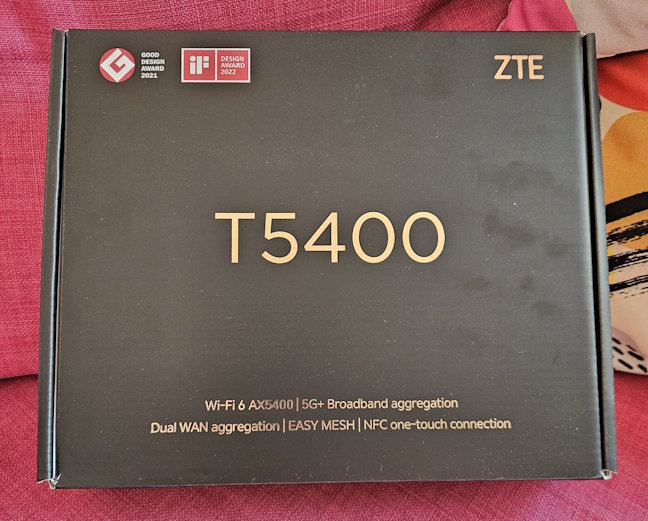
 ZTE T5400 comes in a black cardboard box
Inside the box, you’ll find the router itself, its power adapter, a short CAT5e, the quick setup guide, and some other leaflets.
ZTE T5400 comes in a black cardboard box
Inside the box, you’ll find the router itself, its power adapter, a short CAT5e, the quick setup guide, and some other leaflets.

 All the items you'll find inside the box
Unboxing the ZTE T5400 is a pleasant experience. Before you start setting it up, it’s a good idea to read the user manual, so that you know the steps involved. You should also look at the sticker on the bottom of the router for details on how to connect to it.
All the items you'll find inside the box
Unboxing the ZTE T5400 is a pleasant experience. Before you start setting it up, it’s a good idea to read the user manual, so that you know the steps involved. You should also look at the sticker on the bottom of the router for details on how to connect to it.

 There's only one LED on the front
On the back of the router, there’s a QR code for installing the ZTELink app for Android and iOS, which can be used to set up the router and your entire network. You also have the Power jack and four Ethernet ports. The one highlighted in blue is used for connecting the router to the internet. All of them work at 1 Gbps.
There's only one LED on the front
On the back of the router, there’s a QR code for installing the ZTELink app for Android and iOS, which can be used to set up the router and your entire network. You also have the Power jack and four Ethernet ports. The one highlighted in blue is used for connecting the router to the internet. All of them work at 1 Gbps.
 The ports on the back of the ZTE T5400
The WPS button is found on the top side of the ZTE T5400, while on its left side, there’s an NFC logo. If you place your Android smartphone next to it, you can quickly connect it to the Wi-Fi without entering the connection password. It’s a useful feature for people who don’t like dealing with Wi-Fi passwords. 🙂
ZTE T5400 uses Wi-Fi 6 as the default standard and has six internal antennas. Two are dedicated to the 2.4 GHz wireless band, while four serve the 5 GHz band. This router offers a total theoretical bandwidth of 574 Mbps for the 2.4 GHz band and 4804 Mbps for the 5 GHz band. It also supports wireless transfers using 4x4 MU-MIMO on the 5 GHz band, which is excellent and rarely seen on routers in its price range, and 2x2 MU-MIMO on the 2.4 GHz band.
The ports on the back of the ZTE T5400
The WPS button is found on the top side of the ZTE T5400, while on its left side, there’s an NFC logo. If you place your Android smartphone next to it, you can quickly connect it to the Wi-Fi without entering the connection password. It’s a useful feature for people who don’t like dealing with Wi-Fi passwords. 🙂
ZTE T5400 uses Wi-Fi 6 as the default standard and has six internal antennas. Two are dedicated to the 2.4 GHz wireless band, while four serve the 5 GHz band. This router offers a total theoretical bandwidth of 574 Mbps for the 2.4 GHz band and 4804 Mbps for the 5 GHz band. It also supports wireless transfers using 4x4 MU-MIMO on the 5 GHz band, which is excellent and rarely seen on routers in its price range, and 2x2 MU-MIMO on the 2.4 GHz band.
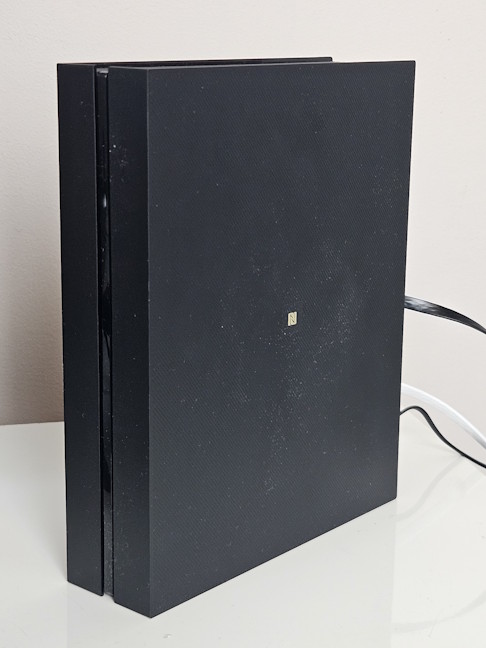 Look for the NFC symbol on the left side
The router is equipped with a powerful quad-core Qualcomm IPQ5018 processor, and it has 4 GB of RAM and 2 GB of storage for its firmware. It’s some impressive hardware, which should allow it to handle many connected devices. To keep things cool on the inside, ZTE T5400 has ventilation grids both on its top and bottom. And if you want to know more about the router’s default IP address and settings, you should look for the sticker on the bottom of the router: it holds all the details you need.
Look for the NFC symbol on the left side
The router is equipped with a powerful quad-core Qualcomm IPQ5018 processor, and it has 4 GB of RAM and 2 GB of storage for its firmware. It’s some impressive hardware, which should allow it to handle many connected devices. To keep things cool on the inside, ZTE T5400 has ventilation grids both on its top and bottom. And if you want to know more about the router’s default IP address and settings, you should look for the sticker on the bottom of the router: it holds all the details you need.
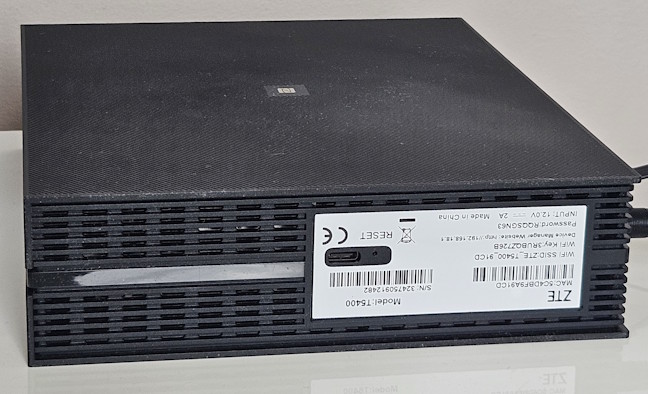
 The sticker on the bottom tells you how to connect to the router
As you would expect from a Wi-Fi 6 router, you also get 160 MHz channel support, WPA3 password encryption, and support for Easy Mesh networking to build a mesh Wi-Fi system using networking equipment from other vendors.
Price-wise, the ZTE T5400 is an entry-level Wi-Fi 6 router with surprisingly powerful hardware that should allow it to compete with more premium options. For more information about this product, visit its official webpage.
The sticker on the bottom tells you how to connect to the router
As you would expect from a Wi-Fi 6 router, you also get 160 MHz channel support, WPA3 password encryption, and support for Easy Mesh networking to build a mesh Wi-Fi system using networking equipment from other vendors.
Price-wise, the ZTE T5400 is an entry-level Wi-Fi 6 router with surprisingly powerful hardware that should allow it to compete with more premium options. For more information about this product, visit its official webpage.

 Logging in to the ZTE T5400
Another issue is that the router can’t autodetect the type of internet connection you’re using, so you have to know this information and provide all the necessary connection information.
Logging in to the ZTE T5400
Another issue is that the router can’t autodetect the type of internet connection you’re using, so you have to know this information and provide all the necessary connection information.
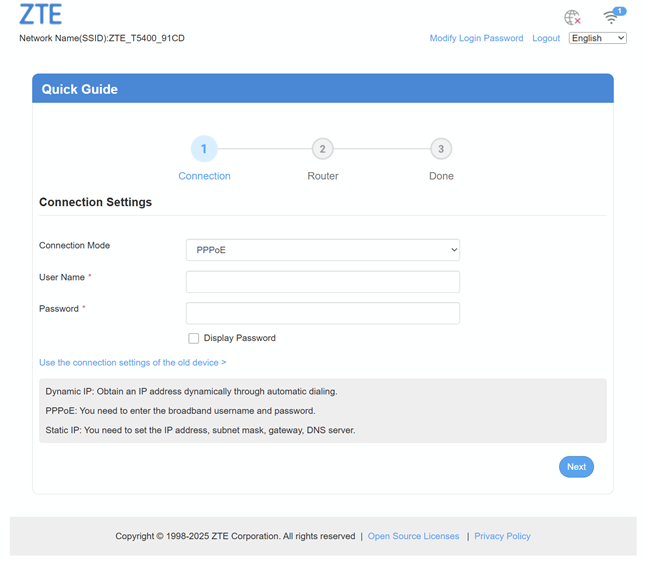
 The quick setup wizard
One minor issue I noticed is that the ZTE T5400 sometimes has trouble connecting to PPPoE internet connections. While it does work eventually, you have to retry a couple of times. At the end of the quick setup wizard, you can adjust your Wi-Fi settings. ZTE is prioritizing comfort by enabling Smart Connect by default. If you want higher performance, it’s a good idea to select Disable for Single SSID, so that you can use separate Wi-Fi names and settings for the 2.4 GHz and 5 GHz wireless bands.
The quick setup wizard
One minor issue I noticed is that the ZTE T5400 sometimes has trouble connecting to PPPoE internet connections. While it does work eventually, you have to retry a couple of times. At the end of the quick setup wizard, you can adjust your Wi-Fi settings. ZTE is prioritizing comfort by enabling Smart Connect by default. If you want higher performance, it’s a good idea to select Disable for Single SSID, so that you can use separate Wi-Fi names and settings for the 2.4 GHz and 5 GHz wireless bands.
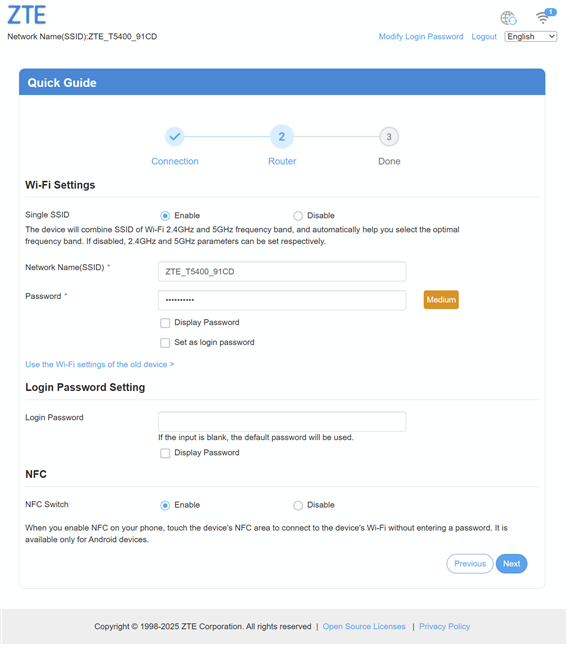
 Setting up the Wi-Fi
Another small issue that I found annoying is that while you get secure WPA3 password encryption, you can’t use special characters like the ampersand sign (&) in your passwords. I’m not sure why, as it’s a valid character for wireless routers made by other brands.
When you’re done with the quick setup wizard, you can access the main dashboard of the router’s firmware. The most important configuration options are front and center, while all the others are hidden in menus that are not always logically organized. If this is your first ZTE router, you will need some time to familiarize yourself with its menus and settings.
Setting up the Wi-Fi
Another small issue that I found annoying is that while you get secure WPA3 password encryption, you can’t use special characters like the ampersand sign (&) in your passwords. I’m not sure why, as it’s a valid character for wireless routers made by other brands.
When you’re done with the quick setup wizard, you can access the main dashboard of the router’s firmware. The most important configuration options are front and center, while all the others are hidden in menus that are not always logically organized. If this is your first ZTE router, you will need some time to familiarize yourself with its menus and settings.
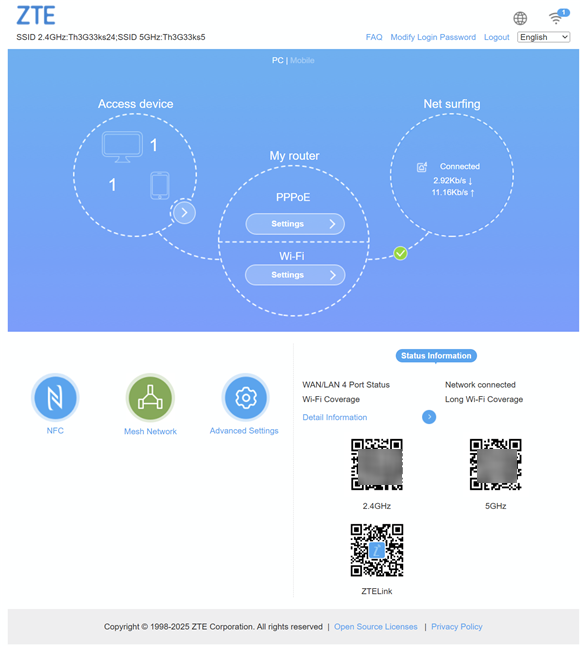
 This is the main dashboard
One aspect I did like about it is that you get question marks almost everywhere in the user interface. If you don’t know what a setting does, you simply click the question mark and read the corresponding documentation. It’s quite useful if you’re new to ZTE routers.
This is the main dashboard
One aspect I did like about it is that you get question marks almost everywhere in the user interface. If you don’t know what a setting does, you simply click the question mark and read the corresponding documentation. It’s quite useful if you’re new to ZTE routers.
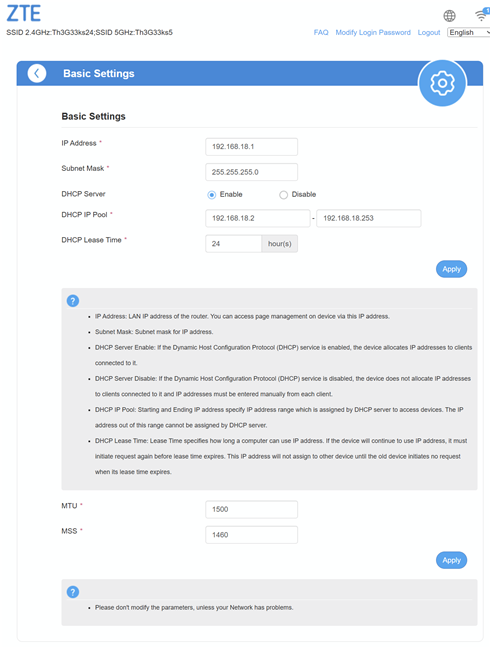
 Help information is available
While checking for firmware updates is easy, ZTE doesn’t tell you which exact version you’re using or when it was released. This information is hidden deep in the ZTELink mobile app, and it is not accessible elsewhere. Also, there’s no support page on the ZTE website where you can download firmware versions for this router. I find this aspect problematic, and ZTE should provide more transparency about its firmware versions and updates.
Help information is available
While checking for firmware updates is easy, ZTE doesn’t tell you which exact version you’re using or when it was released. This information is hidden deep in the ZTELink mobile app, and it is not accessible elsewhere. Also, there’s no support page on the ZTE website where you can download firmware versions for this router. I find this aspect problematic, and ZTE should provide more transparency about its firmware versions and updates.
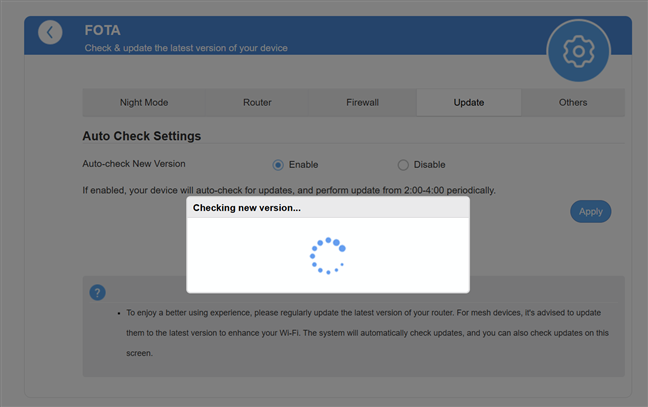
 What firmware version did you say we're using?
You can also set up the ZTE T5400 via a smartphone using the ZTELink app. I found it very basic, lacking advanced features and configuration options. While this isn’t necessarily a problem, I dislike that it offers even fewer features than apps for competing routers from other brands. If you’re an advanced user, this app will probably disappoint you.
What firmware version did you say we're using?
You can also set up the ZTE T5400 via a smartphone using the ZTELink app. I found it very basic, lacking advanced features and configuration options. While this isn’t necessarily a problem, I dislike that it offers even fewer features than apps for competing routers from other brands. If you’re an advanced user, this app will probably disappoint you.
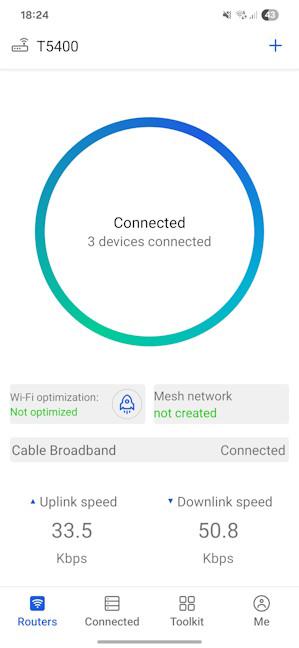
 The ZTELink app
My experience with the ZTE T5400 was mixed. Sometimes, I was impressed with its speed, especially when connecting devices to the 5 GHz band. Other times, I was frustrated when the Wi-Fi dropped during a file transfer, only to reconnect automatically after a few seconds. Unfortunately, my file transfer was lost, and I had to restart it. Another minor issue is that the 5 GHz Wi-Fi takes a long time to boot up. When you restart the ZTE T5400, you need to wait a few minutes before the 5 GHz Wi-Fi appears, and you can connect to it.
The ZTELink app
My experience with the ZTE T5400 was mixed. Sometimes, I was impressed with its speed, especially when connecting devices to the 5 GHz band. Other times, I was frustrated when the Wi-Fi dropped during a file transfer, only to reconnect automatically after a few seconds. Unfortunately, my file transfer was lost, and I had to restart it. Another minor issue is that the 5 GHz Wi-Fi takes a long time to boot up. When you restart the ZTE T5400, you need to wait a few minutes before the 5 GHz Wi-Fi appears, and you can connect to it.
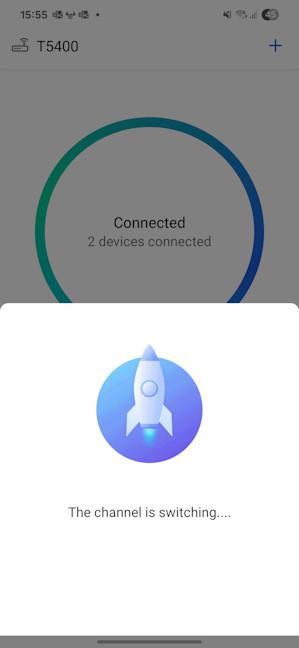 Optimizing the Wi-Fi
Now that you know what the ZTE T5400 can and can’t do from a features perspective, let’s see how well it performs. Go to the next page to see details about its signal strength, wireless, and Ethernet performance.
Optimizing the Wi-Fi
Now that you know what the ZTE T5400 can and can’t do from a features perspective, let’s see how well it performs. Go to the next page to see details about its signal strength, wireless, and Ethernet performance.
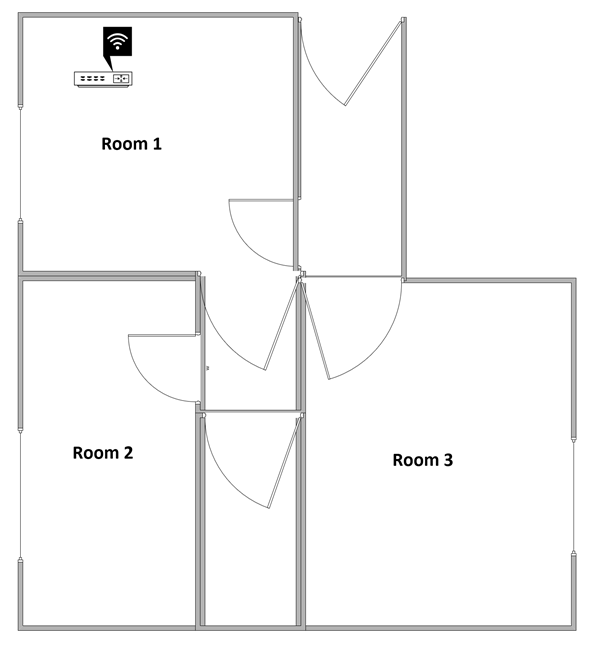
 The apartment where I've tested the ZTE T5400
I evaluated the quality of the wireless network managed by ZTE T5400 through measurements made in three different places:
The apartment where I've tested the ZTE T5400
I evaluated the quality of the wireless network managed by ZTE T5400 through measurements made in three different places:
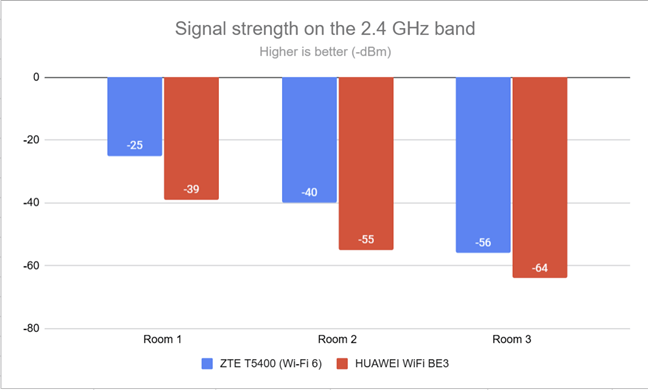 The signal strength on the 2.4 GHz band
Next, I ran SpeedTest to see how fast internet data transfers are on the 2.4 GHz wireless band. As you can see, the ZTE T5400 performed well in all rooms.
The signal strength on the 2.4 GHz band
Next, I ran SpeedTest to see how fast internet data transfers are on the 2.4 GHz wireless band. As you can see, the ZTE T5400 performed well in all rooms.
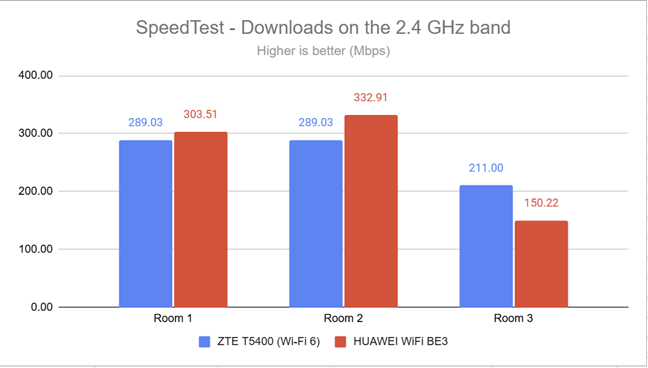
 SpeedTest - the download speed on the 2.4 GHz band
The upload speed wasn’t that great, but I appreciated that it was very reasonable in Room 3.
SpeedTest - the download speed on the 2.4 GHz band
The upload speed wasn’t that great, but I appreciated that it was very reasonable in Room 3.
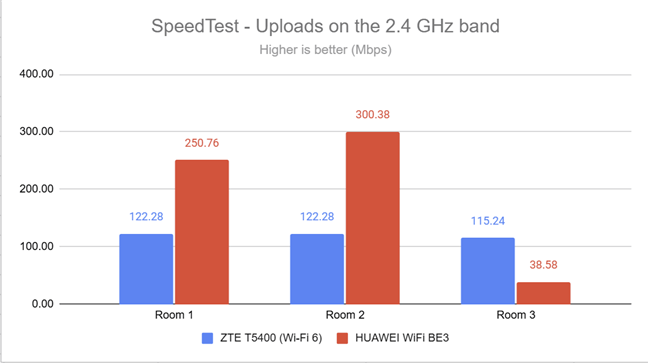
 SpeedTest - the upload speed on the 2.4 GHz band
I moved on to the PassMark Performance Test and transferred data between two computers connected to the network. One was the laptop I used for testing, connected over Wi-Fi on the 2.4 GHz band, and the other was a desktop computer connected to the router through an Ethernet cable. This test measures the speeds you get when transferring data over your network. Downloading data on the 2.4 GHz frequency band is relatively quick, but not as fast as what you get from a Wi-Fi 7 router like the HUAWEI WiFi BE3, which has a similar price.
SpeedTest - the upload speed on the 2.4 GHz band
I moved on to the PassMark Performance Test and transferred data between two computers connected to the network. One was the laptop I used for testing, connected over Wi-Fi on the 2.4 GHz band, and the other was a desktop computer connected to the router through an Ethernet cable. This test measures the speeds you get when transferring data over your network. Downloading data on the 2.4 GHz frequency band is relatively quick, but not as fast as what you get from a Wi-Fi 7 router like the HUAWEI WiFi BE3, which has a similar price.
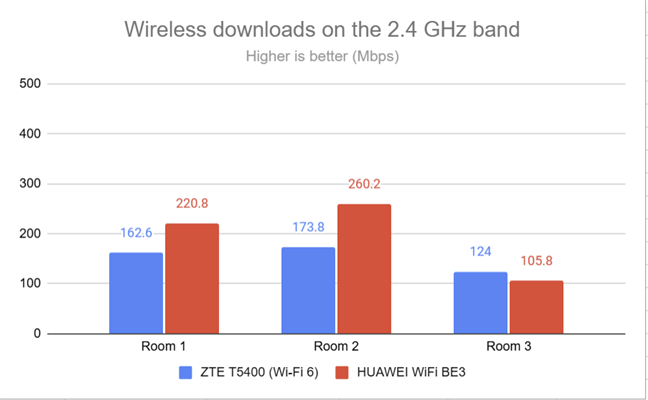
 The Wi-Fi download speed on the 2.4 GHz band
Uploading data was relatively slow.
The Wi-Fi download speed on the 2.4 GHz band
Uploading data was relatively slow.
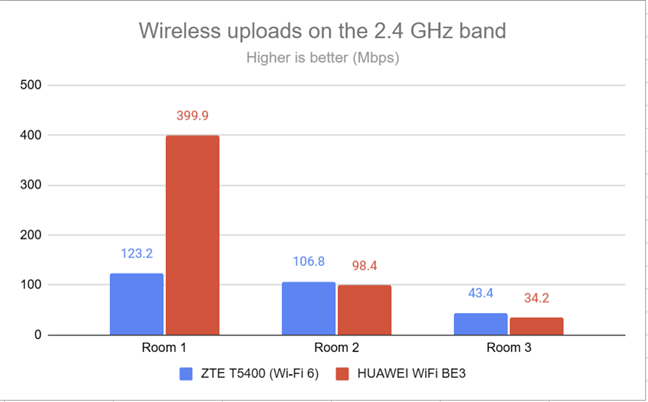
 The Wi-Fi upload speed on the 2.4 GHz band
The performance of the ZTE T5400 on the 2.4 GHz wireless band is okay. Its signal strength is very good, while the speeds you get are satisfactory for most people. However, you can find faster routers at similar prices.
The Wi-Fi upload speed on the 2.4 GHz band
The performance of the ZTE T5400 on the 2.4 GHz wireless band is okay. Its signal strength is very good, while the speeds you get are satisfactory for most people. However, you can find faster routers at similar prices.
 The signal strength on the 5 GHz band
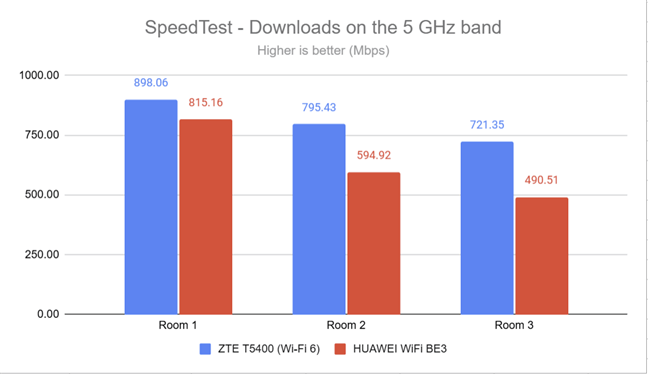
I also used SpeedTest to determine the speed I could achieve over Wi-Fi when uploading and downloading data to and from the internet. My new internet connection allows a maximum speed of 1 Gbps (usually around 900 Mbps) for both downloads and uploads. The ZTE T5400 provided very fast downloads in all the rooms where I’ve made my measurements.
The signal strength on the 5 GHz band
I also used SpeedTest to determine the speed I could achieve over Wi-Fi when uploading and downloading data to and from the internet. My new internet connection allows a maximum speed of 1 Gbps (usually around 900 Mbps) for both downloads and uploads. The ZTE T5400 provided very fast downloads in all the rooms where I’ve made my measurements.
 SpeedTest - the download speed on the 5 GHz band
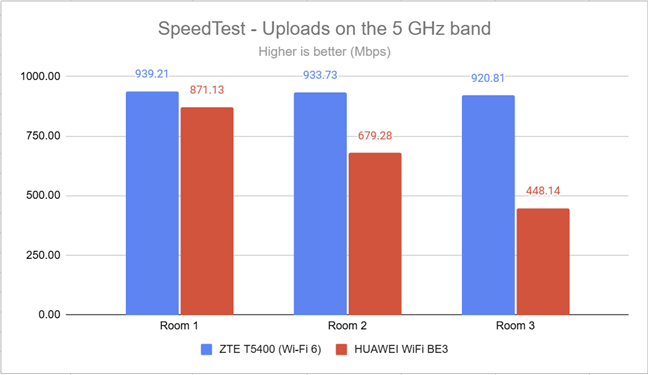
Uploads were even faster. And this is one of the benefits of having 4x4 MU-MIMO on the 5 GHz band.
SpeedTest - the download speed on the 5 GHz band
Uploads were even faster. And this is one of the benefits of having 4x4 MU-MIMO on the 5 GHz band.
 SpeedTest - the upload speed on the 5 GHz band
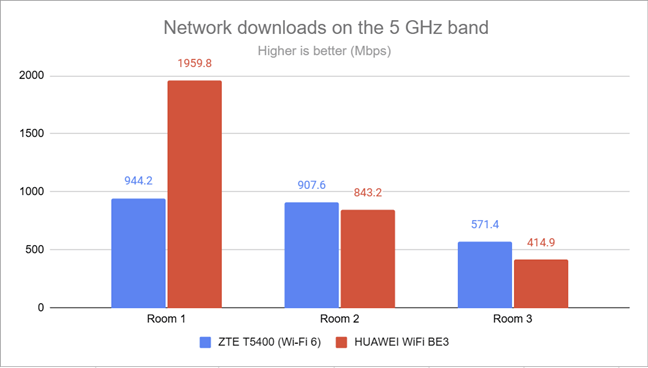
Switching to the PassMark Performance Test revealed that the ZTE T5400 can offer Wi-Fi downloads at speeds that are very close to 1 Gbps.
SpeedTest - the upload speed on the 5 GHz band
Switching to the PassMark Performance Test revealed that the ZTE T5400 can offer Wi-Fi downloads at speeds that are very close to 1 Gbps.
 The Wi-Fi download speed on the 5 GHz band
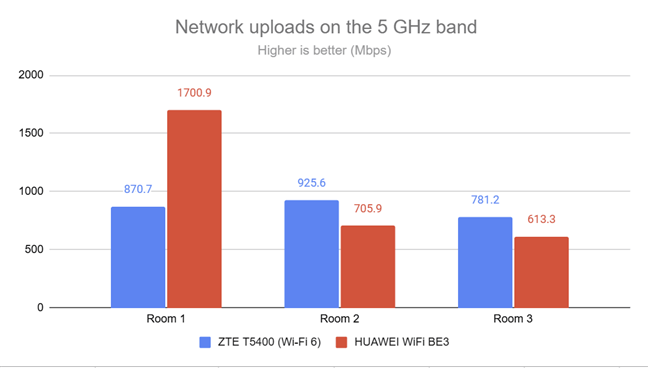
Uploads were also super fast everywhere in my apartment.
The Wi-Fi download speed on the 5 GHz band
Uploads were also super fast everywhere in my apartment.
 The Wi-Fi upload speed on the 5 GHz band
The ZTE T5400 pleasantly surprised me by offering excellent transfer speeds on the 5 GHz frequency band. It’s a great choice for people with many Wi-Fi 6-compatible devices.
The Wi-Fi upload speed on the 5 GHz band
The ZTE T5400 pleasantly surprised me by offering excellent transfer speeds on the 5 GHz frequency band. It’s a great choice for people with many Wi-Fi 6-compatible devices.
 SpeedTest on Ethernet connections
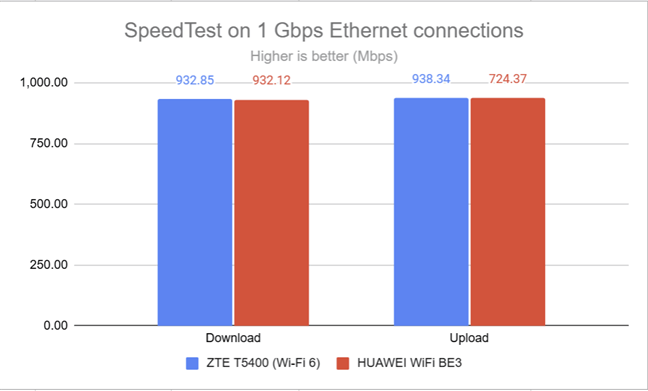
As expected, the ZTE T5400 works great with 1 Gbps Ethernet connections. The only missing feature is a USB port for more advanced users who may want to connect storage devices or USB modems to their wireless routers.
SpeedTest on Ethernet connections
As expected, the ZTE T5400 works great with 1 Gbps Ethernet connections. The only missing feature is a USB port for more advanced users who may want to connect storage devices or USB modems to their wireless routers.
ZTE T5400: Who is it good for?
This wireless router is a smart choice for:- Internet connections up to 1 Gbps
- Two-bedroom apartments and one-floor homes
- People who want to extend their Wi-Fi and are using Easy Mesh-compatible routers
- Users who don’t need advanced features on their router
Pros and cons
Here are the things I like about the ZTE T5400 :- Excellent pricing
- Very good performance on the 5 GHz band
- Solid hardware that can handle many connected devices
- You can quickly connect Android devices via NFC
- Lacking advanced features
- The firmware has some bugs that can impact Wi-Fi stability
- Poor multilingual support
Verdict
The ZTE T5400 has a lot of potential. While it's priced as an entry-to mid-level router, its hardware is in the mid-range territory. It can deliver excellent Wi-Fi performance, especially on the 5 GHz wireless band. Unfortunately, its firmware needs more polishing and fixes for the bugs that sometimes cause the Wi-Fi to drop for no apparent reason. Its lack of advanced features is another downside, but only for experienced users who want more than just basic Wi-Fi. Overall, the ZTE T5400 is a reasonably good router that’s an appealing choice for users who want fast Wi-Fi in a simple package, without intimidating features and settings.Unboxing the ZTE T5400 router
The ZTE T5400 dual-band wireless router comes in a black cardboard box, featuring the model name and a list of its most important features. On the back and the sides of the box, you can find plenty of information about this Wi-Fi 6 router, its hardware, and features.Hardware specifications and design
The ZTE T5400 is a dual-band wireless router with an elegant design. It looks more like a console than a wireless router. On the front, there’s only one discrete LED light, which signals the status of the router. If you don’t like having any lights at all, you can disable the LED from the router’s firmware. The ZTE T5400 isn’t large, measuring 204 x 165 x 47 mm or 8.03 x 6.50 x 1.85 inches, and weighing approximately 600 grams (21.16 oz).Setting up and using the ZTE T5400
The quick setup process is similar to that of many routers, and can be performed from a computer that’s connected to the Wi-Fi or the router (via an Ethernet cable), or a mobile phone with the ZTELink app. One thing I noticed right away is that ZTE’s firmware is available in just four languages. This is a lot less than what you get from competing vendors.Advanced features
The ZTE T5400 is designed for ease of use and convenience, and it lacks many advanced features. Its feature set is designed for people who want simple Wi-Fi connectivity. However, you do get some features that may come in handy, even to advanced users:- Easy Mesh - an open source protocol for creating mesh Wi-Fi systems using equipment from different vendors. It allows you to use the ZTE T5400 in tandem with other routers with support for Easy Mesh and expand your Wi-Fi coverage.
- NFC - allows you to connect Android devices with a simple touch on the NFC logo, without entering passwords.
- DDNS - lets you connect to your router remotely from anywhere on the internet, even if your internet service provider assigns you a dynamic public IP address. The list of supported services includes DynDNS, No-IP, ZoneEdit, and FreeDNS by Afraid.org.
- VPN - you can connect your router to a VPN service through the PPTP and L2TP protocols. The router can’t function as a VPN server.
- Wi-Fi Optimization - you can turn on a self-optimization process so that the router uses the best channel settings for the Wi-Fi.
Wireless network performance
A couple of months ago, I moved into a new apartment with a layout similar to the one shown in the diagram below. I’ve placed the ZTE T5400 in one of the rooms where I spend most of my time. However, it’s not an ideal location, and the Wi-Fi signal is usually weaker in Room 3. This is an intentional choice, as I want to test and see whether the routers I’m reviewing offer good signal strength, steady data transfers, and a wide wireless coverage.- Room 1 - I record the maximum speeds when no walls absorb the wireless signal in the room where the router is placed.
- Room 2 - is separated by one wall from the router, so the wireless signal and the Wi-Fi speed I get should be lower here.
- Room 3 - is positioned at a difficult angle for most wireless routers, and Wi-Fi performance tends to be lower, regardless of which router I’m using.
How the ZTE T5400 performs on the 2.4 GHz band
I measured the signal strength using the NetSpot app on my laptop, while connected to the 2.4 GHz wireless band. The signal strength delivered by ZTE T5400 was excellent in all rooms.How the ZTE T5400 performs on the 5 GHz band
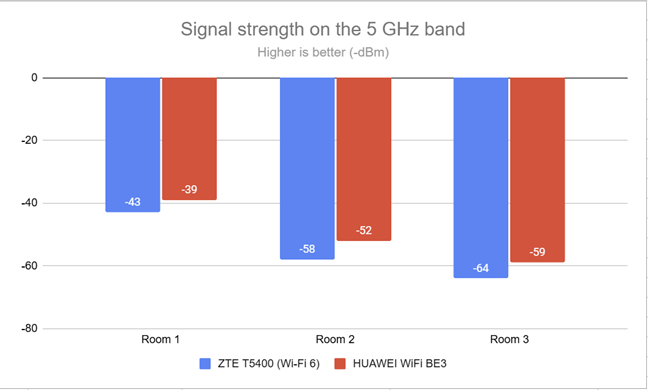
I switched to the 5 GHz band and repeated the same measurements. The signal strength measured by NetSpot was good in all rooms.Wired network performance
For the last round of testing, I ran SpeedTest on a desktop computer that was connected to the ZTE T5400 router through an Ethernet cable. Again, my internet connection offers a maximum of 1 Gbps for both download and upload speeds. As you can see below, the ZTE T5400 had no problem reaching a speed that’s very close to the maximum potential of my internet connection.
Discussion (0)
Be the first to comment.