




Getting a “Venmo Payment Declined” message can be frustrating, especially when you need to send money quickly. The app usually works well, but certain issues can trigger failed transactions. Understanding the reasons behind a declined payment helps you fix the issue faster and avoid repeated failures in the future.
This guide explains the most common "Venmo payment declined" reasons and what to do, using updated steps that still work at the time of writing. You’ll learn how account limits, identity checks, bank issues, and security flags affect your ability to send money, along with practical steps to resolve each problem.
What Is Venmo?

Venmo is an e-wallet; digital payment app used for sending, receiving, and storing money. It originally launched as a peer-to-peer service for friends and family, and it later expanded to allow payments to approved businesses as well. More than 80 million users rely on it for quick transfers, split bills, and digital purchases within the United States.
Because Venmo handles financial transactions, it must follow strict security and identity-verification requirements. These rules often explain why payments fail unexpectedly.
Top Reasons Venmo Declines Payments

Below are the most common triggers behind a declined payment and the updated steps to fix each one.
You Don’t Have Enough Balance
Insufficient funds are the simplest explanation for a Venmo payment failure. You may not have enough money in your Venmo balance or your linked bank account to cover the transaction.
To fix this, add funds or link a verified bank account:
- Open the Profile tab in the Venmo app.
- Select Settings, then Payment Methods.
- Tap “Add A Bank Or Card” and enter your details.
- Complete the bank verification steps.
Once verified, you can add funds or pay directly from the bank account linked to your profile.
Your Account Is Not Verified
Venmo must verify your identity before allowing higher transfer limits. If your identity verification is incomplete, payments may fail even when your balance is sufficient.
- Open the Venmo menu and go to Settings.
- Select Identity Verification.
- Follow the on-screen steps to provide required information.
- Upload documents if prompted.
Once verified, your transfer limits expand and the payment process is normal.
You Hit Your Weekly Sending Limits
Venmo sets weekly limits for all users. Unverified users have a lower limit, while verified users have a significantly higher one.
To check remaining limits:
- Open Settings in the Venmo app.
- Select Limits.
- Review your weekly remaining amount and transaction count.
If you hit your limit, you must wait until the next weekly cycle resets.
A Security Flag Blocked The Payment
Venmo monitors accounts for unusual or suspicious activity. If something looks risky, the system may block payments temporarily to protect the account.
You may need to:
- Check your email for a security alert.
- Confirm your identity through the prompt sent by Venmo.
- Contact Venmo support if the account remains locked.
This feature protects your account from unauthorized use.
Your Account Was Locked After Too Many Login Attempts
Multiple incorrect PIN or password attempts can trigger a temporary lock to prevent fraud. When the system detects repeated login failures, it freezes payments until the account is secure again.
To resolve the issue:
- Wait for the temporary lock to expire.
- Reset your password if needed.
- Enable two-factor authentication for extra protection.
Final Thoughts
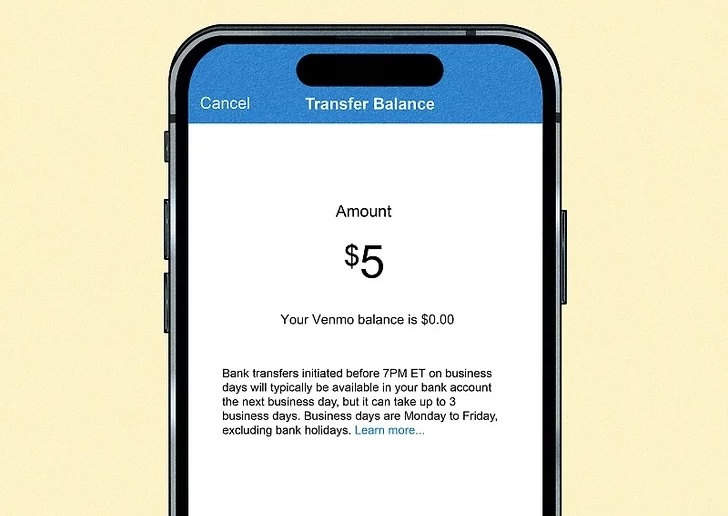
Venmo payments fail for several reasons, ranging from insufficient funds to security flags or bank issues. By understanding the most common reasons Venmo payments are declined and what to do, you can resolve issues faster and prevent future declines.
If none of the solutions work, contact Venmo support for direct assistance. They can review your account and help restore normal payment functionality.


Discussion (0)
Be the first to comment.