




Need to review your Venmo transactions for taxes or budgeting? You can easily download your Venmo statement from the web or mobile app in just a few steps. Here's how to get your monthly or annual statement in CSV or PDF format.
1) Download Venmo statement on the web
Open a desktop browser and sign in to your Venmo account. Select your profile picture in the top-right corner, then click Statements. This section lists your downloadable monthly files.
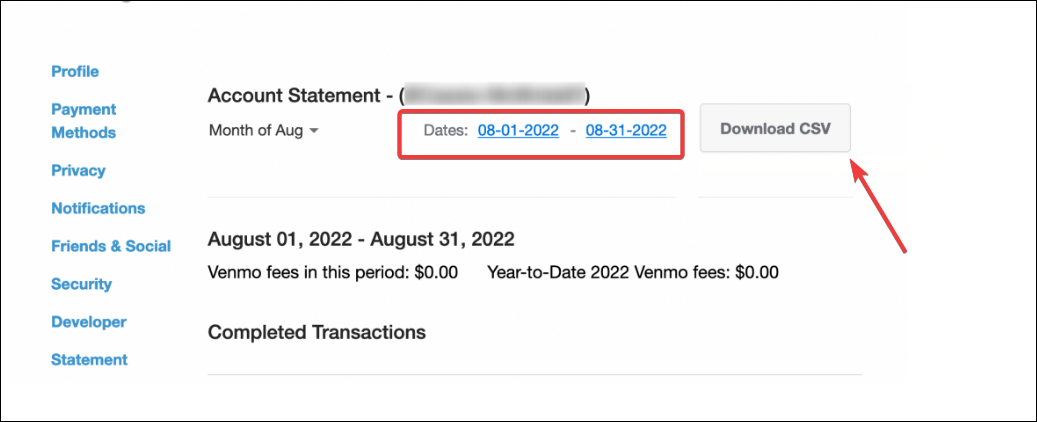
Now, pick the month you want or set a custom range. Lastly, select Download CSV or Download PDF.
Tip: Choose CSV for analysis in Excel or Google Sheets and PDF for printing and recordkeeping.
2) Download Venmo statement on mobile
Launch the Venmo app and sign in. Next, tap your profile picture to access your personal dashboard. You’ll see your recent payments, transfers, and any linked bank activity.
If you see a Statements option under Settings, select it to download your monthly report. Otherwise, go to Settings › Privacy › Request My Data to receive your transaction history via email.
3) Requesting full account data
For a complete export of your account history, Venmo allows you to request a full data download. This includes every transaction since you opened your account.
To get your full account data, open Venmo on your browser and go to the Settings page. Choose Request Your Data. You can also find this under Privacy in the app.

Now, confirm your request and Venmo will email you a download link when the file is ready - typically within a day. The file arrives as a ZIP that contains CSV files for each year of activity. These are best opened in Excel, Google Sheets, or similar tools.
4) Download Venmo Business Profile statement
Venmo Business accounts generate separate statements that show payments, fees, and deposits. You can get the statement by tapping your profile picture and selecting your Business profile from the dropdown.
Then, go to Settings › Statements to download the month you need. Choose CSV if you plan to import data into bookkeeping tools like QuickBooks.

5) How to Convert Venmo CSV files to PDF
If you need a printable copy of your Venmo statement, convert your CSV file to PDF format using Excel or Google Sheets.

Just open your CSV in Excel or Sheets and adjust the columns for readability. Then, choose File > Download > PDF. This creates a professional-looking printable report.
Troubleshooting Venmo statement issues
- Download button not working: Clear your browser cache or switch to another browser. Temporary glitches often block downloads.
- Missing months or gaps: Venmo keeps up to three years of statements online. For older records, you may need to contact support through the app or web portal.
- Blank or corrupted CSV: If your CSV file opens empty, try redownloading after a few minutes. For large data sets, split the request into shorter ranges.
Tips for managing Venmo statements efficiently
- To stay organized, download your statement every month.
- Use filters in Excel or Sheets to categorize transactions.
- Save backups to a secure cloud service.
- Combine multiple months into one annual report for easier tracking.
- Keep your financial data secure when downloading Venmo statements.
- Save files on a password-protected device and avoid sharing unencrypted CSVs via email.
FAQs about Venmo statements
How far back can I download Venmo statements? Venmo allows you to download up to three years of statements. For older data, you’ll need to request it from customer support.
Does Venmo send monthly statements automatically? No. You have to log in manually to download or request your monthly statement whenever you need it.
Can I get one statement for multiple profiles? Each Venmo profile - personal or business - generates separate statements. You can’t merge them automatically.
Summary: Key steps to get your Venmo statement
- Use the web dashboard for full CSV or PDF downloads.
- Check the app’s Me tab for recent transactions.
- Request your complete data set for older records.
- Convert CSV to PDF for easy printing.
- Store statements securely and back them up regularly.
Conclusion
Downloading your Venmo statement only takes a few minutes, and it’s the best way to stay on top of your personal or business finances. Whether you need a single month for budgeting or a full export for tax purposes, Venmo’s web dashboard makes it simple to get the data you need.
Always keep your downloaded statements stored securely and backed up. With regular downloads and organized records, you’ll have a clear overview of your Venmo activity whenever you need it.


Discussion (0)
Be the first to comment.