UP

Windows

Tutorials, how-to guides, and blog posts about using Windows. How to use laptops, tablets, PCs, and other gadgets with Windows.

11 ways to manage running processes with the Task Manager in Windows 10

The Windows 10 Task Manager gives you a lot of power when it comes to monitoring system resources. The Processes tab shares more information than ever before, allowing you to customize the data it shows according to your needs. Here is how to tweak the Task Manager's Processes tab in Windows 10 and become more efficient, by ensuring the data relevant to you is displayed in a way that suits


9 Things you can do from the Task Manager's compact view in Windows 10

The Task Manager is an app primarily used to get more information about the processes and applications running on your PC. That is why the first time you open the Task Manager in Windows 10, you might be in for a surprise (especially if you skipped Windows 8) because there is not much to see in its window. Don't worry, this is just a compact view of the Task Manager,
article 4 ways to download PowerPoint straight from Microsoft

4 ways to download PowerPoint straight from Microsoft

PowerPoint is the most popular slideshow presentation app in the world. It is developed and sold by Microsoft as part of its Office suite, together with other productivity apps such as Word, Excel, Outlook or Access. However, it is also available online as a web app. Unless you have already worked with PowerPoint, you might wonder how and where to download it. If you

The location of Windows 10 wallpapers for the Desktop & Lock Screen

Windows 10 uses impressive pictures for the desktop background and for the Lock Screen. Some of them look great, and we especially like the new default wallpaper for Windows 10 May 2019 Update. If you want to know the location of those images, so that you can use them as wallpapers for other PCs and devices, read this article: [DC-SUMMARY-BREAK] Where to see the background pictures used by Windows 10

9 ways to manage files with File Explorer, from the Home tab

One of the best things about File Explorer in Windows 10 is its ribbon user interface, which introduces a system of tabs and buttons that make it easier for users to work with files and folders. The Home tab is where you find the tools that you need most often while browsing files and folders with File Explorer. In this tutorial, we show you nine ways to use the Home
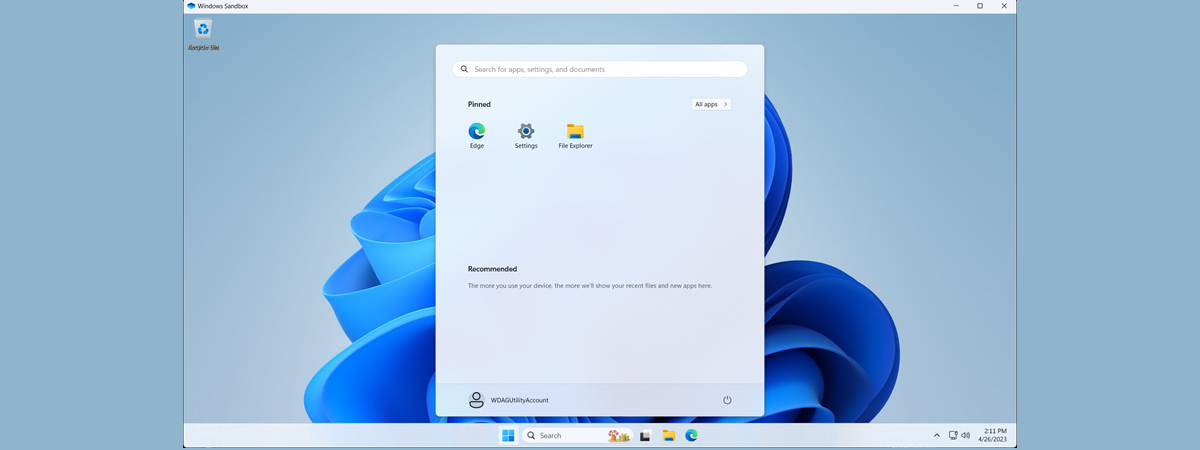
article 4 things you can do with Windows Sandbox

4 things you can do with Windows Sandbox

If you are running a Pro, Education or an Enterprise edition of Windows 10 with May 2019 Update, you have access to Windows Sandbox. It is a lightweight virtual machine that is easy to install and run, without paying anything for additional license fees. This app is excellent for browsing potentially dangerous websites, testing unknown apps and other things that could otherwise be hazardous.

10 ways to view files like a Pro, in File Explorer

In Windows 10, File Explorer has a ribbon interface with lots of tabs and options. The View tab is one of the most useful, as it gives you many different ways in which to browse and look at your files. You can make File Explorer show you different panes with different types of information, change the layout of your files and folders, sort them, hide them and so on. Here
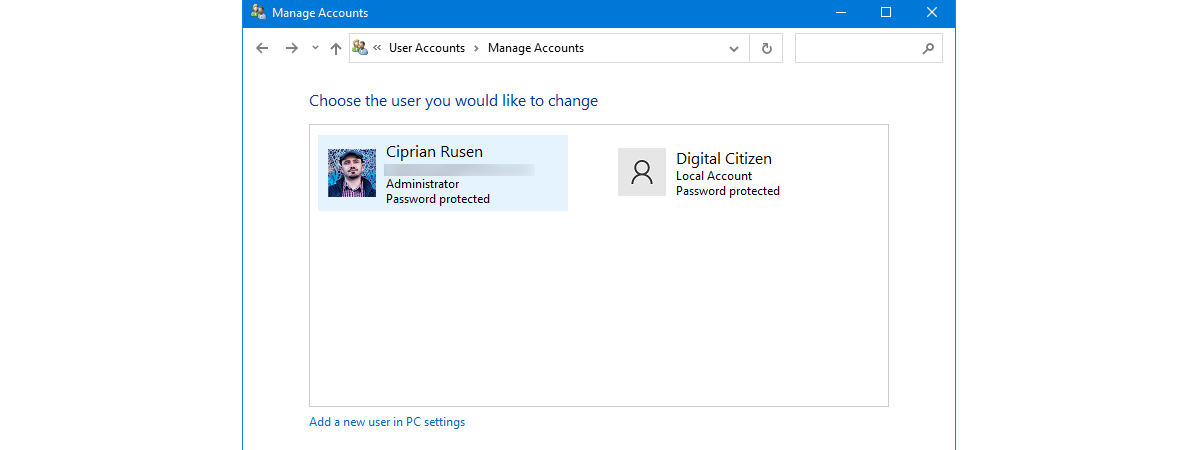
tutorial Create new Windows user accounts and groups, like an IT Pro

Create new Windows user accounts and groups, like an IT Pro

All Windows versions offer easy ways to create user accounts using click-based wizards. You can create users using the Settings app from Windows 10 just as easily as you can create user accounts from the Control Panel, in Windows 7. However, you do not see IT Pros using such tools too often, do you? No, IT admins use snap-ins, consoles, scripts or commands for
article What's new in Windows 10 May 2019 Update? 13 new features!

What's new in Windows 10 May 2019 Update? 13 new features!

On May 21st, 2019, Microsoft released the next major update to Windows 10, called Windows May 2019 Update. It is a significant upgrade bringing several improvements to Windows 10, specifically to the user interface and the security features of the operating system. If you want to know what is new in Windows 10 May 2019 Update, and whether it is worth updating sooner rather
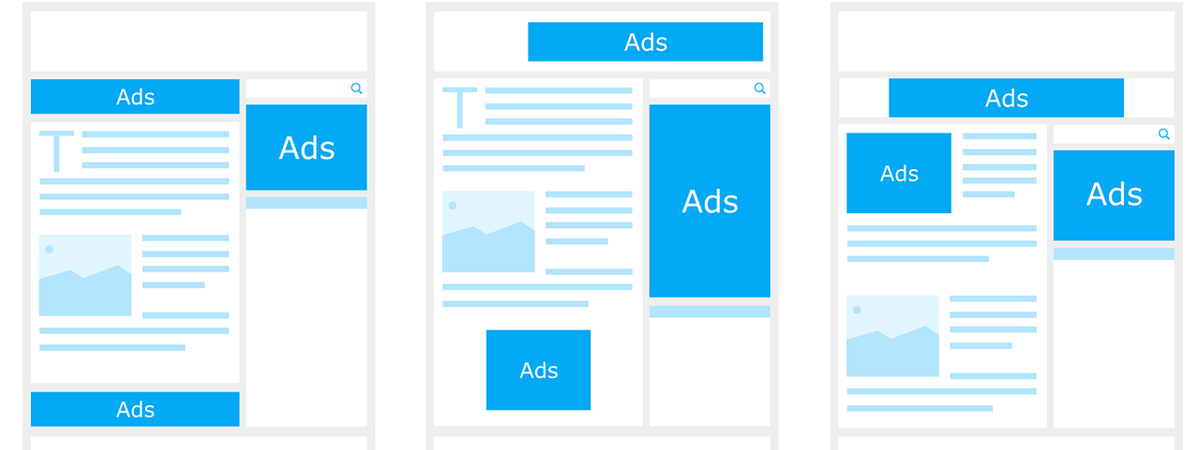
tutorial Windows 10 ads: How to turn them off from everywhere

Windows 10 ads: How to turn them off from everywhere

Do you see ads on the Windows 10 Lock Screen, in the Start Menu, or even in File Explorer? Are you growing tired of ads on your Windows 10 PC, laptop or Surface Pro? Do you want to have an ad-free experience in Windows 10? If you do, you are in the right place. In this tutorial, we show you how to completely turn
tutorial How to show more tiles on the Start Menu, in Windows 10

How to show more tiles on the Start Menu, in Windows 10

Building on the paradigm first introduced to computer users in Windows 8, the Start Menu in Windows 10 relies on using tiles to make it easy for us to access apps and to get quick bits of information from the apps that we are using. By default, the Start Menu from Windows 10 shows tiles in groups that are as wide as 3 medium-sized

How to enable or disable the Light Mode in Windows 10

Windows 10 May Update introduces a new feature called the Light Mode. What it does is change the appearance of certain Windows interface elements from black and other colors to white. In other words, the Light Mode whitens your Windows 10. This mode looks surprisingly good, and many users may prefer it instead of the Dark Mode or the default Windows 10 theme. If you want to learn more about

5 things you can do from File Explorer's File menu

Most Windows 10 users browse the files and folders on their PCs and devices, using the File Explorer app created by Microsoft for this purpose. The app is built into the operating system and itțs found at one click away, on the taskbar. However, many users do not know all its features and capabilities, so they never use it as productively as they could. In this guide, we teach you
tutorial Stop Windows 10 from promoting apps on the Start Menu

Stop Windows 10 from promoting apps on the Start Menu

Microsoft's decision to show advertisements in Windows 10's Start menu appears to be universally disliked. So you just bought a new computer with Windows 10, for the first time, and you open the Start menu to find that it looks like the Disney channel?!? Having already paid for a Windows 10 license or a Windows 10 PC, it is not unreasonable to be bothered
tutorial The fastest way to remove Windows 10 bloatware

The fastest way to remove Windows 10 bloatware

Windows 10 has accustomed us to bloatware being bundled all the time, even when we make a clean installation. No longer is bloatware a lousy approach of various hardware manufacturers, but it is also Microsoft's thing now. While researching for ways to get rid of Windows 10 bloatware quickly, we found a helpful tool that does that, called Windows 10 Debloater. It runs PowerShell

How to automatically lock Windows 10 with your smartphone

Locking your PC when you are away is a requirement in business offices. It is a standard security measure that everyone should uphold regardless of the inconvenience of clicking a few buttons to do so. The good news is that, in Windows 10, Microsoft implemented a new feature called Dynamic Lock that tries to make the locking process easier and almost unattended. All you need is a smartphone and a
tutorial How to connect to WiFi from Windows 10

How to connect to WiFi from Windows 10

Connecting to wireless networks in Windows 10 is an easy and straightforward process, involving a few simple steps. It is true that it depends on whether the wireless router broadcasts the name of the Wi-Fi network or not. However, if it does, connecting to that network is as simple as entering its password and choosing whether you want your Windows 10 PC or device