Building on the paradigm first introduced to computer users in Windows 8, the Start Menu in Windows 10 relies on using tiles to make it easy for us to access apps and to get quick bits of information from the apps that we are using. By default, the Start Menu from Windows 10 shows tiles in groups that are as wide as 3 medium-sized tiles. However, if you want more tiles, you can resize tile groups to fit 4 medium-sized tile columns. Here is how to show more tiles on the Start Menu from Windows 10:
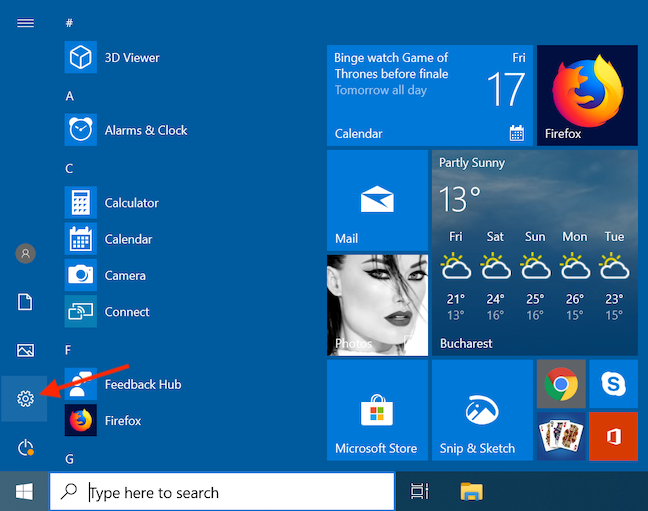
The first thing you should do is open the Settings app. There are many ways to do it, and if you are in a hurry, know that a fast way is to click or tap on the Settings shortcut from the Start Menu.
Access Settings from the Windows 10 Start Menu
Step 2. Go to Personalization
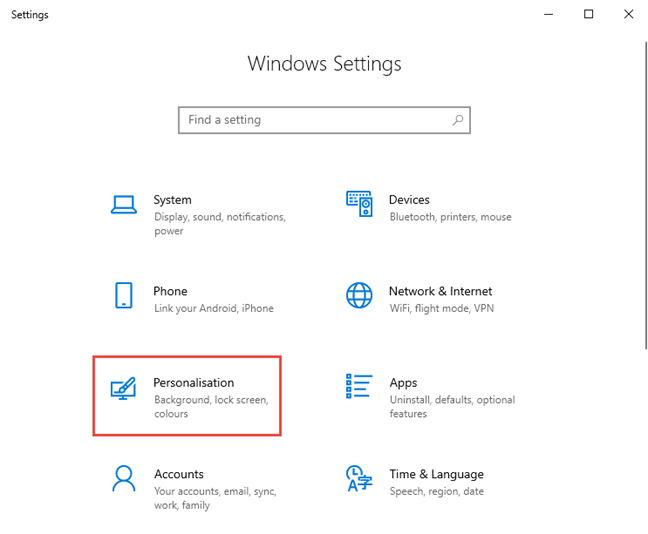
In the Settings app, click or tap the Personalization section.
Go to Personalization in Windows 10 Settings
Step 3. Access the Start settings
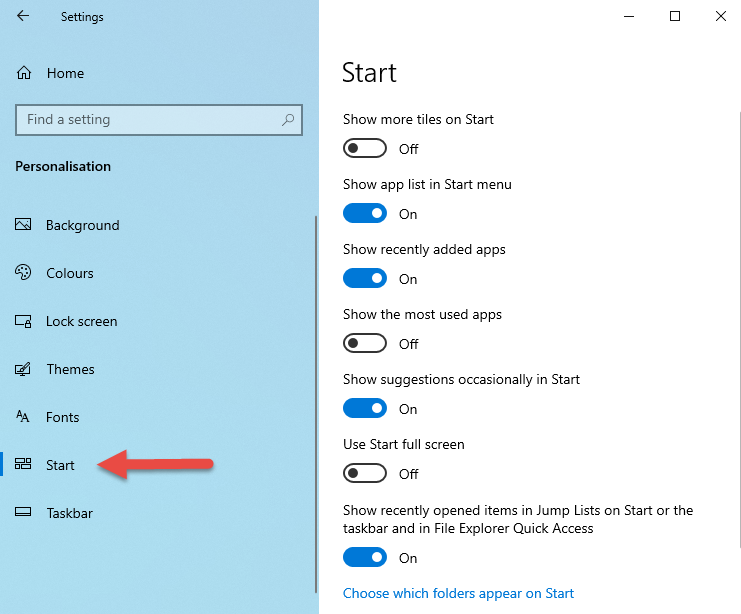
Click or tap Start in the column on the left.
The Start option under Personalization
Step 4. Enable more tiles in Windows 10
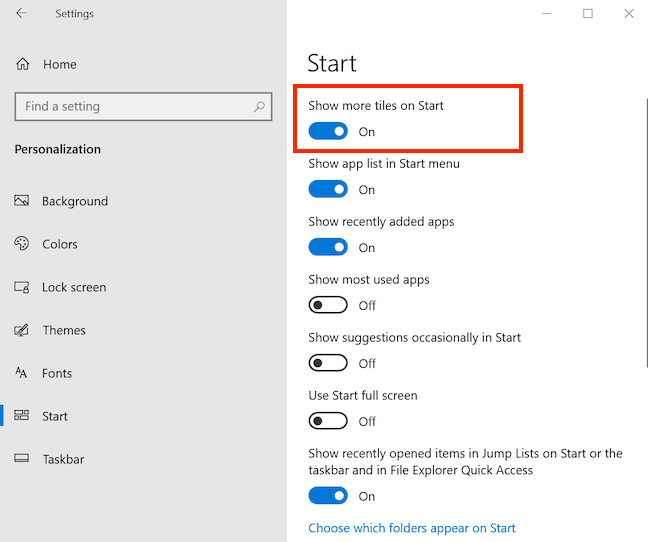
On the right side of the window, you see some settings. The first one is called "Show more tiles on Start," and it is turned off by default.
Click or tap its switch to activate it, thus enabling more tiles to be displayed in your Start menu.
Turn on the switch to Show more tiles on Start
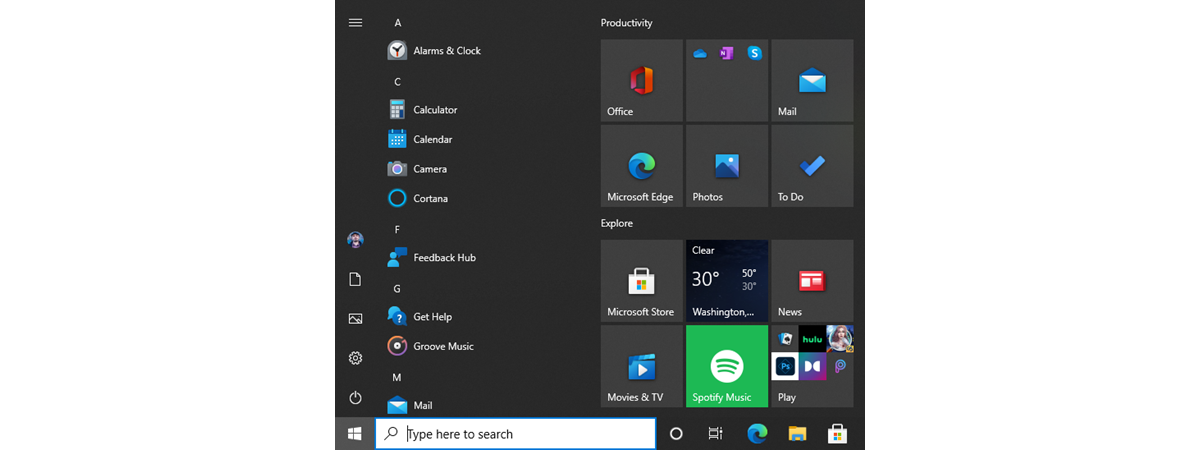
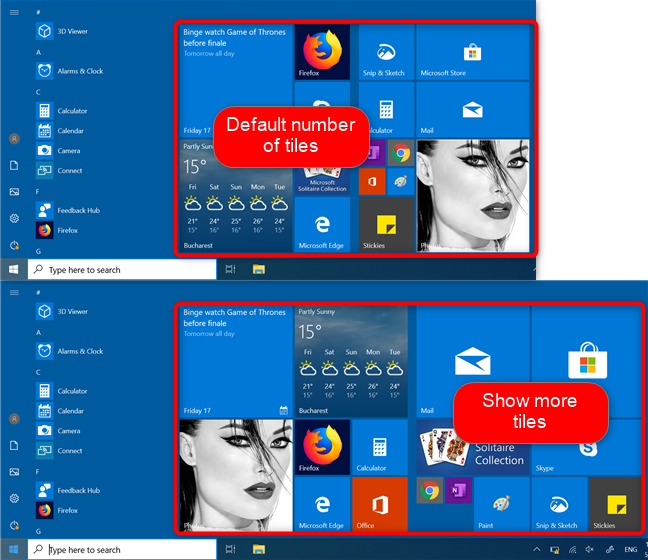
When you open the Start Menu, it now displays tiles in groups as wide as 4 medium-sized columns. Here's a comparison that may explain things even better:
Windows 10 Start Menu with the default tiles and more tiles
Increasing the width of tile groups from 3 to 4 medium-sized columns is completely unrelated to the size of your Windows 10 Start Menu, which can be resized as explained in How to change the size of the Start Menu in Windows 10.
How many tiles do you use?
Increasing the number of tiles that you can pin on your Start Menu in Windows 10 is both useful and straightforward. If you have a screen with a large resolution on your computer, this can prove to be a good way to increase your productivity. Tiles are not the only thing that can be pinned to your Start Menu, as you can see in the Complete Guide to pinning everything to the Start Menu in Windows 10. Before closing, tell us how many tiles do you currently use? Comment below and let's discuss.
I would like to add CNN NEWS to the tiles, how can I do that?
Ralph ·
Nice info and examples. Missing how to control that feature via the registry and GP. ALWAYS need to explain how to control “whatever” feature the 3 possible ways, The normal menus setting screens etc, VIA GP, and last BUT MOST IMPORTANT, the registry!
Thanks for the first 3rd of the info for the complete understanding of this subject and for the excellent example showing the effects of that option.









Discussion (5)
I have 56 small tiles on my start menu
Thank you
I would like to add CNN NEWS to the tiles, how can I do that?
Nice info and examples. Missing how to control that feature via the registry and GP. ALWAYS need to explain how to control “whatever” feature the 3 possible ways, The normal menus setting screens etc, VIA GP, and last BUT MOST IMPORTANT, the registry!
Thanks for the first 3rd of the info for the complete understanding of this subject and for the excellent example showing the effects of that option.
Happy to help. Thanks for appreciating our work.