

UP

Files

How to manage your files and folders when using File Explorer or other file management apps. How to work with files and folders in Windows, Android, and iOS.

How to make File Explorer open This PC, by default

One of the things I do not like about File Explorer in Windows 10, is the fact that it starts by default on the Quick Access section. There I see my recent files and frequent folders. However, I prefer viewing my drives and user folders like Documents or Downloads. If you do too, read this tutorial and see how to set File Explorer to open This PC instead of Quick
The location of Windows 10 wallpapers for the Desktop & Lock Screen

Windows 10 uses impressive pictures for the desktop background and for the Lock Screen. Some of them look great, and we especially like the new default wallpaper for Windows 10 May 2019 Update. If you want to know the location of those images, so that you can use them as wallpapers for other PCs and devices, read this article: [DC-SUMMARY-BREAK] Where to see the background pictures used by Windows 10

9 ways to manage files with File Explorer, from the Home tab

One of the best things about File Explorer in Windows 10 is its ribbon user interface, which introduces a system of tabs and buttons that make it easier for users to work with files and folders. The Home tab is where you find the tools that you need most often while browsing files and folders with File Explorer. In this tutorial, we show you nine ways to use the Home

10 ways to view files like a Pro, in File Explorer

In Windows 10, File Explorer has a ribbon interface with lots of tabs and options. The View tab is one of the most useful, as it gives you many different ways in which to browse and look at your files. You can make File Explorer show you different panes with different types of information, change the layout of your files and folders, sort them, hide them and so on. Here

5 things you can do from File Explorer's File menu

Most Windows 10 users browse the files and folders on their PCs and devices, using the File Explorer app created by Microsoft for this purpose. The app is built into the operating system and itțs found at one click away, on the taskbar. However, many users do not know all its features and capabilities, so they never use it as productively as they could. In this guide, we teach you

How to reset the views in File Explorer or Windows Explorer

Some Windows users personalize the views in File Explorer or Windows Explorer to make the app more useful for the way they navigate files. We can get carried away and make so many changes that we want to get rid of them and return the File Explorer to its original state. Windows offers a fast and efficient way of reversing all changes by resetting the folders that belong to the
tutorial 2 ways to create a password-protected ZIP file in Windows

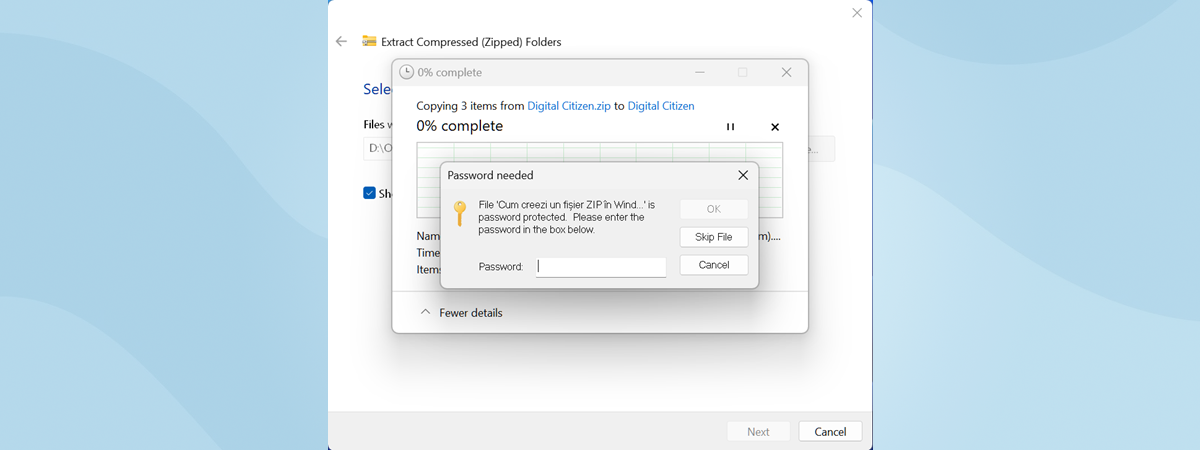
2 ways to create a password-protected ZIP file in Windows

If you are used to working with files and documents, you are also probably used to working with ZIP files. You meet them everywhere: on the websites where you download files, to the documents your colleagues send through email. ZIP files are common because they reduce the size of files or folders and thus make it easier to send them over the internet or

How to configure the default viewing templates in File Explorer

One of the changes often performed in Windows is to customize the way File Explorer displays files. We show you how to make these changes once, and make sure they re-apply automatically for all the other folders that contain the same type of files. This magic is done using the default viewing templates, and using them is easier than you might think. Let's go together through the setup so that

Clear recent files in Windows 10, and stop showing frequent folders

Windows 10 shows you the frequently accessed folders and recent files in the Quick access view when you open File Explorer. While this feature can be useful if you need quick access to your frequent resources, it might also be an annoyance if you are using a shared computer, and you do not want other people to see what you are doing on the same computer. These lists can be

What is a folder? Why do I need folders?

The folder term that is present in all modern operating systems was used for the first time more than 60 years ago in a computing device. Initially, folders were called directories. But, once graphical user interfaces became the norm, the term was replaced with folders. In the modern versions of Windows, folders are easy to use, and, at the same time, allow sophisticated operations for the power users. Let's find

15 ways to improve File Explorer or Windows Explorer in Windows (all versions)

When you want to browse your files and work with them in Windows, most people fire up File Explorer (in Windows 10 and Windows 8) or Windows Explorer (in Windows 7). While these apps are good-enough file managers, for most people, they can be improved and tweaked to work even better. To improve your user experience, we have compiled a list of fifteen tips that you can apply, so that

What are libraries in Windows, and how to use them for organizing your files

Libraries are one of the most misunderstood and, at the same time, the most useful features in Windows. They can help users organize their files and folders efficiently. By using libraries, you can build a system so that you can always find what you want in seconds. Not only that, but you can also sort, tag or edit files and folders with just a few clicks (or taps). In this

What are disk quotas and how to use them to limit the space of each user

If you are not the only person using your computer, you might want to limit the amount of storage space that every user can use. If you do that, you ensure that the storage space on a specific drive or partition is never filled up by only one user account. Everybody has their personal space to fill, and nobody can trespass his or her limits. In Windows, this is called

7 ways to share files and folders from File Explorer (in Windows 10 & Windows 8.1)

File Explorer is one of the most powerful tools in Windows, and one reason for that is the fact that it offers many different options to share files and folders with others. It has tools for sharing items with your local network but also with other people, using email, various apps or other means of communication. Here are seven ways in which you can use File Explorer to share files

How to share files from File Explorer to apps like Mail, Skype, Dropbox, or OneDrive, in two steps

Windows 10 Fall Creators Update is coming on October 17th, 2017, for free, to all Windows 10 users. One improvement is the Share feature that has been added to File Explorer. Microsoft did not brag about it, but it might just be one of the most useful things that they have added to File Explorer. With it, you can quickly share files, straight from File Explorer. For example, you can

How to burn discs in Windows, using File Explorer or Windows Explorer

What desktop app do you use to burn your data to DVDs, CDs or Blu-Ray discs? If you are thinking Nero, Roxio, Power2Go or any other third party application for Windows, you might be interested to know that you also have a free option built right into your operating system. Both File Explorer and Windows Explorer have the ability to burn data to CD, DVD or Blu-ray discs. Stop downloading,

How to make Windows 10’s File Explorer start in any folder you want

Windows 10 offers an easy way of changing the start location for File Explorer. However, it only gives you two starting locations to choose from: Quick access and This PC. But what if you want File Explorer to start in another location? What if you'd like your File Explorer to start in your OneDrive folder , your Dropbox folder, one of your Libraries or any other folder from your Windows

What is a file's metadata and how to edit it in Windows?

Very few people are aware that for each file stored on your computer there is a set of metadata associated with it, that gives information about its source, author and other important details, depending on its type. In this article I am going to discuss metadata, what it is and how it can be used. Then, I will cover how to add, remove and maintain metadata for your files. The

What's Different About File Explorer In Windows 10 Vs. Windows 8.1

In many ways, Windows 10 is similar to both Windows 8.1 and with Windows 7. However, it's also very different from both these operating systems. And amongst all the similarities and differences, here's one very interesting question some of our readers asked: "What are the differences between Windows 10's File Explorer and Windows 8.1's File Explorer? What's changed?". We believe this question deserves an answer, so today we're going to

Top 6 Improvements In Windows 10's File Explorer

Windows 10 brought many changes and improvements when compared to Microsoft's previous operating systems. One of the best changes is the improved File Explorer that comes with a slightly different design and some new features and options. While it didn't undergo any radical transformations, at least not when compared with Windows 8.1, its small changes and improvements are noticeable and working with it just got better. In this article, we'll

