Very few people are aware that for each file stored on your computer there is a set of metadata associated with it, that gives information about its source, author and other important details, depending on its type. In this article I am going to discuss metadata, what it is and how it can be used. Then, I will cover how to add, remove and maintain metadata for your files. The procedures apply to any version of Windows.
What is file metadata?
Metadata is information stored in almost any type of file. It can include your name, your company or organization's name, the name of your computer, the name of the network server or drive where you saved the file, personalized comments and the names and times of previous document authors, revisions, or versions.
These details could be useful or detrimental to you depending on the situation. For example, if you want to track the different authors of a file, it could be good, though if you wish to conceal the different authors of a file it could be bad. If you are working in legal matters or simply wish to maintain privacy, removing as much data as possible can be prudent, as metadata will follow the file if you share a copy of it with someone else.
Metadata can also be very helpful, especially when making searches in Windows and other operating systems. For example, if your collection of pictures has well maintained metadata, then it is very easy to search and find a certain picture you took, at a certain location on a very specific day, with a specific camera.
To simplify the concept, you can think of metadata as a file's description. The description can be anything and it can includes all kinds of data that describe the file: its type, its size, who created it, when, with what, and so on.
How to add and edit metadata, in Windows
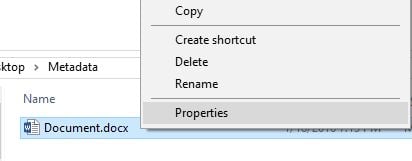
Most files have some sort of metadata, but it is often difficult to alter it without using some sort of special third-party software. However, Microsoft Office files, such as those made by Microsoft Word, Excel, and Powerpoint have metadata fields that can be altered pretty easily. First of all, to access and view the metadata of one of these files, right click or press and hold on it. Go to the bottom of the right-click menu and click or tap Properties. You can also select the file and then press ALT+Enter on your keyboard.
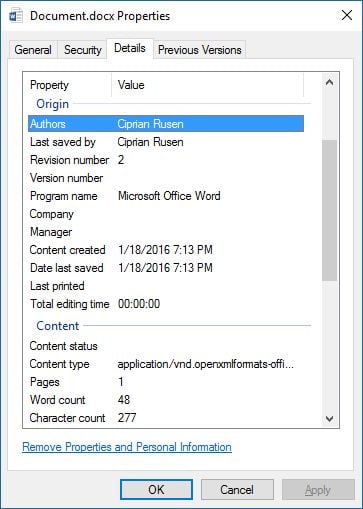
This will bring up the properties of the file, but go ahead and go to the Details tab to get into the nitty-gritty of the metadata. Once on the Details tab, you will be able to scroll through a plethora of data about the file: everything from who authored it, when it was created or modified, or even how many words are in it.
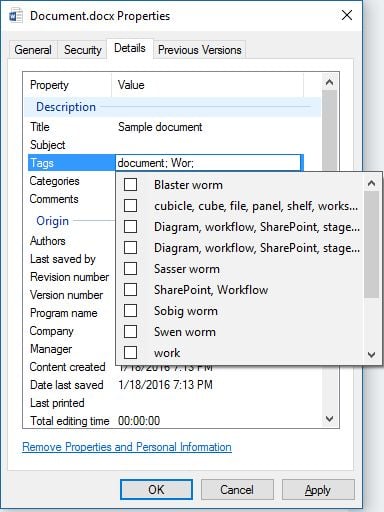
Some of these fields are something you can edit, though many of them are set in stone. To be fair though, a lot of the fields that can't be edited, are those hard facts like the word and page count or the day the file was created. Several can be edited, however, such as the title, subject, tags, categories, comments, and authors fields. To do this, simply click or tap to the right of the field you wish to edit and type. If you'd rather these fields were blank, delete whatever is written in them. When you are done, hit OK at the bottom of the Properties window.
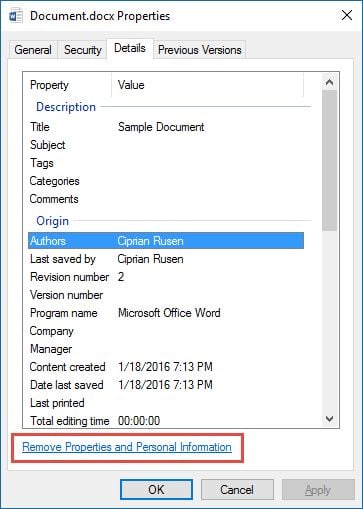
If you just want to remove all of the metadata that you can, there is a simple way to do this. Go to the bottom of the Details tab and click or tap "Remove Properties and Personal Information."
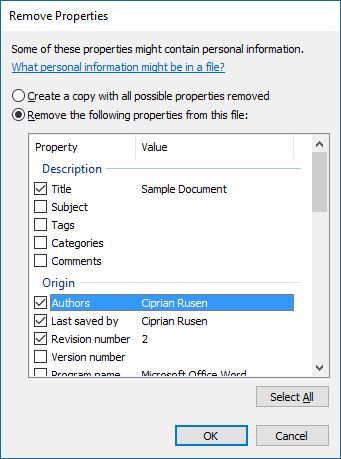
The Remove Properties window is shown. It will give you two options to remove metadata from the file: the first one will create a copy of the file with all possible properties removed, while the second allows you to pick and choose what properties you wish to remove from the file's metadata. Choose which you'd like to do, and check the boxes of the specific data you'd like to remove if you choose the second option. Keep in mind that if you use the second option you will lose the metadata permanently on the original file, so be careful if the data is valuable to you.
To apply your settings, click or tap OK in the Remove Properties window and then in the file's Properties window.
Metadata for pictures
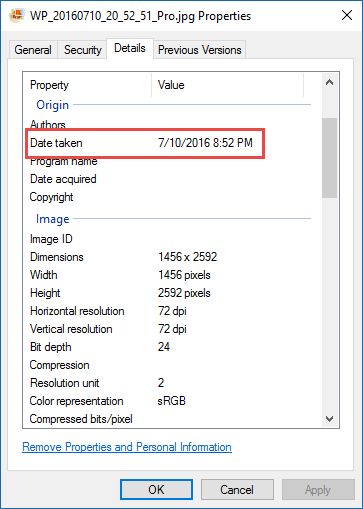
Pictures and other types of image files have particularly interesting data on them, including a variety of photo specific fields including a timestamp of when the photo was actually taken. This particular bit of metadata could be crucial to track and be aware of, just in case you don't want people knowing where and when you took a photograph. This metadata can be removed from most image formats in the fashion previously described for Microsoft Office files.
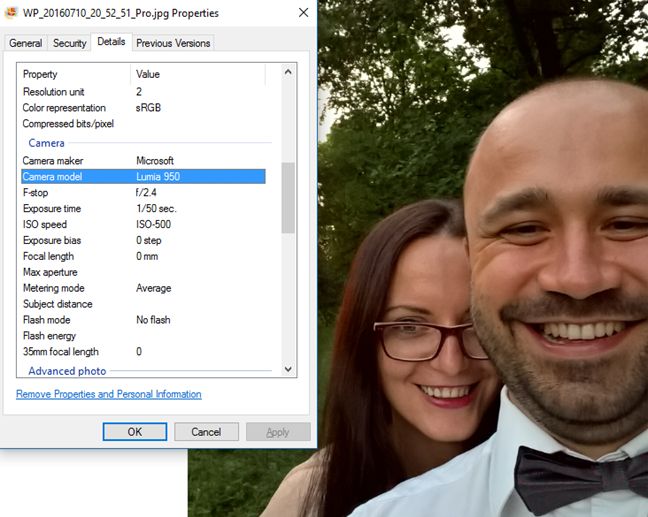
Other cool information included in the metadata for image files includes the details of the camera used to take it and the settings that were used: the ISO speed, the exposure time, focal length, the flash mode and so on. This can be great for tracking purposes or simply comparing the quality of pictures taken to the quality of the camera that took them.
Metadata can be useful if you wish to keep around details about specific files. However, not everyone wants those sorts of details to be shared, so be vigilant about what information is stored on a file before you send it to someone else. Where do you stand regarding metadata? Do you want it removed from most of your files or you want to store it and enhance it?
How cool for Microsoft, it can remove camera information, but it leaves picture editor version. This information is useful to attack website owners. You can try Directory Opus – from the developer of the original Windows Explorer.
raine ·
A lot of thanks for every one of your work on this web page. Gloria takes
pleasure in engaging in research and it ‘s really easy to see why. Almost all
When I create an mp4 from an application such as Camtasia, the metadata title for that mp4 is inevitably a string from an mp4 that I created a year ago. In other words, Windows is storing that string somewhere as a “sticky” title and applying it to all new mp4’s that are created.
Where is this value stored? I really don’t want that old title (even it is a supposedly hidden metadata title) to be attached to every mp4 I create. Yes, I can manually change each new mp4, but I forget to do so too often.
Brian ·
So I am using Windows Photo Viewer and I want lock copyright info in the metafile, and I apply Read Only and Encrypted, but when I send the file anyone seems to be able to go in and change the settings on my file. Am I missing something? How do I lock the metafile so no one can change it? Any ideas?
Jen ·
How is it 2017 and I just now thought to look into how to add/edit tags on Microsoft docs?!?
Kimbre Hill ·
Can metadata can be added to JPEG files from another document like Excel or Access? Each tag, title, comment, etc. would be different. Example: an architect takes 100 photos at a job site then uploads them to his computer. Those 100 photos need identifiers as to what each picture means to a contractor, insurance claims adjuster, etc. The architect creates a photo log (typing everything manually) in Excel containing:
1. Photo file name (after I batch rename them using Adobe Bridge)
2. Location (i.e. “interior of south wall”)
3. Description (i.e. “water damage from ceiling”)
4. A hyperlink to the JPEG file
I then use Adobe Lightroom to create simple “prints” that put 2 photos on a page along with custom captions & our logo. Right now the only useful information for the caption is the photo/file name and the date photo was taken. I would like to include the Location (title) and Description (tag) from the JPEGS’ metadata without having to manually type the info from the architect’s Excel sheet into Windows Explorer.
How can I make windows 7 search from title field? I have hundreds of thousands of captioned photos (using photo mechanic), but windows just doesn’t search title/caption (different filed name depending on program) field. Yet it is the most important one for me.
Bill ·
Can you change the “date created” metadata in a word document?
Boromeus ·
About PDF as I was just searching for it myself:
Windows 7 64bit can not search for meta data in PDF files. But Adobe offers the “PDF iFilter 64” which provides this functionality. Just search for the term on adobe.com and install the newest version (as of today it is 11.0.01); also follow the installation instructions on the download page (PATH variable) and you may have to restart your machine afterwards.
Windows 8 / 8.1 seems to get along fine with reading PDF meta data. However, setting it is more difficult and sadly needs 3rd party software. 🙁
Amyminge ·
Does anyone know if there’s a way to add metadata like tags, comments, etc. to a FOLDER (not a file, but a folder that contains multiple files) in Windows Explorer for Windows 7 or 8? Or perhaps there is 3rd party software?
For me, I often have 20+ jpgs in one folder. All of the metadata should be the same for these jpgs. I would like to be able to add it just one time for the whole folder, rather than 20 times for each file.
(Of course I can right click on the folder & go to properties, but there is no details pane, or other place to add tags, comments, etc. Right now, I add my metadata by customizing the folder’s name but this results in extremely long folder names with many tags. I currently have Windows 7, version 6.1, service pack 1).
Boromeus ·
I do not know about any 3rd party software for adding meta data to folders, so I can’t help you there. Windows itself doesn’t support it; meta data is stored inside a file (so the file has a way to store this information) and folders don’t have such memory.
However, you can assign meta data to more than one file without having to type it more than one time. Just select all files you want to add data to and either input the information in the details pane or in the properties – done!
Tags: if a file already has a tag, Windows won’t assign it a second time – so no duplicates. Existing tags will not be overwritten.
This way you can first select all files in the folder and assign a common tag (e.g. the geolocation of a set of pictures) and second (if needed) select only some files which you give another common tag.
Nikki ·
Is there a way to include camera model info while hovering the cursor over an image in 8.1? I know it shows up in the details pane but it’d be great to view it while hovering over the file too. I could’ve sworn it used to work before..
Sandhya kiran ·
Can you please help me, how to add meta data to the MP4 file
Bob ·
Windows 8 users have another way to modify some (all?) of this info. In Explorer if you select View > Details Pane this info appears in a panel to the right of a selected file. Just run the mouse over the fields and those that can be changed will be enclosed by a box. Click, edit and Save when all done.
Letitia Pepper ·
Is there any way to make SURE that the meta data for a document is copied along with the document when it’s burned to a CD? Or does that happen automatically? If I e-mail a document as an attachment, does the meta data automatically accompany it? Thanks for any advice!
Ciprian Adrian Rusen ·
The metadata is stored within the file. This means that when you copy it, no matter to what device, it is copied along with the file.
Rick ·
Dropping by to let you know I featured 7Tutorials on Bookmarks4Tech.com. (specific link: https://www.bookmarks4techs.com/2012/05/todays-technology-news-software-apps_26.html)… I also am the webmaster at whatsonmypc.wordpress.com… Please consider bookmarking my sites here at 7Tutorials. If not, that is OK… Keep up the great work. A fellow blogger and Information Tech Specialist.
Rick
Ron007 ·
Cool, I hadn’t noticed you could edit metadata from Explorer properties. Thanks.
Since you were working with Office files, there is another way to get at the meta data. In Office 2010 apps: File tab > Info command, look on the far right side of the “Backstage Pane” (that big white panel). You will see many of the metadata fields displayed. Many of them are editable. At the top there is a (not so obvious) “Properties” drop down button you can click on to show the properties in the document or to show “advanced properties”.
At the bottom of the list of properties there is a hyperlink to show MORE properties in the Backstage “Pain”
If you select the “Advanced Properties” in the dropdown you get a new dialog box with LOTS of metatdata!
If you want to identify and remove metadata, again in the File tab > Info command > click on the “Check for Issues” drop down > Select “Inspect the Document” > select the meta data options you want to look for an click on the “Inspect” button. You will see a list of the metadata found and be given the option of clearing it out.











Discussion (19)
How cool for Microsoft, it can remove camera information, but it leaves picture editor version. This information is useful to attack website owners. You can try Directory Opus – from the developer of the original Windows Explorer.
A lot of thanks for every one of your work on this web page. Gloria takes
pleasure in engaging in research and it ‘s really easy to see why. Almost all
notice
https://hocasino.newone2017.com
When I create an mp4 from an application such as Camtasia, the metadata title for that mp4 is inevitably a string from an mp4 that I created a year ago. In other words, Windows is storing that string somewhere as a “sticky” title and applying it to all new mp4’s that are created.
Where is this value stored? I really don’t want that old title (even it is a supposedly hidden metadata title) to be attached to every mp4 I create. Yes, I can manually change each new mp4, but I forget to do so too often.
So I am using Windows Photo Viewer and I want lock copyright info in the metafile, and I apply Read Only and Encrypted, but when I send the file anyone seems to be able to go in and change the settings on my file. Am I missing something? How do I lock the metafile so no one can change it? Any ideas?
How is it 2017 and I just now thought to look into how to add/edit tags on Microsoft docs?!?
Can metadata can be added to JPEG files from another document like Excel or Access? Each tag, title, comment, etc. would be different. Example: an architect takes 100 photos at a job site then uploads them to his computer. Those 100 photos need identifiers as to what each picture means to a contractor, insurance claims adjuster, etc. The architect creates a photo log (typing everything manually) in Excel containing:
1. Photo file name (after I batch rename them using Adobe Bridge)
2. Location (i.e. “interior of south wall”)
3. Description (i.e. “water damage from ceiling”)
4. A hyperlink to the JPEG file
I then use Adobe Lightroom to create simple “prints” that put 2 photos on a page along with custom captions & our logo. Right now the only useful information for the caption is the photo/file name and the date photo was taken. I would like to include the Location (title) and Description (tag) from the JPEGS’ metadata without having to manually type the info from the architect’s Excel sheet into Windows Explorer.
Thanks,
Kim Hill
[email protected]
PS: I found a typo on page https://www.digitalcitizen.life/what-file-s-metadata-and-how-edit-it
“Last but not least, you can update the medata of a file by modifying its properties, as shown in the sections above.”
How can I make windows 7 search from title field? I have hundreds of thousands of captioned photos (using photo mechanic), but windows just doesn’t search title/caption (different filed name depending on program) field. Yet it is the most important one for me.
Can you change the “date created” metadata in a word document?
About PDF as I was just searching for it myself:
Windows 7 64bit can not search for meta data in PDF files. But Adobe offers the “PDF iFilter 64” which provides this functionality. Just search for the term on adobe.com and install the newest version (as of today it is 11.0.01); also follow the installation instructions on the download page (PATH variable) and you may have to restart your machine afterwards.
Windows 8 / 8.1 seems to get along fine with reading PDF meta data. However, setting it is more difficult and sadly needs 3rd party software. 🙁
Does anyone know if there’s a way to add metadata like tags, comments, etc. to a FOLDER (not a file, but a folder that contains multiple files) in Windows Explorer for Windows 7 or 8? Or perhaps there is 3rd party software?
For me, I often have 20+ jpgs in one folder. All of the metadata should be the same for these jpgs. I would like to be able to add it just one time for the whole folder, rather than 20 times for each file.
(Of course I can right click on the folder & go to properties, but there is no details pane, or other place to add tags, comments, etc. Right now, I add my metadata by customizing the folder’s name but this results in extremely long folder names with many tags. I currently have Windows 7, version 6.1, service pack 1).
I do not know about any 3rd party software for adding meta data to folders, so I can’t help you there. Windows itself doesn’t support it; meta data is stored inside a file (so the file has a way to store this information) and folders don’t have such memory.
However, you can assign meta data to more than one file without having to type it more than one time. Just select all files you want to add data to and either input the information in the details pane or in the properties – done!
Tags: if a file already has a tag, Windows won’t assign it a second time – so no duplicates. Existing tags will not be overwritten.
This way you can first select all files in the folder and assign a common tag (e.g. the geolocation of a set of pictures) and second (if needed) select only some files which you give another common tag.
Is there a way to include camera model info while hovering the cursor over an image in 8.1? I know it shows up in the details pane but it’d be great to view it while hovering over the file too. I could’ve sworn it used to work before..
Can you please help me, how to add meta data to the MP4 file
Windows 8 users have another way to modify some (all?) of this info. In Explorer if you select View > Details Pane this info appears in a panel to the right of a selected file. Just run the mouse over the fields and those that can be changed will be enclosed by a box. Click, edit and Save when all done.
Is there any way to make SURE that the meta data for a document is copied along with the document when it’s burned to a CD? Or does that happen automatically? If I e-mail a document as an attachment, does the meta data automatically accompany it? Thanks for any advice!
The metadata is stored within the file. This means that when you copy it, no matter to what device, it is copied along with the file.
Dropping by to let you know I featured 7Tutorials on Bookmarks4Tech.com. (specific link: https://www.bookmarks4techs.com/2012/05/todays-technology-news-software-apps_26.html)… I also am the webmaster at whatsonmypc.wordpress.com… Please consider bookmarking my sites here at 7Tutorials. If not, that is OK… Keep up the great work. A fellow blogger and Information Tech Specialist.
Rick
Cool, I hadn’t noticed you could edit metadata from Explorer properties. Thanks.
Since you were working with Office files, there is another way to get at the meta data. In Office 2010 apps: File tab > Info command, look on the far right side of the “Backstage Pane” (that big white panel). You will see many of the metadata fields displayed. Many of them are editable. At the top there is a (not so obvious) “Properties” drop down button you can click on to show the properties in the document or to show “advanced properties”.
At the bottom of the list of properties there is a hyperlink to show MORE properties in the Backstage “Pain”
If you select the “Advanced Properties” in the dropdown you get a new dialog box with LOTS of metatdata!
If you want to identify and remove metadata, again in the File tab > Info command > click on the “Check for Issues” drop down > Select “Inspect the Document” > select the meta data options you want to look for an click on the “Inspect” button. You will see a list of the metadata found and be given the option of clearing it out.
Thanks for sharing this tip with us.