One of the things I do not like about File Explorer in Windows 10, is the fact that it starts by default on the Quick Access section. There I see my recent files and frequent folders. However, I prefer viewing my drives and user folders like Documents or Downloads. If you do too, read this tutorial and see how to set File Explorer to open This PC instead of Quick Access:
The problem: File Explorer in Windows 10 opens Quick access when you start it
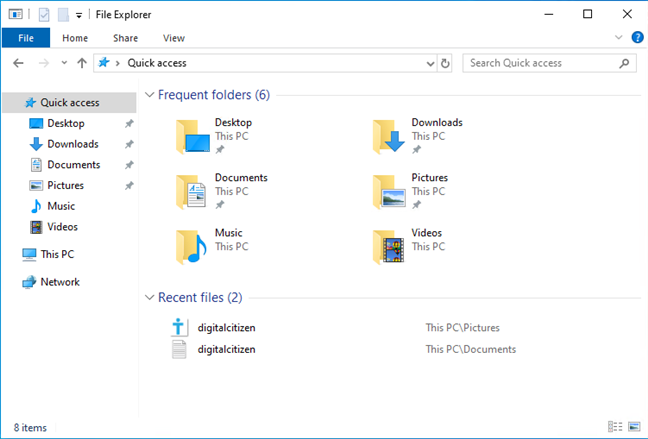
If you have not configured File Explorer in any way, each time you start it, it opens the Quick Access section, where you see your most frequently accessed folders, as well as your recent files.
The Quick Access section in File Explorer
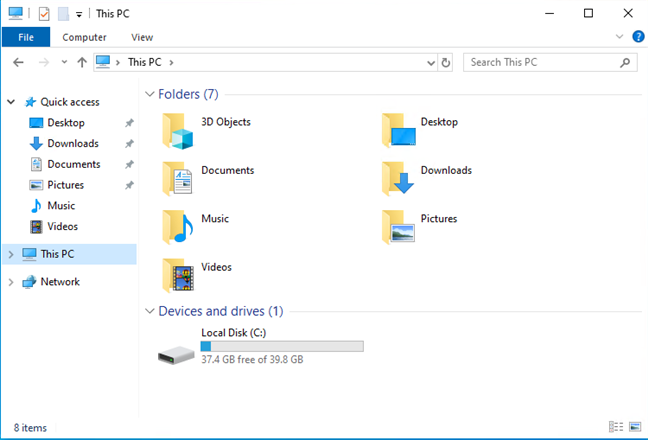
Some users want to remove the default behavior that opens Quick access in File Explorer and switch to using the This PC section. This PC may be a more useful start location for File Explorer, as it shows your user folders (Documents, Downloads, Pictures, Desktop, and so on), as well as all the storage devices and drives on your computer.
The This PC section in File Explorer
We prefer this way of viewing things when we start File Explorer, and we always switch Quick Access with This PC, as the default start location.
The solution: Set File Explorer to open This PC by default
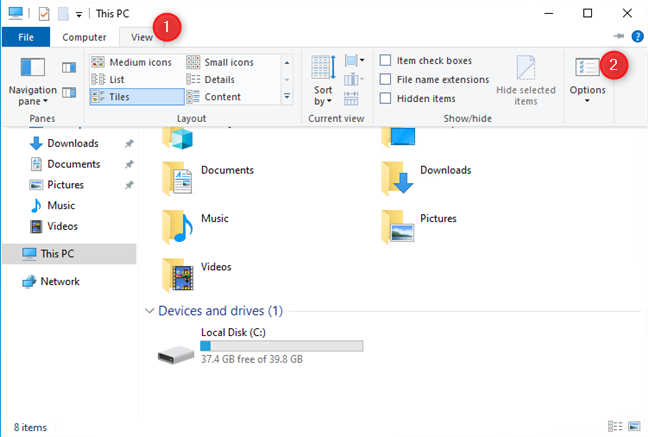
To solve this problem, start File Explorer. Then, open the Folder Options window. To do that, click the View tab on the ribbon, and then the Options button on the right.
Accessing Folder Options in File Explorer
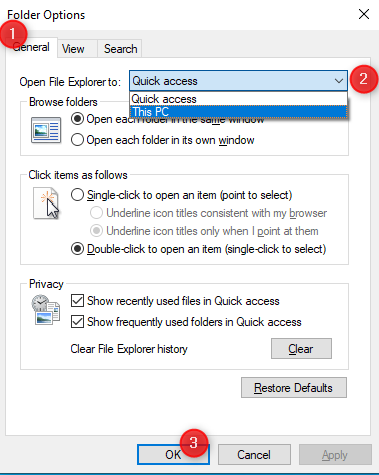
In the Folder Options window, make sure that you are in the General tab. There, click or tap the drop-down list next to "Open File Explorer to" and choose This PC instead of Quick access. Do not forget to click OK to save your settings.
Set File Explorer to open This PC
Close File Explorer and, the next time you start it, it should open This PC. A more useful start location, isn't it?
What if I want to choose another start location for File Explorer?
This tutorial should have helped you solve this small annoyance. If you have any problems, share them in a comment. Also, tell us which start location you prefer for File Explorer: is it Quick Access or This PC? Comment below and let's discuss.
You are welcome. Do not hesitate to subscribe to our newsletter, for more useful tutorials.
James ·
Prefer opening to my PC do not use the quick access
richard calhoun ·
Windows 10 just changed document files to .docx, making File Explorer default to SYSTEM32. It doesn’t default to Quick Access or This PC. I don’t want to make a quick save of my document into SYSTEM32 folder.
05-05-2019 can you address this issue anytime soon; it is a new issue.
Anonymous ·
Follow the instructions in our tutorials to change the folder opened by File Explorer, when you start it.
Serio ·
Not good enough. In my case, “This PC” is not the location i what.
Chuck Furgason ·
Is there an easy way to start File Explorer in other than Quick Access or PC?
Ken D ·
Instead of just This PC, I think it would be handy to have an option to always start on a specific drive.
John ·
Can I make File Explorer open to my “Data” partition instead?










Discussion (10)
thanks!
You are welcome. Do not hesitate to subscribe to our newsletter, for more useful tutorials.
Prefer opening to my PC do not use the quick access
Windows 10 just changed document files to .docx, making File Explorer default to SYSTEM32. It doesn’t default to Quick Access or This PC. I don’t want to make a quick save of my document into SYSTEM32 folder.
05-05-2019 can you address this issue anytime soon; it is a new issue.
Follow the instructions in our tutorials to change the folder opened by File Explorer, when you start it.
Not good enough. In my case, “This PC” is not the location i what.
Is there an easy way to start File Explorer in other than Quick Access or PC?
Instead of just This PC, I think it would be handy to have an option to always start on a specific drive.
Can I make File Explorer open to my “Data” partition instead?
Read this guide: https://www.digitalcitizen.life/how-make-windows-10s-file-explorer-start-any-location-you-want