UP

Apps

Tutorials, articles and recommendations about apps and programs that people use on their computers, smartphones, smartwatches, and other gadgets.

What the Reading List App in Windows 8.1 is & Why You Should Use it

Let's face it, no matter how much the Internet has improved and eased the way you get informed, it is still full of recycled, misunderstood or erroneous information. You will likely need to carefully filter through all the information you find on the web in order to read the news, blog posts or any other kind of content that is both useful for you and correctly written. Fortunately, Microsoft included
How to Learn the Countries Where Windows Store Apps are Available

Even though each app in the Windows Store has its own webpage that can be found using a search engine, Microsoft doesn't offer a full web version of the Windows Store. Also, in the Windows Store app, you cannot view apps that are not available in your region. This raises an interesting issue: you can't learn the countries where an app is available. It can happen that an app that

How to Use Windows Defender in Windows 8 & Windows 8.1

Guess what Windows 8 & Windows 8.1 users: when you're using Microsoft's newest operating system you don't need to install virus protection... Oh god, we sound like those Mac elitists, don't we? Well, we aren't saying this due to an over-confidence in virus coders lack of interest in a comparatively small market share. We're saying this because Windows 8 & Windows 8.1 have a baked in antivirus that is sufficient

How to Set AutoPlay Defaults for Media & Devices in Windows 8.1

In Windows 8.1 you can also set the AutoPlay settings for your media and devices, directly from PC Settings. There you have access to almost the same customization options found in the Control Panel. This tutorial shares where to find the AutoPlay settings and how to fiddle with them. [DC-SUMMARY-BREAK] Where to Find the AutoPlay Settings in PC Settings? Open PC Settings. Then, click or tap PC and devices. AutoPlay,

How to Set How Much Data Tiles Use in Windows 8.1

If you are a tablet user with Windows 8.1 and you have a poor data plan, then you will want to limit how much data is used by the operating system, including the tiles. Depending on the apps you have installed and what updates they display on their tiles, they might end up consuming a lot of data. Luckily, Windows 8.1 provides a way for you to control how much

Introducing Windows 8.1: How Does Search Work & How to Use It?

Search in Windows 8.1 has been completely redeveloped. It is so different from Windows 8 and Windows 7 that some users might have trouble understanding how it works. That's why I decided to create this complete guide on Search, filled with screenshots and examples. As you will see, the integration of Bing into Windows 8.1 is both very powerful and scary. Here's how it works: [DC-SUMMARY-BREAK] How to Start a

Introducing Windows 8.1: How to Improve Your Privacy When Using Apps

Windows 8.1 brings many welcome changes, some of which have not been communicated very well by Microsoft. One of the lesser known changes is that Windows 8.1 has very good privacy controls for working with Windows Store apps. As you will see in this tutorial, these controls are detailed and really useful. If you want to set which apps use what data, then reading this guide is a must. [DC-SUMMARY-BREAK]

Introducing Windows 8.1: What are Quiet Hours & How to Configure Them?

Windows 8.1 introduces a neat little feature, named Quiet Hours. As the name implies, quiet hours are an interval within the day when you don't want to be interrupted by notifications, by any Windows app, not even the Mail app. You can also set that, during those quiet hours, you won't even take calls through Skype. Here's where to find this feature in Windows 8.1 and how to configure it.

How to Configure the Windows 8 Apps Inside Which You Perform Searches

Performing searches in Windows 8 is fast and easy. One important difference versus Windows 7 is that you can perform searches inside Windows 8 apps, directly from the Start screen. You type a search term, select the app where you want to perform the search and the results are displayed inside that app. Pretty cool, isn't it? Also, you can configure the list of apps inside which you perform searches.

How to Add or Remove Buttons on the Windows Explorer Toolbar

If you are using Windows 7, you have a small selection of buttons available on the Windows Explorer toolbar and this may not help you be very productive. You may want more buttons on it. Luckily, the team from WinAero have created a free tool that you can use to enhance the toolbar and add new buttons to it. With it, you can transform the boring toolbar into a mini-ribbon.

How to Add or Remove the Take Ownership Entry in the Right Click Menu

Do you need an easy way to add the Take Ownership entry to the right-click menu in Windows 7 or Windows 8? If you do, we have two options for you, both of them quick and reliable. They work with both Windows Explorer and File Explorer. [DC-SUMMARY-BREAK] NOTE: If you access this option from the contextual menu, the owner of the selected file or folder will automatically change to your

Scan for Open Ports & Evaluate the Security of Your System with Nmap

Would you like to know how many open ports are found on each computer or device that is part of your network? Do you want to evaluate how good their firewall protection is and how vulnerable they are? Then, you should try Nmap - an open source tool for security auditing. We use it in our reviews for security solutions and we think it is awesome. You should also try
tutorial 4+ Free Tools for Making Remote Connections from Macs to Windows PCs

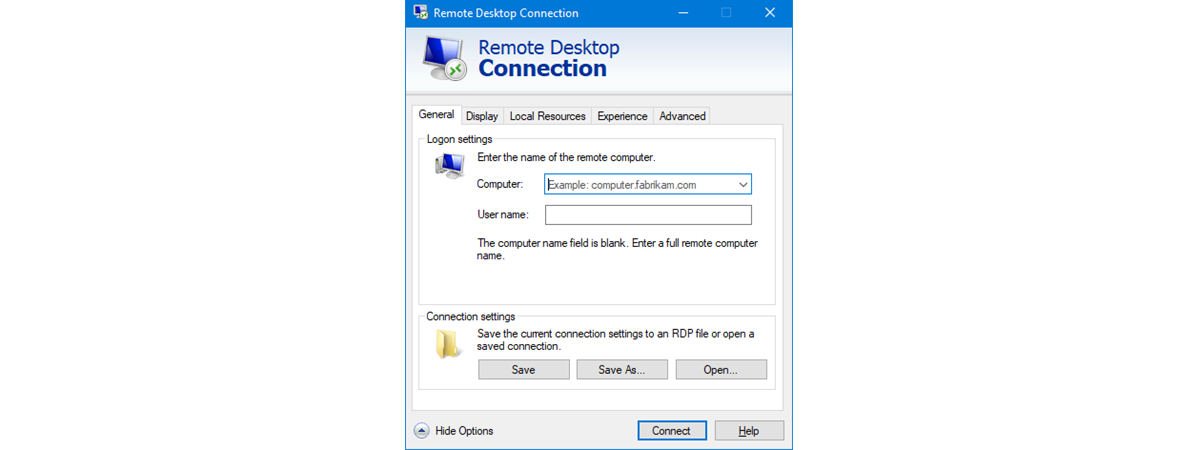
4+ Free Tools for Making Remote Connections from Macs to Windows PCs

When I was asked to update our 2010 article about connecting remotely to a PC from a Mac, I thought it would be a fairly simple task. However, since that article was written, Microsoft has dropped support for their Remote Desktop Connection software for Macs. While there are anecdotal reports of it working on OS X Lion, it definitely will not work on OS

How to Use Special Characters in Windows with Character Map

What do you do when you have to insert special characters that can't be found on your keyboard? You use the Character Map tool found both in Windows 7 and Windows 8. It allows you to insert scientific notations, mathematical operators, currency symbols and characters from languages like Japanese Hiragana , Katakana, Korean Hanji and others. In this tutorial, I will show how to find the Character Map, share a

How to Add a Clock Showing the Time on the Windows 8 Start Screen

One of the things I do not like about the Start screen in Windows 8 is the fact that it doesn't show the time and date, as the taskbar does on the Desktop. I wish Microsoft had provided an easy way to add a clock in a live tile. Luckily there are quite a few apps available to fill this gap. The better ones cost money but there are also

How to Schedule a Virus Scan with Windows 8's Built-In Antivirus

If you've spent any time looking at Windows 8's Defender interface, you've likely noticed that it doesn't include any options for scheduling a scan. While Windows Defender provides most of it's protection in real-time, if you're like us, you'll want a back-up scan occurring regularly. Though the user interface does in fact omit a simple way to schedule a scan, this option exists within the Windows 8 Task Scheduler. Read

Introducing Windows 8: The Complete Guide to the Messaging App

Chatting has become a very large part daily computer usage for many people. Whether messaging on Facebook or with a chat client, you've likely spent a significant amount of time messaging with friends back and forth. Using separate clients to chat with contacts can get annoying, so Windows 8 has taken a step to try and make it easier. The Messaging app allows you to aggregate your contacts from both

Introducing Windows 8: How to Manage Your Mail App's Inbox & Messages

While we've already covered the basics of configuring and using the Windows 8 Mail app in quite a few guides, there's more to it. Once you've got your accounts set up and you're receiving emails you may want to dig into the intricacies of this useful app. At first glance you may think there isn't much more to the Mail app than folders and inboxes. This is a simple mistake