What do you do when you have to insert special characters that can't be found on your keyboard? You use the Character Map tool found both in Windows 7 and Windows 8. It allows you to insert scientific notations, mathematical operators, currency symbols and characters from languages like Japanese Hiragana , Katakana, Korean Hanji and others. In this tutorial, I will show how to find the Character Map, share a few ways of searching for a character and how to copy characters to any Windows application.
Were to Find Character Map in Windows 7
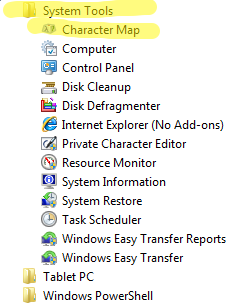
There are several ways of finding Character Map. One is to go to 'Start Menu -> All Programs -> Accessories -> System Tools -> Character Map'.
Character Map in Windows 7 and Windows 8
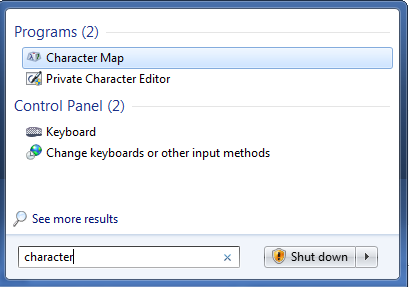
Also, you can type the word 'character' in the Start Menu search box and click Character Map.
Character Map in Windows 7 and Windows 8
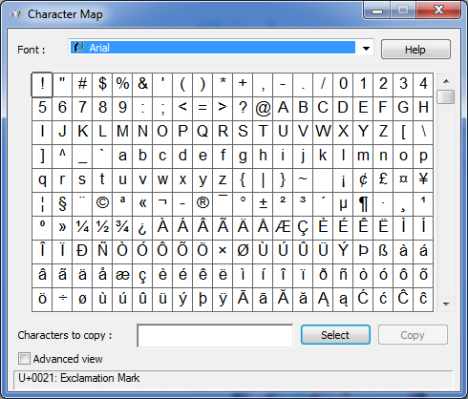
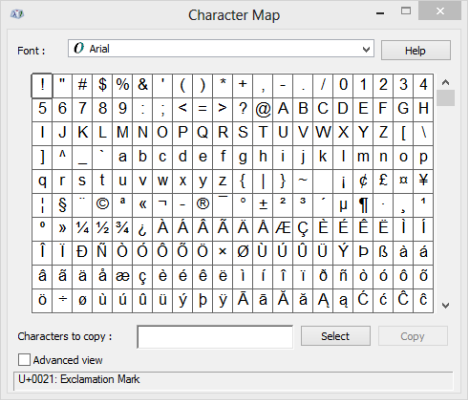
When opened, the Character Map window will look similar to the one below.
Character Map in Windows 7 and Windows 8
Were to Find Character Map in Windows 8
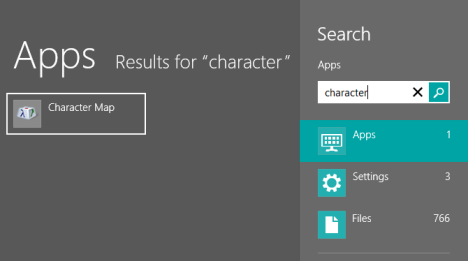
In Windows 8, the fastest way to launch this tool is to search for the word 'character', directly on the Start screen. Then, click or tap the appropriate result.
Character Map in Windows 7 and Windows 8
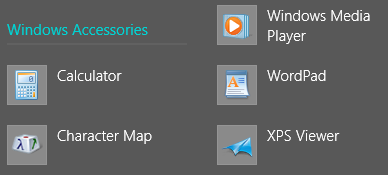
Alternatively, go to the Start screen and right click or swipe from the bottom, then click or tap All apps. Scroll right until you find the Windows Accessories folder.
Character Map in Windows 7 and Windows 8
There, click or tap Character Map, to open the application.
Character Map in Windows 7 and Windows 8
As you can see, it looks identical to the Windows 7 version and behaves in a similar way.
Find & Copy Characters Using the Basic View of the Character Map
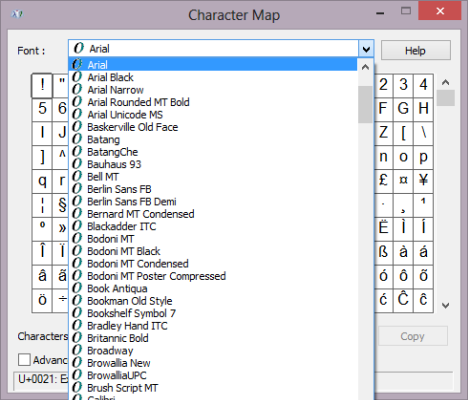
Characters in Character Map are grouped by Fonts. Click or tap the fonts drop-down list to choose one.
Character Map in Windows 7 and Windows 8
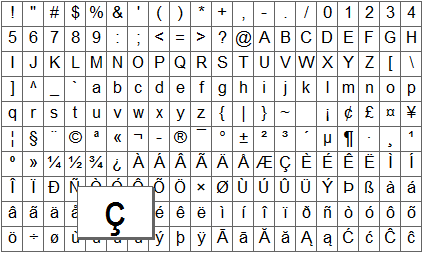
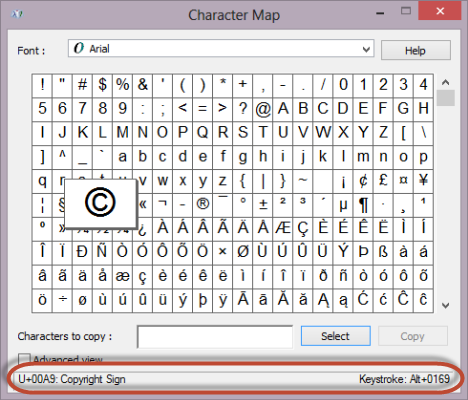
Click or tap a character to see it magnified.
Character Map in Windows 7 and Windows 8
When you select a character, you can view the its name and keystroke, at the bottom of the Character Map window.
Character Map in Windows 7 and Windows 8
The keystroke represents the combination of keys that you can press to insert the character into any document, without manually copying the character from Character Map. If you need to use a symbol many times, using the keystroke can be very useful.
All keystroke combinations have this format: the 'Alt' key followed by a 4-digits number. To use a keystroke, make sure the 'Num lock' is on. Hold down the 'Alt' key and, in the numeric pad type the number code. When you release the 'Alt' key, the symbol appears in the document.
Important Note: The symbols can be inserted only by using the numeric pad.
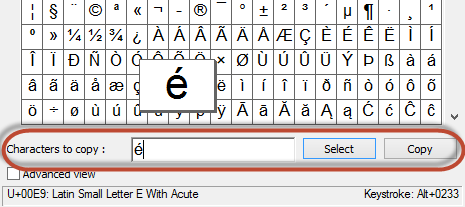
You can also copy a character without using the keyboard. To do this, first click or tap the symbol you want to copy. Then, click or tap Select or double-click the symbol. The character will appear in the 'Characters to copy' box. Click or tap Copy and then paste it where you want.
Character Map in Windows 7 and Windows 8
You can also select multiple characters to copy. Choose the ones you want by double clicking on them (or selecting them) one by one.
You will see the symbols being added to the 'Characters to copy' field. When done selecting them all, click or tap Copy.
Character Map in Windows 7 and Windows 8
Now you can paste them to any application or document.
Find &Copy Characters Using the Advanced View of the Character Map
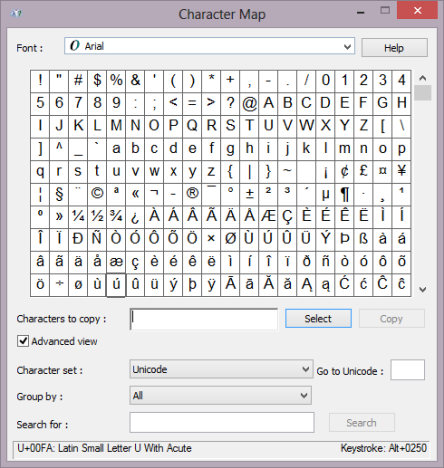
To open the additional controls, check the box named 'Advanced view'.
Character Map in Windows 7 and Windows 8
This opens an additional list of options, at the bottom of the Character Map window.
Character Map in Windows 7 and Windows 8
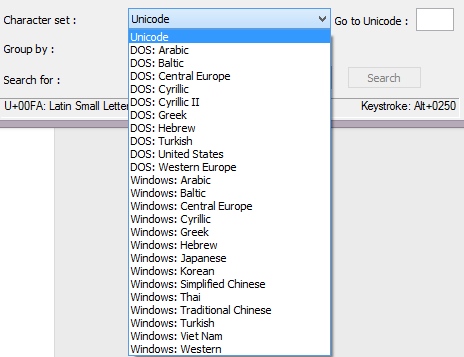
Each character set provides support for different character encodings, specific to different languages or groups of languages like Arabic, Baltic, Cyrillic, Greek, Japanese, Thai and others. Click or tap the 'Character set' drop-down list to see the options it has to offer.
Character Map in Windows 7 and Windows 8
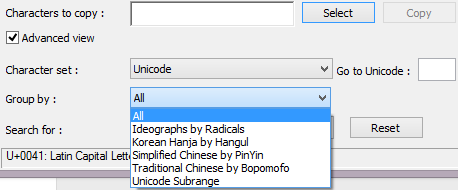
Character Map allows you to group symbols by different criteria. For example, Chinese, Japanese and Korean characters are grouped by the way they sound. Click or tap the 'Group by:' drop-down list to choose between the available grouping options.
Character Map in Windows 7 and Windows 8
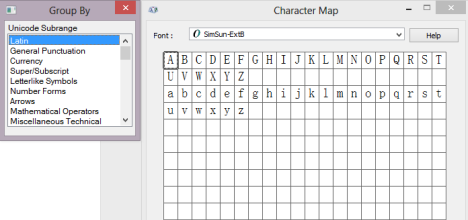
Click or tap different the options from the 'Group By' window to see the corresponding symbols in Character map.
Character Map in Windows 7 and Windows 8
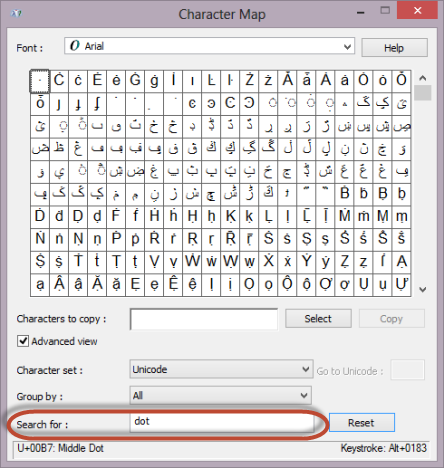
If you know the name of a character, or part of it's name, type it in the Search for field and click or tap Search.
Character Map in Windows 7 and Windows 8
For example, if I'm looking for a symbol that contains a dot, I can type dot and see all the characters that have the word dot as part of their name.
To reset your search terms, click or tap Reset.
Conclusion
As you can see from this guide, Character Map allows you to find all the symbols available with each font installed in Windows. Try it out when you need to work with special symbols in your documents and let us know how it works. Have you learned any useful tricks about using this tool? If you did, don't hesitate to share them. Unfortunately there's very little information available about this tool. Anything you learn is worth sharing with others.
Hey I was trying to copy a custom character I made for a presentation, however, when I try to paste it into google docs it won’t and when I paste it in a text doc it just shows up with the unicode box instead of the actual symbol. How can I fix this?
Rambo ·
Excellent user friendly article. Thank you. You made my life easier.
Connie Schneider ·
Thank you so much for your time and energy: You have helped me a lot!
Ben ·
A quick note that I discovered:
I have Office 2013 on Win7 OS on my laptop which does not have a separate number pad. Because you can only enter the ALT keystroke combination on a number pad I was not looking forward to copying and pasting every time I had to enter a special character. (I’m in law school so it’d be section and paragraph symbols) In Word 2013 you can go to Insert-Symbols-Symbol-More Symbols. In the window that pops up find the symbol you want and choose a “Shortcut Key.” I made the section symbol ALT+1 and the paragraph symbol ALT+2. It’s not going to be as helpful if you regularly use a lot of different characters, but if you only need a few regularly it will help immensely.
John ·
Hi there,
I just noticed that the character “” (backslash or reverse solidus), among others, does have an ALT keystroke (ALT+92 or ALT + 0092). However, Character Map won´t show it on the bottom right corner. Any ideas why?
Margret Rosenberg ·
Does anyone know how the “modifier characters” that I find in character map work? Microsoft doesn’t seem to have anything about this on their website.
Gary Davis ·
If I create a special character, use it in a Word or Visio document, and email that file to someone else — what will that person see?
Margret Rosenberg ·
Try emailing one to yourself to find out.
Gary davis ·
Good idea, so long as I retrieve the email on a different computer, which I will do. Thanks
Nick ·
I can find a gradient symbol anywhere. Did Bill’s education stop before vector calculus? It would be ∆ upside down
John ·
When I choose a character, it does not show the keystroke to the right side at all, it is blank. It just shows U+4 digits. How do I turn the keystroke reveal on?
Chappers ·
Almost no Unicode characters have a keystroke like the small number of ASCII ones that do. There’s a way to set Windows to let you use the same sort of thing using the Unicode code point (the hexadecimal number on the left at the bottom): https://www.windowsvistasecret.net/secret.asp?haber=54, for example, says it may require a small edit to the registry if it’s not enabled in the first place.
Also, there’s a typo in the article: “Were to find […]”
odeho19 ·
This makes completely no sense what so ever to me. When I look @ my character map, in the “Times New Roman Font” for example, and there isn’t a keystroke for a character in the box on the bottom right hand side, how do I create the character I want in my text?
I read through the link that you provided, and it was almost impossible to understand. Maybe I should make something else clear. I am NOT a programmer. I do NOT know any computer languages. The terms in the other link you provided don’t make any sense to me. When something says “press ALT+x”, which keys EXACTLY am I supposed to press? I know about the “Alt” key, but is it also the “+” key, and the “X”, or what? I know this sounds like I’m an absolute idiot to you programmer/smart types, but I don’t know that stuff. Or am I just pressing two keys simultaneously? The “Alt” key, and the “X”.
Maybe an expressed example would help. In Times New Roman, the symbol for the heart in a deck of cards shows on the bottom left as “U+2665”. How would I make that, in to this, “♥”? Beings there is not a keystroke on the bottom right hand side. Is my only option then to copy/paste as I did here?
Thanks for any answer, and I’m sorry if I stretched this out too far, and for sounding like an idiot. 🙂
Florina ·
Hello,
“Alt+numbercode” means, as I said in the article, “Hold down the ‘Alt’ key and, in the numeric pad type the number code” so, for “Alt + X” while you are pressing the Alt key, you also press the “X” key.
Not all characters have a keycode but you can copy them as mentioned: click on the symbol, press the “Select” button, and then the “Copy” button. Paste the character in the document where you want it, as you did in the comment above.





















Discussion (14)
Hey I was trying to copy a custom character I made for a presentation, however, when I try to paste it into google docs it won’t and when I paste it in a text doc it just shows up with the unicode box instead of the actual symbol. How can I fix this?
Excellent user friendly article. Thank you. You made my life easier.
Thank you so much for your time and energy: You have helped me a lot!
A quick note that I discovered:
I have Office 2013 on Win7 OS on my laptop which does not have a separate number pad. Because you can only enter the ALT keystroke combination on a number pad I was not looking forward to copying and pasting every time I had to enter a special character. (I’m in law school so it’d be section and paragraph symbols) In Word 2013 you can go to Insert-Symbols-Symbol-More Symbols. In the window that pops up find the symbol you want and choose a “Shortcut Key.” I made the section symbol ALT+1 and the paragraph symbol ALT+2. It’s not going to be as helpful if you regularly use a lot of different characters, but if you only need a few regularly it will help immensely.
Hi there,
I just noticed that the character “” (backslash or reverse solidus), among others, does have an ALT keystroke (ALT+92 or ALT + 0092). However, Character Map won´t show it on the bottom right corner. Any ideas why?
Does anyone know how the “modifier characters” that I find in character map work? Microsoft doesn’t seem to have anything about this on their website.
If I create a special character, use it in a Word or Visio document, and email that file to someone else — what will that person see?
Try emailing one to yourself to find out.
Good idea, so long as I retrieve the email on a different computer, which I will do. Thanks
I can find a gradient symbol anywhere. Did Bill’s education stop before vector calculus? It would be ∆ upside down
When I choose a character, it does not show the keystroke to the right side at all, it is blank. It just shows U+4 digits. How do I turn the keystroke reveal on?
Almost no Unicode characters have a keystroke like the small number of ASCII ones that do. There’s a way to set Windows to let you use the same sort of thing using the Unicode code point (the hexadecimal number on the left at the bottom): https://www.windowsvistasecret.net/secret.asp?haber=54, for example, says it may require a small edit to the registry if it’s not enabled in the first place.
Also, there’s a typo in the article: “Were to find […]”
This makes completely no sense what so ever to me. When I look @ my character map, in the “Times New Roman Font” for example, and there isn’t a keystroke for a character in the box on the bottom right hand side, how do I create the character I want in my text?
I read through the link that you provided, and it was almost impossible to understand. Maybe I should make something else clear. I am NOT a programmer. I do NOT know any computer languages. The terms in the other link you provided don’t make any sense to me. When something says “press ALT+x”, which keys EXACTLY am I supposed to press? I know about the “Alt” key, but is it also the “+” key, and the “X”, or what? I know this sounds like I’m an absolute idiot to you programmer/smart types, but I don’t know that stuff. Or am I just pressing two keys simultaneously? The “Alt” key, and the “X”.
Maybe an expressed example would help. In Times New Roman, the symbol for the heart in a deck of cards shows on the bottom left as “U+2665”. How would I make that, in to this, “♥”? Beings there is not a keystroke on the bottom right hand side. Is my only option then to copy/paste as I did here?
Thanks for any answer, and I’m sorry if I stretched this out too far, and for sounding like an idiot. 🙂
Hello,
“Alt+numbercode” means, as I said in the article, “Hold down the ‘Alt’ key and, in the numeric pad type the number code” so, for “Alt + X” while you are pressing the Alt key, you also press the “X” key.
Not all characters have a keycode but you can copy them as mentioned: click on the symbol, press the “Select” button, and then the “Copy” button. Paste the character in the document where you want it, as you did in the comment above.