On the Windows 8 Start screen you will find a small tile named Camera. It is a shortcut to a little Windows 8 app that can be used to record videos or take pictures. Even though its interface is very simplistic, it is not that easy to understand how to set it up and use it to record videos or take pictures. That's why I decided to write this tutorial and help you out.
How to Start the Camera App
Before you run the Camera app for the first time, install your webcam. Then, find Camera tile on the Start screen and click or tap on it.
Windows 8 - How to use the Camera app
If you can't find it, search for the word camera on the Start screen and click or tap the appropriate search result.
The app will ask if it can use your webcam and microphone. Click or tap Allow in order to use the app.
Windows 8 - How to use the Camera app
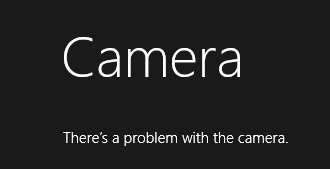
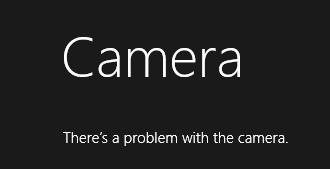
If your webcam is not installed correctly, the Camera app will return errors like the one below: "There's a problem with the camera".
Windows 8 - How to use the Camera app
If everything is OK with your webcam, you will see an image of what it is in front of it and three small buttons on the bottom-right.
Windows 8 - How to use the Camera app
Now you can start to configure and use the app.
How to Configure How the Camera App Works
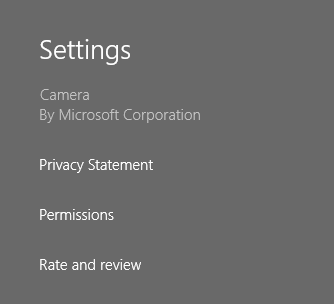
If you go to the Settings charm for the Camera app, you will notice that there's nothing to set. You can only view the privacy statement, set the permissions for accessing your webcam and microphone and rate the app on the Store.
Windows 8 - How to use the Camera app
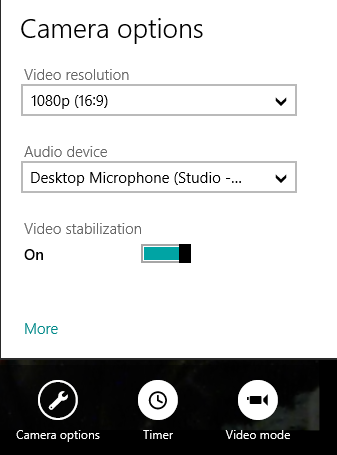
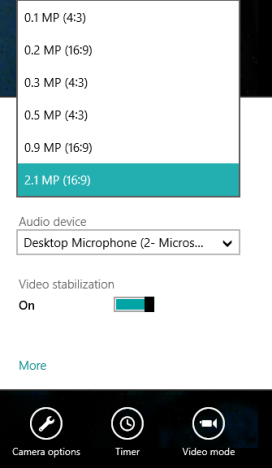
If you want to configure the way it works, click or tap the Camera options button on the bottom right. This opens a menu where you can set the resolution for the videos that will be recorded and the audio device used to record the sound. You can also enable additional features like Video stabilization, if they are available for your webcam.
Windows 8 - How to use the Camera app
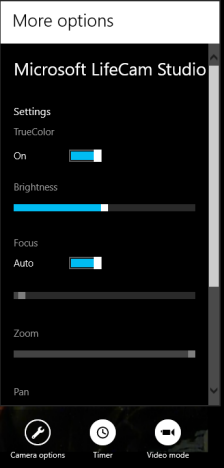
Depending on your webcam, you may also see a link named More in the Camera options menu. If you click or tap on it, it will open additional configuration options, specific to your webcam model. Below you can see the options available for a Microsoft LifeCam Studio.
Windows 8 - How to use the Camera app
On the bottom right you will also find the Timer. A click or tap on it will activate a 3 seconds timer. This timer is applied before recording video and taking pictures. Unfortunately, its duration cannot be changed at this time. Hopefully, Microsoft will release an update to the app which enables this configuration.
Windows 8 - How to use the Camera app
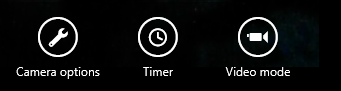
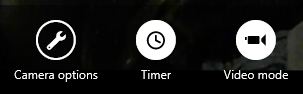
The last button on the bottom right is named Video mode. When enabled, the Camera app records videos. When not, it takes pictures. Below you can see how the Timer and Video mode buttons look like when they are both enabled.
Windows 8 - How to use the Camera app
Notice the difference between this screenshot and the previous one. When set like this, the Camera app records videos and waits three seconds before each recording is started.
How to Record Video or Take Pictures with the Camera App
But how do you record videos or take pictures with the Camera app when the buttons on the right are used only to configure the way it works?
To record video, make sure the Video mode is enabled. Then, click or tap somewhere in the middle of the image displayed by your webcam. The recording starts and a stopwatch is displayed on the bottom right, showing the time that has passed since you started the recording.
Windows 8 - How to use the Camera app
To stop recording click or tap the image being displayed and the Camera app spends some time to save the recording on your hard drive. When the recording is saved, the only clue that it is stored and available is the fact that a Back arrow is displayed on the left side of the screen.
Windows 8 - How to use the Camera app
Click or tap on it to view the recorded video.
To take pictures, disable Video mode. Then, click or tap somewhere in the middle of the image displayed. A picture is taken and saved immediately.
How to Browse Recorded Videos & Pictures in the Camera App
To view the videos and pictures you've taken with the Camera app, tap or click the Back arrow on the left side of the screen. A Forward arrow is then displayed on the right, while most recent video or picture taken is loaded.
Windows 8 - How to use the Camera app
Use the arrows to browse through your recorded content. On a device with touch you can also flip left and right with your finger.
To play a video that you recorded simply click or tap on it. If you swipe from the bottom or right click on it while it plays, the Camera app shows navigational controls that can be used to skip back and forth through the video.
Windows 8 - How to use the Camera app
One thing you should note though - you can use the Camera app to view only the media files created by it and stored in its folder. To browse through media files from other folders and libraries on your Windows 8 computer or device, you need to use other apps.
How to Crop Pictures or Trim Videos with the Camera App
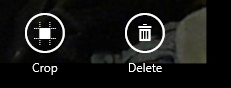
This might be hard to figure out at first but the Camera app has some basic editing tools available: crop for pictures and trim for videos.
To crop a picture, open it in the Camera app. Then, right click or swipe from the bottom, to bring up the contextual menu. On the bottom right, you will see the Crop button followed by Delete.
Windows 8 - How to use the Camera app
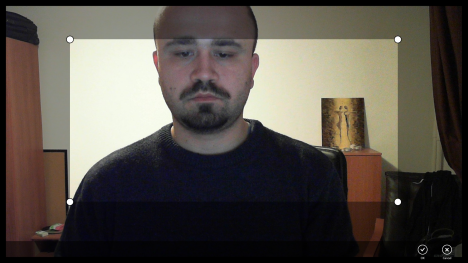
Click or tap Crop and use the visual guidelines to set how you want the picture to be cropped. When done, click or tap OK on the bottom right.
Windows 8 - How to use the Camera app
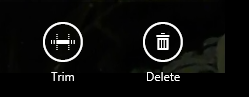
To trim a video, open it in the Camera app. Then, right click or swipe from the bottom, to bring up the contextual menu. On the bottom right, you will see the Trim button followed by Delete.
Windows 8 - How to use the Camera app
Click or tap Trim and use the margins on the timeline to set from where to where you want to trim the recording. When done, click or tap OK.
Windows 8 - How to use the Camera app
The Camera app trims the video and saves it according to your settings.
Where Does the Camera App Store Videos and Pictures?
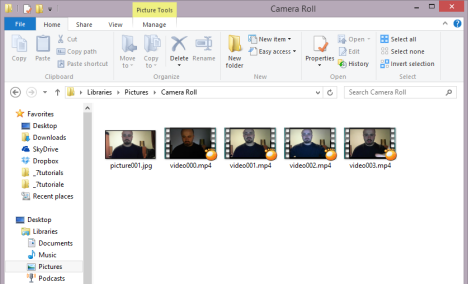
The Camera app stores all the videos your record and the pictures you take in a folder named Camera Roll.
Windows 8 - How to use the Camera app
You will find it in your Pictures library. The pictures are stored only as .jpg files and the video recordings as .mp4 files.
Problems and Limitations of the Camera App
In my regular use of the Camera app I encountered one annoying limitation and two issues that you might encounter as well.
First of all, the Camera is not capable of running in the background. In the era of multitasking, this is an unpleasant surprise. What does this mean? If the Camera app is not opened and active on your screen, it won't record videos. If you start a recording and minimize the app, the recording will stop. If you want it to finish recording, leave its window open and active on the screen.
Then, if your webcam is not plugged in correctly or there is a problem with the way it was installed, the Camera app will say that "There's a problem with the camera". Verify if that the webcam is plugged in correctly and that Windows 8 detects it and installs the drivers for it.
Windows 8 - How to use the Camera app
It may happen that the video resolutions available in the app are much lower than what your webcam is capable of. This means only one thing: you must download and install Windows 8 specific drivers for your webcam. They are missing and Windows 8 installed some generic drivers that don't work well with your webcam.
Windows 8 - How to use the Camera app
Go to your web browser, find them, download and then install them. Only then the Camera app will display the appropriate resolutions as being available for recording videos.
Conclusion
The Camera is very basic and can work well if all you need is quick video recording or picture taking. If you need more than that, then you should search for more complex alternatives that better meet your needs.
If you are looking for other tips about Windows 8 and Windows 8 apps, don't hesitate to read the articles recommended below.
how do i record using the camera then minimize the camera app and continu recording
Ciprian Adrian Rusen ·
You can’t do that. If you minimize the app, it stops recording.
Mangal Bhasin ·
So long as windows version was 8.1, I could replay a recorded video through camera roll. But I do not find it after converting to Windows 10. Still pictures recorded on the same day are available. What to do.
Waqas ·
when i open my Camera app it just give me a black screen with camera and video option , same goes for skype it just give me black screen on skype as well . can anyone help me what to do now ?thanks
Melissa ·
Trying to post my video to facebook is that possible?
Ciprian Adrian Rusen ·
Yes. Just upload the video to Facebook, like any other video.
Coleen ·
Can I post a recorded video to facebook so that others can see it?
janine ·
i have a question i recently put up a kids safe side and when i did that the camera on my side dose not work and i cant do nothing in my app store. so when i click on the camera it trys to load the camera and then i see myself for about 3 sec and then kicks me out then when in go to my app store it says cant find a network connection or then when i do logg in to my windows account says cant find a network but when i go into the kids safe side the camera works fine and still not the app store can u help please thanks
janine
Amy ·
My computer does not have a camera option for audio. Nor does it have the camera settings icon on the bottom pull up screen. Is there a reason that you know of why I would not have those? Is there a way that you know of to update or get those so I can actually use this app? Thanks.
Fran Roberts ·
Does anyone know why my laptop window 8.1 camera will only record for 3 hours?
My dog had a seizure one night and I need to see if she is having them during the day while we are at work.
Horus ·
Are there any alternatives to the camera App that will allow for continued recording of video when minimized?
kcm ·
I took a video and I cannot find it in Camera Roll. What happened to it?
msb ·
my web cam cannot be detected
Christina ·
I have 2 questions…first I hit crop and accidentally said ok so how do I uncrop it? Second how to I save a video to a flash drive?
David ·
My camera app is different from the one shown here. There is a video or still option icons on the right hand side of the screen, no options down below like your screen shots. If I right click when it’s open I get “Camera Roll”, “Timer” and “Exposure” options down below. I’m running Windows 8. Any ideas???
Ciprian Adrian Rusen ·
You might be using Windows 8.1. Check this tutorial:
I searched for the ‘Camera’ on the start screen and nothing came up, what should I do now? I can’t seem to search the app store… argh
Ciprian Adrian Rusen ·
The Camera app can be found in the Windows Store and reinstalled from there.
NewToWindows ·
When I record videos with the Camera App, and open up Internet or another app in the foreground, it immediately stops recording. Is there anyway to change this?
Ciprian Adrian Rusen ·
I’m afraid not. The Camera app doesn’t know how to record video while running in the background. 🙁
grwalecha ·
excellent tutorial on video even for a layman. My appreciation and regards for the team
Ciprian Adrian Rusen ·
I’m glad you found it useful.
Danielle ·
When I go and play a video I recorded it doesn’t play in real time, it plays like 10 times faster than normal. I’ve tried recording in a smaller resolution but it still happens. Help please & thank you!
Ciprian Adrian Rusen ·
And you play the recorded video using which video player?
Sarah ·
I cannot figure out how to add youtube or facebook to the list of “share to” options. Surely this is possible?
Erin ·
my video records fast, when i play it the video seems fast
Ciprian Adrian Rusen ·
Try to edit its video settings. See if there’s anything that fixes this problem.
Ciprian Adrian Rusen ·
Go to the Settings charm, when the Camera app is opened. Then, click or tap Permissions and change its permissions.
Cletus ·
The first time the Camera app asked if it could use Webcam, I accidentally selected block. How can I allow it again. All is says now is ‘Connect a camera’



























Discussion (29)
how do i record using the camera then minimize the camera app and continu recording
You can’t do that. If you minimize the app, it stops recording.
So long as windows version was 8.1, I could replay a recorded video through camera roll. But I do not find it after converting to Windows 10. Still pictures recorded on the same day are available. What to do.
when i open my Camera app it just give me a black screen with camera and video option , same goes for skype it just give me black screen on skype as well . can anyone help me what to do now ?thanks
Trying to post my video to facebook is that possible?
Yes. Just upload the video to Facebook, like any other video.
Can I post a recorded video to facebook so that others can see it?
i have a question i recently put up a kids safe side and when i did that the camera on my side dose not work and i cant do nothing in my app store. so when i click on the camera it trys to load the camera and then i see myself for about 3 sec and then kicks me out then when in go to my app store it says cant find a network connection or then when i do logg in to my windows account says cant find a network but when i go into the kids safe side the camera works fine and still not the app store can u help please thanks
janine
My computer does not have a camera option for audio. Nor does it have the camera settings icon on the bottom pull up screen. Is there a reason that you know of why I would not have those? Is there a way that you know of to update or get those so I can actually use this app? Thanks.
Does anyone know why my laptop window 8.1 camera will only record for 3 hours?
My dog had a seizure one night and I need to see if she is having them during the day while we are at work.
Are there any alternatives to the camera App that will allow for continued recording of video when minimized?
I took a video and I cannot find it in Camera Roll. What happened to it?
my web cam cannot be detected
I have 2 questions…first I hit crop and accidentally said ok so how do I uncrop it? Second how to I save a video to a flash drive?
My camera app is different from the one shown here. There is a video or still option icons on the right hand side of the screen, no options down below like your screen shots. If I right click when it’s open I get “Camera Roll”, “Timer” and “Exposure” options down below. I’m running Windows 8. Any ideas???
You might be using Windows 8.1. Check this tutorial:
https://www.digitalcitizen.life/how-use-camera-app-windows-81
I searched for the ‘Camera’ on the start screen and nothing came up, what should I do now? I can’t seem to search the app store… argh
The Camera app can be found in the Windows Store and reinstalled from there.
When I record videos with the Camera App, and open up Internet or another app in the foreground, it immediately stops recording. Is there anyway to change this?
I’m afraid not. The Camera app doesn’t know how to record video while running in the background. 🙁
excellent tutorial on video even for a layman. My appreciation and regards for the team
I’m glad you found it useful.
When I go and play a video I recorded it doesn’t play in real time, it plays like 10 times faster than normal. I’ve tried recording in a smaller resolution but it still happens. Help please & thank you!
And you play the recorded video using which video player?
I cannot figure out how to add youtube or facebook to the list of “share to” options. Surely this is possible?
my video records fast, when i play it the video seems fast
Try to edit its video settings. See if there’s anything that fixes this problem.
Go to the Settings charm, when the Camera app is opened. Then, click or tap Permissions and change its permissions.
The first time the Camera app asked if it could use Webcam, I accidentally selected block. How can I allow it again. All is says now is ‘Connect a camera’