The Camera app is preinstalled in Windows 8.1. If your computer or device has a webcam, you can easily use the Camera app to take photos and record videos, or you can use it to update the picture of your Microsoft account. In this tutorial I'm going to show you how to use the Camera app from Windows 8.1.
Important: If you are using the Camera app for the first time, make sure that the driver for your webcam is installed.
How to Start the Camera App in Windows 8.1
You can launch the Camera app in several different ways:
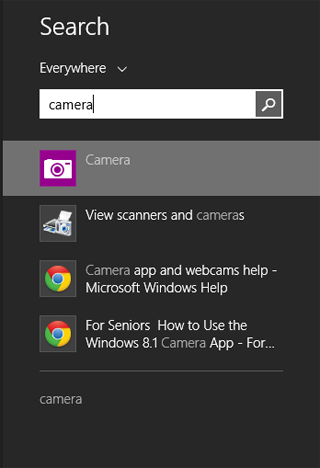
If you are on the Desktop bring up the Charms and click or tap Search. In the search box enter the word "camera" and click or tap the appropriate search result.
Windows 8.1, Camera, app, webcam, pictures, video, record
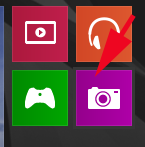
If you are on the Start screen, click or tap on the Camera app tile.
Windows 8.1, Camera, app, webcam, pictures, video, record
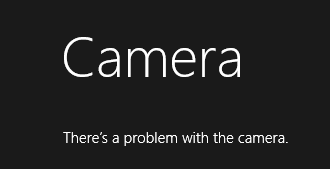
If your webcam is not installed properly, you'll see an error message saying that "There's a problem with the camera."
Windows 8.1, Camera, app, webcam, pictures, video, record
If you are using this app for the first time, the app may ask if it can use your webcam and microphone and then whether it can use your location. Click or tap Allow in order to use the app.
Windows 8.1, Camera, app, webcam, pictures, video, record
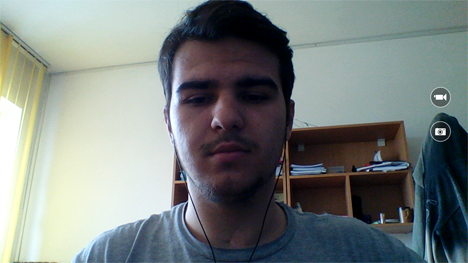
If everything is well, you will see an image of what's in front of your camera.
Windows 8.1, Camera, app, webcam, pictures, video, record
How to Take Photos Using the Camera App
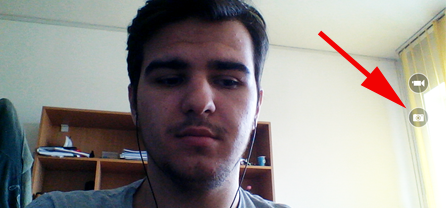
There are two buttons available on the right-side of the screen: one for recording videos and one for taking pictures.
Windows 8.1, Camera, app, webcam, pictures, video, record
If you want to take a picture, click or tap the Photo button (the one with a camera icon). Alternatively, you can click or tap somewhere in the middle of the image to capture a snapshot.
Windows 8.1, Camera, app, webcam, pictures, video, record
How to Adjust the Timer and Exposure Before Taking Pictures
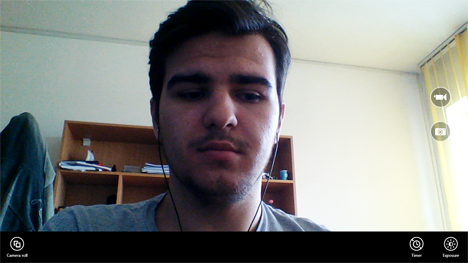
While taking pictures with this app, you can adjust Timer, Exposure or you can access the Camera Roll folder from the app itself.
To access these settings, right-click somewhere on the app screen or swipe up from the bottom edge of the screen, if you are using a touch-enabled device.
Windows 8.1, Camera, app, webcam, pictures, video, record
If you want to adjust the exposure, click or tap the Exposure button. Exposure refers to controlling the lightness and the darkness of the image. When the slider is going down, the darkness increases. When the slider goes up, the light increases.
Windows 8.1, Camera, app, webcam, pictures, video, record
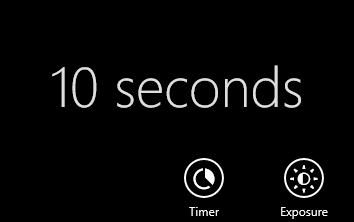
You can also use the Timer to take a picture after a certain amount of time. Click or tap the Timer button and you can set it to: 3 seconds or 10 seconds. A click or tap will activate the 3 seconds timer. If you click or tap one more time, the timer will be set to 10 seconds. With another one click or tap, the timer is turned off. The countdown will appear on the screen once the timer is activated.
Windows 8.1, Camera, app, webcam, pictures, video, record
How to View the Pictures Taken with the Camera App
There are few ways to view the pictures you took with this app:
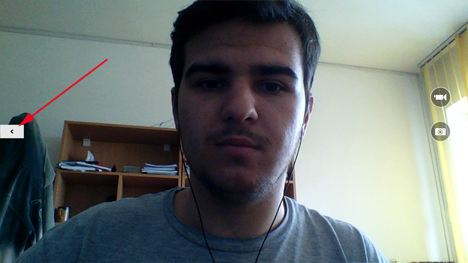
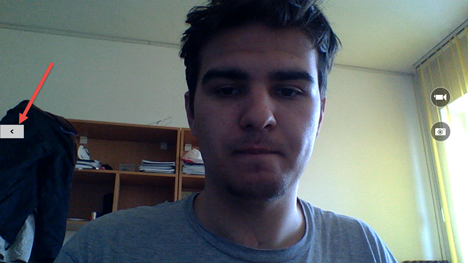
Click the left arrow from the Camera app or swipe to the right if you are using a touch-enabled device.
Windows 8.1, Camera, app, webcam, pictures, video, record
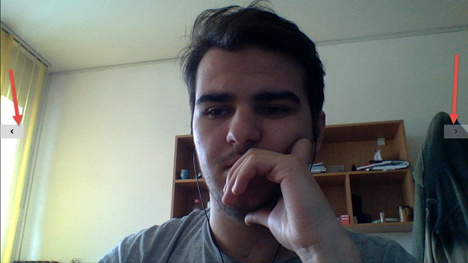
Now, you can navigate through your pictures by clicking or tapping the Back button on the left or the Forward button on the right. You also swipe from the right or left edge of the screen to move backward or forward.
Windows 8.1, Camera, app, webcam, pictures, video, record
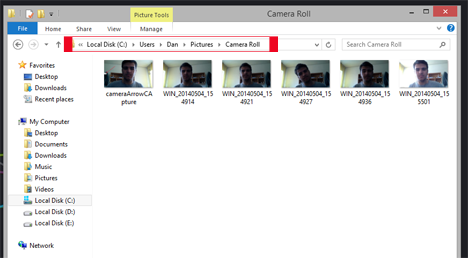
You can also go to the Camera Roll folder in File Explorer. You can find it at: "C:UsersYour UsernamePicturesCameral Roll". Here where the Camera app stores your pictures and video recordings.
Windows 8.1, Camera, app, webcam, pictures, video, record
You can double click or tap the picture you want to view and it will open in the default image viewer. If you don't know how to set your default apps in Windows 8.1, read our step-by-step tutorial: The Easy Way to Set Your Default Apps in Windows 8.1.
How to Record Videos with the Camera App in Windows 8.1
Click or tap the Video button in the Camera app to start recording.
Windows 8.1, Camera, app, webcam, pictures, video, record
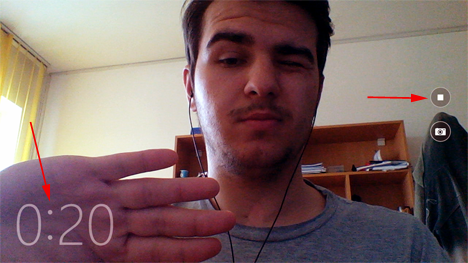
When the recording starts, a stopwatch is displayed on the bottom left corner, showing the time that has passed since you started the recording. Also, the video button is replaced by a Stop button.
Windows 8.1, Camera, app, webcam, pictures, video, record
To stop recording, click or tap on the Stop button. The recording is now saved and stored in your Camera Roll folder.
How to View Video Recordings in the Camera App
If you want to see a recorded video click on the left arrow from the Camera app or swipe to the the right if you are using a touch-enabled device. The recording will start playing automatically.
Windows 8.1, Camera, app, webcam, pictures, video, record
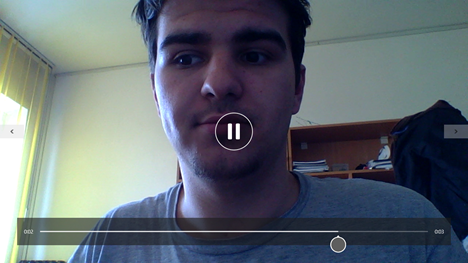
Below you have an example of how recorded video is played by the app. If you want to pause the video you are watching, click or tap the Pause button on the center of the screen. If you want to play a paused video, click or tap the Play button located in the same spot as the Pause button.
Windows 8.1, Camera, app, webcam, pictures, video, record
Alternately, you can go to the Camera Roll folder where the Camera app stores all the video you record. Please remember that you can access it by using File Explorer and going to "C:UsersYour UsernamePicturesCamera Roll".
How to Change the Settings of the Camera App
This app's settings can be access through the Settings charm, just like in other modern apps for Windows 8.1.
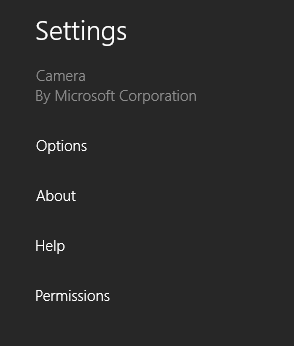
With the Camera app still open, bring up the Charms and click or tap on Settings.
Windows 8.1, Camera, app, webcam, pictures, video, record
Then, click or tap Options.
Windows 8.1, Camera, app, webcam, pictures, video, record
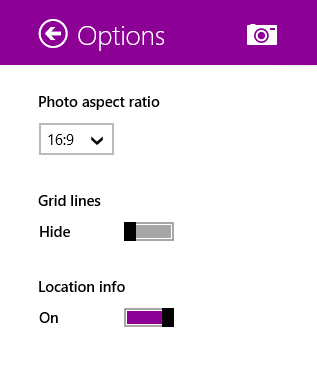
Here you configure a dynamic list of settings, which varies depending on the webcam you are using and its drivers:
Photo aspect ratio - The aspect ratio of an image describes the proportional relationship between its width and its height.
Grid lines - they are series of horizontal and perpendicular lines that divide the image into squares. You can show them or hide them.
Location info - when enabled, your location is stored in the metadata of the pictures and recordings you make with this app.
Windows 8.1, Camera, app, webcam, pictures, video, record
For other webcams you might see additional settings like the video quality you want to use for your recordings, which microphone you want to use for video recordings, etc. The list of settings varies from webcam to webcam.
What's New in the Camera App vs. the Windows 8 Version
There are some important differences between the Camera app from Windows 8.1 and the version from Windows 8. If you don't know about the Camera app from Windows 8, read this tutorial: Introducing Windows 8: How to use Camera app to Record Videos.
The most important differences are the following:
In Windows 8's Camera app, between the Exposure and Timer buttons, you had another one button named Camera Options. In Windows 8.1, this button isn't available but the same settings are available using the Settings charm.
In Windows 8.1's Camera app, to record a video you must click or tap the Video button. If you want to end the recording, you must click or tap the Stop button. In Windows 8, you must enable the video mode by clicking or tapping the Video button and after that you can click or tap wherever you want on the screen to start the recording. You can click or tap again to stop the recording.
In Windows 8.1, you can take pictures while the camera is recording videos. After you have started recording a video, you can click or tap wherever you want on the screen and the app will take a picture instead without stopping the recording video.
Conclusion
That's it for this first tutorial on using the Camera app in Windows 8.1. It's a nice app which can help you when you need to record something or when you want take a picture. If you have any comments on this subject, don't hesitate to share them using the comments form below.
My problem in the camera is that I can’t find pause button and I tried searching everywhere and I can’t find how to get pause button back so what are the steps should be taken to get pause button back on my camera
Max ·
Thank you! My girlfriend spent hours practicing to get a take of a video for a homework assignment and couldn’t find where it was saved. As usual the Microsoft help page was completely useless. Glad I found this!
Anonymous ·
Happy to help. 😉
George Lowsley ·
Hi you may be able to help me, I have windows 8.1 on my laptop and when I click on my camera all I get is a very dark screen with the two buttons for Camera and Video but I see nothing else, the camera seems to work as I can take a picture without seeing what I am taking and the picture when I bring it up is below central in the frame. I tried uninstalling the drivers but when the reinstall nothing has changed I tried to uninstall the camera but could not and tried to install the camera but it came up a message the the camera is not compatible with my system so I am at a loss as to what to do next.
Sorry this is a long message but I thought if I gave the full story you may be able to help and I may add I am not fully computer literate so any help would be gratefully received.
Regards George [email protected]
krystal Morse ·
I don’t know what happened or what I did but I seem to have lost my Microsoft account & apps on my phone Lumia 640….. I’ve had this very phone for 2, no, June will be 3 yrs. I don’t even have a camera on my phone or any of my windows apps. Anymore. Can you please help me figure it out. I do not have my laptop as it was stolen & this phone & my laptop were connected…synced together.
Stuart ·
Hi! when I use the camera to record, it come out quite nice but regardless of whether im using a headset or the built in mic, i have no sound on videos. Can anyone help?
Richard ·
I am having the worst time trying to locate the pics and VDO taken by this camera. they are not located in my pictures folder. I have searched the pc for “camera roll” with no success. Yet, when i open the camera i can view the pictures taken… So they are still in my pc somewhere. Can you help me to find them?
ko123454321 ·
is there a way to be on a MS Word document and hit insert picture then take the picture and have it go right to the work document without storing it to the camera roll file?
Gnaneswara T N ·
How can I use front camera?
lee quesada ·
after launching the camera can’t find the switch camera button that is present in all apps upon right click on screen nothing happens …can’t find switch to fromt or back camea button
Kevin ·
I have the 8.1 Camera app. I am using an external microphone, but am unable to take video using the microphone as the audio source. the microphone works fine when running apps like udacity.
No mic settings can be found in charms -> settings
Thanks,
Rosemary Pacheco ·
Im having an issue with my Windows 8.1 camera app and its storage. I see the videos when I swipe, they are both there – but I cant find them in the camera roll to upload to Youtube – help! I only see 8 stills, and non videos – ( but again, asI said, they are there when I swipe on my touch screen and can be watched ???? I need to upload this to Youtube for a casting director asap -if anyone can tell me how to access for uploading -I’d be grateful. I have never had a problem before accessing the videos for upload to anything!
mars ·
when I turned on the camera, I can’t see anything on the screen but it can take pictures, it also works when i uses skype. It just annoys me that i can’t record a video because all i can see is a black screen
gelgel ·
Hi. When I record a video, there is no sound. what should i do? thanks
Shannon ·
I have a Toshiba C50-B Series and I can get to the black screen and it says you must have a web cam to use the camera. But the sales rep said I have a web cam on it. I am confused
Matt ·
Is there anyway to use it as a webcam? As in not freakin full screen. I would like to be able to surf while the camera is on.
David ·
you can’t minimize it, exactly, but you can do “split-screen” and it will keep recording. then you just make the webcam’s side of the split screen as small as possible without closing it entirely.
teresa henning ·
thankyou
Caroline ·
I accidentally uninstalled rather than unpinned the built-in Camera app. Any ideas how to get it back? I searched the App store for “Camera” but of course got about 40 gazillion apps, none of which look like the Camera icon I had before.
Thank you! I am able to go to that link in my browser. I select “View in app store” or just click on the camera icon. The app store opens but just takes me to the main page where once again all I can do is search for apps. I try searching camera or Microsoft camera, but that particular app never is listed.
Any other way to access that you know of?
Thanks so much!
Ciprian Adrian Rusen ·
The only other way I know to get it back is to reset Windows 8.1 to its defaults. But that means that you will have to reinstall all your other programs. 😐
rub1nskij ·
When I open the app, it gets all laggy until I start recording and when I’m taking a picture, it gets hard because of the lag
Sara ·
Is there anyway to lengthen the amonut of time the video feature records? Mine only recorded for 3 hours.
Hafizul ·
Hello Dani,
First of all , Thanks a lot for such a wonderful tutorial with the required screen shots. I have facing one problem – when I had windows8.0 , camera was working absolutely fine but after installing windows8.1 , after clicking on camera app , BLACK screen comes instead of the image of whatever is there in front of camera , however upon clicking photo is taken. But as I cant see myself before taking photo , I am not able to adjust my position and all.
Please help me resolve this issue. Thanks in advance!!! Merry Christmass….God Bless You!!!!
lililola12343 ·
i want to save as preview my photos i don’t want to take a picture from left and saved from right i hate it what can i do? please help
Bernard Scott ·
Sadly no mouse, I hate relying on the sensor pad sometimes. Tried the swipe-in anyway and nothing came up.
Bernard Scott ·
It’s built-in, but I can only see the light from the front. Which would lead me to believe that’s all there is to it….logic-wise at least lol
Ciprian Adrian Rusen ·
Swipe up from the bottom of screen and, in the contextual menu on the bottom, you will see a “Change Camera” button. If you are using a mouse, right-click to see that menu.
Bernard Scott ·
But is there a way I can reverse the view of the camera and snap pics from the BACK of the laptop? Kinda like how you’d do on your phone?
Ciprian Adrian Rusen ·
Do you have a camera on the back of your laptop?
Cynthia ·
Unfortunately, the morons removed the ability to set the resolution of the photo from the Camera app in Windows 8.1. I hate them – they take out basic functionalities from the OS.
Ciprian Adrian Rusen ·
Indeed. On my webcam I can set the resolution for video recordings but not for pictures.























Discussion (33)
My problem in the camera is that I can’t find pause button and I tried searching everywhere and I can’t find how to get pause button back so what are the steps should be taken to get pause button back on my camera
Thank you! My girlfriend spent hours practicing to get a take of a video for a homework assignment and couldn’t find where it was saved. As usual the Microsoft help page was completely useless. Glad I found this!
Happy to help. 😉
Hi you may be able to help me, I have windows 8.1 on my laptop and when I click on my camera all I get is a very dark screen with the two buttons for Camera and Video but I see nothing else, the camera seems to work as I can take a picture without seeing what I am taking and the picture when I bring it up is below central in the frame. I tried uninstalling the drivers but when the reinstall nothing has changed I tried to uninstall the camera but could not and tried to install the camera but it came up a message the the camera is not compatible with my system so I am at a loss as to what to do next.
Sorry this is a long message but I thought if I gave the full story you may be able to help and I may add I am not fully computer literate so any help would be gratefully received.
Regards George
[email protected]
I don’t know what happened or what I did but I seem to have lost my Microsoft account & apps on my phone Lumia 640….. I’ve had this very phone for 2, no, June will be 3 yrs. I don’t even have a camera on my phone or any of my windows apps. Anymore. Can you please help me figure it out. I do not have my laptop as it was stolen & this phone & my laptop were connected…synced together.
Hi! when I use the camera to record, it come out quite nice but regardless of whether im using a headset or the built in mic, i have no sound on videos. Can anyone help?
I am having the worst time trying to locate the pics and VDO taken by this camera. they are not located in my pictures folder. I have searched the pc for “camera roll” with no success. Yet, when i open the camera i can view the pictures taken… So they are still in my pc somewhere. Can you help me to find them?
is there a way to be on a MS Word document and hit insert picture then take the picture and have it go right to the work document without storing it to the camera roll file?
How can I use front camera?
after launching the camera can’t find the switch camera button that is present in all apps upon right click on screen nothing happens …can’t find switch to fromt or back camea button
I have the 8.1 Camera app. I am using an external microphone, but am unable to take video using the microphone as the audio source. the microphone works fine when running apps like udacity.
No mic settings can be found in charms -> settings
Thanks,
Im having an issue with my Windows 8.1 camera app and its storage. I see the videos when I swipe, they are both there – but I cant find them in the camera roll to upload to Youtube – help! I only see 8 stills, and non videos – ( but again, asI said, they are there when I swipe on my touch screen and can be watched ???? I need to upload this to Youtube for a casting director asap -if anyone can tell me how to access for uploading -I’d be grateful. I have never had a problem before accessing the videos for upload to anything!
when I turned on the camera, I can’t see anything on the screen but it can take pictures, it also works when i uses skype. It just annoys me that i can’t record a video because all i can see is a black screen
Hi. When I record a video, there is no sound. what should i do? thanks
I have a Toshiba C50-B Series and I can get to the black screen and it says you must have a web cam to use the camera. But the sales rep said I have a web cam on it. I am confused
Is there anyway to use it as a webcam? As in not freakin full screen. I would like to be able to surf while the camera is on.
you can’t minimize it, exactly, but you can do “split-screen” and it will keep recording. then you just make the webcam’s side of the split screen as small as possible without closing it entirely.
thankyou
I accidentally uninstalled rather than unpinned the built-in Camera app. Any ideas how to get it back? I searched the App store for “Camera” but of course got about 40 gazillion apps, none of which look like the Camera icon I had before.
This is the Camera app by Microsoft:
https://apps.microsoft.com/windows/en-us/app/camera/1f9239de-0aab-489b-85f3-379e82e34820
Thank you! I am able to go to that link in my browser. I select “View in app store” or just click on the camera icon. The app store opens but just takes me to the main page where once again all I can do is search for apps. I try searching camera or Microsoft camera, but that particular app never is listed.
Any other way to access that you know of?
Thanks so much!
The only other way I know to get it back is to reset Windows 8.1 to its defaults. But that means that you will have to reinstall all your other programs. 😐
When I open the app, it gets all laggy until I start recording and when I’m taking a picture, it gets hard because of the lag
Is there anyway to lengthen the amonut of time the video feature records? Mine only recorded for 3 hours.
Hello Dani,
First of all , Thanks a lot for such a wonderful tutorial with the required screen shots. I have facing one problem – when I had windows8.0 , camera was working absolutely fine but after installing windows8.1 , after clicking on camera app , BLACK screen comes instead of the image of whatever is there in front of camera , however upon clicking photo is taken. But as I cant see myself before taking photo , I am not able to adjust my position and all.
Please help me resolve this issue. Thanks in advance!!! Merry Christmass….God Bless You!!!!
i want to save as preview my photos i don’t want to take a picture from left and saved from right i hate it what can i do? please help
Sadly no mouse, I hate relying on the sensor pad sometimes. Tried the swipe-in anyway and nothing came up.
It’s built-in, but I can only see the light from the front. Which would lead me to believe that’s all there is to it….logic-wise at least lol
Swipe up from the bottom of screen and, in the contextual menu on the bottom, you will see a “Change Camera” button. If you are using a mouse, right-click to see that menu.
But is there a way I can reverse the view of the camera and snap pics from the BACK of the laptop? Kinda like how you’d do on your phone?
Do you have a camera on the back of your laptop?
Unfortunately, the morons removed the ability to set the resolution of the photo from the Camera app in Windows 8.1. I hate them – they take out basic functionalities from the OS.
Indeed. On my webcam I can set the resolution for video recordings but not for pictures.