Do you want to know how to change the default apps used by Windows 10 for activities like viewing pictures, or watching movies? Do you want to set a new app as the default for a particular file type, like images with the PNG file extension? Do you need a new default app to be used for a specific protocol? Then, you are in luck, as we can show you how to change the default apps in Windows 10, for anything that you wish. The guide is long and comprehensive, so let's get started:
Where to find the default apps settings in Windows 10
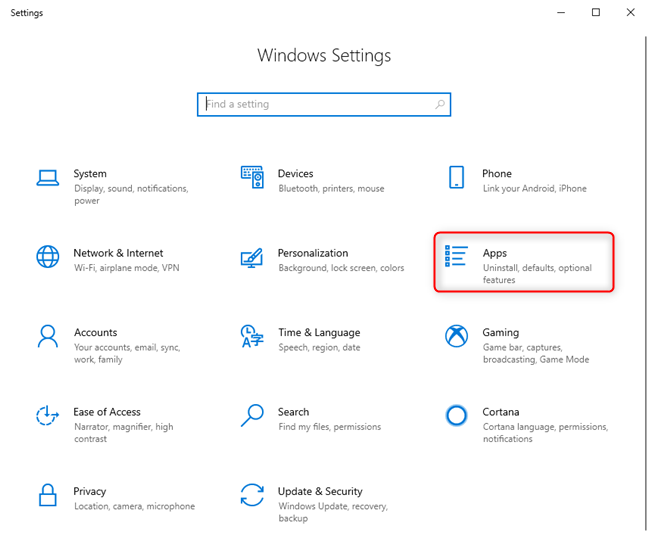
To change the default apps that are used in Windows 10, you need to open Settings. Then, go to Apps.
Windows 10 Settings - Go to Apps
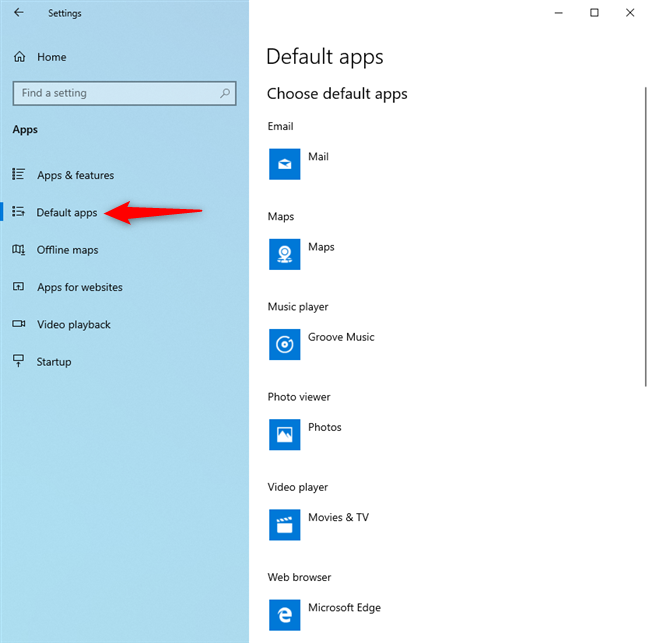
In the column on the left, click or tap "Default apps."
Windows 10 Settings - Go to Default apps
How to set the default apps for email, maps, music player, photo viewer, video player, and web browser
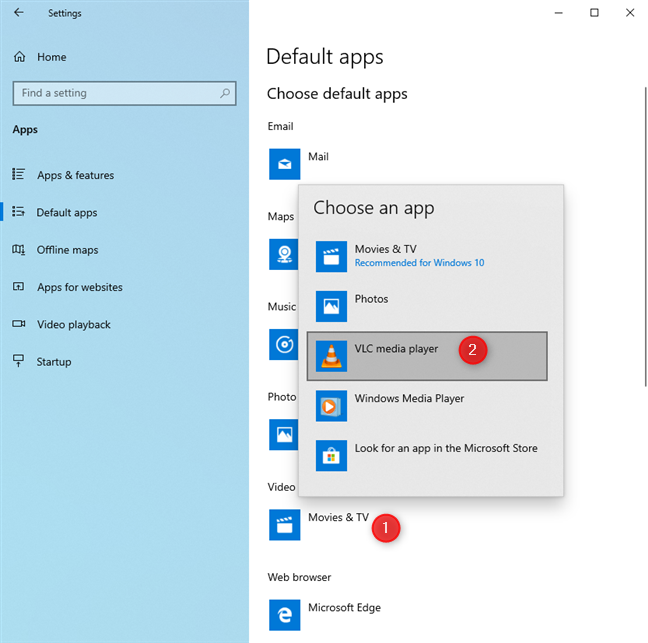
To change the default app for any of these types of activities, click on the existing default app. Then, in the list that is shown, click or tap the app that you want to set as the default.
Set the default apps in Windows 10
The app that you chose immediately becomes the new default, for that type of activity.
How to reset the default apps from Windows 10
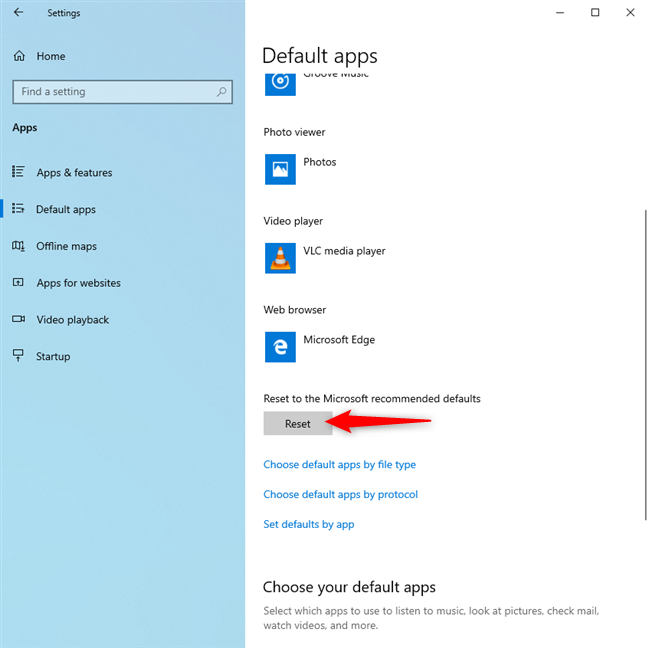
If you have changed your mind, and you do not want to use one or more apps as the default(s) for certain activities, you can reset Windows 10. When you do that, it uses only the Microsoft recommended defaults: Mail, Maps, Groove Music, Photos, Movies & TV, and Microsoft Edge. To do that, go to "Settings -> Apps -> Default apps." Then, scroll down the list of default apps, until you find the Reset button.
Reset the default apps in Windows 10 to Microsoft's defaults
Click or tap Reset, and your Windows 10 default apps are immediately reset to the ones mentioned earlier.
How to set the Windows 10 default apps by file type (extension)
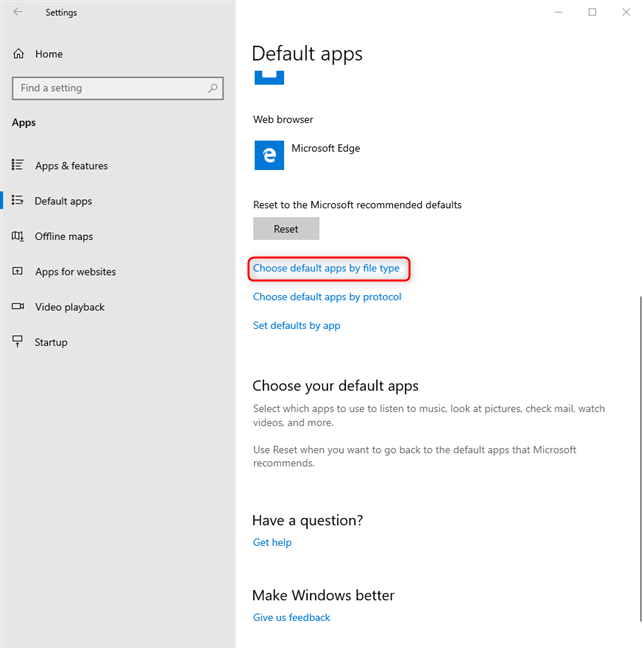
In the Default apps settings, scroll down until you see the link that says: "Choose default apps by file type," and click or tap on it.
Click or tap Choose default apps by file type
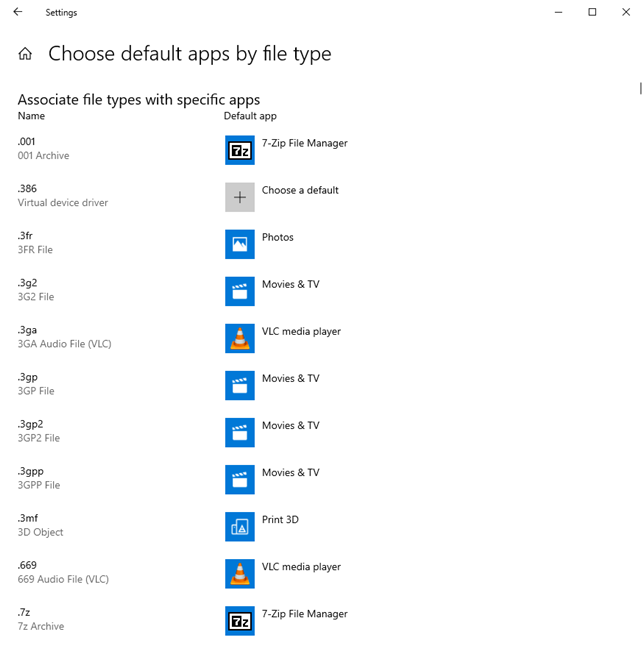
This opens a long list with all the file extensions that are registered in Windows 10. For each, you see the default app that has been set. If a default is not set, you see a + sign, followed by "Choose a default."
Change the default apps by file type
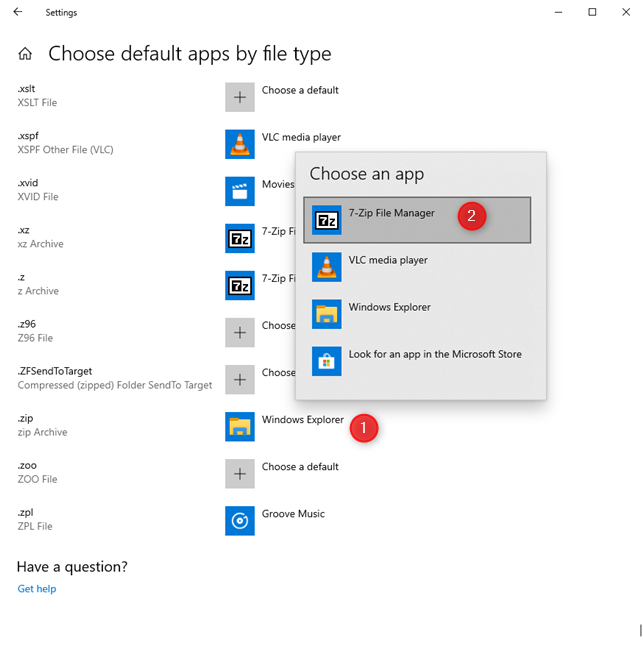
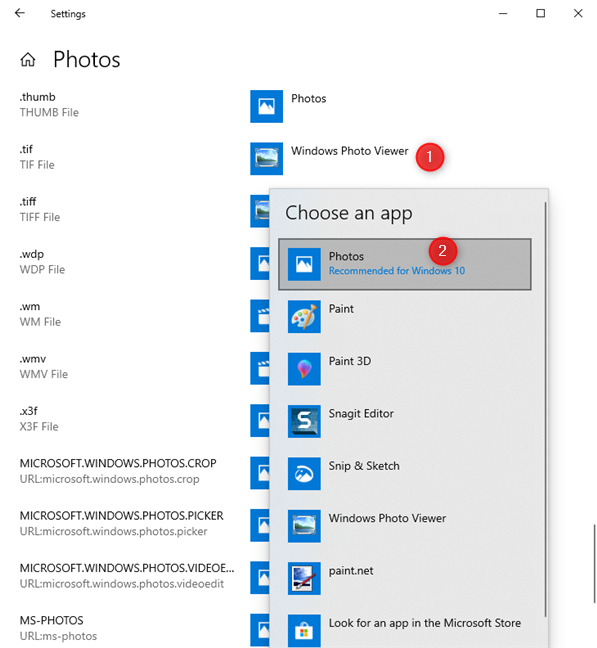
Scroll down the list of file extensions until you find the one that you are looking for. It helps to know that this list is ordered alphabetically. When you find the file type that you want to configure, click on the name of its default app (or on Choose a default). A list of apps is shown, that can open the selected file type. In that list, click or tap the app that you want to set as the default.
Change the default apps by file type
The setting is applied immediately by Windows 10. Repeat this procedure for all the file types that you want to configure.
How to set the Windows 10 default apps by protocol
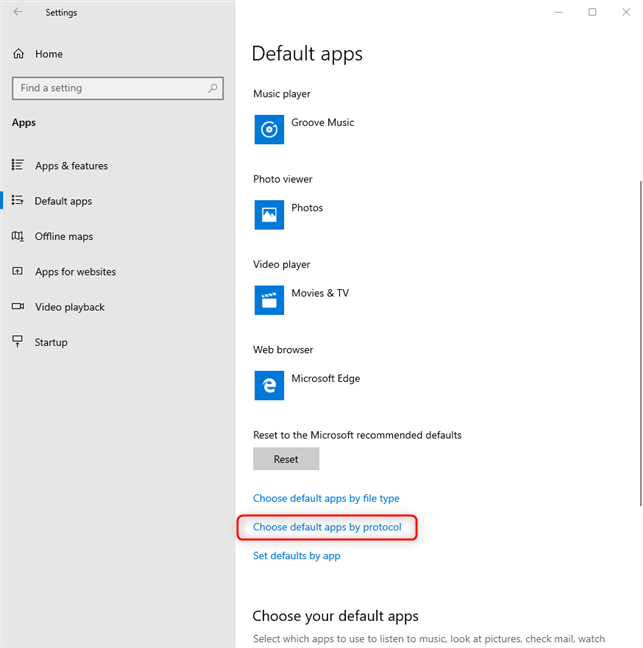
Windows 10 apps can work not only with specific file types but also with particular protocols. For example, Skype uses a few protocols for text, audio and video chat, Spotify users proprietary protocols to open playlists created by its users, and so on. If you have more than one Windows 10 app that can work with a protocol, and you want to change the default for that protocol, go to the default apps settings, as shown earlier. There, scroll down the list of settings, and click or tap the link that says: "Choose default apps by protocol."
Click or tap Choose default apps by protocol
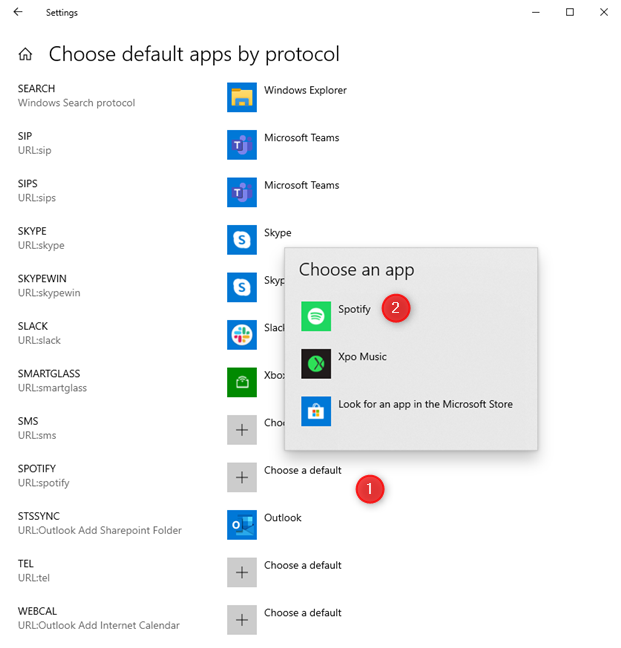
You are shown a list of all the protocols that are registered in Windows 10 and their default apps. Find the protocol that you are interested in and click on its default app. A list of apps is shown, that can work with that protocol. In that list, click or tap on the app that you want to use as the default.
Choose the default apps by protocol
The default app is changed immediately for that protocol.
IMPORTANT: If you cannot choose an app as the default for a specific file type or protocol, it means that the app is not installed correctly in Windows 10, or it cannot work with that file type/protocol.
How to set the defaults by app, in Windows 10
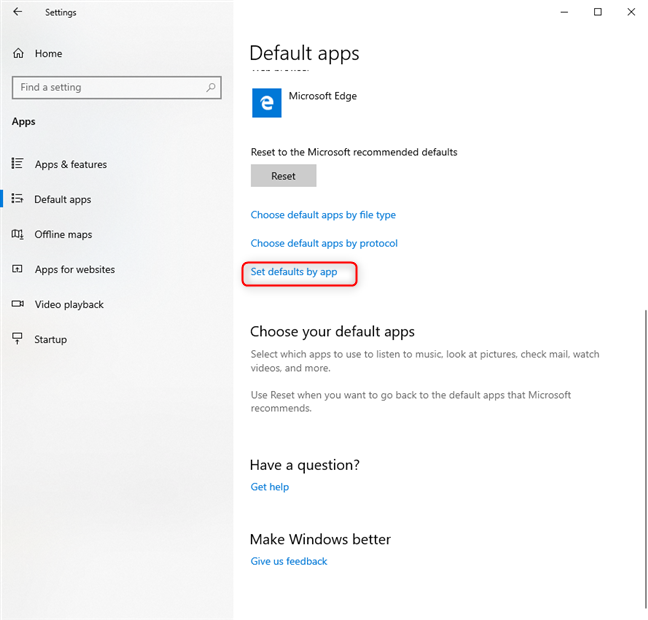
Windows 10 apps can work with a specific list of file types, based on what they do, and on how their developer has programmed them. On your Windows 10 PC, you can have more apps working with the same file types. For example, in Windows 10, you can open JPG images with the following apps: Photos, Paint, Snip & Sketch, Paint 3D, and others. One useful trick is to manage each app individually, and set each app's default file types. To do that, go to the default apps settings. There, scroll down the list of settings, and click or tap the link that says: "Set defaults by app."
Click or tap Set defaults by app
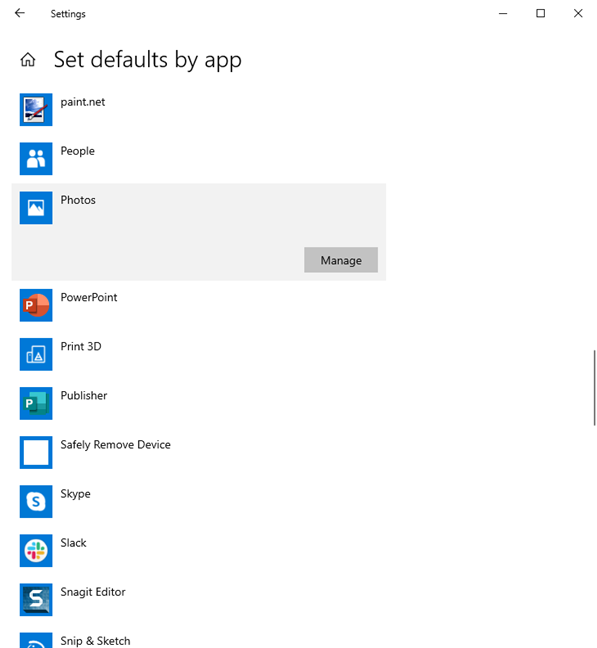
Now you see a list with the apps that are installed in Windows 10. Find the app for which you want to change the default settings, click or tap on its name, and then on Manage.
Manage the app for which you want to set the defaults
You see a list of file extensions and protocols that the app can work with. For each, you see the default app that is used by Windows 10. To change the default for a file type or protocol, click or tap on the default app set for it (or on Choose a default). A list is shown with the apps that can open that file type or protocol. In it, click or tap the app that you want to use as the new default.
Set the defaults by app
Your changes are applied immediately. Repeat the process for all the apps, file types, and protocols for which you want to change the default, and then close the Settings app.
Which default apps have you set, in Windows 10?
Before closing this tutorial, tell us how it was useful to you: did you use it to change the default web browser or media player? Or did you change the default app for viewing pictures? Comment below and share your story.
I only made a change to the default browser. I did not change file or protocol apps or defaults. I was repeatedly frustrated with Microsoft Edge . Recently , all queries and searches I initiated were being diverted to bing , Yahoo , and even Yelp. Also , webpages were often the wrong proportion and off center. I have been consistently happy with Google and all its aspects.
jean clauwaert ·
How do you set it to use an app that is NOT installed in the system, but is installed portable. They are not shown when selecting the grey + sign
Brndn ·
Ok, but what if the default app you want to set is Office 365, with isnt a program? I cant get any of my .xls files to open with O365 automatically.
Anonymous ·
Associate .xls files with Excel.
Ray ·
A GOOD and Basic Information Non-Windows Site for this subject.
Thanks, Ray
G jaya Krishna ·
hello sir,
i had installed oracle VM virtual box “Ubuntu 18.04, and it is downloaded with internet explorer icon and am unable to run that file.?
after downloading, am unable to run the file. can you help me with this?
Johnny ·
no matter how many times you do that or actually open as and tell it to be using it all the time, a few days later, it changes back… very frustrating.
fred ·
Did as instructed and it changed the default app ass with videos but it still uses the old app. It says the new app
cdg ·
“It is simple and fast for both tablet and PC users. ”
Nonsense. It is overly complicated, and requires far more effort than the (older) method employed by Windows 98. Furthermore, now there is no way to add multiple defaults that can be selected by right-clicking. Microsoft seems to think that more difficult and less useful is progress.
Steven M ·
I have several filetypes that normally open with installed apps, but which I sometimes want to open with other apps (e.g. Notepad). In older versions of Windows, I could right-click and choose the other app for one-timeuse, without changing the default. Windows 8 requires me to uncheck a box, otherwise it will make the second app as the default (which I do not want). Is there a faster way to use a secondary app in this instance?











Discussion (10)
I only made a change to the default browser. I did not change file or protocol apps or defaults. I was repeatedly frustrated with Microsoft Edge . Recently , all queries and searches I initiated were being diverted to bing , Yahoo , and even Yelp. Also , webpages were often the wrong proportion and off center. I have been consistently happy with Google and all its aspects.
How do you set it to use an app that is NOT installed in the system, but is installed portable. They are not shown when selecting the grey + sign
Ok, but what if the default app you want to set is Office 365, with isnt a program? I cant get any of my .xls files to open with O365 automatically.
Associate .xls files with Excel.
A GOOD and Basic Information Non-Windows Site for this subject.
Thanks, Ray
hello sir,
i had installed oracle VM virtual box “Ubuntu 18.04, and it is downloaded with internet explorer icon and am unable to run that file.?
after downloading, am unable to run the file. can you help me with this?
no matter how many times you do that or actually open as and tell it to be using it all the time, a few days later, it changes back… very frustrating.
Did as instructed and it changed the default app ass with videos but it still uses the old app. It says the new app
“It is simple and fast for both tablet and PC users. ”
Nonsense. It is overly complicated, and requires far more effort than the (older) method employed by Windows 98. Furthermore, now there is no way to add multiple defaults that can be selected by right-clicking. Microsoft seems to think that more difficult and less useful is progress.
I have several filetypes that normally open with installed apps, but which I sometimes want to open with other apps (e.g. Notepad). In older versions of Windows, I could right-click and choose the other app for one-timeuse, without changing the default. Windows 8 requires me to uncheck a box, otherwise it will make the second app as the default (which I do not want). Is there a faster way to use a secondary app in this instance?