Both on Windows 10 and on mobile platforms, Microsoft simplified Skype's user experience, making it look similar and work the same on touch-based devices and regular mouse and keyboard ones. In this tutorial, we show you how to use Skype on Windows 10, in the hope that we can help you understand Skype's main user interface elements. So here's how you can use Skype to stay in touch with your friends, family, and co-workers without any kind of problems:
How to download and install Skype on Windows 10
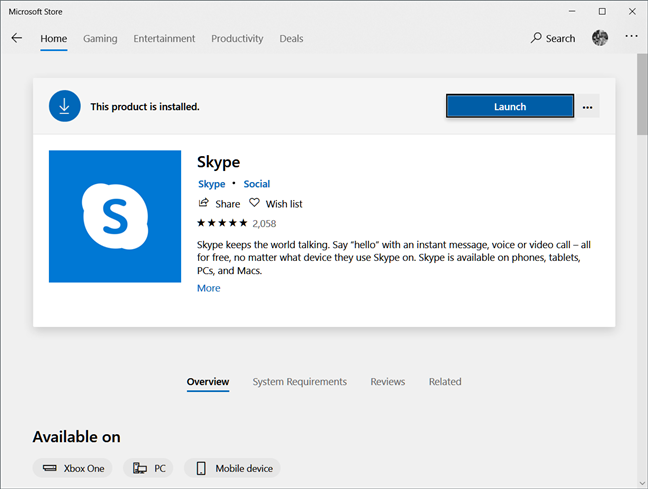
Starting with August 2013, Skype has been available by default in Windows 8.1 and later in Windows 10. In other words, Microsoft bundles Skype in Windows 10 regardless of what version of this operating system you're running. You don't have to download and install it manually, as it is already present on your Windows 10 computer or device. However, if you uninstalled it or if Skype is gone from your PC for some other reason, you can download it from this link that takes you to Skype's page from the Microsoft Store.
The Skype page from the Microsoft Store
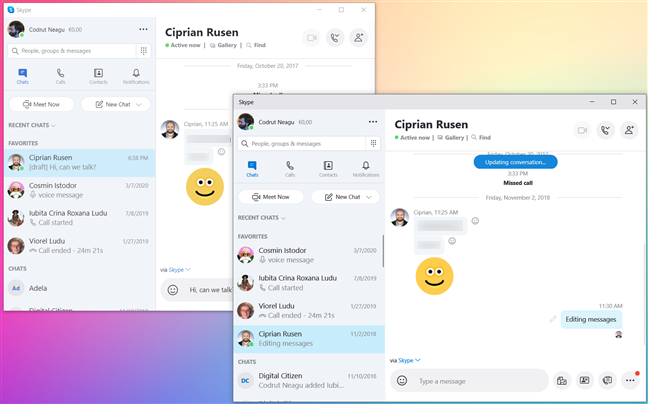
Note that you can also download and install Skype from its official website. However, you should know that Microsoft offers a slightly different Skype app on their website compared to the one from the Microsoft Store. The one on the website looks the same and, although it's a desktop app, not a UWP app, we didn't notice any other differences. What's even more confusing is the fact that you can have both Skype apps installed and running at the same time on the same Windows 10 PC, which isn't something that Microsoft is clear about.
Skype from the Microsoft Store running alongside Skype from the Microsoft website
How to open Skype in Windows 10
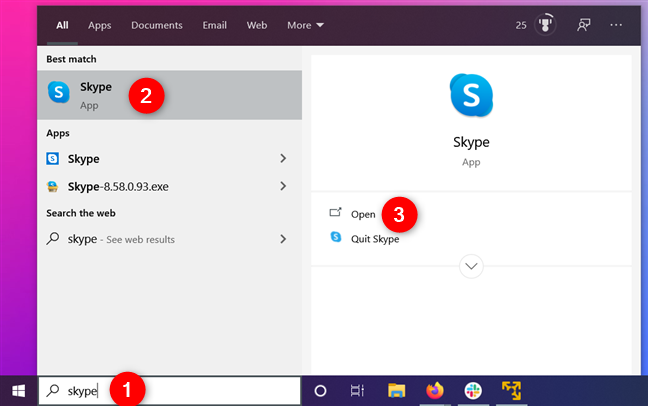
One of the fastest ways to open Skype in Windows 10 is to search for it. Type skype in the search field on your taskbar, select Skype from the results list and then click or tap on Open.
How to connect to your Skype account in Windows 10
If you use a Microsoft account on your Windows 10 PC, the good news is that you are already connected to Skype. That's because Skype uses the same account. You can skip to the next section of this guide to see how to use Skype right away. However, if you're using a local user account on your Windows 10 PC, you must sign in to Skype using your Skype account or Microsoft account. Otherwise, you can't use it. If you don't already have an account, you can create one on the next step.
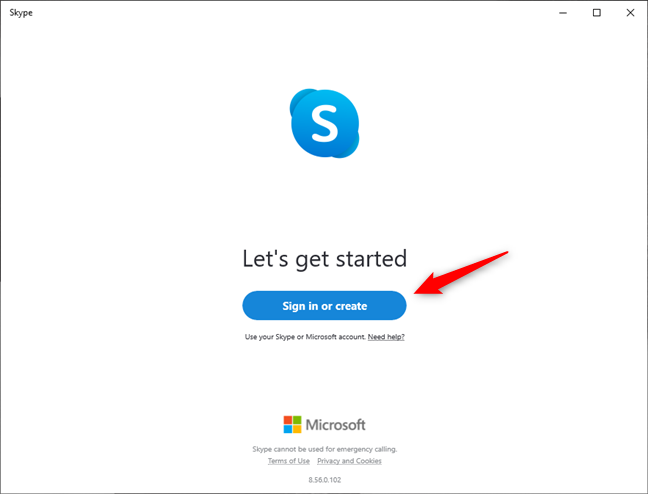
When you launch it, Skype greets you with a "Let's get started" message: click or tap on "Sign in or create."
Sign in or create an account in Skype
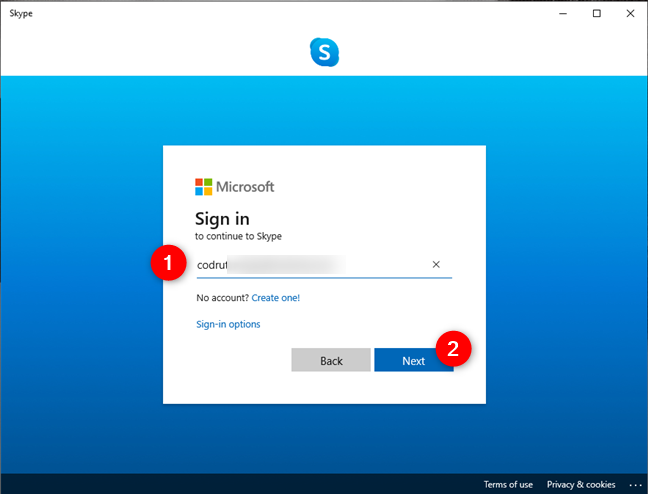
Next, on the Sign In screen, log in using your account: you can provide your Skype, phone, or e-mail account that's associated with your Microsoft account. If you don't have a Microsoft account, click or tap on the "Create one!" link and follow the steps required to create one right now.
Signing into Skype using a Microsoft account
How to go through the first Skype configuration steps
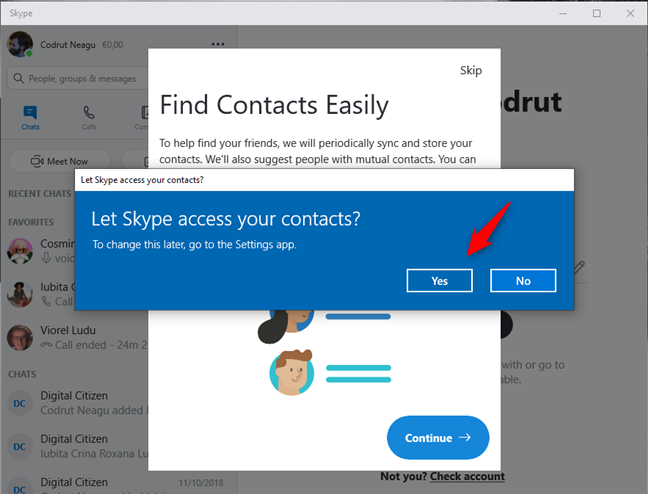
After you sign in to Skype, it might ask you whether you want to let it "help find your friends." That means that you're giving Skype access to your contacts so that it can sync and store them. Click or tap on Continue and choose Yes if you want to "Let Skype access your contacts" or No if you'd rather not.
Let Skype access your contacts
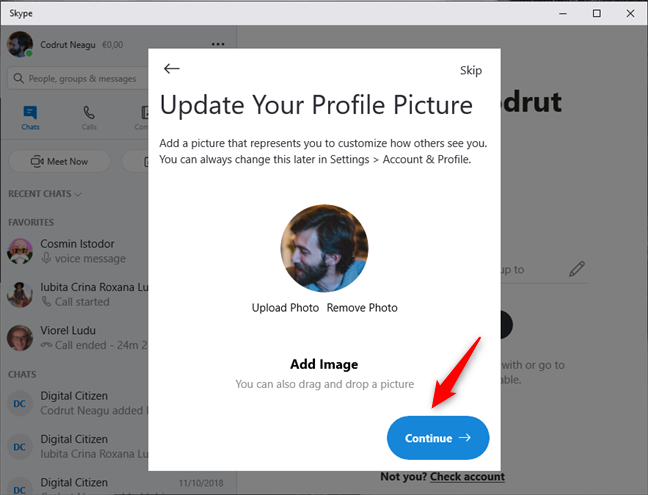
Skype should also ask you to "update your profile picture." This is the image that the people in your Skype list see when they call or message you. If you want to add or change your current Skype profile picture, drag and drop it on Skype's window, or click/tap on "Upload Photo" and select the one you want from your Windows 10 PC. Then, press Continue.
Update your profile picture in Skype
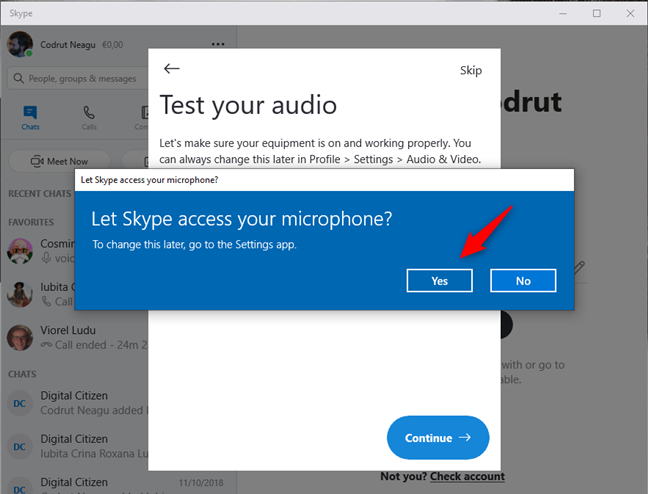
The final and most important step is letting Skype access your microphone and webcam. Unless you intend to use Skype solely for text messaging, allow it to use them.
Let Skype access your microphone
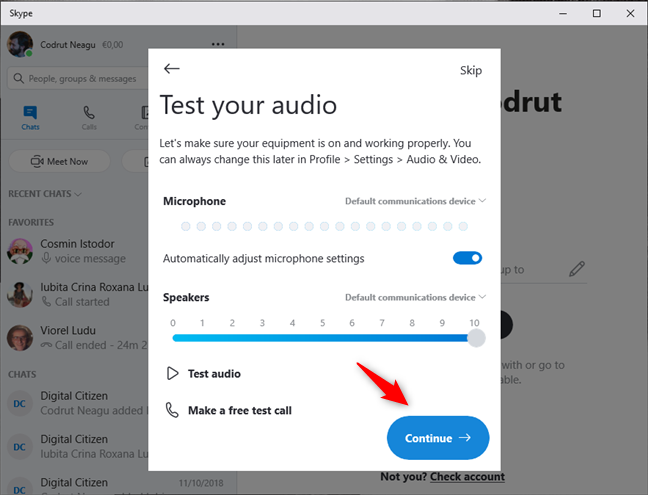
Next, Skype lets you test your webcam and audio devices to make sure that everything works right. Adjust the settings as you prefer, "Make a free test call" if you want, and, once you're done, click or tap Continue.
Skype tests the audio devices
How to use Skype on Windows 10
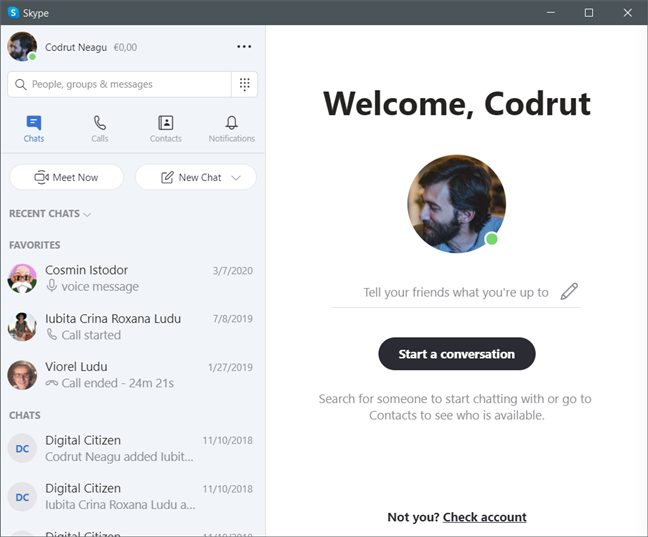
When you open Skype, you should see something similar to the screenshot below. It features a refreshed user interface with a lot of new features and improvements. Skype has readjusted the layout of the user interface, splitting everything into Chats, Calls, Contacts, and Notifications, and that gives this app a well-balanced and efficient interface.
The Skype user interface
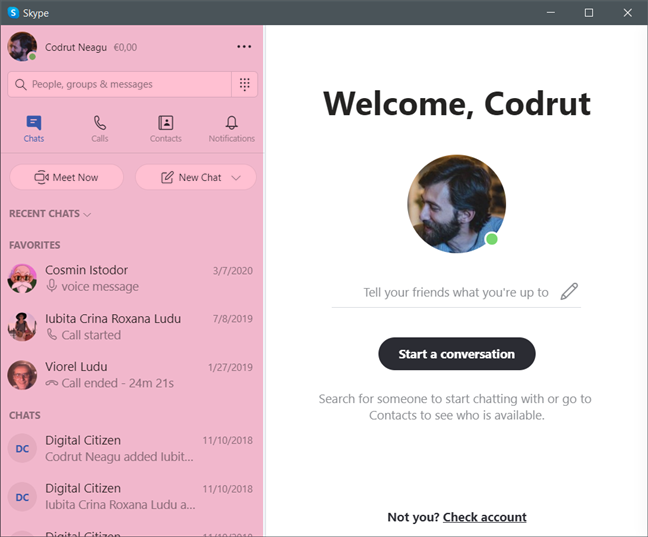
The user interface of Skype features a sidebar on the left part of the window. This area encapsulates all the commonly used Skype features: Status Bar and Settings, Search Bar and Dial Pad, Skype's Toolbar (for Chats, Calls, Contacts, and Notifications).
The sidebar from Skype
Let's see what all these features are about:
How to use Skype on Windows 10 to chat or make audio and video calls
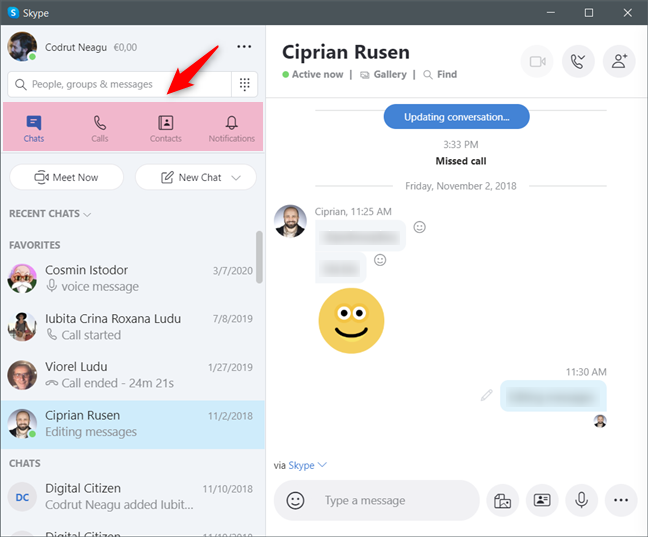
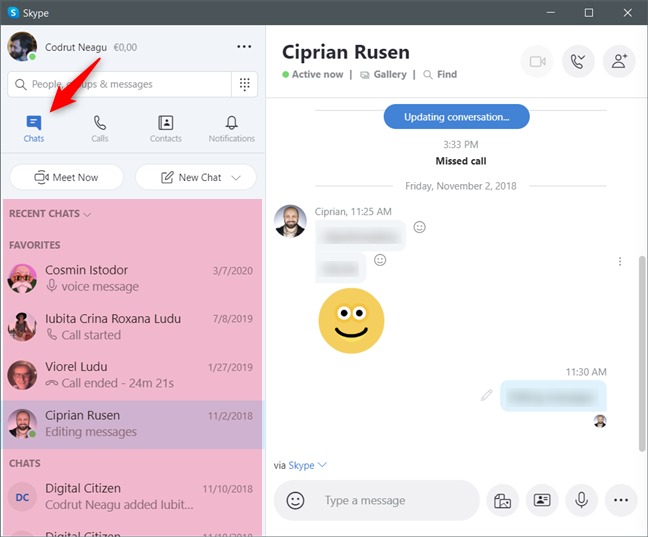
The left sidebar has four different tabs: Chats, Calls, Contacts, and Notifications.
The main tabs from Skype
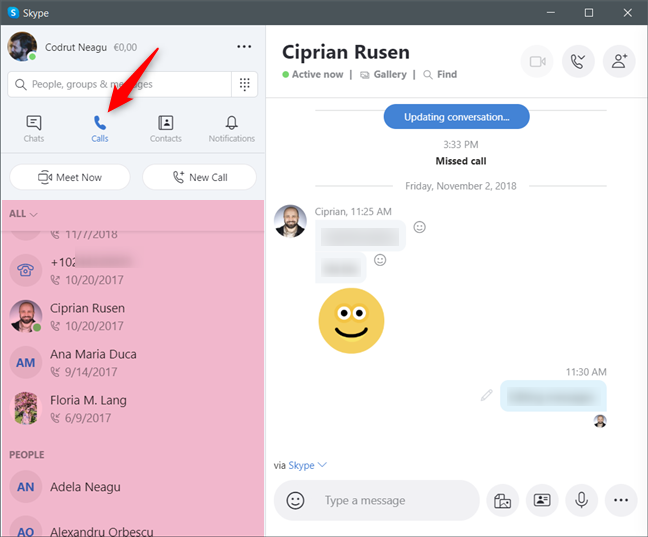
Chats and Calls groups your interactions with people on Skype, depending on whether you've messaged them using text or by calling them (audio and video alike). In other words, these tabs show you all your past conversations.
The Chats tab from Skype
Additionally, after the past audio and video calls, the Calls tab also includes the list of people whom you can call.
The Calls tab from Skype
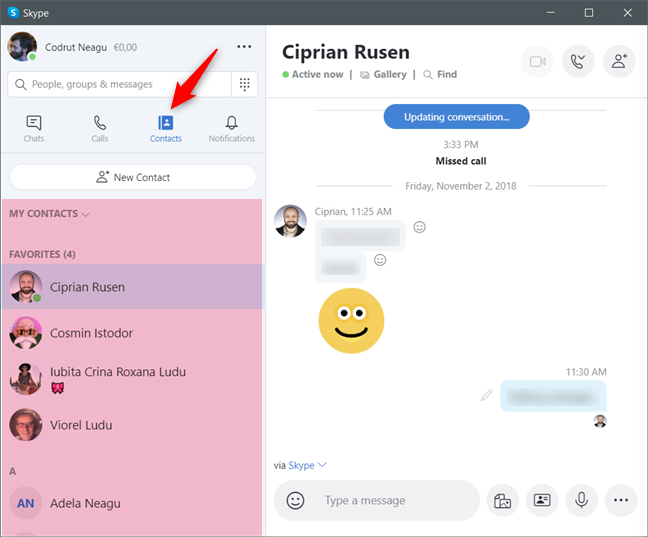
The Contacts tab lists all the people you can reach on Skype. The contacts are organized into two sections: your Favorites and then the complete list of contacts sorted alphabetically.
The Contacts tab from Skype
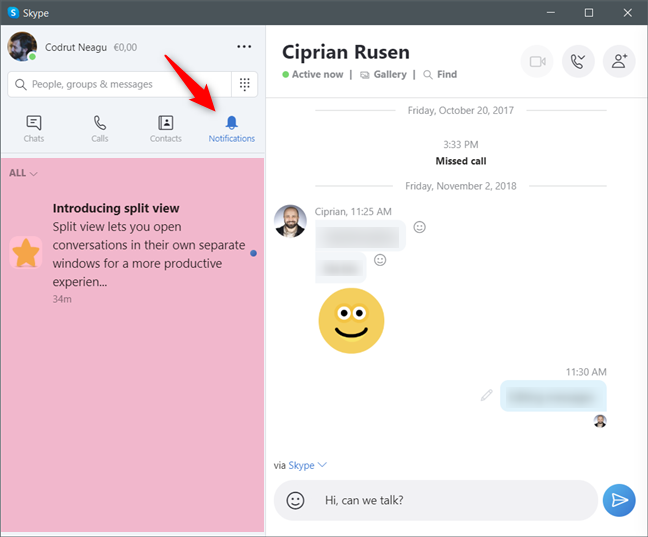
The Notifications tab shows you a list of missed calls, new messages, people who mentioned you, and so on.
The Notifications tab from Skype
How to see if someone is online on Skype
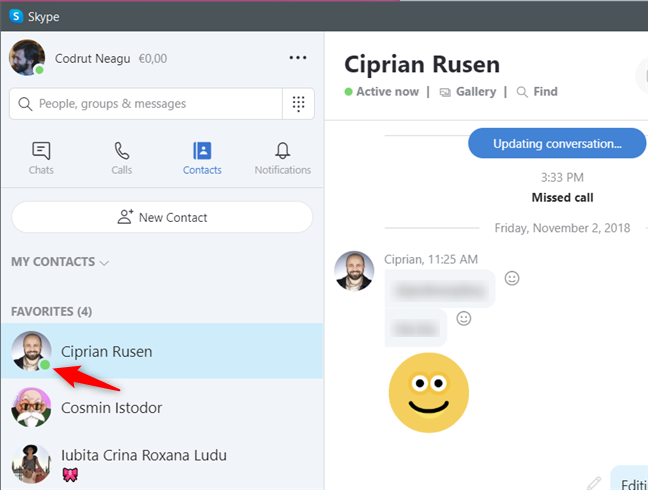
When you use Skype, you might want to know if the people you want to talk to are available or not. That's easy to know: on the Chats, Calls, and Contacts tabs, the persons who are active and available on Skype right now are marked by a green icon, shown on the bottom-right corner of their profile pictures. If a person from your contacts list is not online right now or is invisible, the green icon is not shown.
Online contacts are marked by Skype with a green icon
How to add a contact to your Skype Favorites
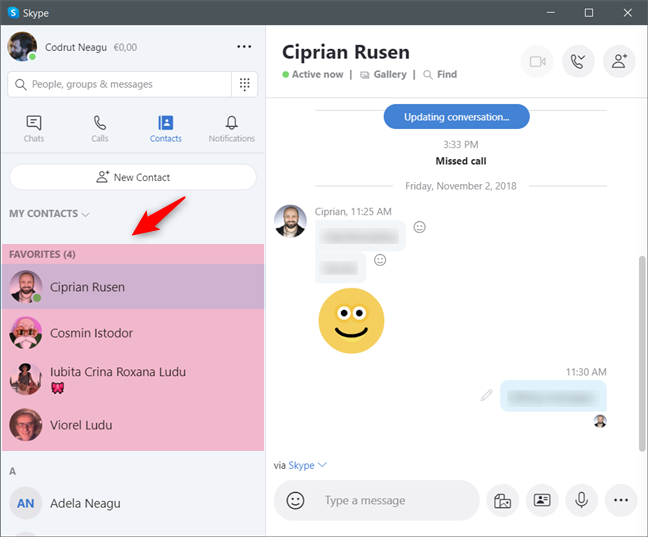
Skype also lets you add certain people to your Favorites list. These persons are displayed at the top of your contacts list, making it a lot easier for you to reach them. If you do not have any contacts that are marked as Favorites, this list is not shown.
The Favorites in Skype
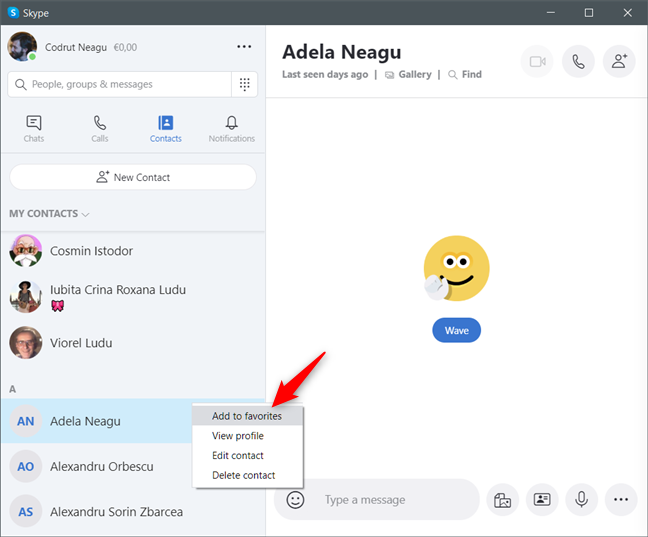
To add a contact to the Favorites list, you need to right-click or press-and-hold on him or her, and then select "Add to Favorites."
Adding a person to the Favorites list
How to find people in Skype
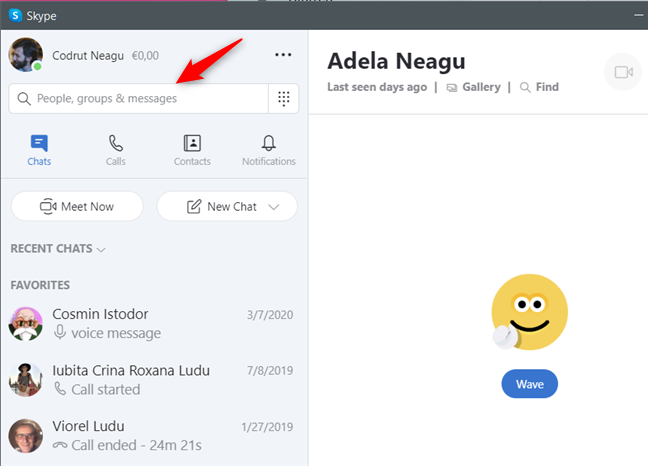
Before we can talk about adding contacts, we have to explain how to use the Search box. You can find it at the top-left corner of the Skype window.
The search field from Skype
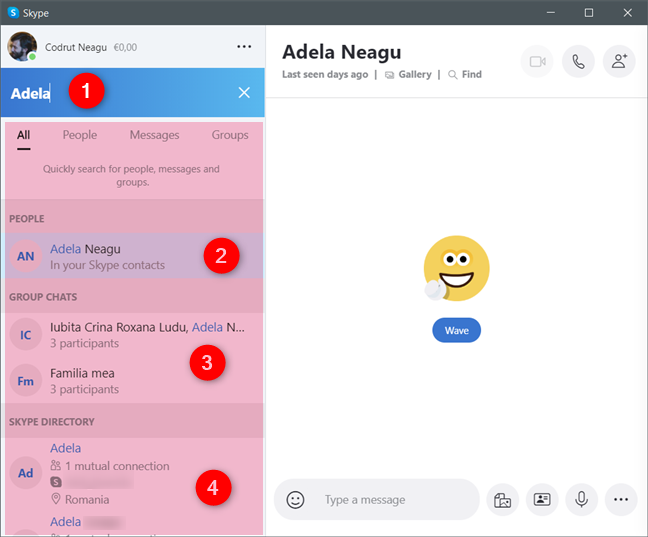
In the Search box, type the name, Skype ID, Microsoft account, or e-mail address of the contact you want to find. At first, Skype searches through the people, groups & messages in your Contacts, Chats, and Calls lists. If any results are found, then your conversation history with that person is displayed.
Searching for someone on Skype
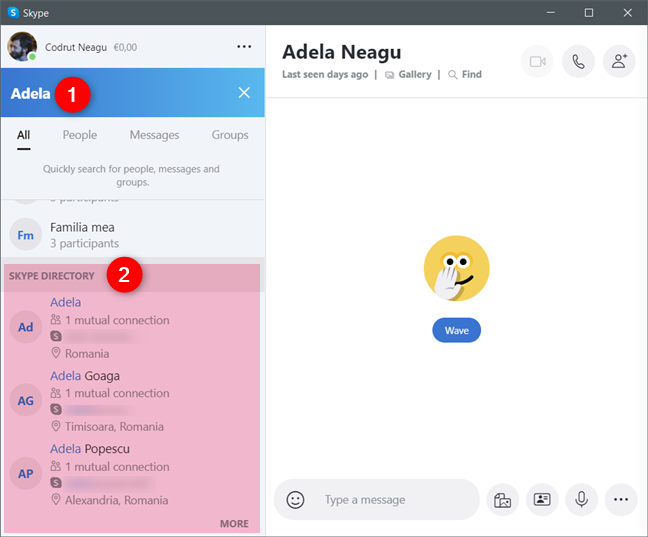
Skype also makes use of its advanced search. The last section of the search tab shows you all the results that match the text you've entered in the Search box from the Skype Directory database. These are people who match your search criteria but are not found in your Contacts list.
The Skype Directory lists people who are not in your contacts list
How to add people to Skype on Windows 10
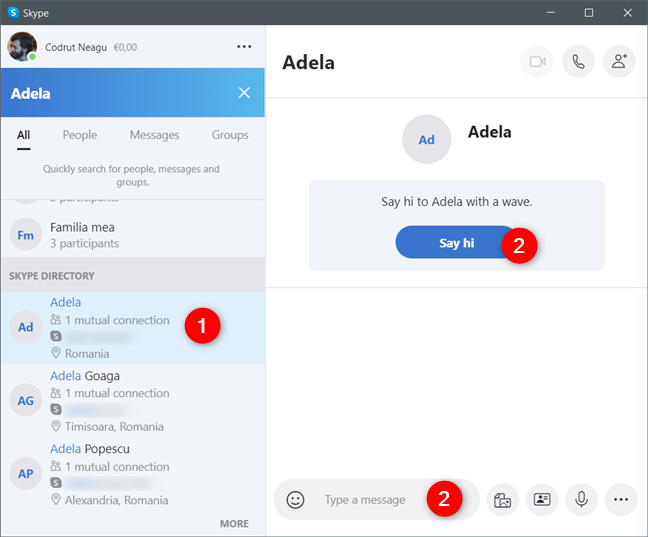
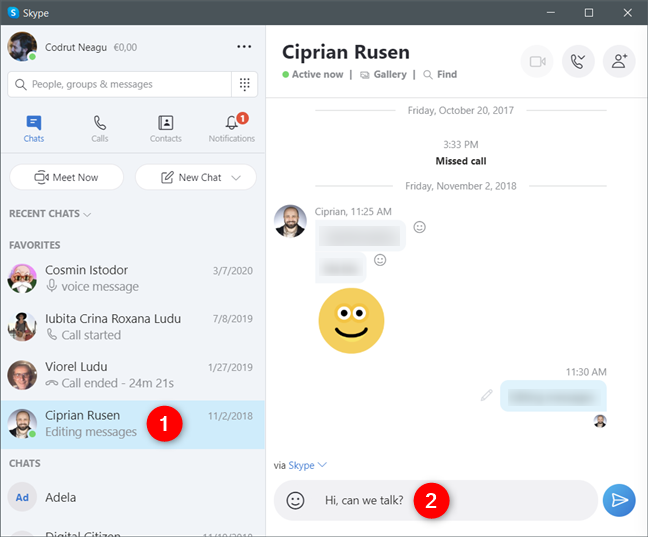
If you want to add a new contact, first search for that person, and then click or tap on their profile. This action opens a conversation window with that person. On the conversation panel from the right, click or tap on "Say hi" or "Type a message."
Inviting someone to connect on Skype
As soon as you do that, Skype invites that person to connect with you, so that you can call or write to each other.
How to text or make audio and video calls on Skype for Windows 10
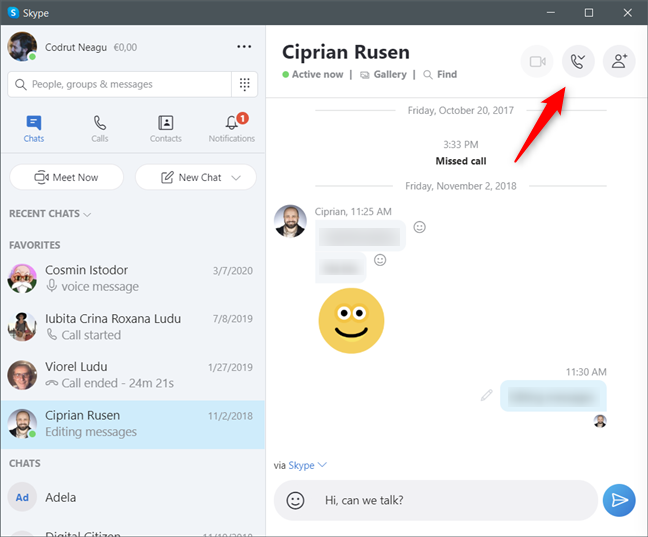
If you'd rather initiate an audio or video call with someone on Skype, select that person and then, in the conversation panel, click or tap on the Audio call or Video call button, depending on what you want.
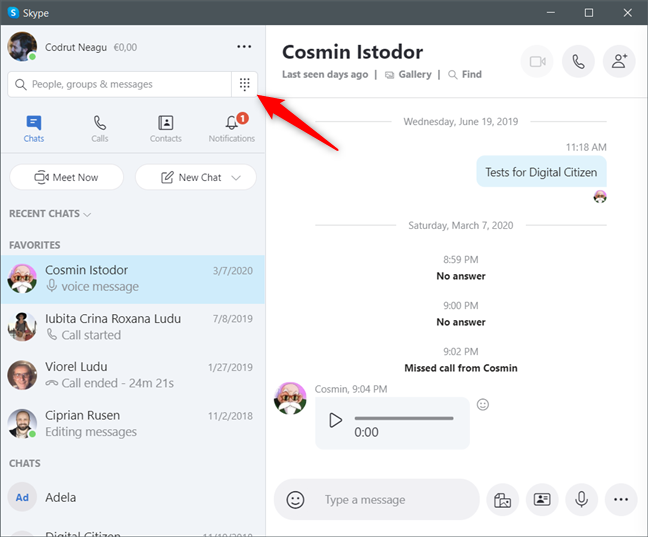
Next to the Search box, you can access the Dial Pad, which lets you call mobiles and landlines. If you have Skype Credit, you can call whomever you want on their phone, straight from the Skype app. To do this, first, click on the Dial Pad button.
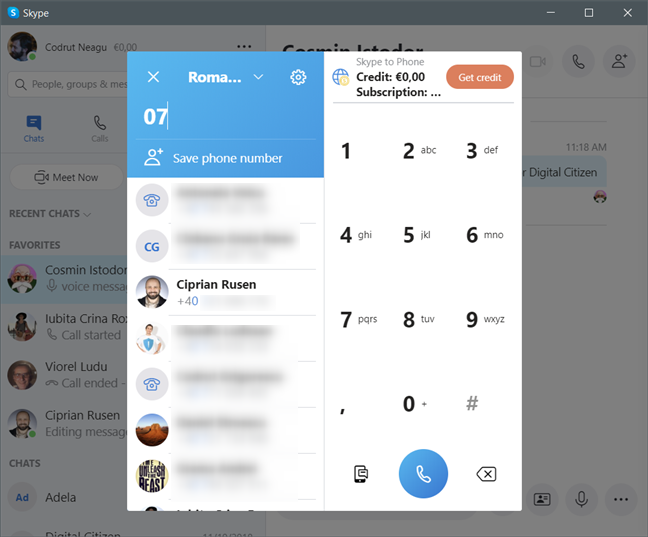
The Dial Pad from Skype
Start entering the phone number of the person you want to reach. As you type the number, a list of your contacts whose phone numbers match is displayed beneath. If you see the person you want to call, you can simply select it from the results; otherwise, type the whole phone number. Once you're done, click or tap on the Call button, and Skype initiates the phone call.
Making a phone call on Skype
Do you use Skype on your Windows 10 devices?
Skype's user interface is quite easy to use and understand. You don't have to be an IT professional to use it well. Before you close this article, tell us if you use Skype and what your opinion is about this app. Are there any features that are missing and you would like to see in a future version of this app?
have used Skype for about 10 years. just got the integrated with Windows 10 version on a new computer. Don’t especially like it. MIss the options menu that gave more control over devices, etc., within Skype. Also miss the automatic log on.
My webcam does not work with windows 8 and Skype. This new program not user friendly at all
Deborah Pope ·
The ringtone isn’t very loud can I change it??
Anton ·
There’s a problem with my skype. I can’t send IMs. When i write the message and press the enter button nothing happens. Could someone please help me with this. I even uninstalled it and installed skype again.
Cameron ·
I don’t really use Skype much and it is full of contacts I don’t want on there. For the life of me I cant get rid of them. Little Help?















Discussion (6)
have used Skype for about 10 years. just got the integrated with Windows 10 version on a new computer. Don’t especially like it. MIss the options menu that gave more control over devices, etc., within Skype. Also miss the automatic log on.
Skype is amazing, i use it for business purpose. I found this site ( https://www.skypeforpc.co/install-skype-windows-versions-tutorial/ )and download skype from there.
My webcam does not work with windows 8 and Skype. This new program not user friendly at all
The ringtone isn’t very loud can I change it??
There’s a problem with my skype. I can’t send IMs. When i write the message and press the enter button nothing happens. Could someone please help me with this. I even uninstalled it and installed skype again.
I don’t really use Skype much and it is full of contacts I don’t want on there. For the life of me I cant get rid of them. Little Help?