


You pay for gigabit internet. The desktop PC is wired straight to the router, because a cable is supposed to be the fast, boring option. Yet every speed test, morning or midnight, stops at about 94 Mbps.
That number is a clue, not bad luck. A 100 Mbps Ethernet link loses a few percent to packet overhead, so it tests in the low to mid 90s, almost exactly a tenth of what gigabit should show. Somewhere between your PC and the router, two pieces of hardware agreed to run at Fast Ethernet speed.
The job is to find which link in that chain made the deal: a cable, a port, an adapter or a setting. Most of the checks cost nothing, and the rest cost a cable or an adapter.
How to check the link speed your Ethernet port negotiated
Start by asking the computer what it agreed to. In Windows 11, open Settings, then Network & internet, then Ethernet, and look for the link speed among the connection's properties. Or type Get-NetAdapter in PowerShell and read the LinkSpeed column.
On a Mac, choose Apple menu > System Settings > Network, click your Ethernet service, then Details and Hardware. That pane, covered in Apple's guide to Gigabit Ethernet on a Mac, holds the speed and duplex settings, which Apple advises leaving on automatic.
If it says 100 Mbps, the link is the bottleneck and everything below applies. If it says 1 Gbps and tests stay slow, look at power saving, drivers, the cable from modem to router, or the line itself. A speed test between two wired devices on your own network separates the two.
Why gigabit Ethernet needs all four wire pairs in the cable
Strip the jacket off an Ethernet cable and you find eight wires twisted into four pairs. Gigabit needs every one of them. The IEEE 802.3ab standard that defines gigabit over copper, known as 1000BASE-T, specifies it over "4-Pair of Category 5" cabling.
Fast Ethernet is far less demanding. Intel's guide to connecting network cables notes that with two- or three-pair cabling its adapters "can only achieve speeds of up to 100Mbps", a tenth of gigabit.
That is why this fault hides so well. Lose one pair to a broken conductor, a crushed run behind the desk or a badly crimped plug, and gigabit is off the table. What remains can still carry Fast Ethernet, so a damaged cable can look healthy while running at a tenth of its speed.
Which Ethernet cable category a gigabit connection really needs
The category printed on the jacket matters less than most buyers assume. IEEE wrote gigabit for Category 5, and the same Intel guide gives Category 5, 6, 6a and 7 an identical 100-meter reach at 1 Gbps.
Category starts to matter above gigabit. In Intel's table, 10 Gbps reaches 55 meters over Category 6 and is not supported on Category 5 at all. The trade-offs between Cat 5e and Cat 6 decide whether that headroom is worth paying for.
Apple's wording sounds stricter. Its help page says Gigabit Ethernet "requires a special Gigabit Ethernet cable". In practice, that means a complete four-pair cable in good condition. A newer category alone will not fix a 100 Mbps link, but a different, intact cable often will.
When a 10/100 port on a router, switch or adapter sets the limit
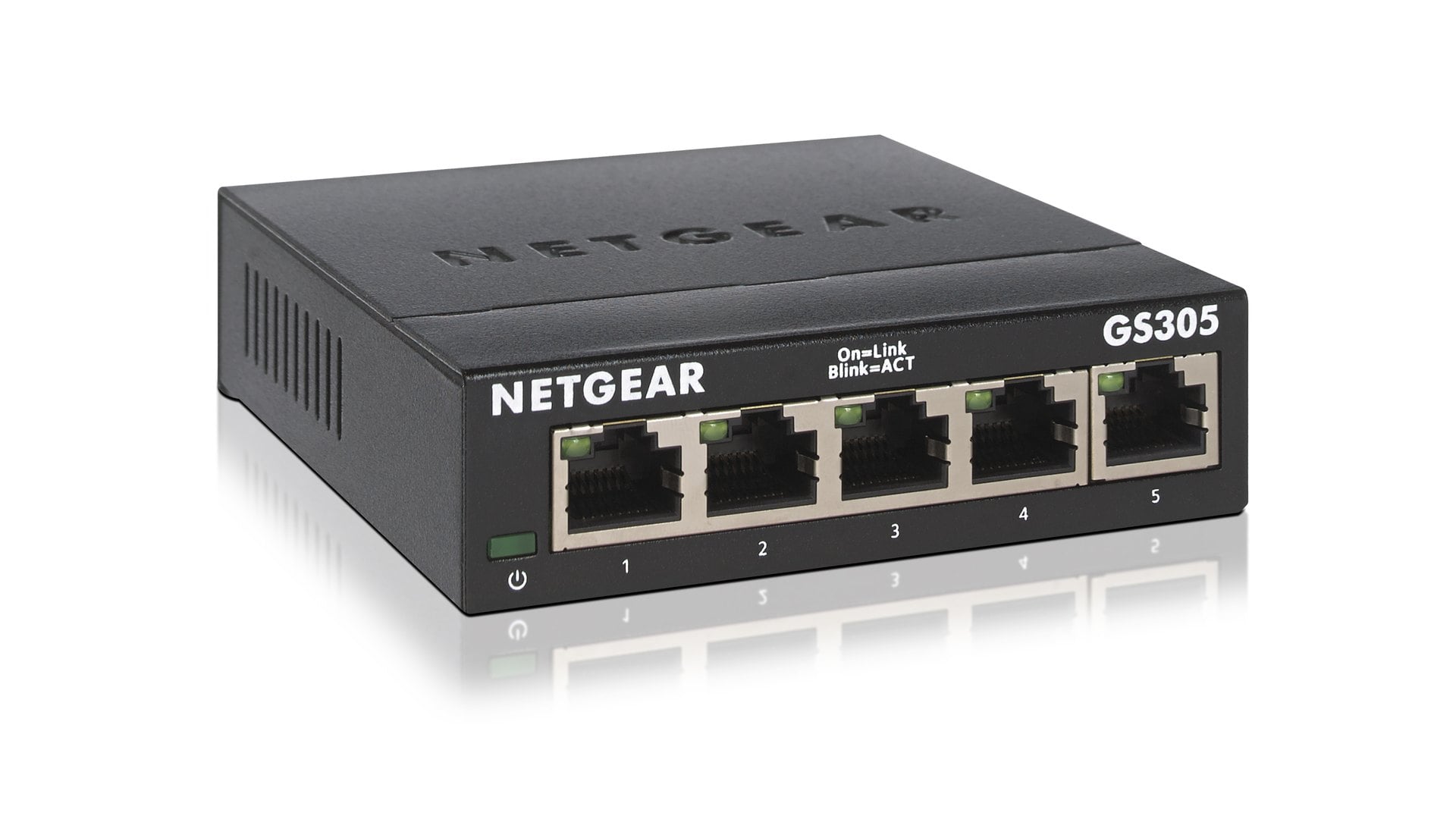
Every box between the PC and the router gets a vote, and the slowest one wins. Auto-negotiation, as NETGEAR's page for its GS305 unmanaged switch puts it, connects "at the highest common speed between switch and an end device". The GS305 has five 10/100/1000 ports, but one 10/100 port anywhere in the path holds the whole connection at 100 Mbps.
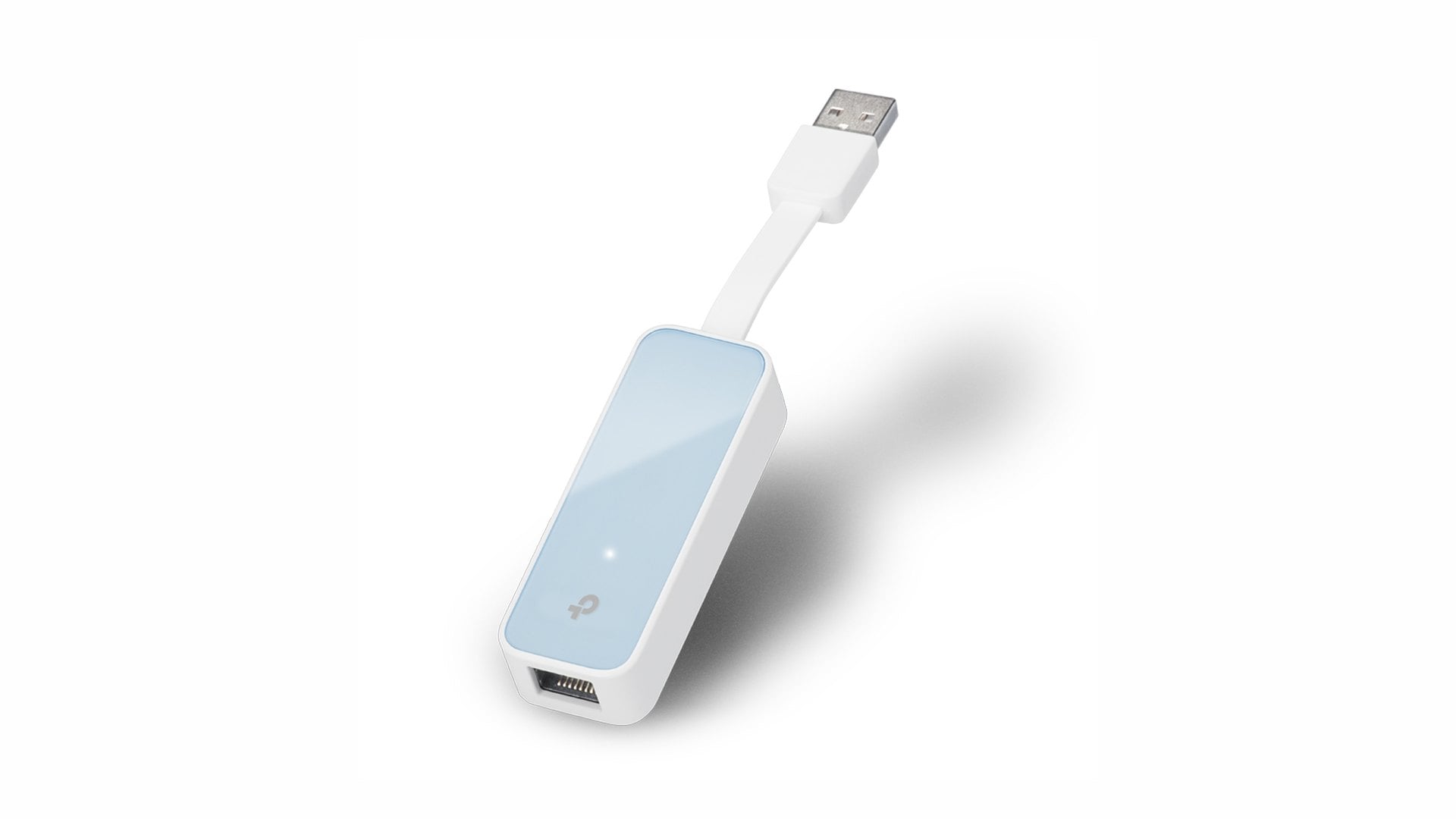
The trap is that fast and slow versions often look alike. TP-Link's UE200 is a "USB 2.0 to 100Mbps Ethernet Network Adapter" with a single 10/100 port. Its gigabit sibling, the UE300, plugs into USB 3.0 and has a 10/100/1000 port. NETGEAR's unmanaged range likewise offers a "choice of Fast Ethernet and Gigabit Ethernet connectivity", so check the exact model's spec sheet, not the shape of the box.
Docks, older routers and the switch hiding under the TV stand deserve the same check: look for 10/100/1000 or Gigabit in the port specification. A port marked only 10/100 is Fast Ethernet hardware that tops out at 100 Mbps. On a laptop, the fix is a gigabit dongle on a USB 3.0 port, and setting up a USB Ethernet adapter covers the rest.
Forced speed settings, power saving and drivers that slow Ethernet
Sometimes the limit is a setting. In Windows, open Device Manager, expand Network adapters, open your adapter's Properties and find the speed and duplex entry on the Advanced tab. It should be set to auto-negotiate.
A fixed value such as 100 Mbps full duplex, left over from an old fix, pins the link at 100 for good. Intel's adapter guide reserves forced speeds for old switches that cannot auto-negotiate, warns that the other end "must match the setting you choose" and calls the 10 and 100 Mbps choices "not recommended". On a Mac, set the Hardware pane's Configure menu back to Automatically.
Power saving is the next suspect, especially when the link reads 1 Gbps but transfers stutter. Energy Efficient Ethernet lets an adapter drop into "Low-Power Idle" between bursts of traffic, and by Intel's account the return to full power "may introduce a small amount of network latency". The GS305 supports it, and Realtek says its RTL8152B chip, the one inside the UE200, uses it too.
Because EEE only saves power when both ends of the link enable it, switching it off on the PC is enough to rule it out. Look for Energy Efficient Ethernet on the same Advanced tab, disable it and test again.
Drivers come last among the free fixes. Microsoft's Ethernet troubleshooting guide suggests uninstalling the network adapter driver and restarting so Windows reinstalls it, particularly after an update. Save a backup driver from your PC maker's website first.
The cheapest order to fix Ethernet stuck at 100 Mbps
Work from free to cheap, and recheck the link speed after each step:
- Check the negotiated link speed. If it already reads 1 Gbps, skip to power saving and drivers.
- Reseat the cable firmly at both ends, then try a different router port.
- Connect the PC straight to the router, bypassing any switch, dock or wall jack.
- Set speed and duplex back to automatic on the PC.
- Swap in a known-good patch cable, ideally a short new one.
- Turn off Energy Efficient Ethernet, then reinstall the network driver.
- Replace whatever 10/100 device is left in the chain with a gigabit model.
The cable swap also tells you what to replace. If a different cable brings back 1 Gbps on the same port, the old cable is faulty: retire it rather than coiling it back into a drawer. If the old cable reaches 1 Gbps elsewhere, it is fine and the original port is the weak link.
A bad router or switch port is easy to work around: use the one next to it. If the PC's own port is at fault, a USB 3.0 gigabit adapter replaces it without opening the case. If the link drops to 100 Mbps only through a wall jack, the run inside the wall or the jack itself is the problem.
Either way, the 94 on the speed test was never about the internet plan. It was one weak link in the chain. Once it goes, a gigabit plan that delivers its speed should test in the 900s, ten times what it showed before.

Discussion (0)
Be the first to comment.