



If your wired connection feels slow, learning how to test Ethernet speed helps you see whether the problem lives on your side or with your internet provider. A proper Ethernet speed test shows you how fast your wired internet really runs compared with the speeds on your plan.
This guide explains how to run an Ethernet speed test with online tools, built-in features in Windows and macOS, and local file transfers between devices. You also see how to interpret Ethernet speed test results and what to check when your wired internet speed drops below expectations.
Before You Run An Ethernet Speed Test
A few quick checks keep your Ethernet speed test results accurate. You want your wired connection to run under ideal conditions before you blame your ISP or router.
- Connect your PC or laptop directly to the router or modem with an Ethernet cable.
- Disable Wi-Fi so the device uses only the wired connection during the Ethernet speed test.
- Close downloads, cloud backups, streaming apps, and online games on every device in the house.
- Pause any VPN or proxy service, because these tools can lower your wired internet speed.
- Restart your router and modem if they have not rebooted for a long time.
Once you prepare your network like this, you can check Ethernet speed more reliably and spot problems with cables, ports, or the provider.
How To Test Ethernet Speed With An Online Speed Test
The easiest way to check wired internet speed uses a browser-based Ethernet speed test. These tools measure download, upload, and ping over your Ethernet connection.
- Connect your computer to the router with an Ethernet cable and disable Wi-Fi.
- Open a browser and visit a trusted network speed test site like Speedtest.net.
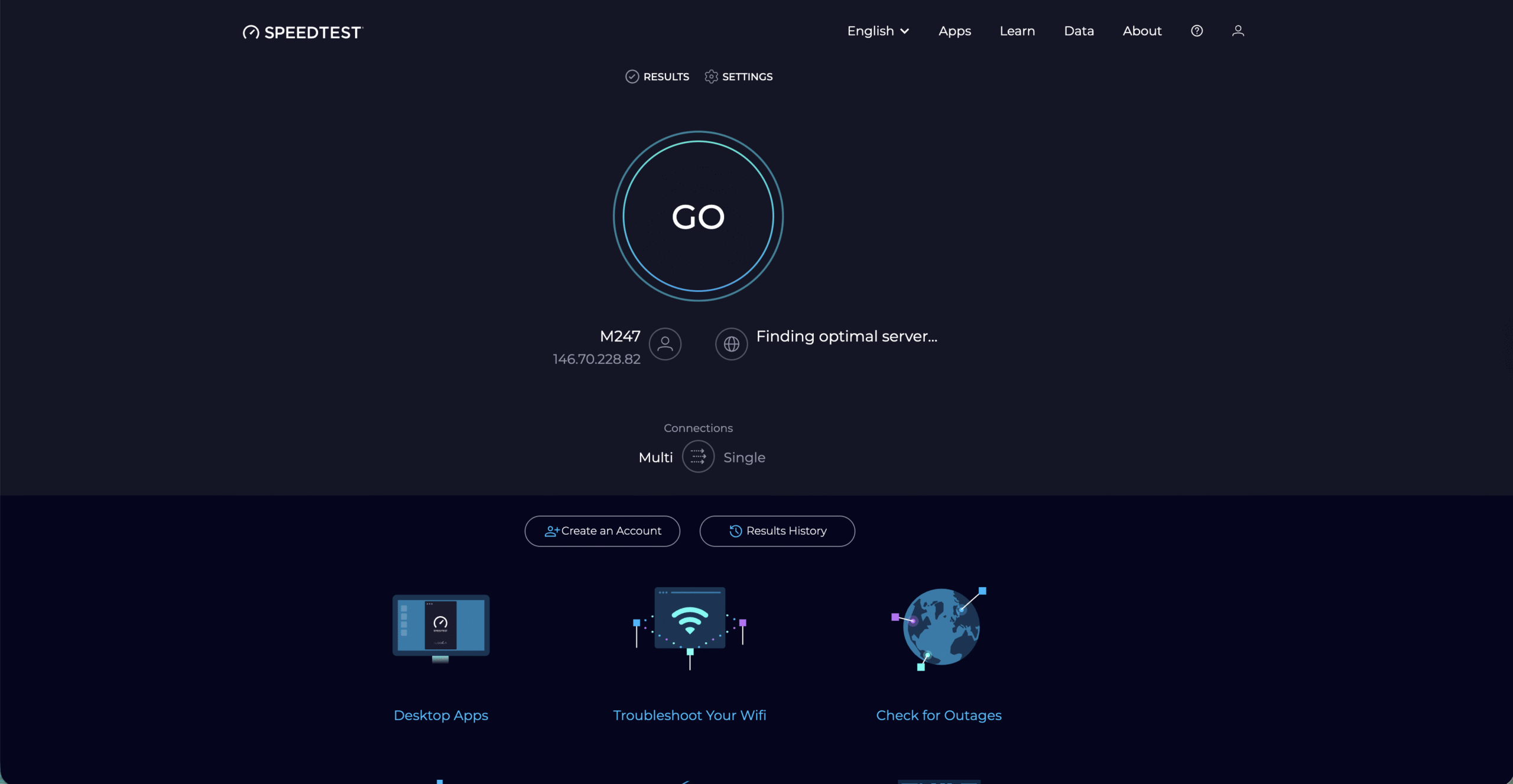
- Choose a nearby server if the tool offers a manual server selector.
- Start the Ethernet speed test and let the download and upload measurements finish.
- Write down your download, upload, and ping values for comparison later.
If your Ethernet speed test results sit close to your ISP’s advertised speeds during off-peak hours, your wired connection performs normally. If numbers fall far below your plan, you can dig deeper into your LAN speed and hardware.
How To Test Ethernet Speed On Windows
Windows gives you several ways to check Ethernet speed and confirm you actually run at Fast Ethernet or Gigabit Ethernet rates.
- Open Settings and go to “Network & Internet,” then select “Ethernet.”
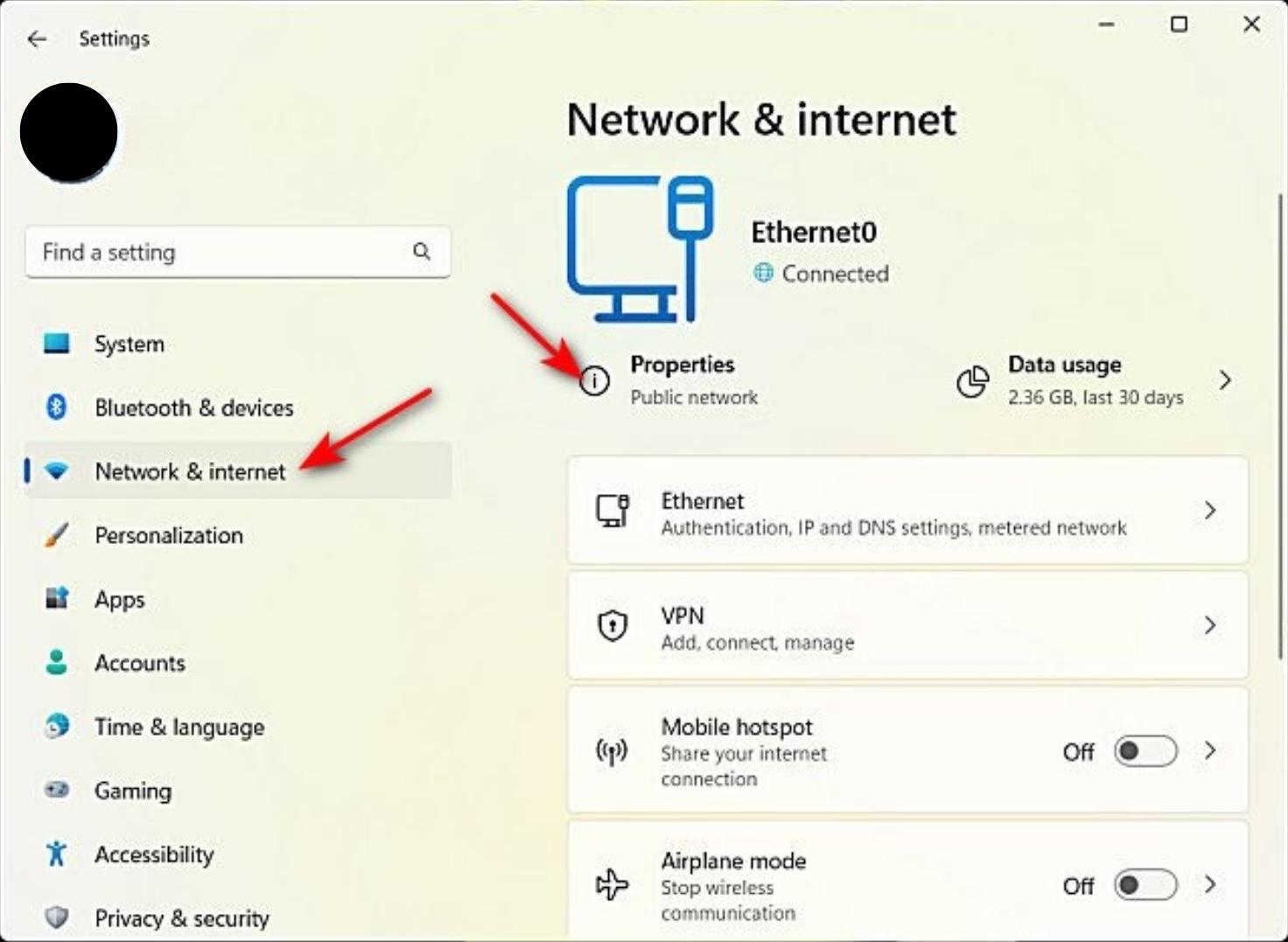
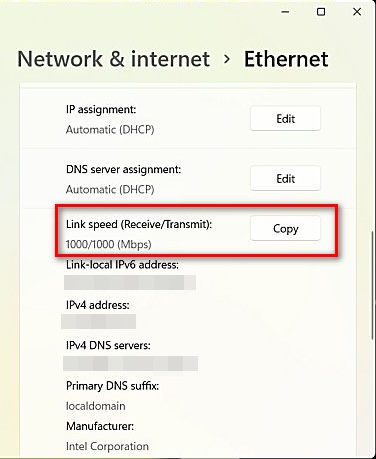
- Click your active wired network and look for the “Link Speed” entry, which shows values like 100 Mbps or 1.0 Gbps.
- Press Ctrl + Shift + Esc to open Task Manager, then switch to the “Performance” tab and choose “Ethernet.”
- Start a download or stream, and watch the real-time Ethernet throughput graph to see actual wired internet speed.
- If Windows reports 100 Mbps link speed on a Gigabit connection, check your cable and router port type.
The link speed value tells you the maximum rate the network card and router negotiated, while Task Manager shows the real traffic flowing through your Ethernet adapter.
How To Test Ethernet Speed On MacOS
Mac users can also confirm Ethernet link speed and run a wired network speed test using built-in tools in macOS.
- Click the Apple menu and open “System Settings,” then choose “Network.”
- Select your Ethernet connection and open the details or “Advanced” section.
- Look for the line that shows “Speed,” such as 1000base-T for Gigabit Ethernet.
- Launch Activity Monitor from Applications > Utilities and switch to the “Network” tab.
- Start a large download or video stream and watch the Data Received Per Second values to see real Ethernet throughput.
If your Mac shows a lower Ethernet link speed than expected, check your cable category and the port you use on your router or switch.
How To Test LAN Speed Between Local Devices
An Ethernet speed test against the internet includes your ISP and their network. A LAN speed test between devices focuses only on your wired network hardware and gives you a clearer view of true Ethernet throughput.
- Choose two devices on your network, such as a desktop PC and a laptop, both connected with Ethernet.
- Place a large test file on one device, for example a multi-gigabyte video file or disk image.
- Copy the file across the network to the second device using File Explorer, Finder, or an FTP client.
- Watch the transfer speed reported by the copy window and note the average rate in MB/s.
- Convert megabytes per second (MB/s) to megabits per second (Mb/s) by multiplying by eight to compare with your Gigabit Ethernet rating.
If your LAN speed test shows values close to 100–110 MB/s, your Gigabit Ethernet link likely runs correctly. Much lower numbers suggest a 100 Mbps connection, cable problems, or a slow drive on one end.
Check Ethernet Cable And Port Quality
Bad cables and ports often cause strange Ethernet speed test results. A quick physical check can save hours of software troubleshooting.
- Inspect the Ethernet cable for sharp bends, cuts, broken clips, or crushed sections.
- Use at least a Cat5e or Cat6 cable if you want full Gigabit Ethernet speed.
- Swap the existing cable with a shorter, known-good cable and rerun the Ethernet speed test.
- Try a different LAN port on the router or switch in case one port runs at a lower speed or fails.
- Check whether the router port and your network adapter both support Gigabit Ethernet instead of Fast Ethernet only.
When a cable or port forces your link speed down to 100 Mbps, your wired internet speed can never exceed that limit, even if your plan supports faster downloads.
Use Network Monitoring And LAN Speed Test Tools
Dedicated network tools give you more detailed Ethernet speed and latency data than a simple browser test. These apps help you track wired internet speed over time and spot spikes or drops.
- Install a LAN speed test utility to measure file transfer rates between two Ethernet devices automatically.
- Use a network monitoring app that graphs bandwidth usage on each interface so you can track long-term wired performance.
- Enable logging features to see when Ethernet speed falls below a chosen threshold.
- Use packet capture tools only when you need deep analysis, because they require more networking knowledge.
- Check router management pages for built-in traffic statistics or simple wired internet speed graphs.
These tools give you better visibility into your Ethernet connection and help you confirm that changes like new cables or firmware updates actually improve LAN speed.
What To Do If Your Ethernet Speed Test Is Still Slow
Sometimes every Ethernet speed test still shows slow numbers after you fix cables and settings. At that point, you should decide whether the bottleneck lives in your home network or with the provider.
- Test Ethernet speed on a second device with a different network adapter to rule out hardware problems on the first machine.
- Connect directly to the modem if your setup normally runs through a separate router or mesh system.
- Check your current plan’s advertised download and upload speeds, and compare them with your best wired results.
- Ask your provider if any traffic shaping, data caps, or outages affect your connection.
- Consider upgrading your router or switch if they top out at Fast Ethernet or struggle under heavy loads.
When all your own equipment tests fine and multiple Ethernet speed tests stay low, the provider usually needs to investigate the line or update your plan.
Conclusion
Now you know how to test Ethernet speed with online tools, built-in operating system features, and local LAN speed tests. You also saw how cable quality, port type, and network hardware can limit wired internet speed long before your ISP’s network becomes the problem.
Use these Ethernet speed test methods whenever your wired connection feels slow, keep an eye on link speed readings, and fix simple issues like bad cables or outdated hardware first. With a clean setup and regular testing, your Ethernet network can deliver fast, stable performance for streaming, gaming, and work.


Discussion (0)
Be the first to comment.