


You pay for gigabit internet, open a speed test on your phone in the living room, and watch the number settle around 300 Mbps. On paper, you are getting less than a third of what the bill promises.
Usually you are not being shortchanged. The 1 Gbps on your plan is a promise about the cable at the router, and every step between that box and your phone takes its own cut. The useful question is which step is taking yours, and whether 300 Mbps is a fault or simply what Wi-Fi does.
Where your internet plan speed is actually measured
Providers measure the plan to the front door, not to the sofa. On its Fios Gigabit support page, Verizon says a router speed test measures the speed delivered from its network to your home router. It also warns that a speed test on a Wi-Fi device measures your Wi-Fi network, not the broadband connection you pay for.
Even the wired figure is not a round 1,000. Verizon quotes average wired downloads of 750 to 940 Mbps on its Gig tier, and the Xfinity requirements page says actual download speeds are limited to 940 Mbps over a wired connection. The same Xfinity page warns that gigabit speeds are faster than what many phones, laptops and tablets can handle.
Part of that gap is overhead. AT&T’s guide to internet speed says protocol overhead, the control data that keeps a connection reliable, reduces both internet speed and speed test results. It is just as plain about the rest: Wi-Fi lets you move around the house, but it is not as fast as a wired connection.
Why your Wi-Fi link speed is not your real download speed
When your phone joins the network, it and the router agree on a connection rate. That is the big number in your Wi-Fi settings. TP-Link defines this link speed as the maximum negotiated speed between two devices, set by what each one can do and by signal quality.
Real transfers run well below it. According to TP-Link, actual speed over Wi-Fi is typically 40 to 60 percent of the link speed, because of interference and overhead. NETGEAR’s example is harsher: a 300 Mbps link usually corresponds to 50 to 90 Mbps of real traffic.
That link rate also moves as you do. NETGEAR explains that it falls as signal strength drops, so the same phone negotiates a slower connection two rooms away than it does next to the router.
You can check your own figure in a few taps. On Android it sits under Settings, Wi-Fi, then the connected network. On a Mac, hold Option and click the Wi-Fi icon to read the Tx Rate, and on Windows, run ncpa.cpl and open the Wi-Fi adapter’s Status window.
How your phone or laptop caps what a speed test can show
Then there is the device itself. Every Wi-Fi radio has a ceiling, set by its Wi-Fi generation, the widest channel it supports and its number of spatial streams, the independent data streams it can send at once.
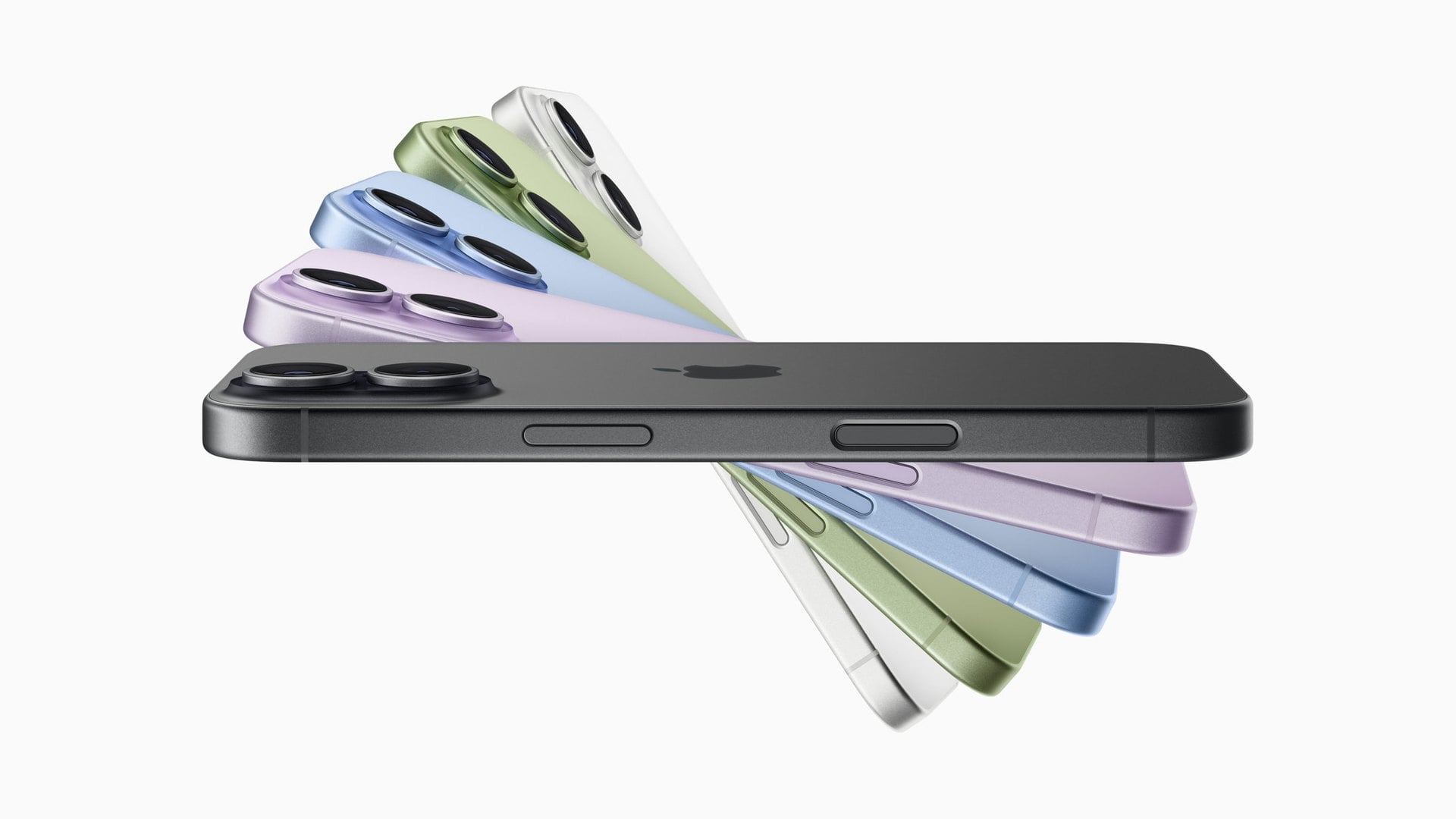
Apple’s Wi-Fi specifications show how wide that range is inside a single brand. An iPhone 17 tops out at a 2,400 Mbps link on 5 GHz or 6 GHz, using two streams over a 160 MHz channel. An iPhone 13 or iPhone 16e stops at 1,200 Mbps on 5 GHz, because its widest channel is 80 MHz.
Run TP-Link’s 40 to 60 percent rule over those ceilings and the picture sharpens. The older phone lands around 480 to 720 Mbps at best, right beside a capable router, while the iPhone 17 can in theory reach the 940 Mbps wired limit.
The router sets a ceiling too. On an older Wi-Fi 5 router, even an iPhone 17 links at no more than 866 Mbps, the figure Apple gives for that standard. AT&T’s extreme example is an old laptop that supports only 11 Mbps: on a 1 Gbps plan, it will never see more than 11 Mbps.
Why 2.4 GHz, 5 GHz and 6 GHz Wi-Fi give different speeds
Which band your phone joined can matter more than which phone it is. On 2.4 GHz, the iPhone 17’s ceiling drops to 229 Mbps, because that band uses narrow 20 MHz channels. With the same rule of thumb, a phone on 2.4 GHz will rarely show much more than 140 Mbps, however fast the plan.
The ASUS guide to Wi-Fi bands spells out the trade-off. The 2.4 GHz band has lower speeds and more interference but broad coverage, and it shares the air with Bluetooth, cordless phones and microwaves. The 5 GHz band is faster but reaches less far at the same power.
The 6 GHz band, open only to Wi-Fi 6E and Wi-Fi 7 devices, is the fastest and least crowded, with the weakest wall penetration. That is why a test can swing so much as you walk through the house. Behind two walls, the same phone may do better back on 5 GHz, which is exactly what ASUS recommends when the 6 GHz signal turns weak.
Why two speed tests give different results on the same line
The test is a variable as well. Ookla’s Speedtest opens multiple connections to a server picked by ping, and adds more during the first half of the download if it needs them for an accurate reading.
M-Lab’s test works the other way. Its FAQ says NDT moves as much data as it can for ten seconds over a single connection, which is more likely to expose network problems. M-Lab also always tests to servers outside your provider’s network, and results from servers inside it are often higher.
Neither number is wrong, but each answers a different question, so compare like with like. Ookla’s help pages add that phones, tablets and computers vary widely in Wi-Fi radio quality and MIMO handling, so two devices on the same network can disagree.
What speed to expect on gigabit Wi-Fi and what to fix first
So is 300 Mbps on a 1 Gbps plan a fault? Over Wi-Fi, a room or two from the router, it sits well inside the range those rules of thumb predict. On 2.4 GHz, even an iPhone 17 could not reach it.
Work through the checks in this order, and stop as soon as the number makes sense.
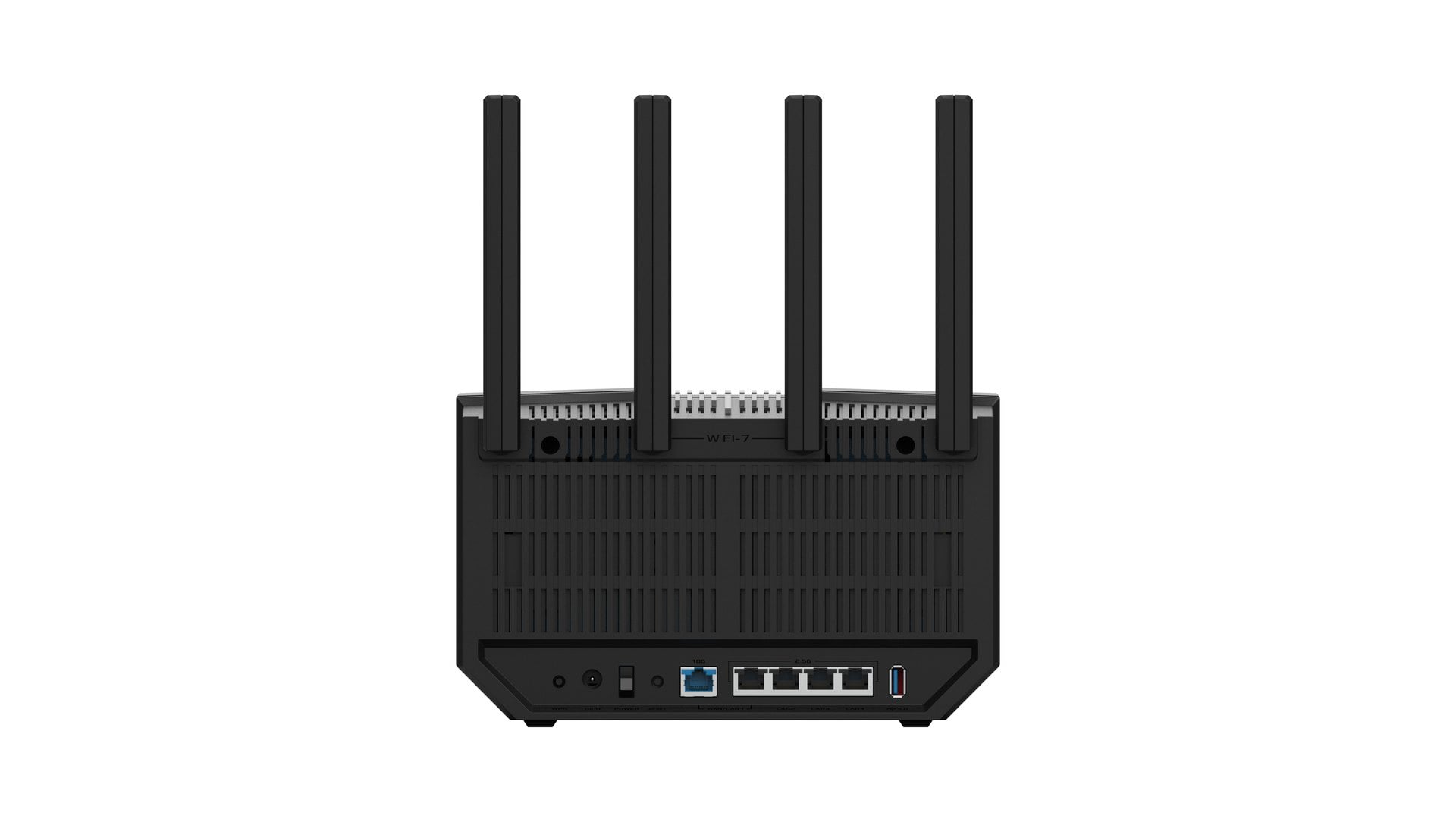
- Test wired first. Plug a laptop into the router with a Cat5e or better cable, keep it on mains power rather than a battery-saving mode, and close other apps. A result near 940 Mbps means the plan is delivering, and the step-by-step Ethernet speed test for Windows and Mac covers the details.
- Move closer. Test next to the router, then where you actually sit. If the number collapses with distance, mapping your Wi-Fi signal and moving the router is the cheapest fix.
- Switch band. Join the 5 GHz or 6 GHz network when you are near the router, and save 2.4 GHz for the far rooms and smart-home gadgets.
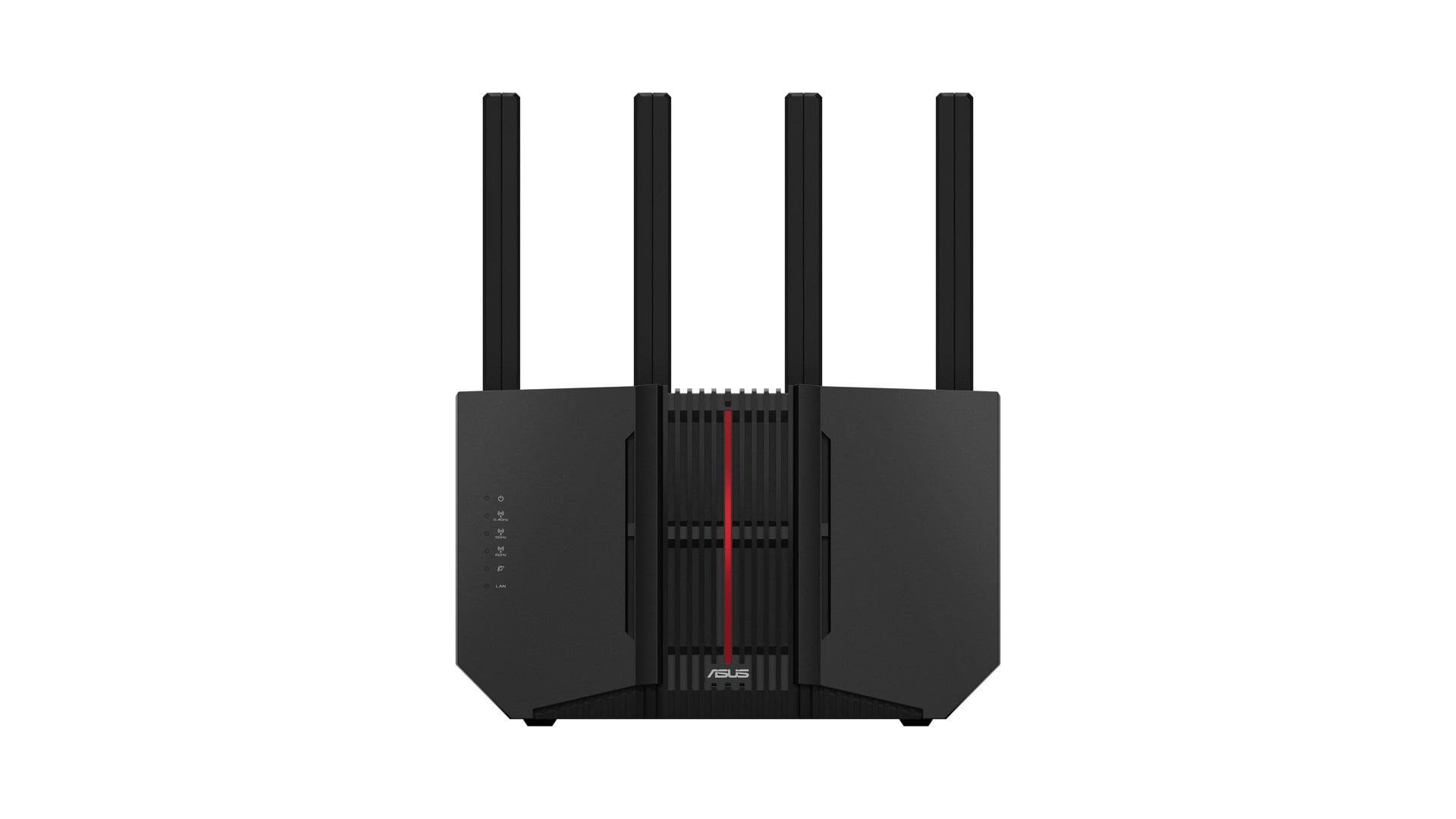
- Then look at hardware. A Wi-Fi 5 router or a phone that only reaches 80 MHz channels caps every test. For dead zones, weigh a Wi-Fi extender against mesh, and consider a Wi-Fi 7 router only if your devices can use it.
If the wired test is also far below 940 Mbps, the shortfall is upstream of your Wi-Fi, and that is the moment to call your provider with the cable result in hand. Until then, remember what the plan covers: the cable at the router, not the couch two rooms away.



Discussion (0)
Be the first to comment.