



The Windows 11 taskbar is the bar located at the bottom of your screen, providing quick access to your favorite apps, settings, and notifications. Customizing it can improve how you work on your PC. While some users miss the flexibility of older versions, Windows 11 taskbar customization still offers a variety of useful options to tweak and tune it to your heart’s desires. In this guide, you’ll learn how to personalize your taskbar, including how to hide the taskbar in Windows 11, how to move the Windows 11 taskbar to the left, and more ways to make it fit your workflow:

 How to open Taskbar settings in Windows 11
This action opens the Settings app directly to the Taskbar section in Personalization. Alternatively, you can get there by opening the Settings app (Windows + I) and accessing Personalization > Taskbar.
How to open Taskbar settings in Windows 11
This action opens the Settings app directly to the Taskbar section in Personalization. Alternatively, you can get there by opening the Settings app (Windows + I) and accessing Personalization > Taskbar.

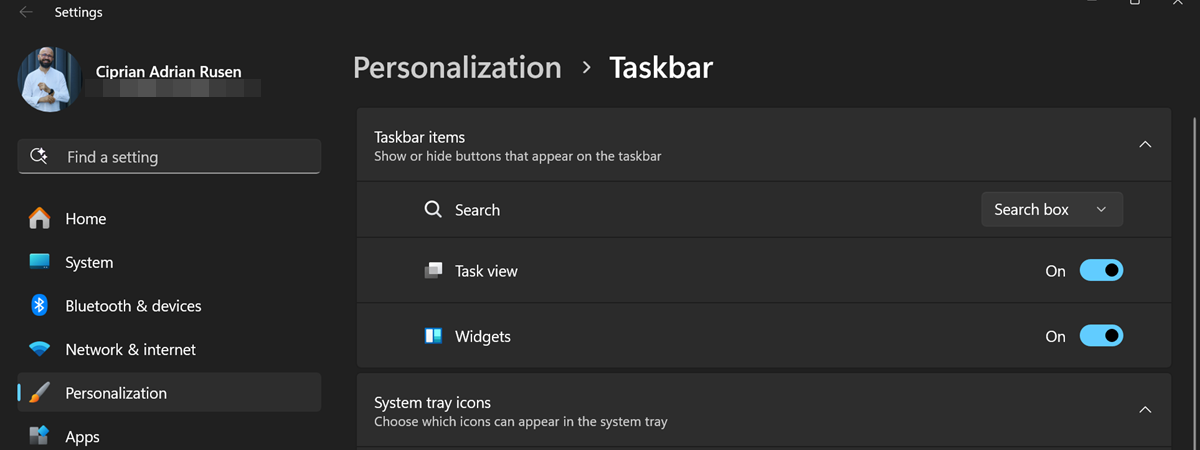
 The taskbar options are available in Settings > Personalization > Taskbar

 The Search box in the Windows 11 taskbar
If you think the search box takes up too much space, you can replace it with a search icon or hide it completely. Go to the Taskbar settings page, and in the Taskbar items section, click or tap the dropdown menu next to Search. Then, choose your preferred option:
The Search box in the Windows 11 taskbar
If you think the search box takes up too much space, you can replace it with a search icon or hide it completely. Go to the Taskbar settings page, and in the Taskbar items section, click or tap the dropdown menu next to Search. Then, choose your preferred option:
 How to personalize the search on Windows 11's taskbar
If you want to know more about Search and what you get with each setting, check out our guide on how to use Windows 11’s Search.
How to personalize the search on Windows 11's taskbar
If you want to know more about Search and what you get with each setting, check out our guide on how to use Windows 11’s Search.
 The Task View button on Windows 11's taskbar
If you don’t use Task View, it’s easy to remove the button from your taskbar. On the Taskbar settings page, turn Off the Task view switch in the Taskbar items section.
The Task View button on Windows 11's taskbar
If you don’t use Task View, it’s easy to remove the button from your taskbar. On the Taskbar settings page, turn Off the Task view switch in the Taskbar items section.
 How to remove the Task view icon from the Windows 11 taskbar

 The Widgets button on the taskbar in Windows 11
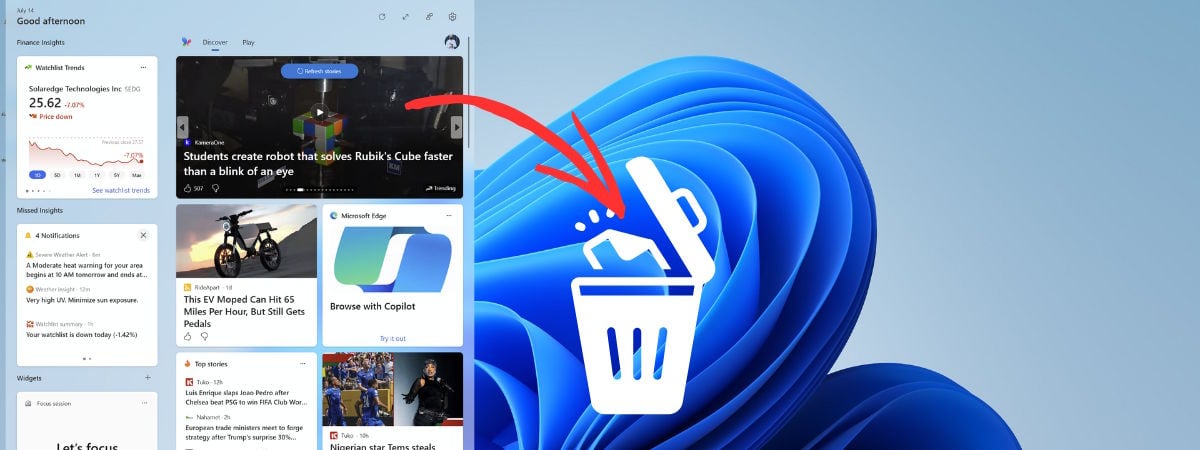
By default, the Widgets feature is enabled, but you can turn it Off. To disable Widgets and remove the news from the taskbar in Windows 11, access the Taskbar settings, and click or tap the Widgets switch under Taskbar items.
The Widgets button on the taskbar in Windows 11
By default, the Widgets feature is enabled, but you can turn it Off. To disable Widgets and remove the news from the taskbar in Windows 11, access the Taskbar settings, and click or tap the Widgets switch under Taskbar items.
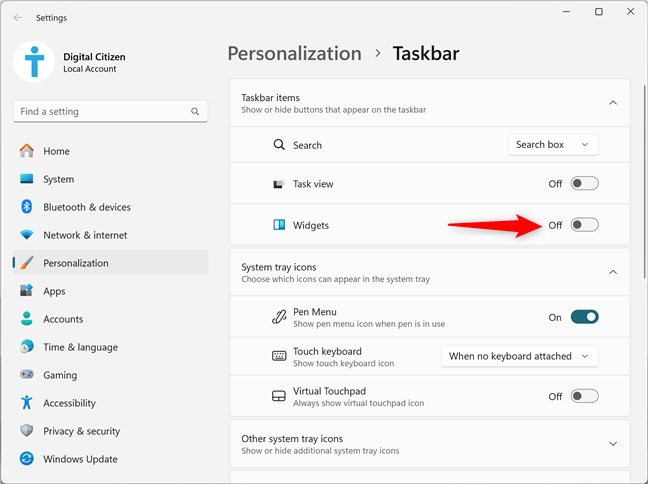 How to turn off Widgets in Windows 11
The Widgets button disappears immediately from your taskbar.
TIP: Microsoft recently added Widgets to the Lock screen. If you don’t like them, here’s how to remove the Lock screen widgets from Windows 11.
How to turn off Widgets in Windows 11
The Widgets button disappears immediately from your taskbar.
TIP: Microsoft recently added Widgets to the Lock screen. If you don’t like them, here’s how to remove the Lock screen widgets from Windows 11.
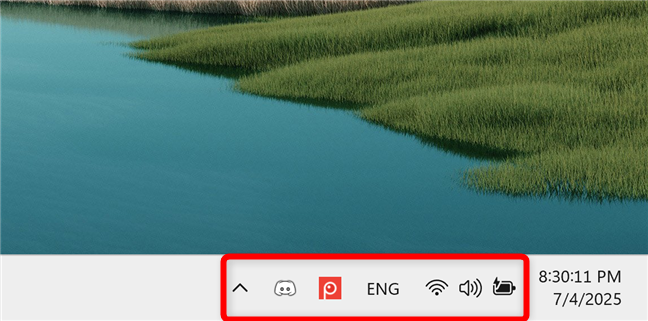
 The system tray icons in Windows 11
The options in the Personalization > Taskbar section of the Settings app also let you customize these icons. In the System tray icons section, you can choose whether the Pen Menu, Touch keyboard, and Virtual Touchpad are shown in the system tray. You also get switches for Other system tray icons. Except for the Touch keyboard, which allows you to choose when its icon is displayed, you can simply toggle the switches of all the other icons to control whether they’re shown on the taskbar.
The system tray icons in Windows 11
The options in the Personalization > Taskbar section of the Settings app also let you customize these icons. In the System tray icons section, you can choose whether the Pen Menu, Touch keyboard, and Virtual Touchpad are shown in the system tray. You also get switches for Other system tray icons. Except for the Touch keyboard, which allows you to choose when its icon is displayed, you can simply toggle the switches of all the other icons to control whether they’re shown on the taskbar.

 Choose the icons shown in the system tray
If you need detailed instructions on working with the system tray icons in Windows 11, as well as pinning or unpinning apps to and from the taskbar, read this guide: How to add or remove icons or apps from the Windows 11 taskbar.
Choose the icons shown in the system tray
If you need detailed instructions on working with the system tray icons in Windows 11, as well as pinning or unpinning apps to and from the taskbar, read this guide: How to add or remove icons or apps from the Windows 11 taskbar.
 Go to Settings > Time & language > Date & time
If you no longer want to see the Windows 11 taskbar clock, turn off the switch next to “Show time and date in the System tray.”
Go to Settings > Time & language > Date & time
If you no longer want to see the Windows 11 taskbar clock, turn off the switch next to “Show time and date in the System tray.”
 Hide the Windows 11 taskbar clock
You also have the option to customize the Windows 11 taskbar clock. Check out our guide on adding or removing seconds from the Windows 11 clock for more details.
Hide the Windows 11 taskbar clock
You also have the option to customize the Windows 11 taskbar clock. Check out our guide on adding or removing seconds from the Windows 11 clock for more details.

 The taskbar is centered by default in Windows 11
Do you prefer the traditional layout? If you’re wondering how to move the taskbar in Windows 11 and realign its elements to the left side of the screen, that’s easy to do. In the Taskbar settings (Settings > Personalization> Taskbar), find (and expand) the Taskbar behaviors section. Then, click or tap the Taskbar alignment dropdown menu and select Left instead of Center.
The taskbar is centered by default in Windows 11
Do you prefer the traditional layout? If you’re wondering how to move the taskbar in Windows 11 and realign its elements to the left side of the screen, that’s easy to do. In the Taskbar settings (Settings > Personalization> Taskbar), find (and expand) the Taskbar behaviors section. Then, click or tap the Taskbar alignment dropdown menu and select Left instead of Center.
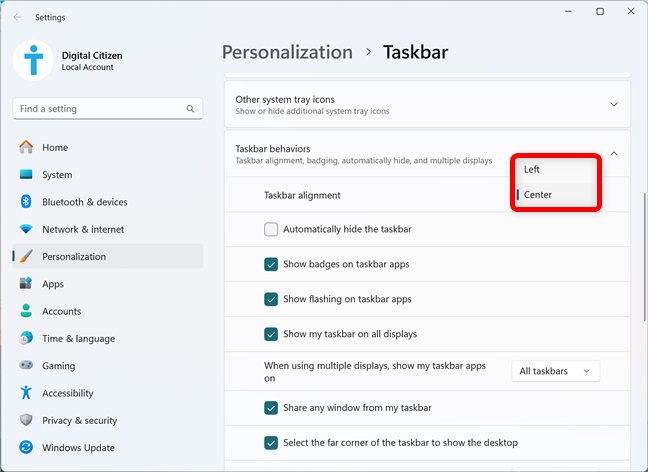 How to move the taskbar to the left in Windows 11
This action also changes where the Start Menu is displayed in Windows 11. For more details, read our guide on moving the Windows 11 Start Menu to the left.
How to move the taskbar to the left in Windows 11
This action also changes where the Start Menu is displayed in Windows 11. For more details, read our guide on moving the Windows 11 Start Menu to the left.
 How to hide the taskbar in Windows 11
For a step-by-step guide and more details on what happens when you enable or disable this setting, read this guide: How to hide or show the taskbar in Windows 11.
How to hide the taskbar in Windows 11
For a step-by-step guide and more details on what happens when you enable or disable this setting, read this guide: How to hide or show the taskbar in Windows 11.
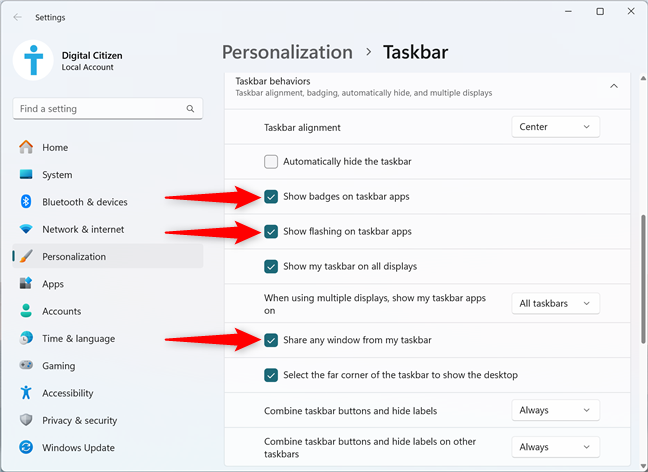 How to show badges, flashing, and sharing options for taskbar apps

 The Show desktop button is on the right of the Windows 11 taskbar
In the Taskbar settings, you can control if this button is available by checking or unchecking the “Select the far corner of the taskbar to show the desktop” option in the Taskbar behaviors section.
The Show desktop button is on the right of the Windows 11 taskbar
In the Taskbar settings, you can control if this button is available by checking or unchecking the “Select the far corner of the taskbar to show the desktop” option in the Taskbar behaviors section.
 Select the far corner of the taskbar to show the desktop
Even if you disable this button, you can still use the Win + D keyboard shortcut to access your desktop.
Select the far corner of the taskbar to show the desktop
Even if you disable this button, you can still use the Win + D keyboard shortcut to access your desktop.
 Combine taskbar buttons and hide labels
For more details on what you’ll get when changing this taskbar behavior in Windows 11, read the dedicated chapters in this guide: How to ungroup taskbar icons in Windows.
Combine taskbar buttons and hide labels
For more details on what you’ll get when changing this taskbar behavior in Windows 11, read the dedicated chapters in this guide: How to ungroup taskbar icons in Windows.
 Show my taskbar on all displays
Showing your taskbar on all displays comes with an additional setting, “When using multiple displays, show my taskbar apps on.” Click or tap the dropdown menu next to it to reveal three options:
Show my taskbar on all displays
Showing your taskbar on all displays comes with an additional setting, “When using multiple displays, show my taskbar apps on.” Click or tap the dropdown menu next to it to reveal three options:

 When using multiple displays, show my taskbar apps on
The last setting in this list is “Combine taskbar buttons and hide labels on other taskbars.” Click or tap the dropdown menu next to it and choose between:
When using multiple displays, show my taskbar apps on
The last setting in this list is “Combine taskbar buttons and hide labels on other taskbars.” Click or tap the dropdown menu next to it and choose between:

 Combine taskbar buttons and hide labels on other taskbars
If your Windows 11 PC doesn’t have multiple screens connected to it, these three settings are grayed out and can’t be edited. You can only change them by connecting a secondary monitor to Windows 11.
Combine taskbar buttons and hide labels on other taskbars
If your Windows 11 PC doesn’t have multiple screens connected to it, these three settings are grayed out and can’t be edited. You can only change them by connecting a secondary monitor to Windows 11.
How to open the Taskbar settings in Windows 11
To start customizing your taskbar, open its settings. The quickest way is to right-click (or press and hold) a free area on your taskbar, and then click or tap Taskbar settings.How to personalize Windows 11’s taskbar contents
Now that you’re in the Taskbar settings, you can adjust what elements appear on your taskbar. Let’s go through a few common customizations.How to show or hide the search box from the Windows 11 taskbar
By default, Windows 11 shows a large search box on the taskbar.- Hide - removes the Search option from your taskbar.
- Search icon only - the taskbar only shows a magnifying glass icon.
- Search icon and label - you get a magnifying glass next to the Search label.
- Search box - the default setting; displays the full search box on the taskbar.
How to hide the Task View button from the taskbar
Task View helps you manage your app windows and virtual desktops, and its icon is present by default on the Windows 11 taskbar.How to show or hide Widgets on Windows 11’s taskbar
The Widgets feature in Windows 11 is one of those things that you either love or hate. And considering how buggy and inconsistent widgets are, they’re difficult to love. 🙂 They provide quick access to personalized information like weather, news, or traffic incidents and have their own button in the left corner of the taskbar.How to select which system tray icons are displayed on the Windows 11 taskbar
The system tray is located on the right side of the taskbar. It displays icons for various system options and applications.How to hide the Windows 11 taskbar clock
You can also hide the time and date shown in the taskbar’s system tray, but Microsoft included this option on another settings page. Open the Settings app (Windows + I), access Time & language in the left sidebar, and click or tap Date & time.How to personalize Windows 11’s taskbar appearance and behavior
The taskbar is one of the most frequently used features of Windows 11. It allows you to access your favorite apps, switch between open windows, and view important notifications. However, besides choosing the items shown on it, you can also change the taskbar’s appearance and behavior. Here’s how to do that:How to align the Windows 11 taskbar to the left
The Windows 11 taskbar is centered, similar to the macOS interface. This design places the taskbar icons and the Start Menu in the middle of the screen.How to hide the taskbar in Windows 11
For a cleaner desktop, you can also instruct Windows 11 to automatically hide the taskbar when it’s not in use. This feature keeps the taskbar out of sight, revealing it only when the cursor is moved to its location. Access the Taskbar settings (Settings > Personalization> Taskbar) and check the “Automatically hide the taskbar” option in the Taskbar behaviors section.How to customize the behavior of taskbar apps
Windows 11 also lets you tweak a few options regarding how app buttons and notifications behave. In the Taskbar behaviors section of the Taskbar settings, you also find these options:- Show badges on taskbar apps - Windows 11 displays notifications on app icons.
- Show flashing on taskbar apps - the operating system highlights apps that need attention with a flashing icon.
- Share any window from my taskbar - lets you share content from open apps during meetings (via Microsoft Teams) using the right-click menu.
How to toggle the Show desktop taskbar button
The Windows 11 taskbar also features a Show desktop button to quickly access your desktop. If this button is enabled, you can click or tap it in the far right corner of the taskbar.How to group and hide/show labels for taskbar buttons
Windows 11 also lets you choose whether the buttons on the taskbar combine. On the Taskbar settings page, clicking or tapping the “Combine taskbar buttons and hide labels” dropdown menu under Taskbar behaviors reveals three options:- Always - the taskbar icons are always combined, and their labels are always hidden.
- When taskbar is full - Windows 11 groups the taskbar icons only when there’s no more room for them.
- Never - the operating system never combines taskbar icons, and open apps always have separate icons and labels for each window.
How to personalize the Windows 11 taskbar when using multiple displays
You can also personalize how the taskbar behaves when you have multiple monitors connected to your Windows 11 computer. There are several options available in the Taskbar behaviors section of the Taskbar settings. The first one is “Show my taskbar on all displays.” This setting is enabled by default, and there’s not much to explain here. Uncheck the box if you only want the taskbar on your main screen.- All taskbars - all taskbars display icons for pinned and active apps across all screens.
- Main taskbar and taskbar where window is open - pinned app icons are only shown on the main taskbar, while icons for open applications are displayed on both the main taskbar and the taskbar of the screen where the window is active.
- Taskbar where window is open - icons for open apps appear solely on the taskbar of the screen where the window is currently active, while the main taskbar shows only pinned applications.
- Always - the taskbar icons on other taskbars are always combined, and their labels are always hidden.
- When taskbar is full - Windows 11 groups the taskbar icons on other taskbars only when there is no more space for them.
- Never - the operating system never combines taskbar icons on other taskbars, and open apps always have separate icons and labels on the taskbar for each window.
Discussion (1)
I want my toolbar on top not the bottom of the screen. When you moved me to hateful Windows 11 from good windows 10. I lost toolbar icons and toolbar location. I didn’t have an opportunity to go back to 10 after trying 11 because I went on vacation. When I got back the option was gone. Windows 11 is not as bad as Windows 8 but it is bad. You missed the boat when you didn’t stay with Windows 7. Windows 10 was tolerable Windows 11 is garbage.