



Once you get your hands on a copy of Windows 8, you'll notice it comes packaged with a few useful apps to get you started. These apps aren't the standard Desktop applications you're used to, they're Windows 8 apps, and they're nothing like anything Windows has offered before.
The first of these apps that we'll take a look at is Mail. After a short setup, this app can take the place of any mail client you've used in the past. You can pull all of your emails, from all of your various accounts into one place, and I'll show how.
How to Launch the Mail App in Windows 8
In order to get started with the Mail app, you'll need to get to the Start screen. Check out this handy guide for a full list of the available ways to get there: Seven Ways to Access the Start Screen in Windows 8.
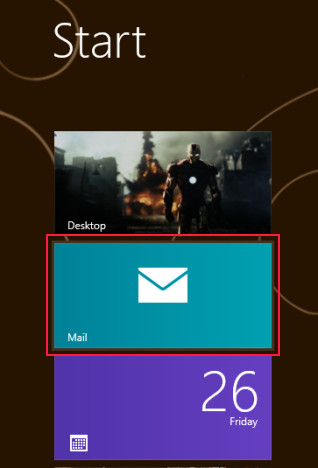
Once the Start screen loads, look for the bright blue Mail tile and give it a click or a tap.
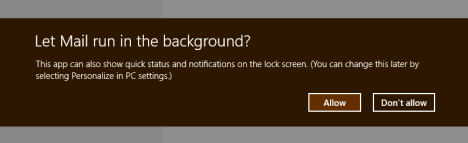
The first time you load the app, you'll be asked a few questions to help with the initial setup. The first question you'll have to answer is whether or not Mail can run in the background. In order to get the most from this application, including receiving notifications when new mail arrives, you'll want to click or tap "Allow." If you don't want notifications and you want to conserve limited system resources, you can click or tap "Don't Allow."
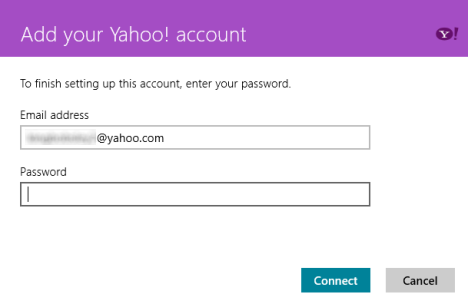
Next, Mail will check the account you use to log-in to Windows and ask you to configure it. In this case, the user logged in with a Yahoo account. If you are also using an account that Mail recognizes, you'll simply have to enter your email account password and click or tap "Connect." If you're account isn't immediately recognized by Mail, you'll have to configure it manually as describe in the next section.
How to Add an Account to the Windows 8 Mail App
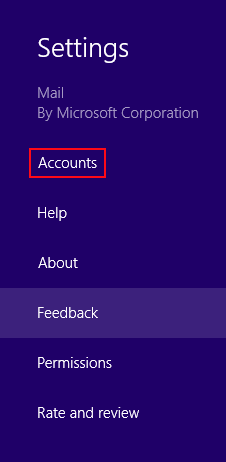
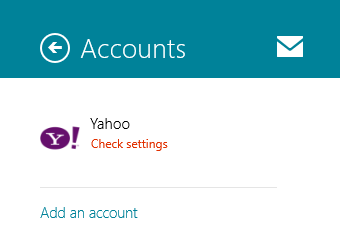
Now that your primary account is added, you'll be able to receive and send email. If you have another account, you'll want to add that as well. To do this, access the charms when the Mail app is opened and click or tap "Settings." From there, click or tap "Accounts."
Click or tap "Add an Account."
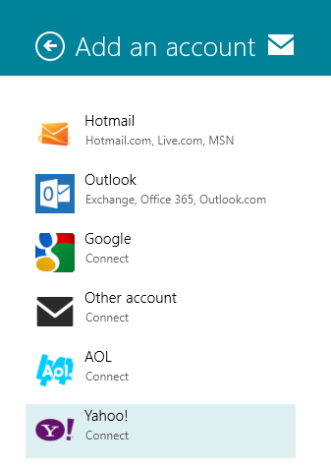
Select your email account service from the available list. If your email account isn't listed you may be able to select "Other Account."
However, if your email account is a POP3 account and is not on the list, you won't be able to add it to Windows 8 Mail. To get around this, you can create a new email account using a compatible service such as Yahoo! or Gmail, or use another existing account. Add the compatible account to the Mail app and then configure that account to check your POP3 account for mail. This way, email from both accounts will be received in Windows 8's Mail.
For instructions on how to do this, check out these helpful guides for: Outlook.com, GMail and Yahoo!.
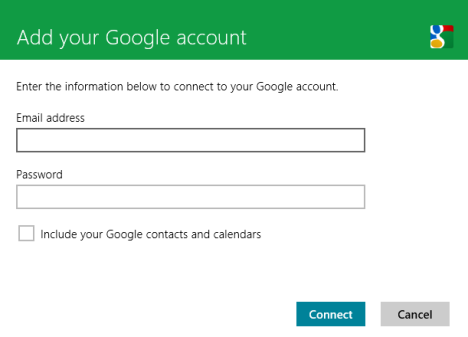
Once you've selected your account, enter the email address and password and click or tap "Connect."
How to Switch Between Multiple Mail Accounts
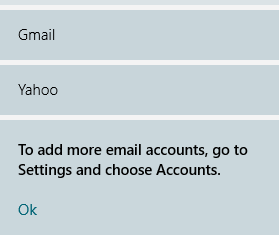
Once you have multiple accounts configured, you'll see their names listed at the bottom left corner of the Mail app window. To get email from one account or the other, simply click or tap on its name.
How to Configure your Windows 8 Mail Accounts
Mail will configure each email account with default settings when you add it. If you want to make some changes including altering the password used by the app, how often Mail checks for new messages or whether or not to use a signature, you'll need to access the account settings. Open the Settings charm and click or tap "Accounts". Click or tap the account you want to edit to load its settings.
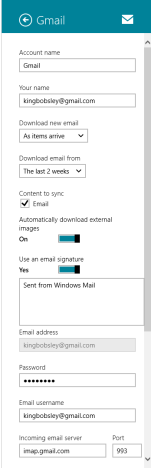
Make your changes and then click or tap the arrow on the top of the menu. You'll notice the last option to configure is whether or not to receive notifications from this account. For more information about configuring notifications in Windows 8, read this article: Introducing Windows 8: How to Configure App Notifications.
Another useful & more advanced guide you should read is this one: Introducing Windows 8: How to Configure Mail App Accounts.
How to Read E-mail Messages in Windows 8 Mail
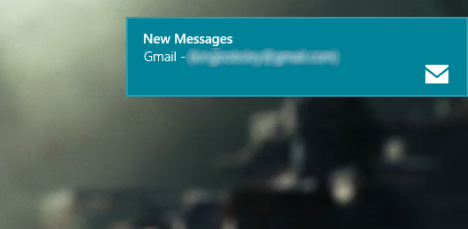
Once your accounts are all set up and configured, you'll start receiving emails in the Mail app. The fastest way to get to your messages is to click or tap the New Messages notification.
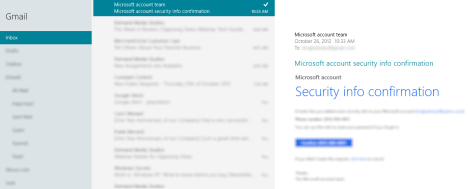
You can also access the Mail app from the Start screen. Select the mail folder on the first column of the app, select the message from the second column and read it in the third column.
How to Send Emails in Windows 8 Mail
To send a message, click of tap the "+" in the top right corner of the app screen.
Enter the recipient in the "To:" field, enter a CC address if required and click or tap "Show More" if you want to add a BCC or change the message priority. If you have multiple accounts configured, click or tap the down arrow to the right of your email address and select the account from which you want to send the message.
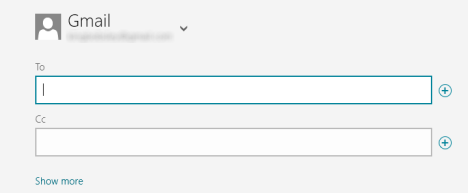
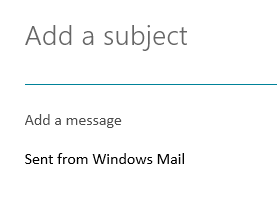
Click or tap "Add a subject" and type a subject for your message. Click or tap "Add a message" and type to enter the body of your email. Click or tap "Sent from Windows Mail" to edit the signature. To get rid of this signature, or to permanently change it, use the account settings described above.
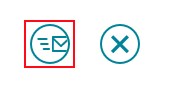
Once your message is composed, click or tap the Send button on the top of the window.
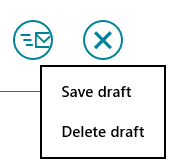
If you don't want to send the message, or you want to discard it, click or tap the "X" on the top of the screen. Click or tap "Save Draft" to complete the message later or click or tap "Delete Draft" to discard it and return to your inbox.
We have created a detailed tutorial that shows how to arrange your inbox, format messages, sync your inbox on an ad-hoce basic, etc. You can find it here: Introducing Windows 8: How to Manage Your Mail App's Inbox & Messages.
How to Reply to Messages in Windows 8 Mail
To send a reply to a message you receive, click or tap the reply button on the top right corner of your inbox screen while reading the message. Use the instructions above for addressing and writing the reply message.

How to Delete Messages in Windows 8 Mail
To delete an email message, click or tap the trash can button from the top right corner of your inbox screen after selecting the email. If you hit this button in error, don't panic. The message is only sent to your Deleted folder and can be retrieved from there. Simply find the deleted message, select it, right-click or swipe up from the bottom of the screen, click or tap "Move" and select the folder you want to move it to.

Conclusion
At this point you should be fairly comfortable with Windows 8 Mail. This simple streamlined app should serve to make your life easier, especially if you're used to corralling mail from multiple web services. Take your time to get used to this new app, it's a bit different but we're confident that in no time you'll be glad to have this app on your Start screen.
Now that you've gotten to try out Mail, how do you think it compares to other email clients like Outlook or Thunderbird? Give us your opinions or questions below.
Discussion (37)
My colleagues needed 2014 IRS Instruction 8283 last month and encountered a website with lots of form templates . If you need 2014 IRS Instruction 8283 too , here’s the link: https://pdf.ac/9WN2Zh
Hi,
Whenever I send a message the formatting I used in typing is lost and the text is scattered all over the place. I used to have formatting options in Win Vista but cannot find anything here. It makes messaging look like a kid got loose on the keyboard. Any ideas plse?
how can I find the email addresses of previous inbox people ?
I have signed in to my new laptop by creating a new MS account using my hotmail. All done, I opened the Mail app but my hotmail isn’t showing but just an option to add email account. When I tried to enter the hotmail account again, it says that it has already been entered. Plse help me with this strange outcome.
How do you save a copy of an email to a folder outside the app as in Outlook saving a .msg file
I cannot find out how to change the folders that appear to the left in the email app.
How do I send/forward multiple emails to a recipient without sending multiple emails from my Yahoo account using Windows 8.1?
How do I retrieve an email once it’s deleted? I am used to Microsoft Outlook where I can go to Deleted or Trash and see all deleted messages. In 8.1 Mail I’m only seeing the deleted messages for the day in the Deleted Folder. I see the blue message at the bottom saying to change my Settings but I do, to no avail…
I have yahoo mail account from windows 8.1 laptop. It works fine and I used to receive/send mail. But I could not able to delete mails from my inbox.
Jag har ett litet problem.. Jag kan endast se inkommande mail från de senaste 2v och vill ändra detta så jag ser alla hela tiden, hur gör jag? det stod gå via inställningar och har klickat på varje knapp utan att lyckas lösa problemet!
tacksam för hjälp mvh Christine 🙂
This mail app is a piece of crap. Why can’t we just turn off the preview pane? What kind of an idiot would design a mail app that forces you to read all the junk mail one at a time without just being able to delete unwanted useless mail.
I was told that Microsoft products are “compatible backwards,” which I assume meant old features will still work with the new ones. So in Outlook 2013, WHY can’t we create groups, import an old address book, make and keep distribution lists, etc.?
Help!! I recently sent a bcc email via the app to various contacts and I now wish to send a follow up email to the same recipients. The sent email does not show the bcc list? How do I send a follow up email without having to add all of the recipients again?
Many thanks.
You cannot view this information from the app itself. Open your browser, access your email account there and look into the Sent Folder to see the BCC list.
Beware that some email services don’t store this information either.
In Vista I had a couple of Groups in my emails which I used often. I can’t work out how to create a group listing in Windows 8.
You cannot create groups in this app.
How do you save multiple attachments from the email to your pictures folder? I seem to only be able to do this one at a time. But i want to select dozens and save them to a folder. Help?
is there a way to clear previous email addresses from showing up as an autofill choice?
I don’t think so. Not in this version of the app.
I am not receiving images/scaned documents sent along with the mail. Please help.
How do i import my address book from a very early version of Outlook Express so that the mail app recognises & uses it when I start to type in a name in the ‘To’ field.
There are no such features in this app. Sorry!
So is there no way to turn off the preview pane and just see the list of emails you have recieved. I absolutely hate preview panes as it clutters my view
I agree. Also I can not open an email that I click on because a little box duplicating the email come up. Please tell me what I clicked on by mistake when I was deleting old emails. Boxes were all coming forward toward me.
Couple things for sure, I was able to get my contacts from Outlook 2007 to phone, but only phone numbers came, no email addresses.
the calendar seems to work ok both ways.
Mail is the real issue. If I open, delete or reply to email on the phone or computer it doesnt show there is NO corrispondance. It’s as though they don’t see each other. HELP
I have linked my gmail account to the mail app on Windows 8 and can view all my emails. However, any photos and images that are part of the emails have to be downloaded individually – not really practical!! Also, when I have downloaded the images they only appear as a thumbnail type of image across the top of the email and not in the body of the email. I have changed the settings to enable download pictures from external sources (or whatever it is). Can you provide any advice on how to download all images within the body of the email in one hit?? Thanks
this is NOT a “complete” guide on using Windows 8 Mail. It is a guide on how to start Windows 8 Mail, that is all! Otherwise, it is quite useless. When are you going to provide some real information on using Windows 8 Mail?? Where are the Options menu settings? The Preference settings? The Preview Pane settings? The Send/Receive settings? The Junk settings? etc. etc all these are missing from Windows 8 mail. Thank-you.
Hi. Reading your comments, I don’t think the guide is the problem but the app itself. You are expecting some features which do not exist in the Mail app.
First of all, this is a basic app that just downloads your e-mail, from a limited set of accounts. It doesn’t have POP3 for example, no junk settings or spam filters (if the e-mail services you are using have such features, that’s great, otherwise Mail won’t provide them), no Preview pane, etc.
Options/Preferences settings are only those found via the Settings charm. Look at the first screenshot in the How to Add an Account to the Windows 8 Mail App section of this article. Those are the only things you can set.
There is no Preview Pane settings.
There are some Send/Receive settings. You will find some info in the How to Configure your Windows 8 Mail Accounts. There is also aSync button which is displayed on the bottom menu, when you right click somewhere in the Mail app.
Anyway, there are ways to improve this article so we will go ahead and provide an additional article sometime soon, with the little things we left out about the Mail app.
That didn’t work for me. I kept closing it while in the inbox, but it continues to open on the compose page. I did figure out how to make a new app link on the start menu (though I can’t remember how) that created a shortcut to go directly to the gmail inbox. I was hoping that the regular app had a setting that I could prefer a default opening, but this is a good alternative. Thanks for the advice 🙂
When ever I click the “Mail” app, I am sent to an area to compose messages. I want to go directly to my inbox without having to delete a draft every time. How can I set up Mail so that when I click the app, I go directly to the inbox?
If I remember correctly, the Mail takes you to the last location you were when you closed it the last time. So, just got the the inbox, close it and, when you open it the next time, it will load at the same location.
How can I empty Deleted Mail box and Sparm Mail Box?
I want to know how to Edit People?
Good morning.
A simple feature as distribution lists looks likes absent from this software or I missed it ?
You cannot create or manage distribution lists in Mail.
i am using a windows 8 consumer preview, im having a problem with the windows mail, i cant add my yahoo mail account to the list… what will i do…i want to perfect my cp before i purchased my licence windows 8
You should migrate to Windows 8 Release Preview at least. It is the latest public test version of Windows 8 and it includes many improvements over the Consumer Preview, plus support in the Mail app for multiple types of accounts.
However, I would recommend you to try the free 90 days trial of Windows 8 Enterprise. You can download, install and use it for free, for 90 Days. It is the final version of Windows 8, with less bugs and the final feature set.
Hello Glenn,
I’m with Ciprian on this one. The Consumer Preview does not contain all features present in the RTM version of Windows 8. In the full version of Mail, adding a Yahoo! account is as simple as selecting it from the list, as described above, and entering your username and password. I tested with my own Yahoo! account and have had no issues. Thanks for taking the time to comment. Have a great one.
Bob