




If you’ve ever tried to connect a gaming console or another PC to your laptop through HDMI, you’ve probably noticed that it doesn’t work as expected. That’s because most laptops only have HDMI output ports. However, there are a few ways to use an HDMI input on a laptop - either with a rare model that supports it or by using a capture card workaround.
1) Check if your laptop has an HDMI input
To know if your laptop comes with an HDMI input port, you need to inspect the port label next to your HDMI jack. If it says HDMI In or HDMI Input, your laptop supports it. You can also check your laptop’s product specifications on the manufacturer’s website for confirmation.

Tip: Search the manufacturer's website with your laptop's model number, followed by HDMI input, to verify if the feature is available.
2) Use a laptop with a native HDMI In port
If your laptop supports HDMI input natively, setup is simple. First, connect one end of an HDMI cable to the output port of your external device (console, camera, or PC) and connect the other end to your laptop’s HDMI In port.

Switch your laptop to input mode using its function keys or system utility (e.g., Alienware Command Center). The video feed should appear on your screen automatically.
Finally, it is important to know that some laptops let you toggle HDMI input through a keyboard shortcut or control app. Check for an Input Source or HDMI In option in the display settings or built-in software. Adjust resolution and audio settings for the best performance.
3) Use a USB HDMI capture card (for most laptops)
If your laptop lacks an HDMI input, you can simulate it using a USB HDMI capture card. This device captures the signal from another source and streams it to your laptop like a webcam feed. You just need to prepare a USB 3.0 HDMI capture card, an HDMI cable, and a video capture software such as OBS Studio.
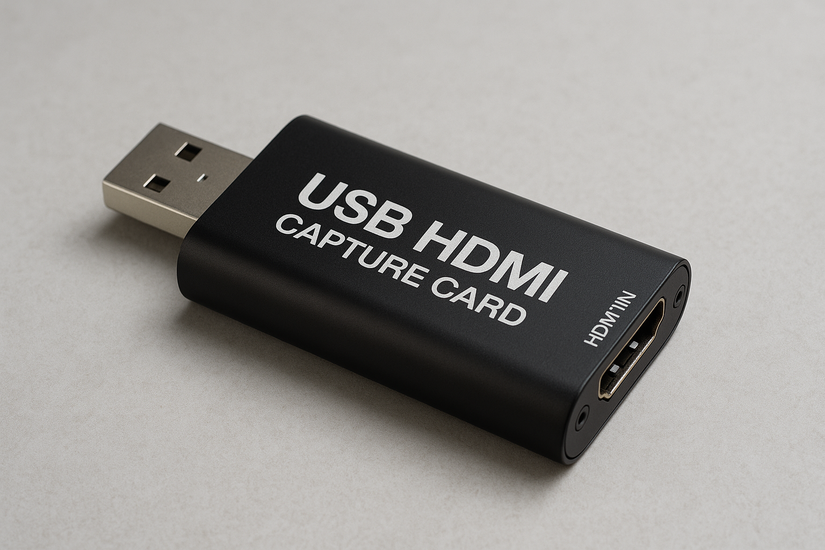
When you have this ready, insert the capture card into a USB 3.0 port on your laptop and connect your external device’s HDMI cable to the card’s HDMI In port. Next, launch OBS Studio or another compatible app and select the capture card as your video source. You’ll now see that you have switched to HDMI on your PC, and the input signal will show on your laptop display.
4) Alternative ways to display or stream content
- Use a wireless display: If you just want to share a screen wirelessly, use Windows Miracast or macOS AirPlay. These options transmit video over Wi-Fi, avoiding cable clutter while maintaining solid quality.
- Use remote desktop or capture software: Remote Desktop tools or software like Steam Remote Play let you control another PC without HDMI input. It’s a simple alternative for multitasking or remote streaming setups.
5) Troubleshooting HDMI input problems
- No signal detected: Ensure you’re using the correct HDMI port and cable. Try another HDMI device to confirm it’s not a cable issue. Also, verify your software has the right input source selected.
- Poor resolution or lag: Lag usually comes from USB bandwidth limitations or low-quality capture devices. Use a USB 3.0 port and limit your input to 1080p 60 Hz for smooth performance.
- Audio not transmitting: Open your Windows Sound Settings and set the capture card as your default input device. If you’re using OBS, make sure Use custom audio device is enabled for your capture source.
Tips for the Best HDMI Input Experience
- Use certified HDMI 2.0 or higher cables.
- Keep your capture card firmware updated.
- Disable power-saving options that reduce USB performance.
- Adjust refresh rates for smoother playback.
FAQs about using HDMI input on laptops
Can I convert HDMI output to input with an adapter? No, passive adapters cannot reverse the HDMI signal flow. You’ll need a dedicated capture card to emulate input.
Why won’t my laptop detect my console? Because it only supports HDMI output. Use a USB capture device to receive the console’s signal.
What’s the difference between HDMI capture and screen mirroring? Capture devices show live video from external hardware. Mirroring sends your laptop’s screen wirelessly to another display.
Summary
- Check if your laptop has an HDMI input (most don’t).
- Use the HDMI input directly if supported.
- For standard laptops, connect via a USB HDMI capture card.
- Troubleshoot lag, resolution, or audio issues as needed.
Conclusion
While HDMI input on laptops is uncommon, you can still achieve the same result with a capture card. It’s a practical way to connect game consoles, PCs, or cameras to your laptop screen without specialized hardware. Understanding the difference between HDMI In and Out will save you time and help you choose the right setup for your needs.


Discussion (0)
Be the first to comment.