




Most laptops today come with an HDMI output, while many newer or professional monitors use DisplayPort as their main input. This difference can make connecting your devices confusing, but still possible with the right adapter. This guide explains how to connect an HDMI laptop to a DisplayPort monitor, what adapter you’ll need, and how to fix common issues like No Signal or flickering screens.
Step 1: Check your laptop and monitor ports
Before you buy an adapter, check what video ports your laptop and monitor have. HDMI and DisplayPort look similar, but they send data differently. Knowing which versions they support helps you pick compatible hardware.
Identify the HDMI output on your laptop
Look along the sides of your laptop for a narrow trapezoid-shaped port labeled HDMI. You can also check your laptop’s manual to confirm it supports video output. Remember, HDMI ports only send video out - they can’t receive DisplayPort input signals.

Identify the DisplayPort input on your monitor
Flip your monitor around and look for a port labeled “DP” or “DisplayPort.” Some displays use mini-DisplayPort connectors, which are smaller and require matching cables. Make sure you know which one you have before buying an adapter.
Step 2: Choose the right adapter or cable
You can’t use a simple HDMI-to-DisplayPort cable because the signal direction is incompatible. You’ll need an active HDMI-to-DisplayPort adapter that converts the HDMI signal into DisplayPort format.
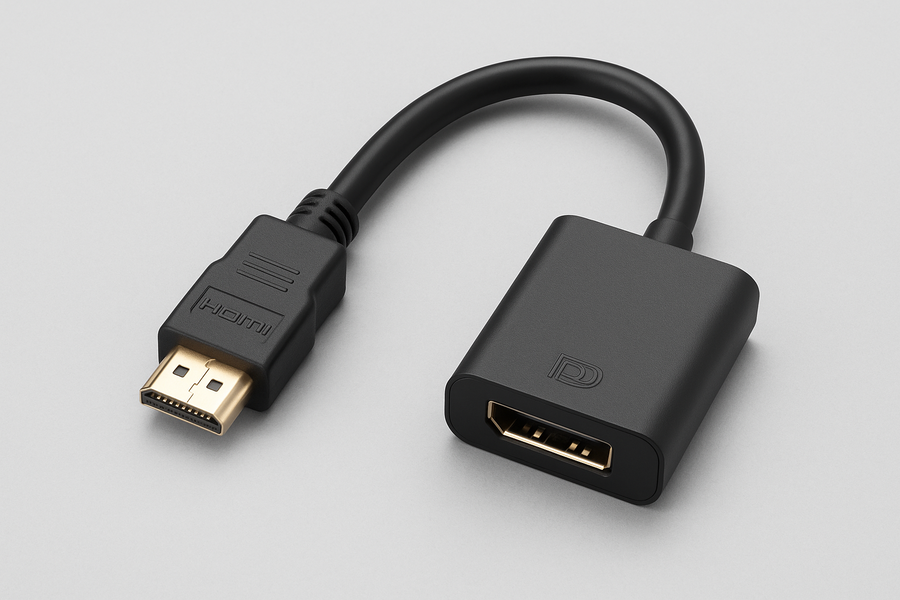
Active adapters contain built-in chips that convert signals, while passive ones don’t. Because laptops output HDMI and not DisplayPort, only active adapters work for this setup. Passive cables will not produce a picture. Finally, you need to understand the supported resolutions and refresh rates.
Basic adapters handle 1080p at 60 Hz, while higher-end models support 1440p or even 4K at 30 Hz. Check your adapter’s specs if you want smooth gameplay or high-resolution work.
Step 3: Plug the adapter into your laptop
After getting the right accessories, the first thing to do is to plug the HDMI end of the adapter into your laptop’s HDMI port. Your laptop's HDMI port has a trapezoid shape, and it is distinctively different from other ports. If you still can't locate it, you can check your user manual
Step 4: Connect the DisplayPort cable
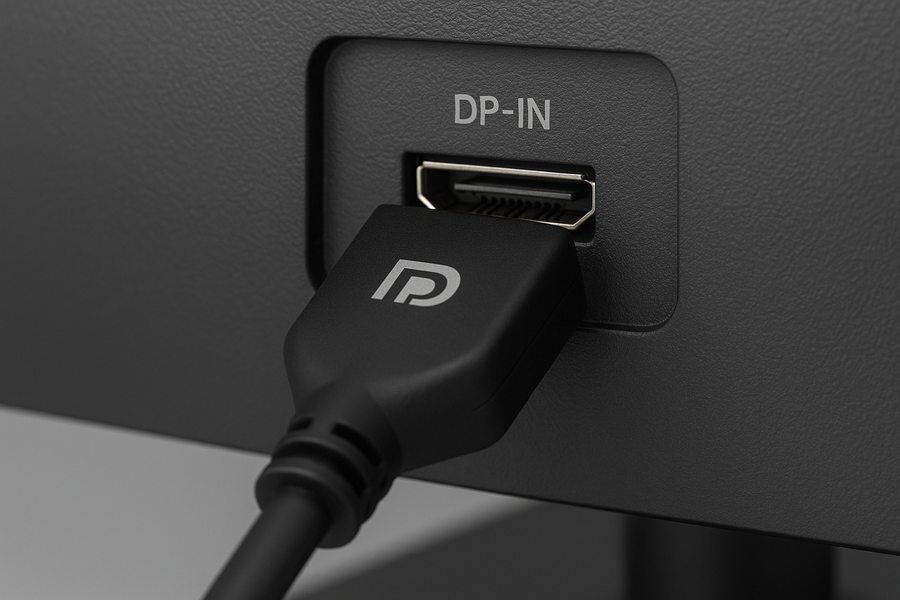
Next, connect a DisplayPort cable from the adapter to your monitor’s DP-IN port. This is where data conversion takes place, so make sure the connection is firm, and you use only a quality cable. Also, if the adapter includes a USB power cable, plug it into a free USB port.
Step 3: Turn on the two devices
Finally, turn on your monitor, then power on your laptop. Wait a few seconds for Windows to detect the new display, and the monitor should now display what you have on your laptop.
Step 4: Adjust display settings in Windows
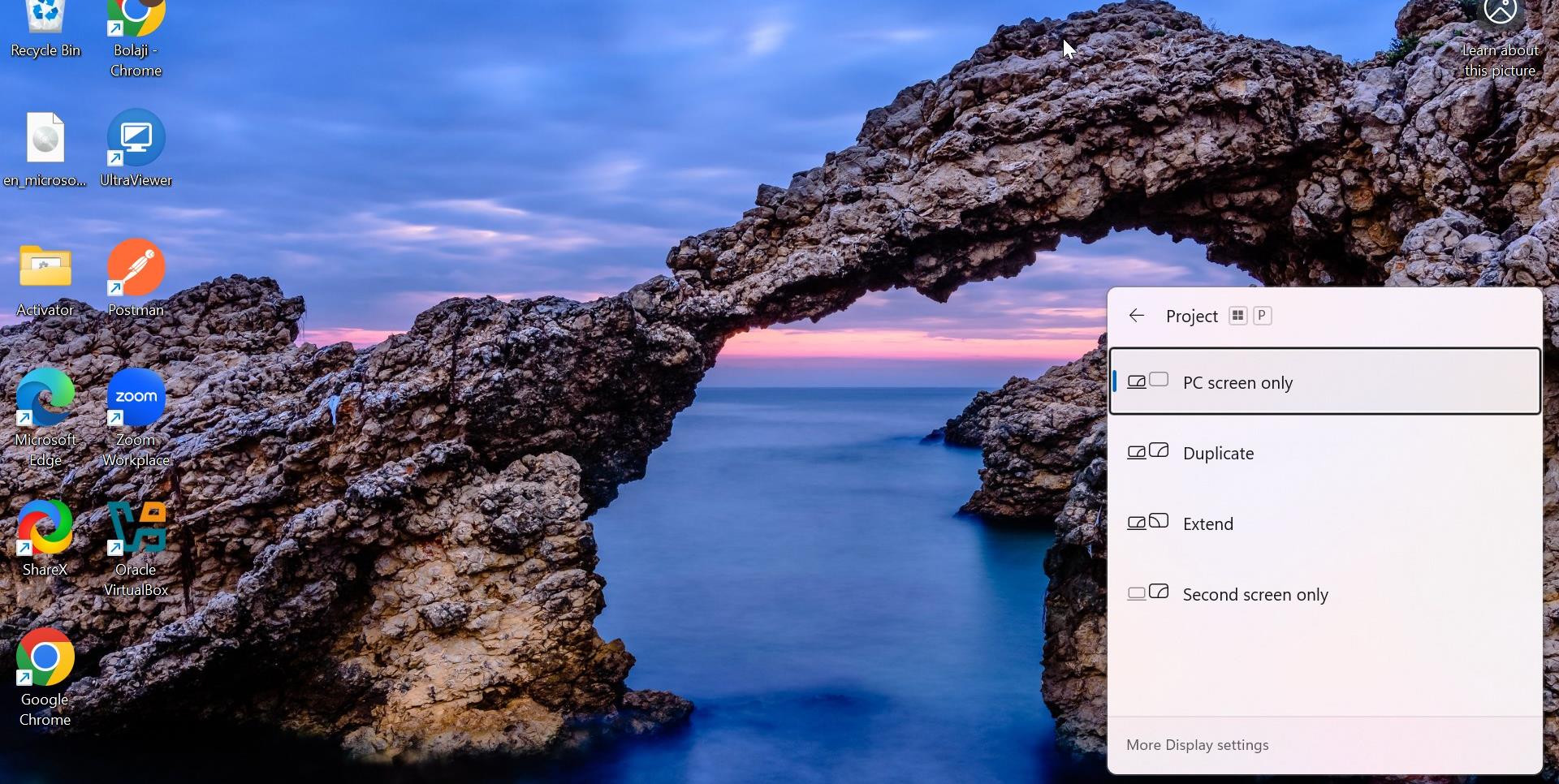
You can customize your display settings by pressing Windows + P to open display modes. From here, you can choose whether to extend, duplicate, or use only the second screen. You can also set the resolution and refresh rate here for optimal results.
Troubleshoot Common Problems
- Monitor shows No Signal: Confirm the adapter is powered and the correct input source is selected on your monitor. Try another DisplayPort cable or a different USB port for power if needed.
- Flickering or low resolution: This can happen if the HDMI output doesn’t provide enough bandwidth for your display settings. Lower the resolution, or switch to an adapter rated for higher bandwidth (for example, 4K @ 60 Hz).
- No sound on external monitor: Most HDMI-to-DisplayPort adapters don’t transmit audio. Keep your laptop speakers active, or use a separate audio connection such as Bluetooth or the 3.5 mm output.
- Use a USB-C or Thunderbolt Dock: If your laptop has a USB-C port with DisplayPort Alt Mode, connect through a dock that outputs DisplayPort directly. This method avoids the HDMI limitation and provides a cleaner signal path.
- Use an HDMI monitor instead: If you have the option, using a monitor with HDMI input is the simplest fix. It removes the need for any conversion and guarantees full compatibility.
Tips for best results
- Always use certified active adapters from reputable brands.
- Update your graphics drivers before connecting a new display.
- Don’t daisy-chain DisplayPort monitors when converting from HDMI.
- Use shorter cables (under 6 feet) to minimize signal loss.
- Check your monitor firmware for updates that improve compatibility.
- Connect the adapter’s USB plug to your laptop or an external power source to ensure a stable connection and prevent flickering screens.
FAQs
Can I use a simple HDMI-to-DisplayPort cable? No. The HDMI output can’t send DisplayPort signals without an active converter chip.
Why does my adapter need USB power? Active adapters require extra power to convert signals properly. Without it, your monitor may not display anything.
Will this setup work for gaming at 144 Hz? Only if both your adapter and monitor support the bandwidth required for high-refresh modes. Check specifications before buying.
Can I connect two DisplayPort monitors with one HDMI port? No. You’ll need multiple HDMI outputs or a docking station designed for dual displays.
Does HDMI-to-DisplayPort support audio? Usually not. Plan to use your laptop or separate speakers for sound.
Summary
- Check your laptop’s HDMI and monitor’s DisplayPort inputs.
- Buy a powered active HDMI-to-DisplayPort adapter.
- Connect HDMI → adapter → DisplayPort cable → monitor.
- Power on both devices and adjust Windows display settings.
- Troubleshoot any signal or resolution issues if needed.
Conclusion
Connecting an HDMI laptop to a DisplayPort monitor is straightforward once you use an active adapter and configure the right settings. With proper setup, you can enjoy full HD or even 4K visuals from your laptop on a larger screen without issues.

Discussion (0)
Be the first to comment.