




Google ads follow you across Chrome because the browser uses a mix of site rules, personalization data, and safe browsing features. You can stop most ads by adjusting Chrome settings, turning off personalized ads, and removing extensions that inject unwanted banners or pop-ups.
This guide shows you everything you need to do to stop seeing Google ads on Chrome.
Table of contents
- Why you still see Google ads in Chrome
- Check Chrome's built-in ad blocking settings
- Turn off personalized Google ads
- Block ads with trusted Chrome extensions
- Disable pop-up ads on Chrome mobile
- Remove malicious extensions or adware
- Stop website notification ads
- Limit YouTube ads without violating policies
- Troubleshoot ads that keep appearing
- Tips to reduce ads and improve privacy
- FAQs
- Summary
Why you still see Google ads in Chrome
Chrome blocks only intrusive ads, not all ads. Google also uses your account activity to personalize ads across Chrome and YouTube. Extension conflicts, pop-up rules, and website notifications can allow new ads to appear even if you change settings.
Check Chrome's built-in ad blocking settings
Chrome has a built-in filter that stops intrusive ads from autoplaying or opening unwanted pages. You can check the Site Settings on Chrome if this feature works correctly and apply site-level controls.
Enable site-level ad blocking
- Open Chrome.
- Visit the site that shows ads.
- Select the lock icon in the address bar.
- Click Site settings and set Intrusive Ads to Blocked.


This lets you stop ads only on aggressive sites without affecting others.
Clear autoplay, pop-up, and redirection rules
- Open Chrome settings.
- Select Privacy and security.
- Open Site settings.
- Click Pop-ups and redirects and set it to Don't allow.
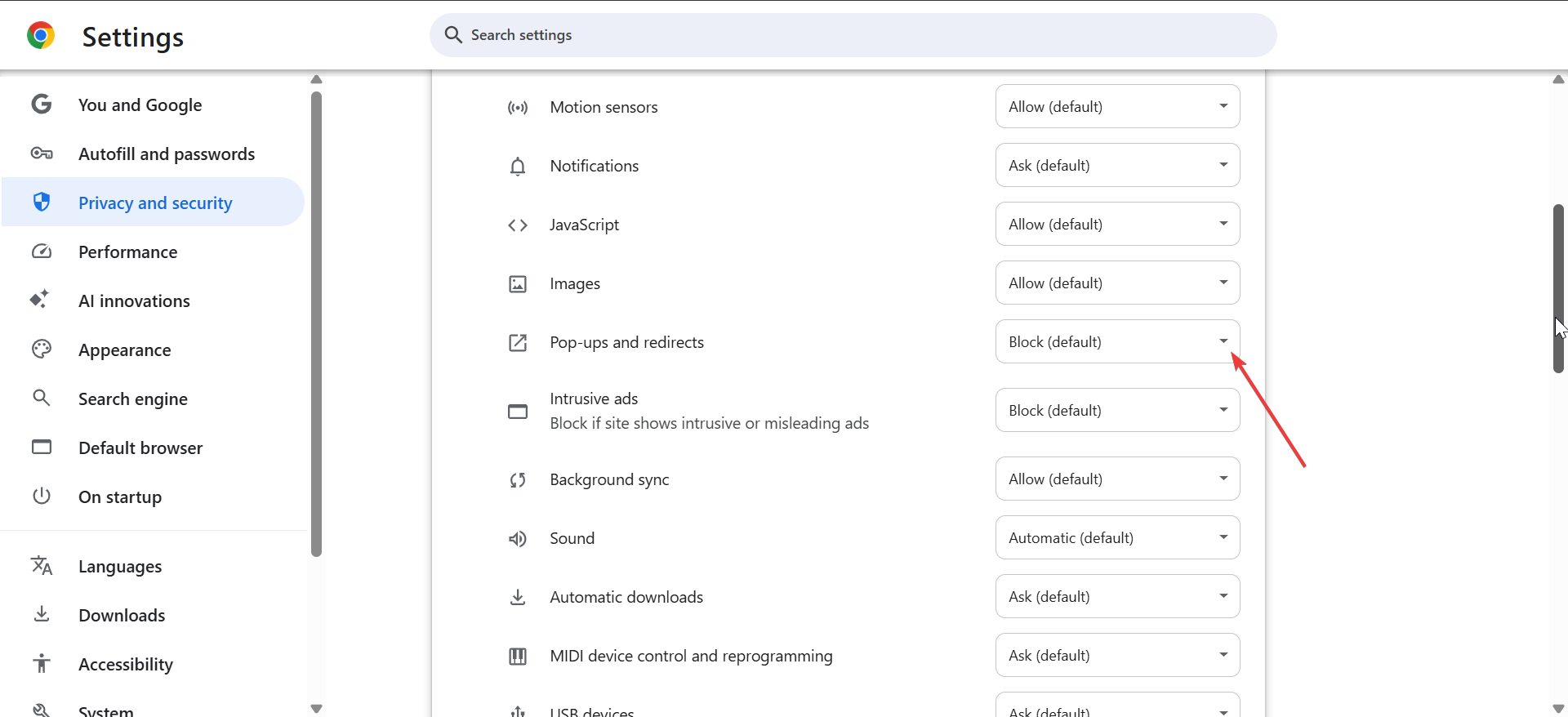
- Open Autoplay (if available) and restrict sound or video.
These rules reduce hidden ad triggers like redirects and overlays.
Turn off personalized Google ads
Personalized ads come from your Google account, not only from the browser. Turning them off reduces targeted ads across Chrome, YouTube, and Google Search.
- Visit My Ad Center at adssettings.google.com.
- Click the dropdown next to Personalized ads and select Turn off on the pop up.
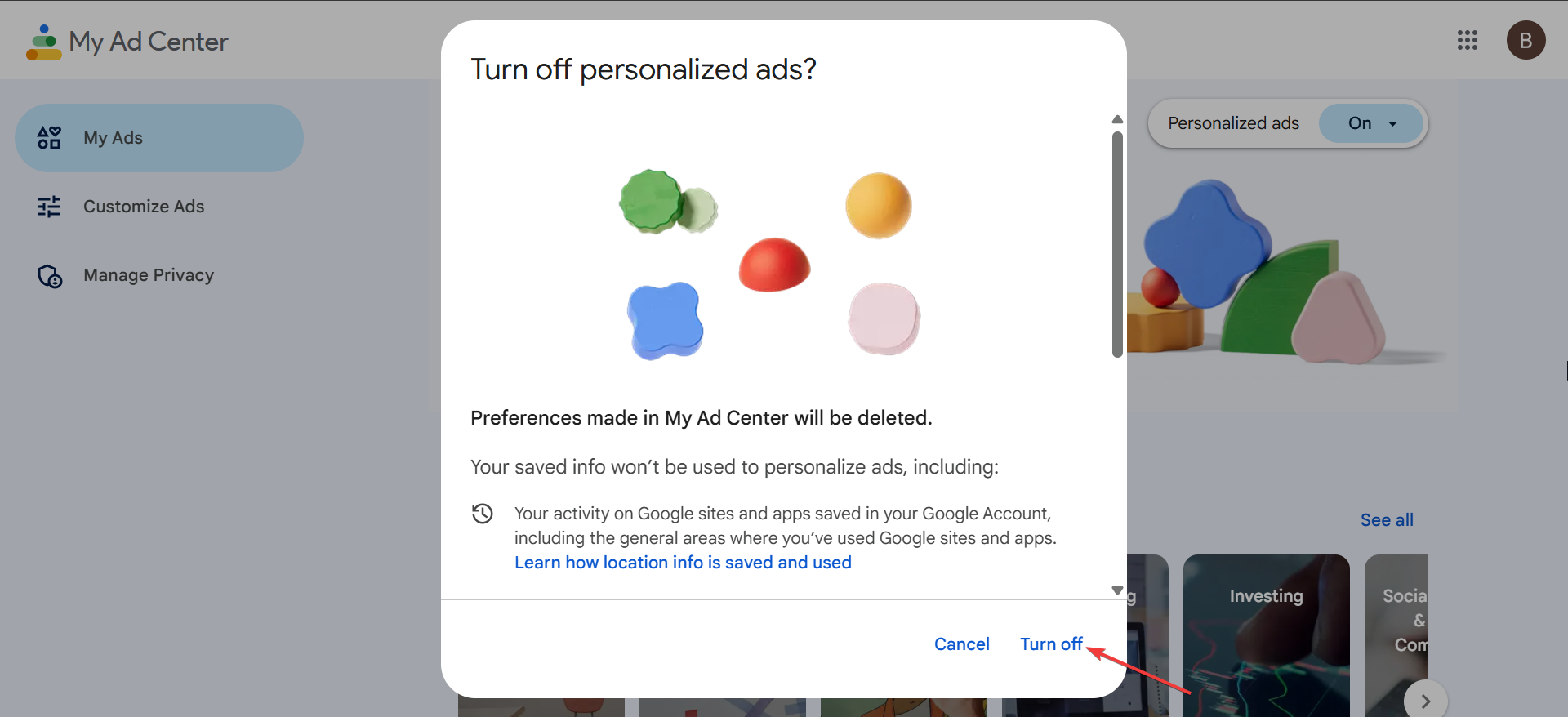
- Next, click the Manage privacy option in the left pane.
- Finally, turn off activity-based signals under Activity used to personalize ads.
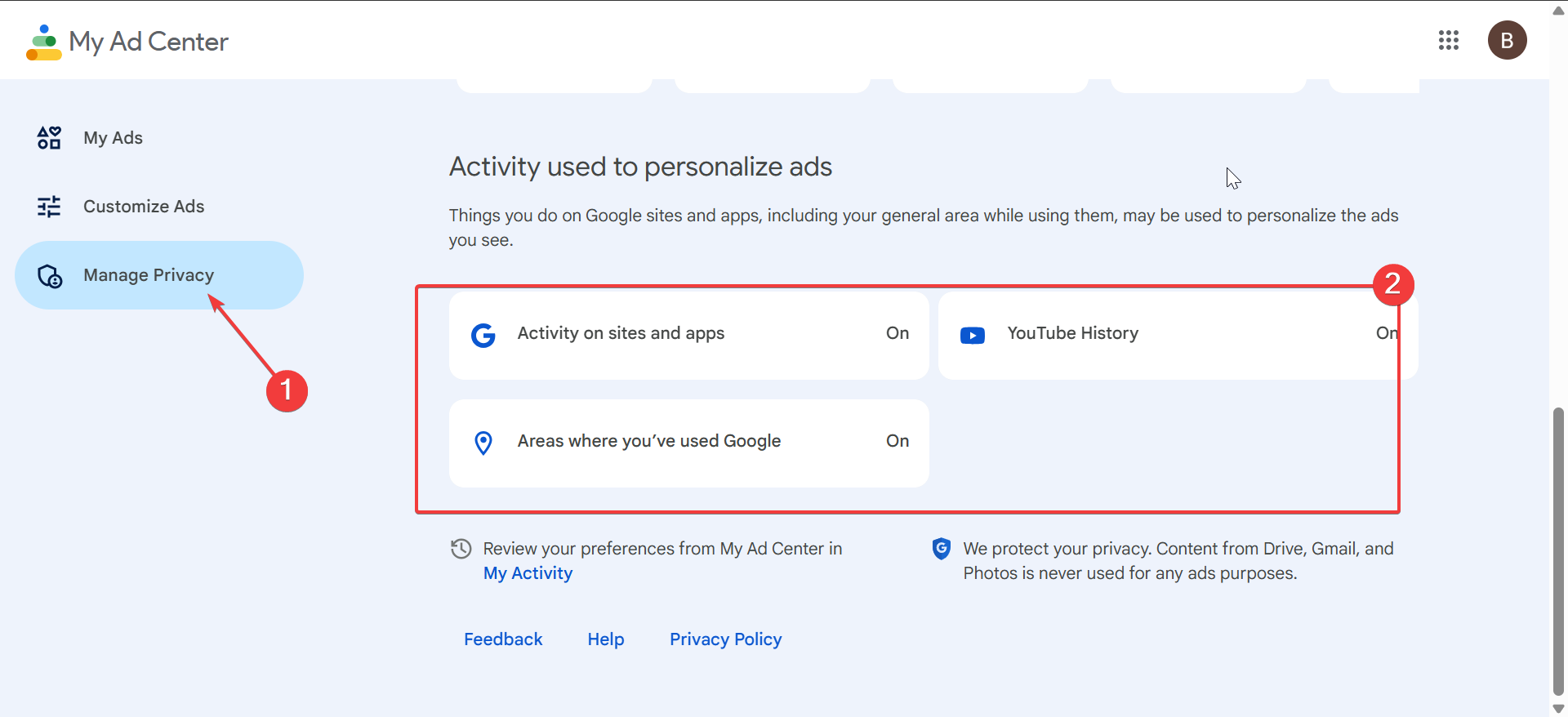
This lowers the number of ads that track your interests.
Manage data and ad topics in My Ad Center
You can remove topics and signals used to target your ads. Disable categories that do not match your interests and turn off auto-generated insights.
Block ads with trusted Chrome extensions
Ad blockers help you control ads more strictly than Chrome's built-in tool. Pick extensions with strong privacy features and good Manifest V3 compatibility.
Recommended extension types
Look for blockers that filter page elements, stop trackers, or combine privacy lists. Choose extensions with transparent permissions and active updates for better stability.
Disable pop-up ads on Chrome mobile
Mobile Chrome shows different ad behaviors and sometimes requires extra steps to block pop-ups.
Android Chrome settings
- Open Chrome on Android.
- Tap the three dots and open Settings.
- Select Site settings.
- Block Ads, Pop-ups and redirects, and any Intrusive ads options.
These controls reduce aggressive ads on mobile websites.
iOS Chrome limitations
Chrome on iOS uses Safari's engine, so it depends on content blockers. Install a reputable Safari content blocker and enable it in iPhone Settings to reduce ads.
Remove malicious extensions or adware
Persistent ads often come from apps or extensions that inject banners or trigger unwanted pop-ups. Cleaning Chrome and scanning the device usually resolves this.
Check unwanted Chrome extensions
- Open chrome://extensions.
- Remove extensions you did not install.

- Disable suspicious items and check if ads stop.
Reset Chrome settings
- Open Chrome settings.
- Go to Reset settings.
- Select Restore settings to their original defaults.

This removes changes made by adware.
Scan the device for adware
Run an anti-malware scan to remove software that injects ads into webpages. This helps stop ads that appear even with blockers installed.
Stop website notification ads
Some websites send advertisements through browser notifications. Removing their permission stops these alerts.
Remove notification permissions from Chrome
- Open Chrome settings.
- Go to Privacy and security.
- Select Site settings then Notifications.
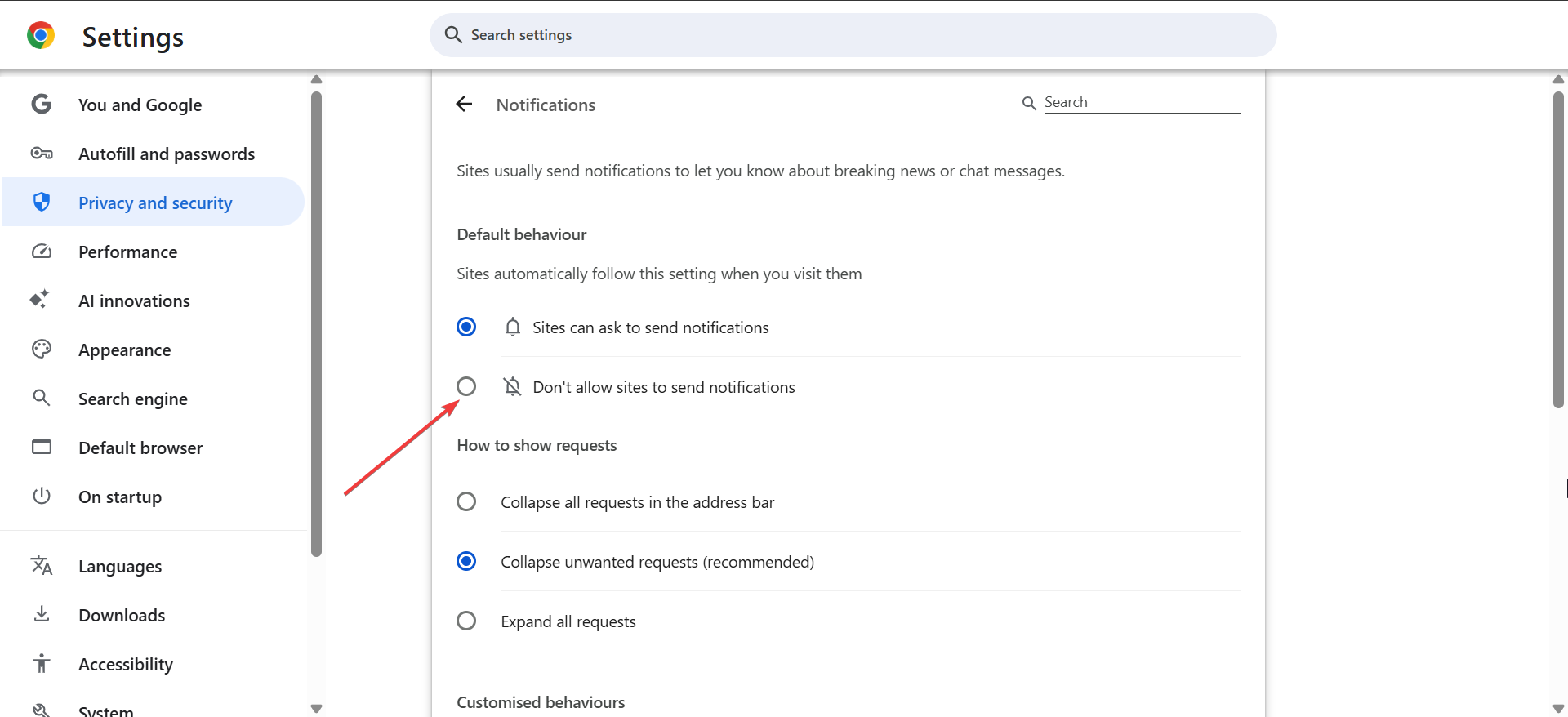
- Remove sites that send unwanted ads.
Limit YouTube ads without violating policies
YouTube ads follow Google's privacy rules. Some ads bypass blockers because YouTube enforces its own ad system. You can reduce ads by turning off personalization and using Premium, but full blocking may not work.
Troubleshoot ads that keep appearing
Some ads appear because Chrome syncs your older settings or extensions. Others come from account-based personalization or device-wide infections.
- Check for Chrome sync restoring old settings: Sync can re-install removed extensions. Disable sync temporarily to test for these issues.
- Test Chrome in guest mode: Guest mode disables extensions and personal settings. If ads stop there, you know the issue comes from your profile.
Tips to reduce ads and improve privacy
- Use fewer extensions to avoid conflicts.
- Clear browsing data regularly.
- Block notification requests from new sites.
- Avoid installing apps that bundle extra tools.
- Update Chrome to ensure you get better privacy protections.
FAQs
Why do ads still show after blocking them? Some ads come from websites, personalization rules, or platform-specific systems such as YouTube.
Do ad blockers break websites? Some pages rely on ads for support, so they may restrict content until you disable your blocker.
Does incognito mode stop ads? Incognito reduces tracking but does not remove ads.
Can Chrome block all ads? Chrome only blocks intrusive ads by design. It does not fully block all ads on every site.
Summary
- Check Chrome's built-in ad blocking and site settings.
- Disable personalized ads in your Google account.
- Install a trusted ad-blocking extension.
- Remove malicious extensions or adware.
- Revoke notification permissions for sites that send ads.
You can stop most Google ads in Chrome with the right mix of privacy controls and safe browsing habits. Chrome improves its ad protections over time, and these fixes help you maintain a cleaner, faster browsing experience.


Discussion (0)
Be the first to comment.