




If the Cast button does not show in Chrome, you can enable it in a few clicks. Chrome includes built-in Chromecast support, but you can still pin the Cast button or re-enable the extension if it is missing. This guide walks you through every method.
Table of contents
1) Check whether cast is already built into Chrome
Chrome supports Chromecast by default, so you usually do not need a separate extension. You can confirm this by checking the browser menu and toolbar.
Click the three-dot menu in the top-right corner of Chrome, select Cast, save, and share, and look for Cast in the list. If it appears, your Chrome already supports Chromecast.

You can pin the icon by selecting Cast, right-clicking the icon on the browser toolbar, and selecting Pin. This keeps the icon visible so you can start casting faster.
2) Add or enable Chromecast support through Chrome extensions
Open the Chrome Web Store, search for Google Cast, and click Add to Chrome. The extension is deprecated, but some users still rely on it. Install it only if an app requires it.
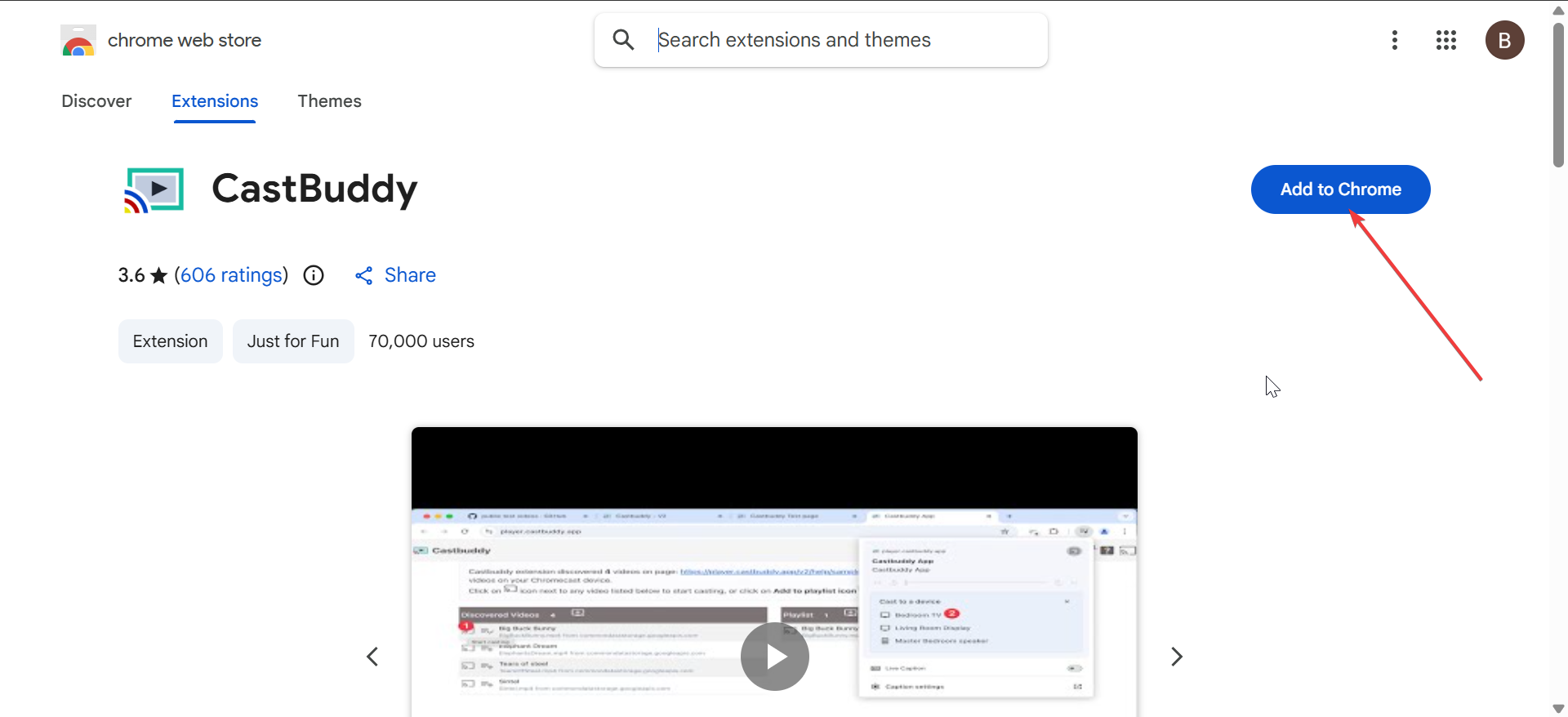
If you can't find the extension, you can use replacements like CastBuddy that work with Chromecast devices.
To enable the extension, click the puzzle-piece icon and select Manage extensions. Look for the Google Cast extension and toggle it on.
3) Cast a Chrome tab, desktop, or supported app
Once you enable casting, you can stream a tab, your entire desktop, or a Chromecast-enabled website.
Cast a single tab
Open Chrome, go to Menu > Cast, save, and share, and click the Cast option. Choose your Chromecast. Chrome sends only that specific tab, which helps with performance and audio quality.

Cast the entire desktop
Click Sources, then select Cast desktop. This streams your full screen, which works well for presentations or apps without built-in casting.

Cast from Chromecast-enabled sites
Some websites include their own Cast icon, such as YouTube. Click the Cast icon on the video player to stream directly without using the Chrome toolbar button.
4) Fix the Cast button missing or extension not working
- Update Chrome to the latest version: Open the three-dot menu and select Help > About Google Chrome. Chrome updates automatically, and newer versions fix many casting issues.
- Restart Chrome and your computer: Close Chrome completely. Restart your PC or Mac, then reopen Chrome. This resets network services and refreshes the casting engine.
- Reconnect devices to the same Wi-Fi network: Your computer and Chromecast must use the same Wi-Fi network. Make sure both devices connect to the same SSID so discovery works correctly.
- Disable conflicting extensions: Some extensions that control privacy or security block Chromecast. Disable suspicious extensions one at a time. Cast again after each test to find the culprit.
- Reset the Chromecast device: Hold the small reset button on your Chromecast until the LED flashes. Set up the device again in the Google Home app. This fixes firmware-level failures.
Alternatives if Chromecast still fails
You can start casting from the Google Home app on Android or iOS if Chrome does not detect your device. You can also use a different browser profile to rule out corrupted settings.
FAQs
Why did the Google Cast extension disappear? Chrome includes Cast support, so Google removed the need for a separate extension.
Why does Chrome say “No devices found”? Your PC and Chromecast usually sit on different networks. Connect both to the same Wi-Fi band.
Does Chromecast work with VPNs? VPNs often block local discovery. Turn the VPN off or enable split tunneling.
Can I cast local videos or files? Yes. You can drag the file into a Chrome tab and cast that tab.
Summary
- Check for the built-in Cast feature and pin the Cast button.
- Install or re-enable the Google Cast extension if needed.
- Cast a tab, your desktop, or a supported site.
- Fix missing Cast button issues by updating Chrome and checking Wi-Fi.
- Adjust router and firewall settings if Chromecast still does not show.
Chrome includes built-in casting support, so most users can start casting with Chromecast from laptop to TV within a minute. Pinning the Cast button and keeping Chrome updated solves the most common problems. If casting still fails, network adjustments or a quick Chromecast reset usually restore the connection.


Discussion (0)
Be the first to comment.