




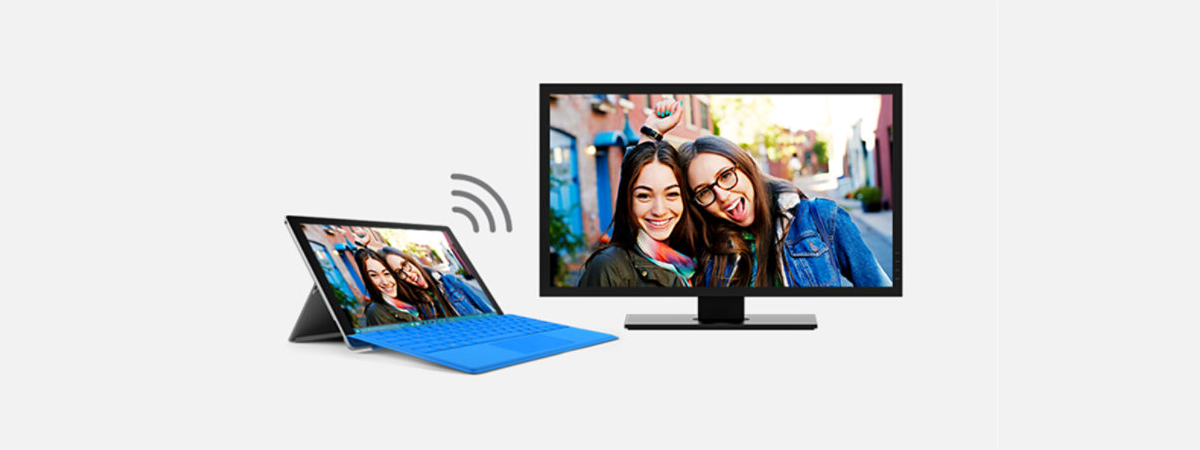
Casting from your laptop to a TV with Chromecast gives you a simple way to watch videos, share presentations, and mirror your desktop. Most issues come from Wi-Fi setup, browser version problems, or missing device permissions. This guide walks you through the most reliable methods and helps you fix common problems quickly.
But before starting, make sure your laptop and Chromecast use the same Wi-Fi network. Matching networks helps Chrome detect your TV instantly. Also, keep Google Chrome updated and check that your Chromecast or Chromecast-built-in TV powers on and appears in the Google Home app. Proper setup makes your laptop able to see it during scanning.
1) Cast a Chrome tab from your laptop
Open Chrome on your laptop and load the page you want to show. Now, click the menu icon, select Cast, save, share, and choose Cast to start scanning for devices. Next, choose your Chromecast device when it appears. Chrome mirrors just that tab on your TV, which keeps performance steady.

When you are done, select the Cast icon again and choose Stop. This returns video and audio control back to the laptop.
2) Cast your entire laptop screen
Switch the Source option from Cast tab to Cast screen. This lets Chrome mirror your full desktop with system audio. Also, if you use more than one display, Chrome shows each screen. Select the correct one to avoid sharing unwanted content.

3) Cast local video files from your laptop
Choose the Cast file from the Sources menu. Select your supported video file and pick your Chromecast to start playback. Ensure you use common video formats such as MP4, WebM, or MKV for smoother streaming. Unsupported formats may lag or fail to load.
4) Cast to TVs with Chromecast built-in
Some TVs behave slightly differently from standalone Chromecast dongles. Built-in Chromecast devices may appear as the TV’s model name. Select the correct entry in Chrome’s Cast menu.
5) Troubleshooting common issues
- TV not showing up in Chrome: Restart Wi-Fi and Chromecast, disable AP isolation on the router, and check VPN or proxy settings.
- Audio playing on laptop instead of TV: Switch to tab casting for streaming sites and set the correct audio output.
- Update TV firmware: Smart TVs often receive firmware updates that improve casting performance. Up-to-date firmware reduces lag and improves stability.
Tips to improve casting quality and reduce lag
- Use the 5 GHz band
- Move closer to the router
- Close heavy applications
FAQs
Why is my Chromecast not showing up on my laptop? Your laptop and Chromecast may be on different Wi-Fi networks, or your router may have AP isolation enabled. Restarting your router and Chromecast usually restores visibility.
Why is there lag when casting my laptop screen? Lag often comes from weak Wi-Fi or heavy CPU usage. Using a 5 GHz network and closing background apps improves casting performance.
Can I cast my entire desktop instead of just a Chrome tab? Yes. In the Chrome Cast menu, select Sources and choose Cast screen to mirror your full desktop, including apps outside the browser.
Do I need the Google Home app on my laptop? No. You only need Google Home on a mobile device for the initial Chromecast setup. After that, Chrome handles all laptop casting functions.
Summary
- Check your Wi-Fi, Chrome version, and Chromecast setup.
- Cast a Chrome tab for smoother playback.
- Cast your full laptop screen when you need complete desktop mirroring.
- Use Cast file for downloaded videos stored locally.
- Improve quality with 5 GHz Wi-Fi and lighter system load.
- Fix issues by restarting devices, disabling AP isolation, or adjusting audio routing.
Conclusion
Casting from your laptop to a TV using Chromecast gives you a flexible way to watch videos, share presentations, and mirror your desktop without extra hardware. The key steps involve checking your Wi-Fi, updating Chrome, and choosing the right casting mode for your task.
If you face any issue along the way, the troubleshooting section of this guide should help you fix them. After applying the fixes, you should enjoy smooth playback and reliable wireless mirroring whenever you need it.

Discussion (0)
Be the first to comment.