



Want a quick way to watch live fights, concerts, and special events on the big screen? This guide shows how to watch pay per view on smart tv using the apps you already have, simple casting options, and a few fast fixes if things go wrong.
What Pay-Per-View Means on a Smart TV
Pay-Per-View (PPV) lets you buy a single live event without a long subscription. On a smart TV, you can purchase PPV in an app (like YouTube, Prime Video, ESPN, or PPV.COM) and stream it directly on the TV or cast from your phone.
Before You Buy: Quick Checks
- Update the TV software and the streaming app to reduce crashes or buffering.
- Use wired Ethernet if possible; otherwise, sit close to the router on 5 GHz Wi-Fi.
- Test another HD video to confirm smooth playback and audio.
- Sign in with the same account you used to purchase the event, especially on YouTube and Prime Video.
Option 1: Install the Official App on Your TV
Many platforms let you buy and watch PPV right on the TV. Search your TV’s app store for the service, install it, sign in, and purchase the event.
- PPV.COM: Available on Samsung TV, Android TV, LG TV, and Google TV via the TV app store. Look for PPV.COM, sign in, and choose your event.
- DAZN: Available on most Smart TVs, including Samsung, LG, Android TV, Google TV, Fire TV, and Roku. Install the DAZN app from your TV’s app store, create or sign in to your account, and look for the Pay-Per-View section to purchase live boxing or MMA events.
- YouTube: Buy on web or mobile, then open the YouTube app on the TV and watch while signed in to the same account.
- Prime Video: Open the Prime Video app on your TV, find the PPV event tile, and purchase or confirm your order.
- ESPN (for UFC PPV): Install the ESPN app on the TV and purchase the event inside the app or on the website, then play it on the TV app.
- Hulu: If the event is offered, use the Hulu app on the TV and follow the on-screen purchase prompts.

Option 2: Cast From Your Phone or Laptop
If the app isn’t on your TV, cast the stream from another device.
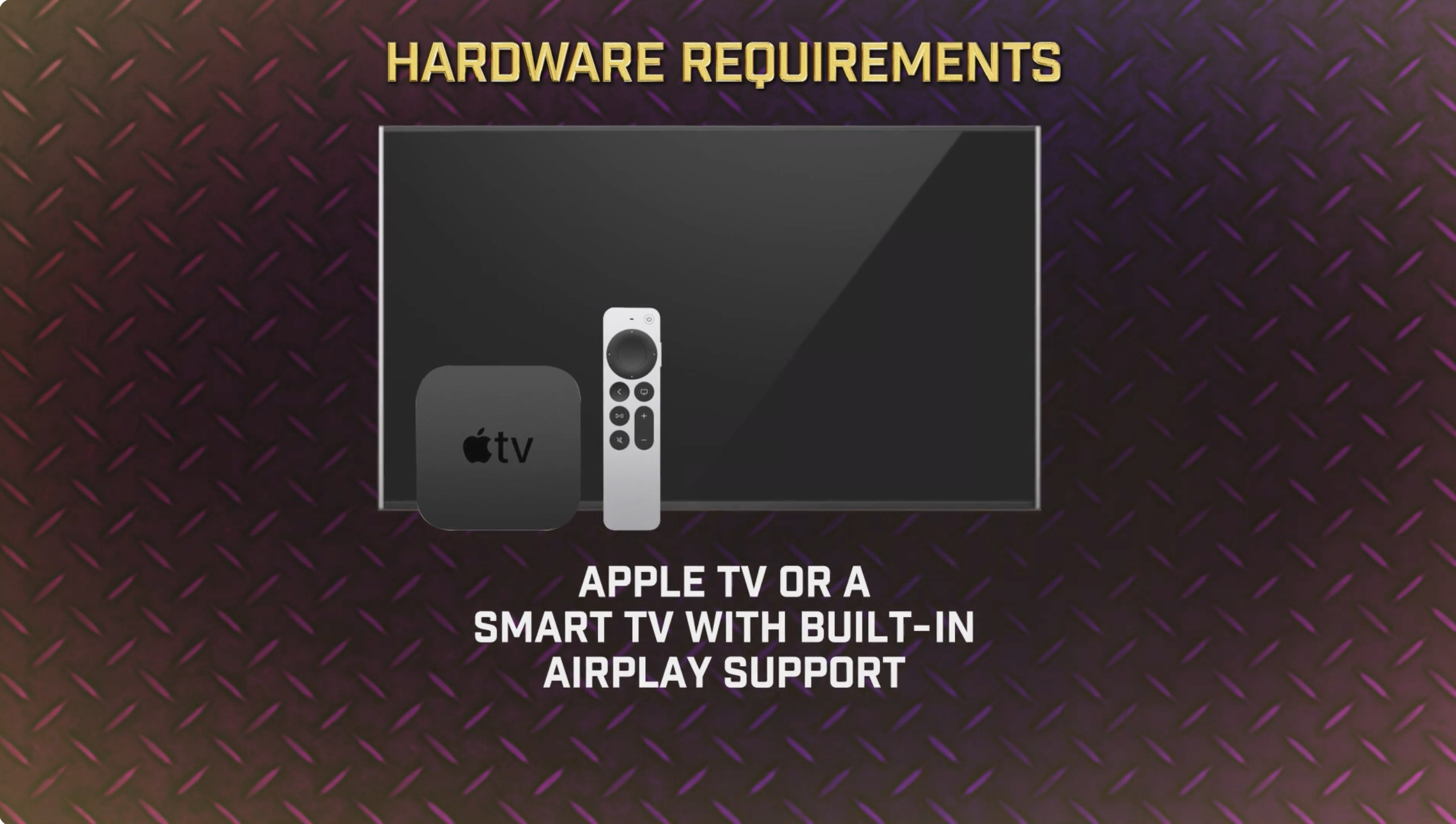
AirPlay (iPhone/iPad/Mac): Make sure the TV supports AirPlay.
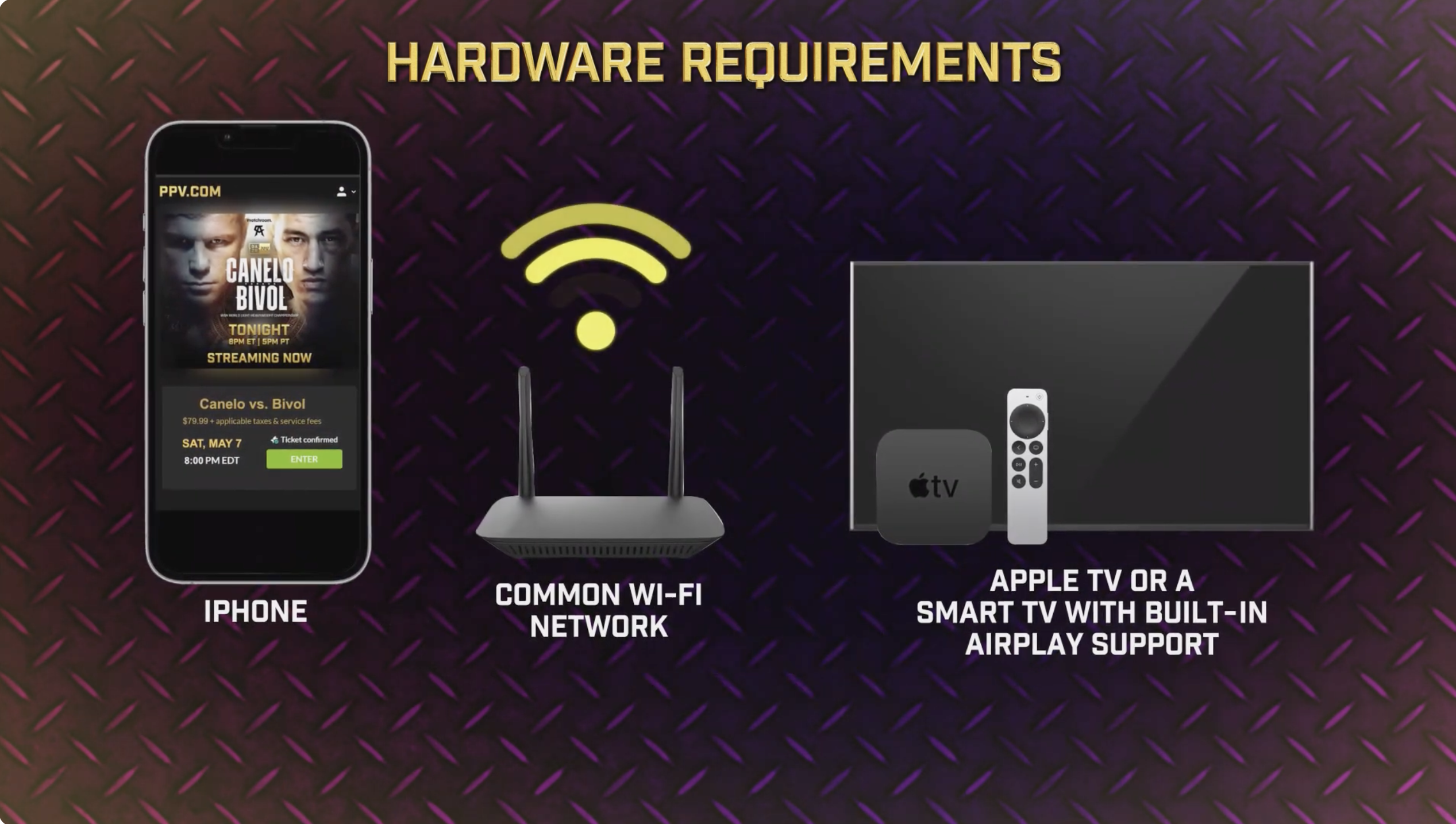
Connect both devices to the same Wi-Fi.
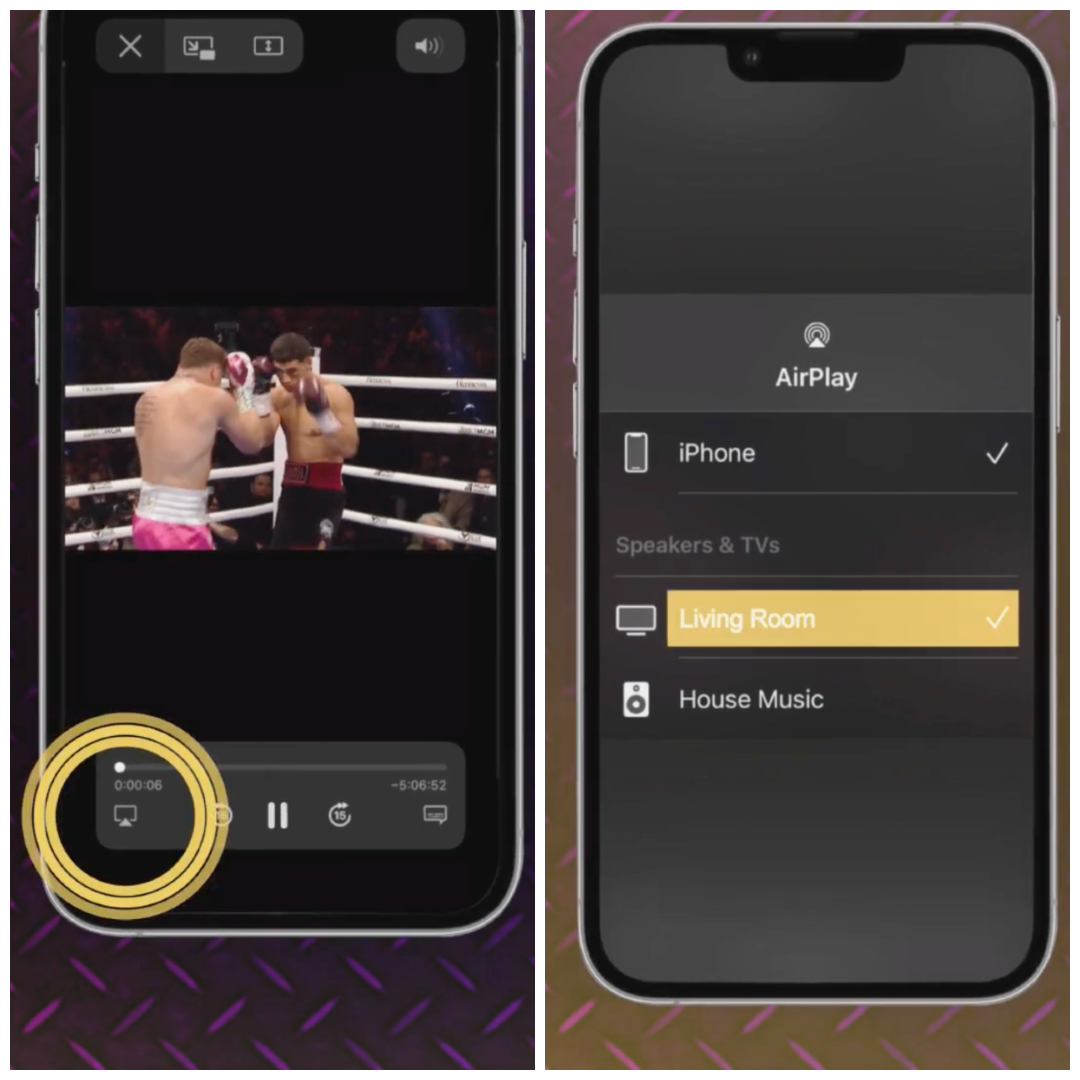
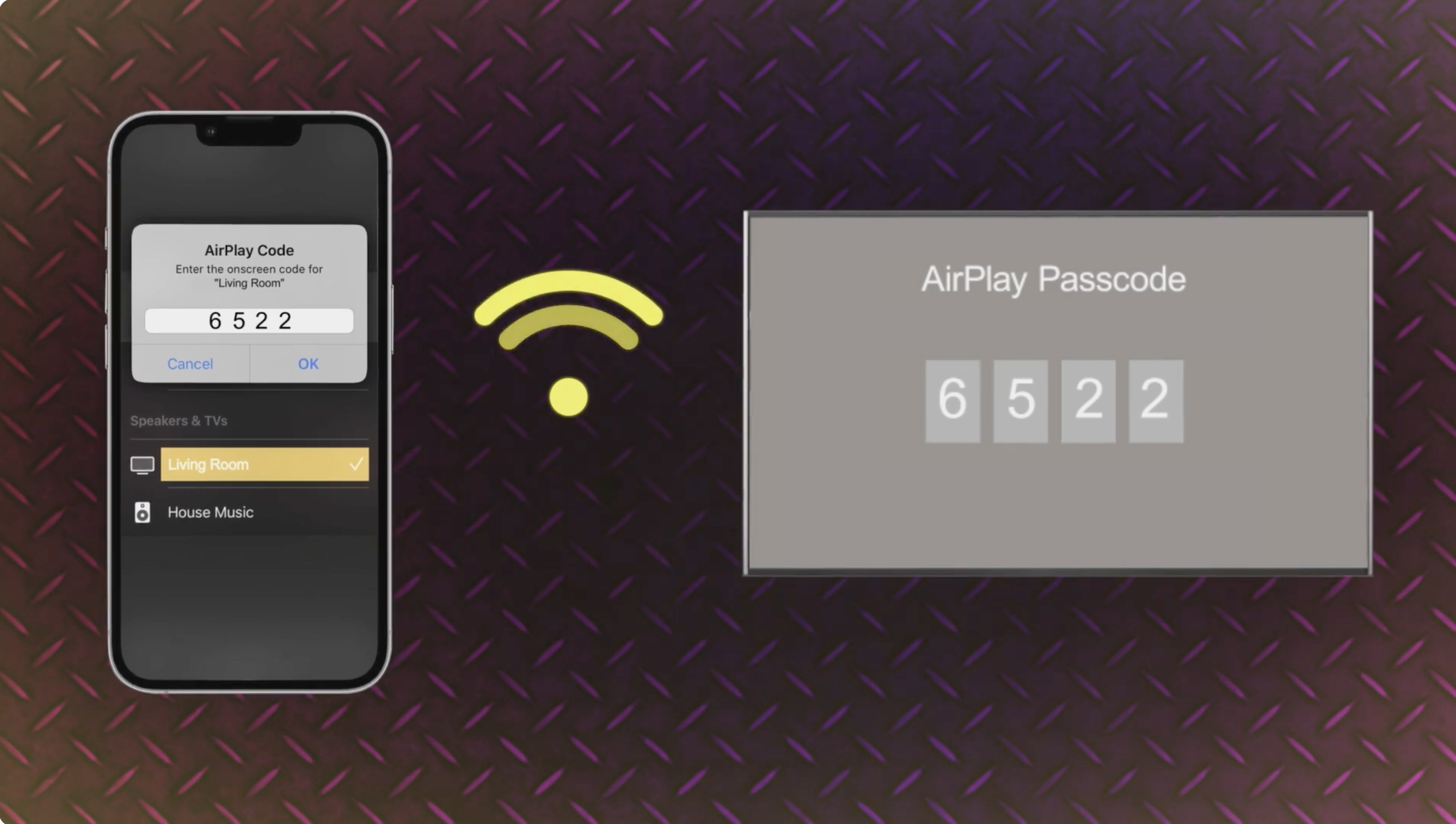
Open your PPV app or browser, play the PPV, tap the AirPlay icon on the bottom left of your phone, and select the TV.
You might see a prompt asking for a 4-digit code; enter the code that appears on your TV.
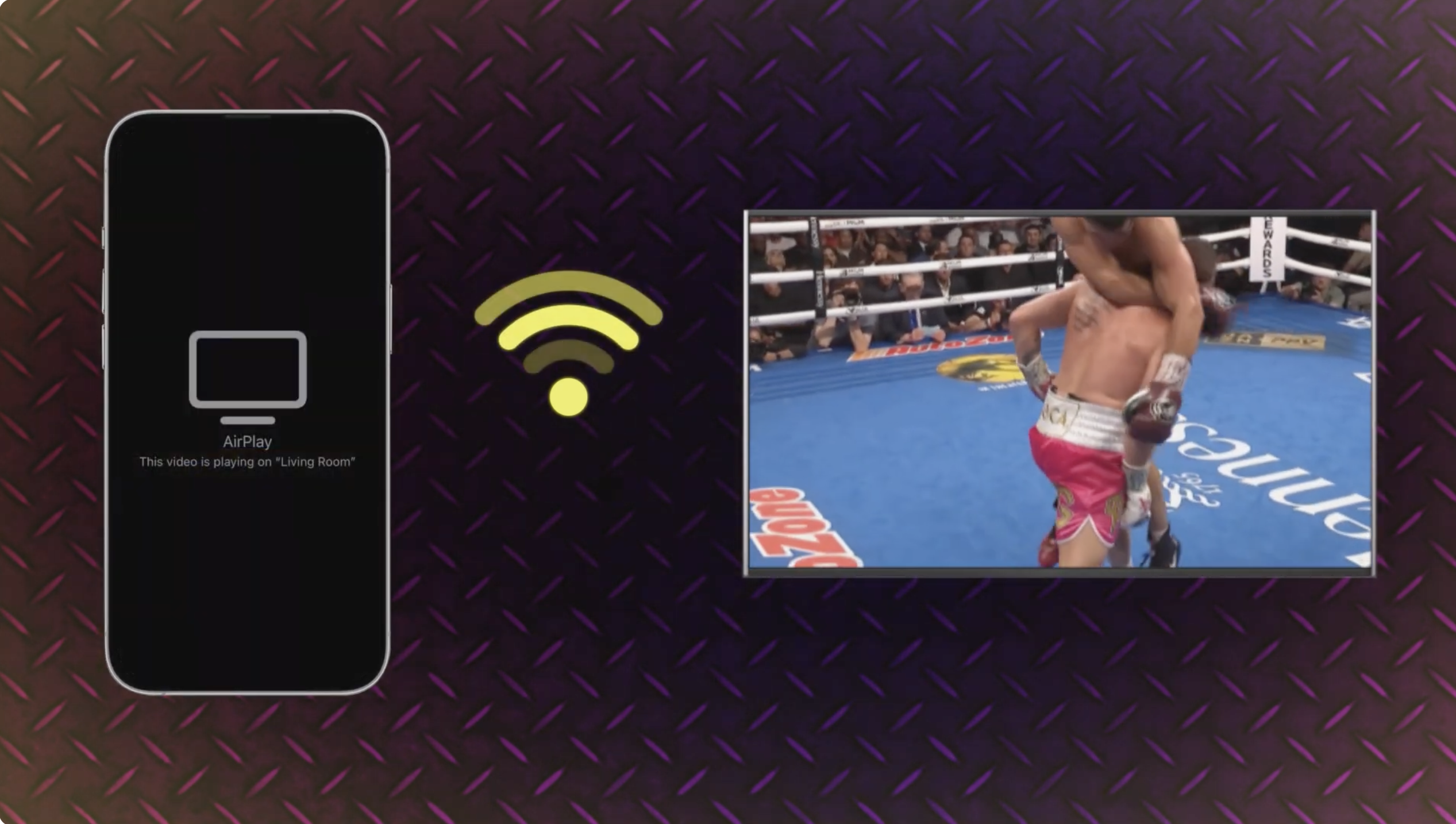
The event will now start playing on your TV!
- Chromecast (Android/Chrome): On Android or in Chrome, tap the Cast icon and pick your TV or Chromecast. Start the PPV stream and leave the app open.
- HDMI: Plug a laptop into the TV with HDMI, mirror the screen, and play the PPV in a browser if casting isn’t available.
How to Purchase the Event (Works the Same in Most Apps)
- Open the PPV app (or website) and sign in.
- Find the event tile and review the price, start time, and any device limits.
- Select Buy or Purchase, confirm payment, and keep the receipt email.
- On event day, open the TV app (or start casting) 10–15 minutes early.
Troubleshooting: Fast Fixes That Usually Work
- Buffering or lag: Switch to Ethernet, stop other downloads, and power-cycle the router and TV.
- No sound or low audio: Check TV audio output, disable Bluetooth headphones, and verify the app’s audio track.
- App crashes: Update the TV firmware and the app, then reinstall the app if needed.
- Purchase not showing: Log out and back in, ensure you’re on the same account used to buy the PPV, and refresh the library/purchases tab.
- Can’t find the app on your TV: Use AirPlay, Chromecast, or HDMI, or install the app on a streaming stick (Roku, Fire TV, Google TV, Apple TV).
FAQ
Can you get Pay-Per-View on a smart TV? Yes. Services like PPV.COM, YouTube, Prime Video, ESPN, and Hulu let you purchase and watch directly in their TV apps or via casting.
How do I watch PPV on YouTube TV or YouTube? Buy the event on YouTube, then open the YouTube app on the smart TV while signed in to the same account, and play it from Purchases or the event page.
Will casting reduce quality? It can. Direct playback in the TV app is best. If you must cast, use a strong 5 GHz Wi-Fi network.
Can I use a VPN? Some services block VPNs. If a VPN is required for travel access, connect before you buy, choose a server where the event is sold, and test a trailer first.
Summary
Install the official app on your TV when possible, sign in, and purchase the event there. If the app isn’t available, use AirPlay, Chromecast, or HDMI. Update software, confirm accounts, and test video early to avoid surprises.
Conclusion
You now know how to watch pay per view on smart tv in the fastest, most reliable ways—either through native apps like PPV.COM, YouTube, Prime Video, ESPN, and Hulu, or with casting. Keep your TV and apps updated, verify your account, and start the stream a few minutes early for a smooth PPV night.


Discussion (0)
Be the first to comment.