




ShowBox isn’t listed in the Play Store or any official TV app store, so you’ll need to sideload it manually. The process differs slightly depending on your TV brand, but it’s simple once you know how to handle APK files safely.
But before you proceed, note that ShowBox streams copyrighted content, so it’s not officially supported by major smart TV makers. Proceed only if you understand the legal risks and want to test it for personal use. To stay private, use a reliable VPN and scan any downloaded file with antivirus software.
Also, note that not every smart TV runs Android. Some use Tizen, WebOS, or Roku OS, and they handle third-party apps differently.
Step 1: Identify your TV’s operating system
Check your TV’s OS before downloading anything. Android TV and Google TV (Sony, TCL, Hisense) support APKs directly. Samsung uses Tizen, LG runs WebOS, and Roku uses its own closed system. Your installation method depends on this.
Step 2: Enable Unknown Sources (Android TV Only)
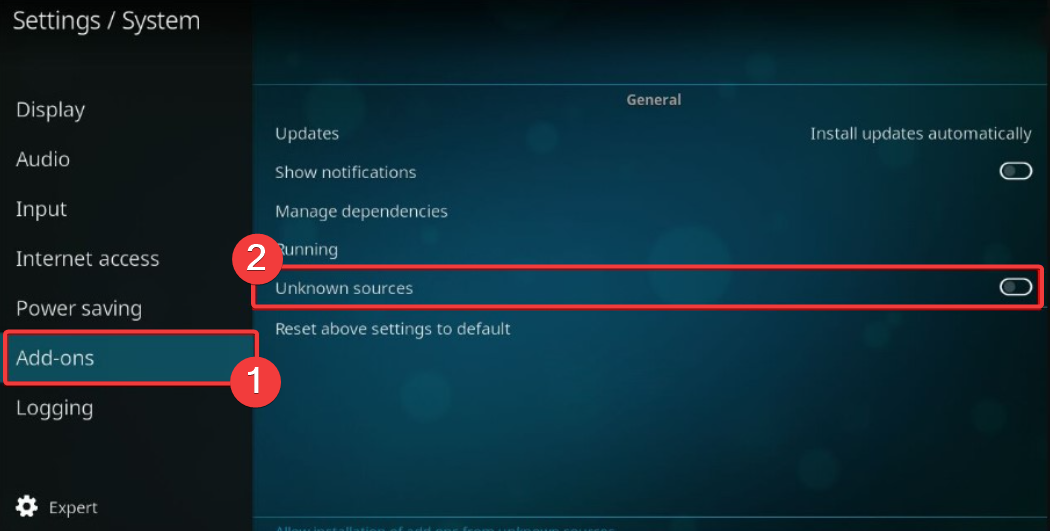
This step lets you install apps from outside the Play Store. Press Menu on your remote, then select Settings → System → Add ons . Now, toggle the switch next Unknown Sources on to enable it. Return to the home screen when done. Note that this might be different depending on your TV brand
Tip: Some Smart TVs require you to enable Developer Mode in addition to Unknown Sources to download apps from unknown sources. Check your TV manufacturer's website for the exact steps to follow.
Step 3: Download the ShowBox APK Safely
On your smart TV, open a browser like Puffin or launch the Downloader app. Type the ShowBox APK link from a trusted tech site and start the download.
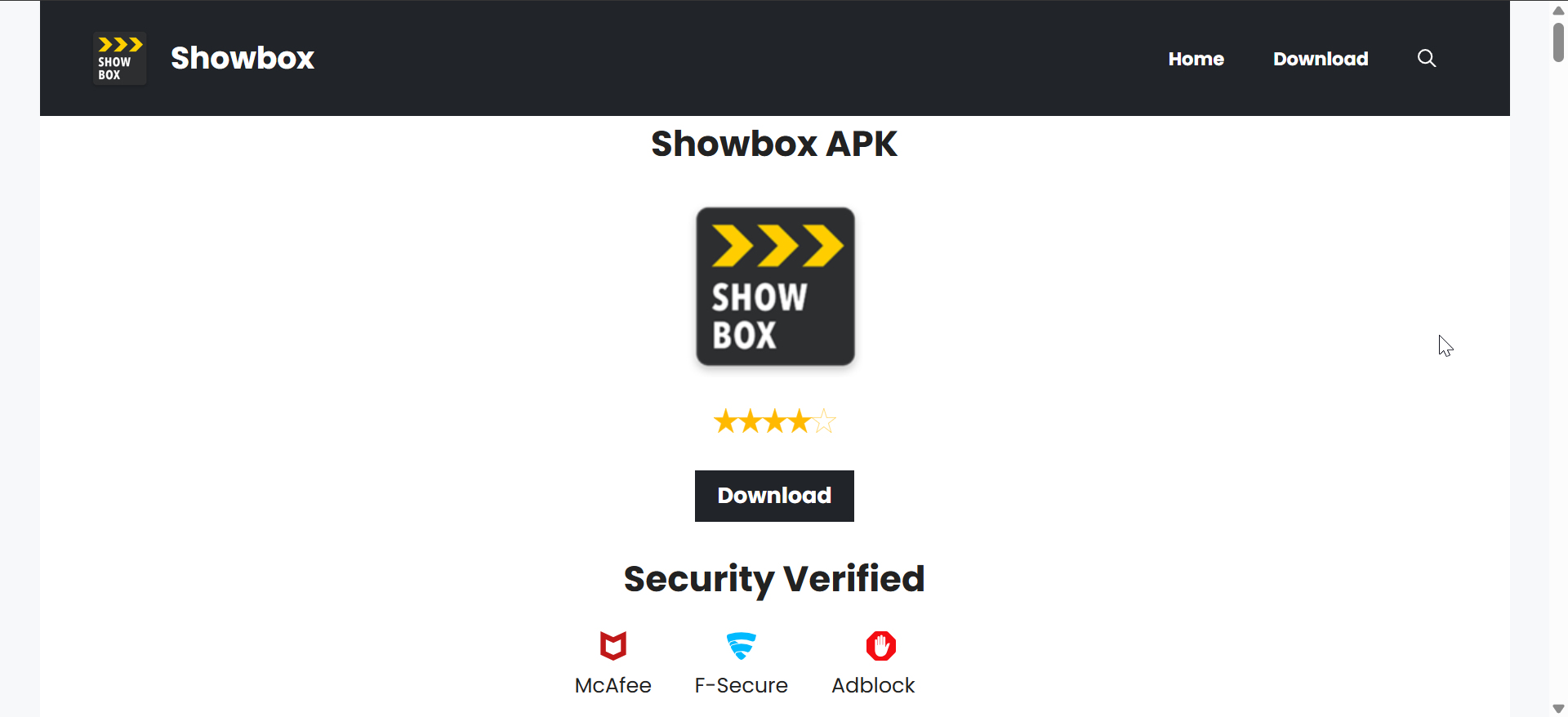
Tip: Be careful with pop-ups and fake download buttons. If the file ends with “.apk” and looks too small (under 20 MB), it’s likely a fake.
Step 4: Install the ShowBox APK
If your TV is an Android or Google TV, then open your file manager and navigate to Downloads. Select the ShowBox.apk file, choose Install, and wait until the setup completes. Finally, go to the apps section and open ShowBox.

If the app does not show on the apps section, restart your TV and check again.
Tips: If you are using Samsung TV that runs on Tizen OS, LG WebOS TV, Roku TV, and similar TVs, you can't install the ShowBox APK. However, you can cast from your phone, use AirScreen, mirror your phone, or use Chromecast
Troubleshooting Common Errors
- App not installed: Try downloading another ShowBox version or clear storage before reinstalling.
- Black screen or buffering: Restart the app, clear cache, or use a VPN for stable streaming.
- Permission denied: Re-enable “Install unknown apps” in your settings menu.
Most issues come from incompatible APKs or restricted network access. Restarting the TV and reinstalling usually solves them.
Tips for installing ShowBox on Smart TV
- Ensure you have at least 200 MB free before downloading the APK file.
- For smoother streaming, connect your TV to the router with an Ethernet cable.
- Keep the APK updated, as outdated versions often stop working. You should reinstall the latest ShowBox release if playback fails.
- Use VPN to protect your privacy and bypass geo-restrictions when streaming ShowBox content.
- Always check downloaded APKs with a reputable antivirus app before installing.
- ShowBox sources movies from unofficial sites, streaming copyrighted material without rights may be illegal in some regions. Use a VPN to keep your traffic private and avoid risky mirror websites that distribute malware.
FAQs
Can I install ShowBox from the Play Store? No. It’s unavailable on all official app stores due to copyright concerns.
Why does ShowBox stop working on my Smart TV? Most playback errors happen when servers go down or the APK is outdated. Reinstalling usually helps.
Is ShowBox free? Yes, but remember that its content sources aren’t always legal or secure.
What are the legal alternatives to ShowBox? You can use Tubi, Plex, and other free apps that are easily available and source movies from official channels.
Summary
- Identify your TV’s operating system.
- Enable Unknown Sources on Android or Google TV.
- Download the ShowBox APK from a trusted site.
- Install or cast depending on your TV model.
- Use a VPN and consider legal streaming alternatives.
Conclusion
Installing ShowBox on a Smart TV requires sideloading, which is simple once you enable unknown sources and download the correct APK. For non-Android TVs like Samsung, LG, or Roku, casting from your phone offers the easiest solution.
While ShowBox provides free access to movies and shows, it comes with privacy and legality risks. Use a VPN, keep your app updated, and explore legal streaming options such as Tubi or Plex for a more reliable and secure experience.



Discussion (0)
Be the first to comment.