




Pop-ups have a reputation for being annoying, but many legitimate sites rely on them for sign-ins, confirmation windows, banking tools, and educational content. If Chrome blocks every pop-up by default, important actions may fail to load. This guide shows how to allow pop-ups in Chrome, adjust permissions safely, and use exceptions when only certain sites need them.
Chrome includes built-in controls that let you enable pop-ups for all sites or only trusted ones. You can change these settings in a few clicks, and Chrome’s interface makes it easy to switch between blocking and allowing pop-ups as needed.
How To Change Pop-Up Settings In Chrome
You can manage Chrome pop-up settings using the main Privacy and Security controls. These steps work on Windows, macOS, and ChromeOS at the time of writing.
- Open Chrome and select the three-dot menu in the upper-right corner.
- Choose Settings from the list to open the main configuration menu.
- Select Privacy and Security on the left side of the screen.
- Choose Site Settings to view individual site permissions.
- Scroll to Pop-ups and Redirects and open it.
- Switch from Blocked to Allowed if you want to enable pop-ups for all websites.
This global setting allows every pop-up, but many users prefer a safer option: using exceptions for specific websites that require pop-ups.
How To Allow Pop-Ups For Specific Sites
If you only want to enable pop-ups for trusted websites, Chrome lets you add exceptions. This protects you from unwanted ads while still allowing important pop-ups to function.
- Open Chrome and go to Settings from the three-dot menu.
- Select Privacy and Security and then Site Settings.
- Choose Pop-ups and Redirects.
- Under Allowed to send pop-ups and use redirects, select Add.
- Enter the website address that needs pop-ups, such as a banking site or school portal.
- Click Add to save the exception.
Chrome now allows pop-ups only for the site you added, while all other sites remain blocked.
How To Unblock A Pop-Up Directly From The Address Bar
If Chrome blocks a pop-up, you may see a small icon in the address bar. This gives you a quick way to allow the pop-up without opening settings.
- Look for the pop-up blocked indicator on the right side of the address bar.

- Select the icon to view the blocked pop-up message.
- Choose Always allow pop-ups and redirects from this site.
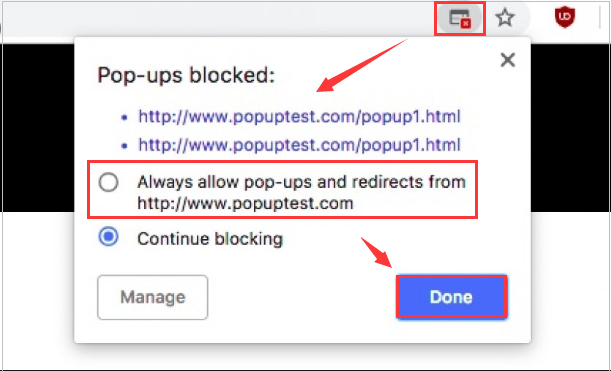
- Select Done and reload the page.
This method is useful when you do not know in advance that a site uses pop-ups.
Another alternative is to click the blue website link in the window; this will let you view the initially blocked pop-up one time.

Troubleshooting Common Problems
Chrome may still block pop-ups even after changing your settings. These quick checks resolve most issues.
- A site still will not open a pop-up – Confirm the exact URL is listed in your allowed exceptions. Sites with multiple subdomains may require additional entries.
- Your Chrome profile syncs the wrong settings – Turn off sync temporarily and adjust permissions again.
- Extensions block pop-ups – Ad blockers, script blockers, or privacy extensions may override Chrome settings. Disable them for the affected site.
- Pop-ups open but immediately close – Clear cached data or cookies for the site and reload the page.
- Pop-ups open behind windows – Resize Chrome or minimize other apps. Some sites launch smaller windows behind the main browser.
Tips
- Use site-specific exceptions instead of allowing pop-ups everywhere for better privacy and security.
- Check for pop-up blockers inside security suites or antivirus tools if Chrome settings seem correct.
- Review allowed sites occasionally to remove any you no longer use.
- Use Chrome’s profile feature to separate work, banking, and personal sites for cleaner pop-up management.
- Restart Chrome after changing pop-up settings so every tab reloads with the updated permissions.
FAQ
Why Does Chrome Block Pop-Ups By Default?
Chrome blocks most pop-ups to prevent unwanted ads and reduce security risks. Only sites you trust should get permission to show pop-ups.
Are Pop-Ups Safe To Allow?
Pop-ups are safe when used by trusted websites, but untrusted sites may include ads or misleading content. Always limit permissions to known sites.
Do Extensions Override Chrome Pop-Up Settings?
Yes. Ad blockers and privacy extensions can block pop-ups even if Chrome allows them. Adjust settings or disable the extension for the site.
Can I Allow Pop-Ups On Mobile Chrome?
Yes. Pop-up controls are available on Chrome for Android and iOS under the Site Settings menu, though the layout may differ.
Summary
- Open Chrome settings and locate the Pop-ups and Redirects section.
- Switch from blocked to allowed or add specific sites as exceptions.
- Use the address bar pop-up icon to quickly allow a blocked pop-up.
- Check extensions or cached data if pop-ups still fail to open.
- Limit permissions to trusted sites for safer browsing.
Conclusion
Managing Chrome pop-up settings gives you more control over how websites behave and prevents interruptions when a trusted site needs a pop-up to function. By allowing pop-ups only where necessary and keeping your exceptions list clean, you get a smoother, safer browsing experience. With the steps in this guide, you can quickly enable or unblock pop-ups in Chrome whenever a site requires them.

Discussion (0)
Be the first to comment.