




Google Chrome has evolved to offer a minimalist browsing experience, but some users prefer the classic menu bar for quick access to options like File, Edit, and History. The good news is that you can bring back the menu bar in Chrome. Whether you want to use keyboard shortcuts, tweak settings, or install an extension, this guide will show you how to get the menu bar in Chrome for easy navigation.
WHAT IS THE MENU BAR IN CHROME?
The menu bar in Google Chrome was traditionally located at the top of the window, offering quick access to essential commands like File, Edit, View, and Bookmarks. In recent years, Chrome's streamlined design removed this menu, relying on the three-dot menu in the top-right corner for most options. However, many users still prefer the old-school menu bar for convenience and familiarity. While Chrome doesn't have the classic menu bar by default, there are multiple ways to get it back.
METHOD 1: ENABLE THE MENU BAR IN CHROME SETTINGS
One of the easiest ways to restore the menu bar in Chrome is by enabling the bookmarks bar. While this won't fully replicate the old menu, it provides access to frequently used items and improves browser navigation.
- Click the three-dot menu icon in the top-right corner of Chrome.
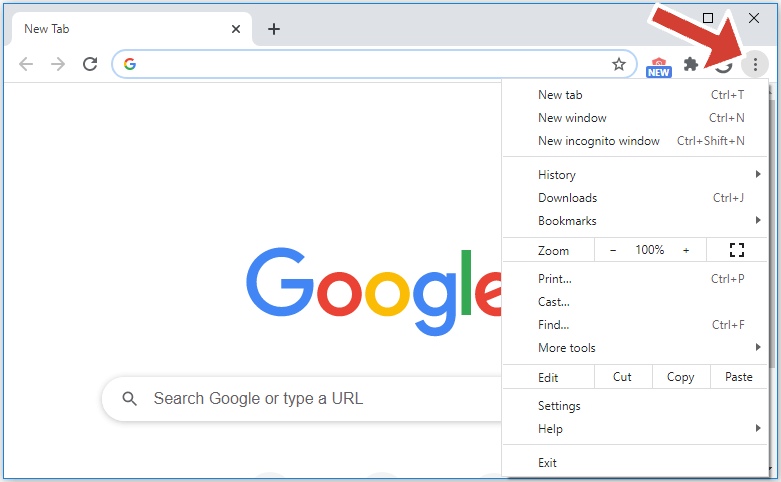
- Select Settings from the dropdown menu.
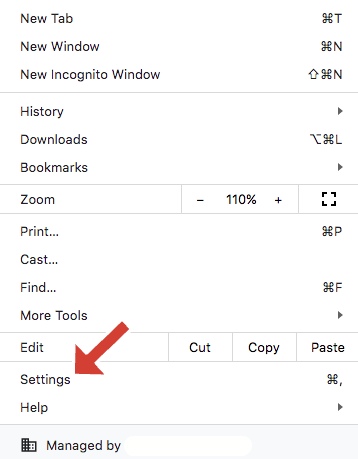
- Scroll down and find the Appearance section.
- Enable the Show bookmarks bar toggle.
- The bookmarks bar will appear, offering quick access to your favorite sites.
While this method doesn't restore the full menu bar, it brings back the bookmarks bar for easier access to your most-visited websites and is a good first step for enhancing Chrome's usability.
METHOD 2: USE KEYBOARD SHORTCUTS FOR QUICK Menu Access
If you miss using the File or Edit options, Chrome still supports keyboard shortcuts for quick menu access. These shortcuts allow you to access essential functions without needing a visible menu bar.
- Windows/Linux: Press Alt + E for the Edit menu or Alt + F for the File menu.
- Mac: Use Command + Shift + M to open the menu.
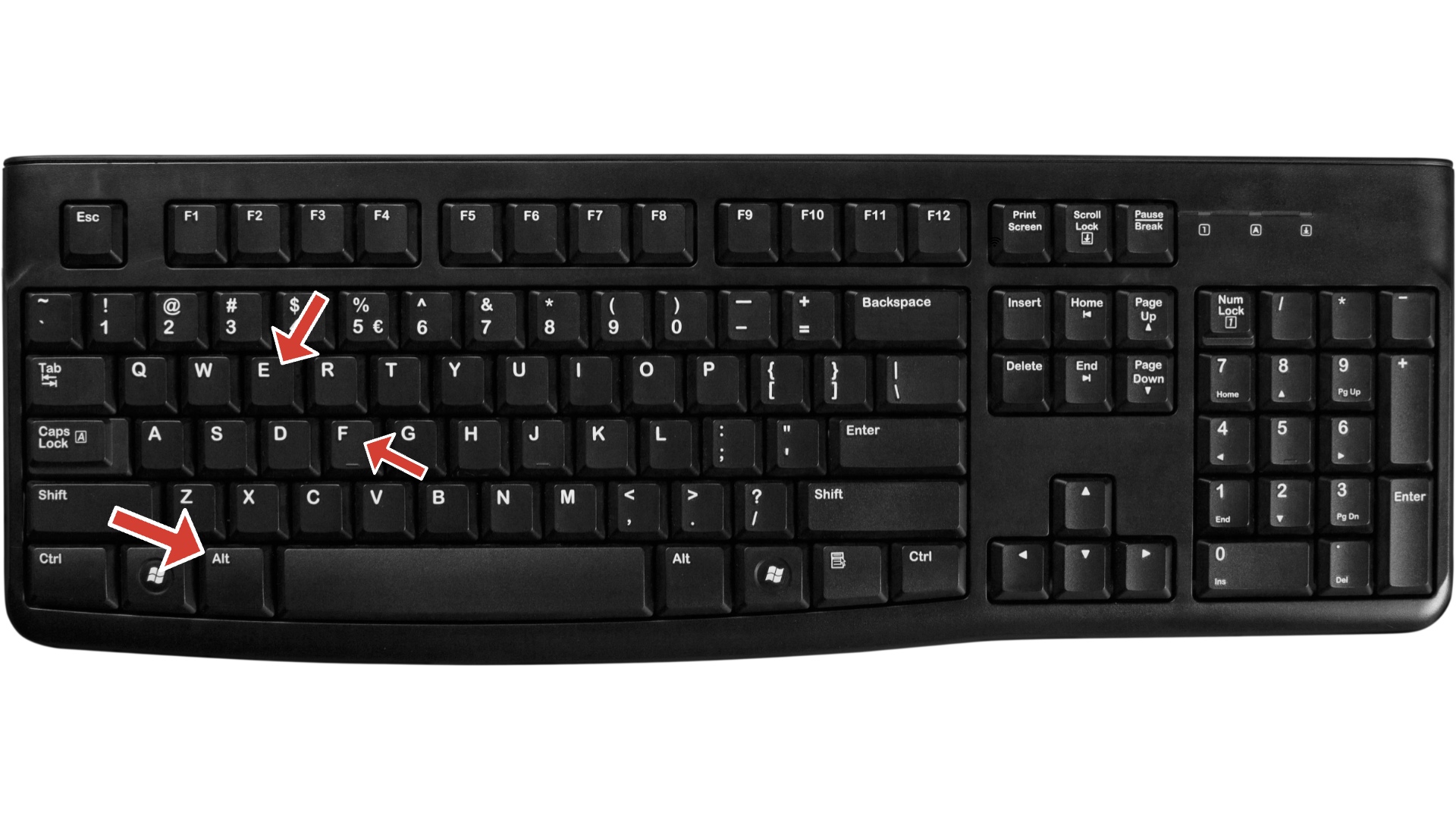
These shortcuts provide a quick and easy way to access core menu features without cluttering your browser interface.
METHOD 3: INSTALL A CHROME EXTENSION FOR THE MENU BAR
If you're looking for a more customizable solution, you can install a Chrome extension designed to bring back the menu bar. One popular extension is the "Proper Menubar," which restores the classic menu with options like File, Edit, View, and History.
- Visit the Chrome Web Store and search for Proper Menubar.
- Click Add to Chrome to install the extension.
- Once installed, the menu bar will appear, just like in older versions of Chrome.
Using an extension allows for a more flexible and personalized browsing experience, especially for users who prefer a full-fledged menu bar at the top of the Chrome window.
METHOD 4: RESET CHROME SETTINGS TO DEFAULT
If you’re experiencing issues with the menu bar not appearing or if Chrome's settings have been altered, resetting Chrome to its default settings might help restore the traditional layout. This step will revert any customizations, so use it as a last resort.
- Open Chrome and go to Settings.
- Scroll to the bottom and click Advanced.
- Under Reset and clean up, click Restore settings to their original defaults.
- Confirm by clicking Reset settings.
After resetting, check if the menu bar appears. If not, consider using one of the methods mentioned earlier.
ALTERNATIVE FIXES AND TIPS
- Press F11 to exit full-screen mode if the menu bar is hidden.
- Use the Ctrl + Shift + B shortcut to toggle the bookmarks bar in Chrome.
- If you need more tools in the menu, you can use extensions to add functionality.
CONCLUSION
Although Chrome no longer includes a permanent menu bar by default, there are several ways to restore or mimic its functionality. By enabling the bookmarks bar, using keyboard shortcuts, or installing a menu bar extension, you can regain quick access to key Chrome features. Whether you want a classic browser interface or a customized experience, these methods will help you navigate Chrome with ease.

Discussion (0)
Be the first to comment.