




Google Chrome’s settings control everything from privacy to performance. Checking them regularly helps you fix loading errors, manage permissions, and improve browsing speed. This guide shows you exactly where to find and review your Chrome settings across all platforms.
1. Open the settings menu in Google Chrome
To access Chrome’s main settings page, click the vertical three dots menu in the top-right corner and select Settings. Alternatively, type chrome://settings in the address bar and press Enter to open it directly.

On Windows and macOS
Both desktop systems use the same interface. Once you click the three vertical dots in the top right corner, the gear icon or Settings option appears at the bottom of the drop-down menu. Once open, the left sidebar lists all configuration categories.
On Android and iPhone
Open the Chrome mobile app, tap More (⋮) or (…), then choose Settings. Mobile settings include similar sections, though some options - like startup pages - may not appear on iOS.
2. Explore the main settings categories
Chrome organizes preferences by function. Each category controls a different aspect of your browser experience. Here’s what to look for.
You and Google

This section manages sync and personalization. It shows which Google Account is connected and lets you turn on Sync to share bookmarks, passwords, and extensions across devices.
Autofill and Passwords
Here you’ll find saved passwords, addresses, and payment information. Review saved items for accuracy or delete any outdated data to protect privacy.
Privacy and Security

This is where you clear browsing data, adjust cookie behavior, and check Safe Browsing status. You can also manage permissions for the camera, microphone, and location.
Appearance and Theme
Change the look of Chrome with themes, adjust font size, and toggle the Home button. If you ever want to start fresh, click Reset to default.
On Startup and Default browser

Set which page or pages open when Chrome launches. You can also make Chrome your default browser to handle links automatically.
3. Check Site permissions and content settings
Site permissions control how websites interact with your device. Go to Settings → Privacy and security → Site settings to view or modify them.
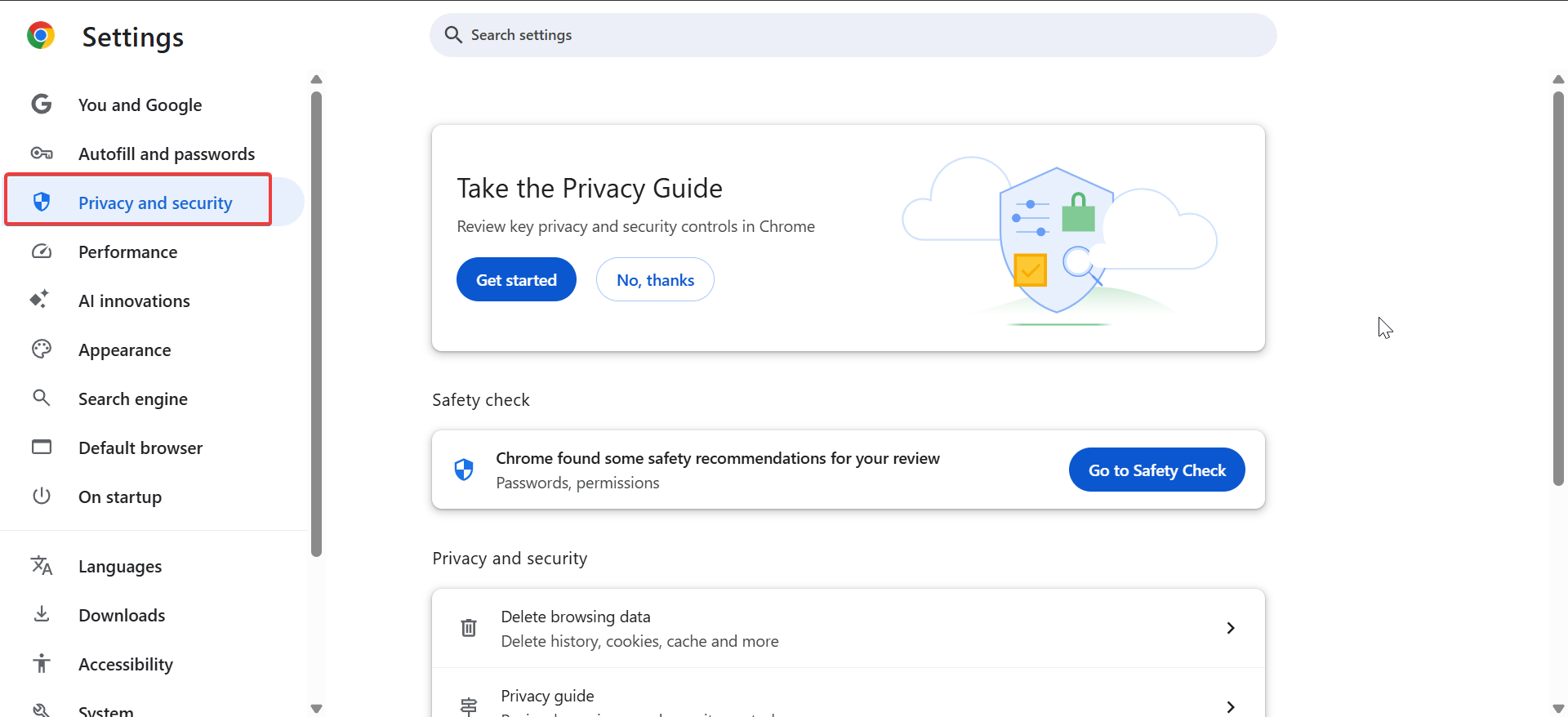
You can allow or block camera, microphone, notifications, and pop-ups. If a site behaves oddly, revoke its permission and reload the page. This often fixes access or playback issues. For security, review this list every few months.
4. Review advanced settings
Scroll to the bottom of the Settings page and click Advanced. These options affect Chrome’s deeper behavior, including downloads, performance, and accessibility.
System and Performance
Control background apps and hardware acceleration here. If Chrome feels slow or uses too much memory, disable Continue running background apps after closing Chrome.
Downloads and Languages
Choose where downloads are saved and change the default language. You can also turn on “Ask where to save each file” for manual control.
Accessibility
Find text scaling, live captions, and screen-reader support for easier browsing on all devices.
5. Check experimental or hidden settings (optional)
Type chrome://flags in the address bar to access Chrome’s experimental options. These flags let you test new features before they roll out publicly.
However, use caution - changing flags can cause instability. If you run into problems, return to the Flags page and select Reset all to default.
6. Reset Chrome settings if something looks wrong
If extensions or updates have changed how Chrome behaves, you can restore defaults. Go to Settings → Reset settings → Restore settings to their original defaults.

This disables extensions, clears temporary data, and resets the home and search pages. Your bookmarks, history, and saved passwords remain intact.
7. Troubleshooting when Chrome settings don’t open
If the Settings tab won’t load or options appear greyed out, the problem may lie in your profile or system policies. Try these quick fixes:
- Close and reopen Chrome.
- Disable all extensions from the menu → Extensions.
- Clear the browser cache and cookies.
- Restart your PC or mobile device.
- On work devices, ask your admin if Chrome is managed.
If the issue persists, reinstall Chrome or create a new user profile to start clean.
Tips for Managing Chrome Settings Efficiently
- Bookmark
chrome://settingsfor instant access. - Use the search bar at the top of the Settings page to locate any option quickly.
- Turn on Sync to save your preferences across all devices.
- Regularly check Privacy and security to clear browsing data and review permissions.
- Update Chrome frequently to get the latest security patches.
FAQs
How do I find specific settings quickly in Chrome? Use the search box at the top of the Settings page. Typing privacy, passwords, or autofill filters the results instantly.
Can I back up my Chrome settings? Yes. Sign in with your Google Account and enable Sync to back up bookmarks, passwords, and preferences automatically.
Why won’t Chrome open the Settings page? Corrupt user profiles or managed restrictions can block it. Restart Chrome, disable extensions, or create a new profile to regain access.
Summary
- Open Settings from the Chrome menu or type
chrome://settings. - Review key categories: You & Google, Privacy, Site Permissions.
- Expand Advanced to adjust performance and downloads.
- Reset Chrome if something looks wrong.
- Use Sync and the search bar to manage settings efficiently.
Conclusion
Checking your browser settings in Google Chrome is one of the easiest ways to keep your browsing experience secure and efficient. By reviewing permissions, privacy options, and advanced preferences regularly, you can prevent most performance issues and protect your data. Whether you’re on Windows, macOS, or mobile, Chrome gives you full control over how it behaves - as long as you know where to look.

Discussion (0)
Be the first to comment.