




Google Chrome’s Settings menu is where you manage your browser’s privacy, syncing, passwords, and appearance. If you’re not sure where to find it, there are a few easy ways to open Chrome Settings on both desktop and mobile. This guide walks you through accessing the Settings and what to do if it is missing.
1) Open Chrome settings on desktop
You can access Chrome’s settings in several ways. Whether you prefer using menus, shortcuts, or direct links, all methods lead to the same configuration page.
From the Chrome menu

Click the three-dot icon (⋮) in the top-right corner of your browser. Then select Settings from the dropdown. A new tab will open showing all your Chrome settings organized by category.
Using the Address Bar

If the menu icon is missing, type chrome://settings/ directly into the address bar and press Enter. This shortcut opens the Settings tab instantly.
Using a keyboard shortcut
Press Alt + E then S (on Windows) or Alt + F then S. Chrome will open the Settings tab automatically, saving you from clicking through menus.
2) Where to find Settings on Android
Chrome’s mobile app keeps the Settings menu inside its main interface. You can easily adjust privacy, passwords, and browsing preferences.
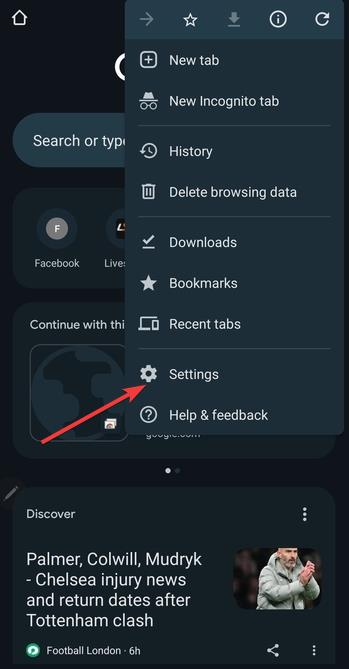
Open the Chrome app and tap the three-dot menu in the top-right corner and select Settings. Finally, explore options like Privacy and Security, Passwords, or Site Settings.
This method works on most Android phones and tablets using Chrome version 110 or later.
3) Where to find Settings on iPhone and iPad
Chrome’s iOS version uses a slightly different layout, but accessing Settings follows the same general pattern. Just open Chrome and tap the three-dot icon (top-right or bottom, depending on your version).

Next, tap Settings from the list, and you can now view sections like Sync, Safe Browsing, and Content Settings.
4) What you can do inside Chrome Settings

The Settings menu is divided into clear sections that help you personalize Chrome and control privacy.
- You and Google: Manage your Google account sync and personalization features.
- Privacy and Security: Adjust cookies, permissions, and browsing data options.
- Autofill and Passwords: Store and manage saved credentials and payment info.
- Appearance & Startup: Change your theme, homepage, and startup behavior.
5) Quick access URLs for power users
Advanced users can access specific Chrome Settings directly using these shortcuts:
| Function | URL |
|---|---|
| Main Settings | chrome://settings/ |
| Privacy & Security | chrome://settings/privacy |
| Site Settings | chrome://settings/content |
| Password Manager | chrome://settings/passwords |
| System | chrome://settings/system |
6) If you can’t find Chrome Settings
If the Settings option is missing or grayed out, it may be due to a display issue, full-screen mode, or an extension conflict.
- Exit full-screen mode by pressing F11 or tapping the expand icon.
- Disable suspicious extensions from chrome://extensions/.
- Reset Chrome if the Settings page won’t open properly.
Tips for Managing Chrome Settings Efficiently
- Use the search bar inside Settings to find specific options quickly.
- Enable Sync to save your preferences across all your devices.
- Bookmark chrome://settings/ for instant access.
FAQs
Where is the Settings menu in Chrome on PC? Click the three-dot icon (⋮) in the upper-right corner, then choose Settings. You can also go directly to chrome://settings/.
Why don’t I see the Settings option in Chrome? If Chrome is in full-screen mode or an extension hides the menu, the Settings option may be missing. Exit full-screen or disable extensions to fix this.
Can I open Chrome Settings without the menu? Yes. Type chrome://settings/ in the address bar or use the Alt + F → S shortcut on Windows.
Summary
- Click the three-dot icon → Settings to open Chrome’s configuration menu.
- Use chrome://settings/ for direct access.
- On mobile, open the Chrome app → menu → Settings.
- Explore privacy, autofill, and appearance settings to personalize Chrome.
- Troubleshoot if the menu or Settings page is missing.
Conclusion
Finding the Settings menu in Google Chrome is quick once you know where to look. Whether you use the three-dot menu, a keyboard shortcut, or the direct chrome://settings/ link, you can access all your preferences in seconds. On mobile, the process is just as simple through the app’s main menu.
Exploring Chrome’s Settings lets you manage privacy, sync options, and browsing behavior to suit your needs. If the menu ever disappears or fails to load, use the quick fixes listed above to restore access. With these methods, you’ll always stay in control of how Chrome works across your devices.


Discussion (0)
Be the first to comment.