




Site Settings in Chrome control what each website can do in your browser. When you manage these Chrome Site Settings, you decide which sites can use your camera, send notifications, save cookies, or run JavaScript. That control helps you keep pages functional while still protecting your privacy and security.
This guide explains what Site Settings in Chrome are, how to open them on desktop and mobile, and which options matter most for privacy. You will also see how to reset permissions when a site breaks or becomes too annoying.
What Site Settings In Chrome Actually Do
Every time you visit a website, Chrome checks its Site Settings for that domain. These settings include permissions, content controls, and security choices. Chrome then decides whether the site can do things like run pop-ups, access your location, or store data on your device.
Instead of one global rule for everything, Chrome Site Settings work on two levels:
- Default rules that apply to all sites you visit.
- Per-site overrides for pages where you allow or block something different.
That split lets you keep strict privacy defaults, then relax or tighten permissions for individual sites like your bank, video meeting tools, or streaming services.
How To Open Site Settings In Chrome
You can open Chrome Site Settings either from the main Settings page or directly from the address bar while a site is open.
Open Site Settings From Chrome Settings (Desktop)
Use this method when you want to adjust default Chrome Site Settings or review many sites at once.
- Open Google Chrome on your computer.
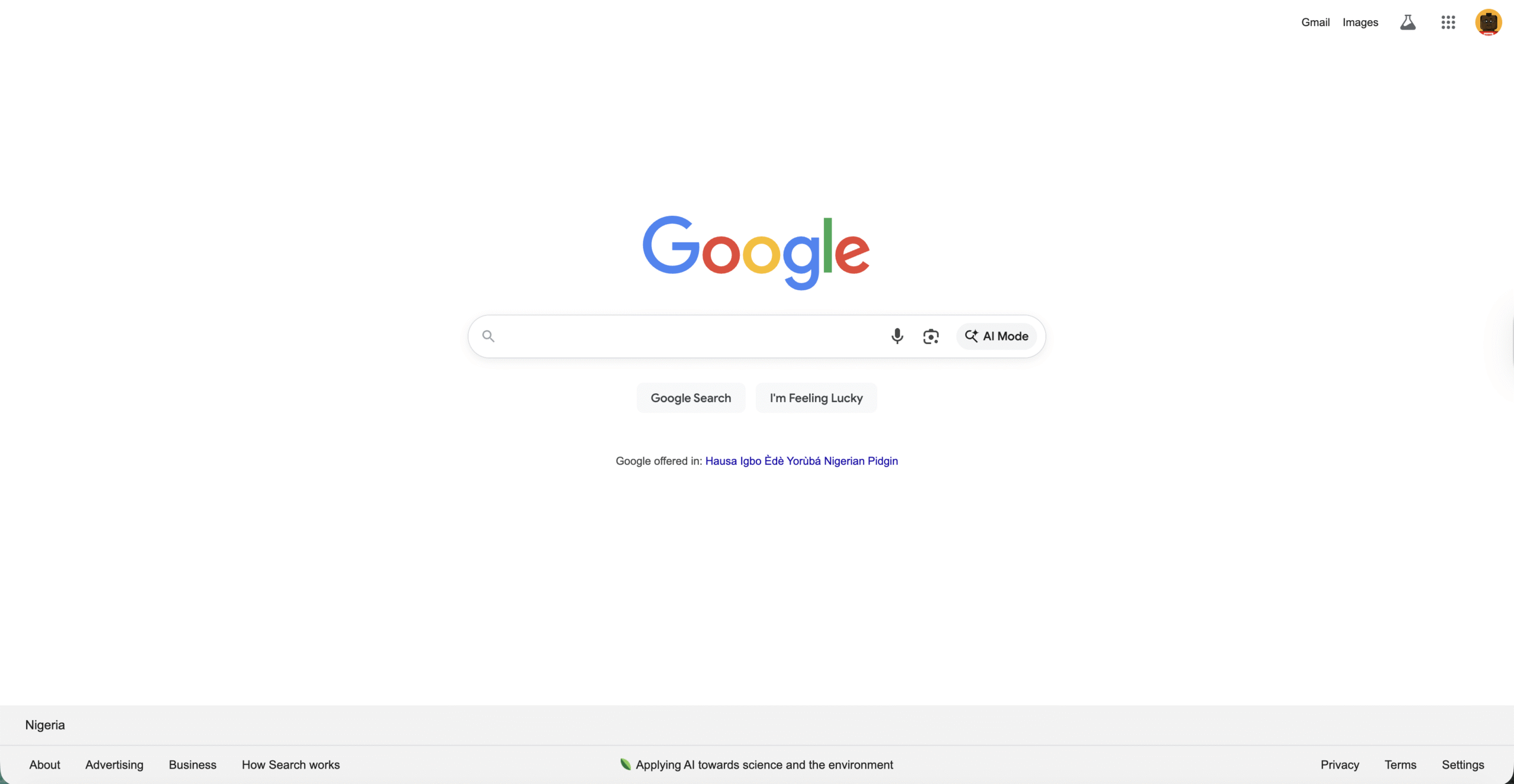
- Click the three dots in the top right corner.
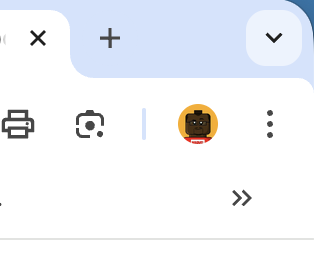
- Select Settings.

- Click Privacy And Security on the left.

- Choose Site Settings.
The Site Settings page now shows the main categories for permissions and content controls, like Location, Camera, Cookies, and Pop-Ups And Redirects.
Open Site Settings For A Single Site (Desktop)
When one site behaves badly, you can jump straight into that site’s settings.
- Visit the website in Chrome.
- Click the lock or info icon to the left of the address.
- Select Site Settings.
Chrome opens a page that shows only this site’s permissions. Changes here override your global Chrome Site Settings for that specific domain.
Open Site Settings On Android
Chrome for Android keeps a similar layout, but you reach it through the mobile menu.
- Open the Chrome app.
- Tap the three dots in the top right corner.
- Tap Settings.
- Tap Site Settings under the Advanced or Privacy And Security section.
Here you can manage mobile Chrome Site Settings for items like Cookies, Pop-Ups And Redirects, JavaScript, and Notifications.
About Site Settings On iPhone and iPad
On iOS, Chrome uses many of Safari’s system controls, so Site Settings feel more limited. You still can manage items like camera, microphone, or location, but most of that control sits in iOS Settings > Chrome, not inside Chrome’s own menus.
Key Site Permissions You Should Review
Chrome Site Settings include many options. These core permissions matter most for privacy, security, and usability.
Camera And Microphone
Video chat and meeting sites need access to your camera and microphone, but most pages do not. Chrome lets you set strict defaults and then approve individual sites.
- Set the default to Ask Before Accessing so sites must request permission.
- Allow only trusted services such as your video conferencing platform or secure chat app.
- Remove old approvals for sites you no longer use.
This approach protects you from surprise audio or video access while still letting legitimate tools work.
Notifications
Notification spam has become a big annoyance on the web. Chrome’s Site Settings help you block push notifications from noisy or suspicious sites.
- Set the default to Do Not Allow Sites To Send Notifications, or use the quieter messaging option when available.
- Manually add a few trusted sites, such as email, calendars, or messaging services, to the Allow list.
- Remove any sites from Allow that send too many alerts or feel unsafe.
With these notification Site Settings, Chrome stays useful without feeling like a constant pop-up machine.
Location
Location access powers maps, local search, and weather, but it also reveals where you are. Treat Chrome location permissions carefully.
- Keep the default at Ask Before Accessing.
- Allow only sites that truly need location, such as maps or ride-sharing services.
- Block location for shopping, news, or random content sites that do not need it.
Fine-tuning these Chrome privacy settings keeps useful services working without over-sharing your physical location.
Pop-Ups and Redirects
Pop-ups and forced redirects often carry ads, trackers, or scams. Chrome blocks most of them by default, but some sites still rely on pop-ups for sign-in windows or payment flows.
- Leave the global setting on Blocked.
- Add only trusted banking, payment, or business tools to the Allowed list if something breaks.
- Remove any site from Allowed if you start to see aggressive pop-up behavior again.
Automatic Downloads and File Access
Some sites need to download multiple files, but many do not. In Chrome Site Settings you can tell sites to ask before they start downloading more than one file.
- Set automatic downloads to Ask so you approve bulk downloads.
- Allow only trusted sources, such as official software vendors or cloud storage providers.
- Deny unknown sites that try to download files without a clear reason.
Important Chrome Content Settings To Adjust
Beyond permissions, Chrome’s content settings decide how each site handles cookies, JavaScript, images, and more. These Chrome privacy controls affect both tracking and how pages display.
Cookies and Site Data
Cookies keep you signed in and remember preferences, but they also power a lot of advertising tracking. Chrome Site Settings let you choose how strict you want to be.
- Use the Block Third-Party Cookies option when available to reduce cross-site tracking.
- Keep first-party cookies on for sites where you log in, such as banking and email.
- Clear cookies for specific sites that misbehave, load slowly, or feel over-personalized.
JavaScript
Most modern websites need JavaScript for buttons, forms, and menus. Blocking it globally can break many pages, but you may want to restrict it for unknown or risky domains.
- Leave JavaScript Allowed by default for normal browsing.
- Add suspicious or ad-heavy sites to the Not Allowed list if they feel unsafe.
- If a page stops working, remove it from Not Allowed and reload.
Images and Sound
Chrome lets you block images and sound per site. Most people never touch these Chrome content settings, but they help when you need a distraction-free experience.
- Block images for data-heavy sites on slow connections.
- Mute sound for sites that auto-play media, like some news or sports pages.
- Re-enable images or sound later if you miss important content.
How To Reset Site Settings When Something Breaks
If a page no longer loads videos, cannot use your camera, or keeps logging you out, your per-site Chrome Site Settings may be too strict. You can reset them.
Reset Site Settings For One Website
- Open the website in Chrome.
- Click the lock or info icon next to the address.
- Choose Site Settings.
- Click Reset Permissions or change individual items back to Ask or Allow.
- Reload the page.
Chrome now treats that site like a brand-new visit, so it will ask again for anything it needs.
Reset All Site Settings Back To Default
If many sites feel broken, you can clear all custom permissions at once.
- Open Chrome Settings.
- Click Privacy And Security.
- Click Site Settings.
- Scroll down and select Reset Permissions or the option to clear all site data and permissions.
- Close and reopen Chrome.
After this reset, Chrome goes back to your default Site Settings, and each website will request access again when needed.
Troubleshooting steps
- Reset a site’s permissions if a page stops loading videos, camera access, or login sessions.
- Click the lock icon in the address bar and choose Reset Permissions for that website.
- Clear cookies for a site if pages load incorrectly or feel stuck in a loop.
- Disable extensions temporarily when permissions still do not work as expected.
- Reset all Chrome Site Settings if multiple sites break or behave unpredictably.
Tips
- Use strict global defaults, then allow exceptions only for trusted sites.
- Keep camera, microphone, and location set to Ask unless a site truly needs access.
- Enable the quieter notification setting to reduce pop-up permission prompts.
- Review your Allowed and Blocked lists monthly to remove old permissions.
- Block third-party cookies for better privacy on most browsing sessions.
FAQ
Why do some sites keep asking for permissions?
Chrome requests permissions again when cookies are cleared, settings reset, or the site requires a fresh approval for privacy reasons.
Why is my camera not working in Chrome?
The site may be blocked from using your camera in Site Settings. Open the lock icon, choose Site Settings, and switch Camera to Allow.
How do I stop websites from sending notifications?
Open Chrome Settings → Privacy and Security → Site Settings → Notifications, then set the default to Don’t allow.
What happens if I reset all Site Settings?
Chrome removes every custom permission, and all sites will need to request access again the next time you visit.
Summary
- Chrome Site Settings control what individual sites can access in your browser.
- You can open Site Settings globally or for a single site using the lock icon.
- Key permissions include Camera, Microphone, Notifications, Location, and Pop-Ups.
- Content settings like Cookies and JavaScript change how pages load and track you.
- Reset permissions for a single site—or all sites—when pages stop working properly.
Conclusion
Once you understand what Site Settings in Chrome do, you gain real control over your browser. Instead of letting every site track you or ping your phone, you decide which pages can use powerful features and which ones stay limited. By tuning a few core Chrome Site Settings, you can keep the web fast, useful, and safer without losing the features you need every day.

Discussion (0)
Be the first to comment.