




Sideloading apps on an iPhone lets you install apps outside the App Store using Apple-approved workarounds. Apple restricts this process heavily, but reliable methods still exist if you follow the right steps and understand the limits.
This guide explains what sideloading means, what you need before you start, and the safest ways to sideload apps on iPhone today.
Table of contents
Is sideloading allowed on iPhone?
Apple allows sideloading in a limited, controlled way. You can sideload apps using developer tools, TestFlight, or enterprise certificates, but Apple does not support unrestricted app installs like on Android.
Sideloading in the EU vs outside the EU
In the European Union, Apple must allow alternative app marketplaces due to the Digital Markets Act. Outside the EU, users still rely on tools like AltStore or TestFlight, with stricter limitations and fewer options.
How to sideload apps on iPhone using AltStore
What you need before you start
Set this up first so AltStore can install and refresh apps without errors.
- An iPhone running a recent iOS version, unlocked and updated
- A Mac (macOS 11+) or a Windows PC
- A reliable USB cable for the first install
- The same Wi-Fi network for iPhone and computer if you want wireless refresh
- Your Apple ID email and password (AltServer uses them to sign apps)
Install AltStore on iPhone
On Windows, AltServer depends on Apple’s desktop iTunes and iCloud components to detect your iPhone and sign apps.
Step 1: Install iTunes and iCloud
- Install iTunes and iCloud on your PC directly from the Apple website and not the Microsoft Store.


- Next, open iCloud and sign in with your Apple ID.
Step 2: Install and run AltServer
- Go to the official website and download and install AltServer for Windows or Mac.
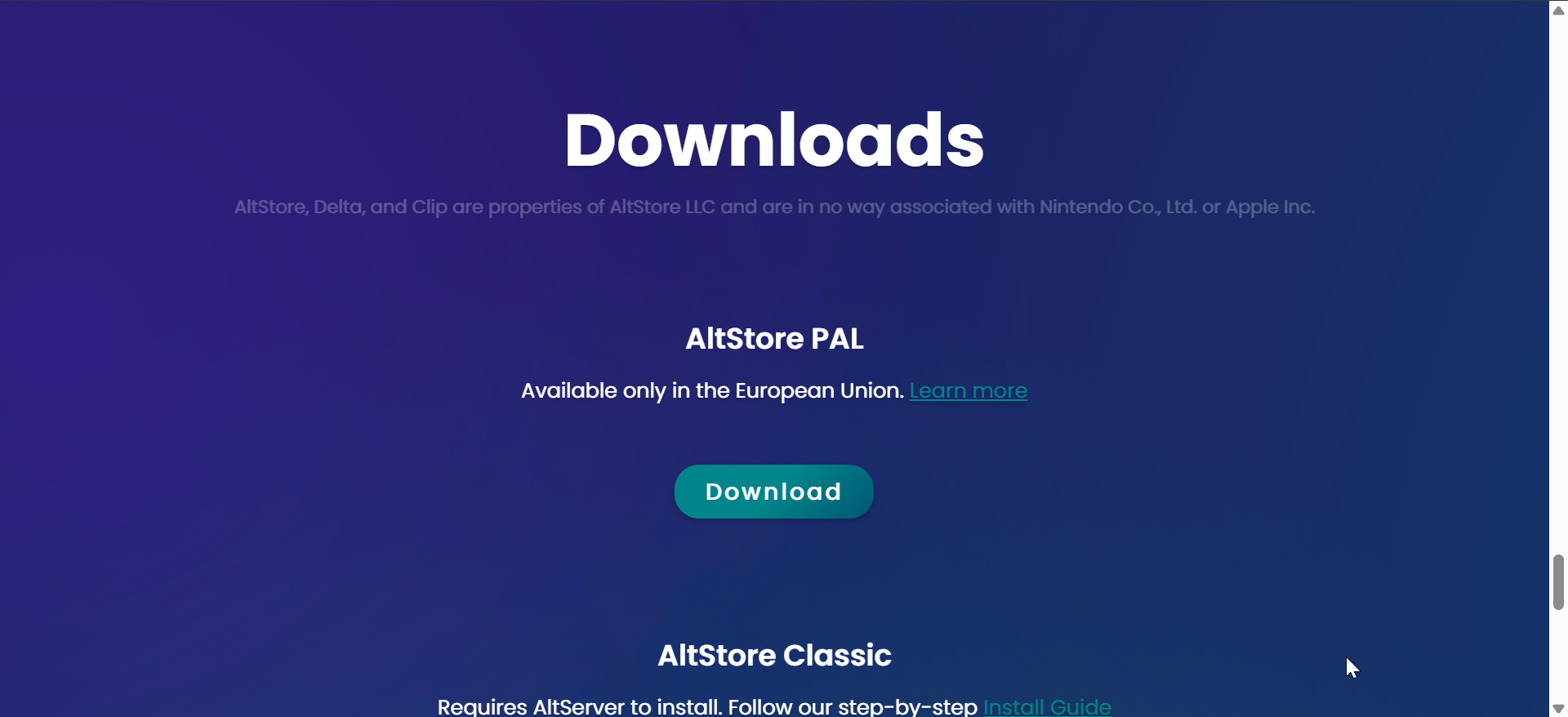
- Next, extract the file on File Explorer or Finder.
- Launch AltServer.
- Find the AltServer icon in the system tray and keep it running.
Step 3: Connect your iPhone and enable Wi-Fi sync
- Connect your iPhone to your Windows or Mac using a fast USB-C cable and unlock it.
- On iPhone, tap Trust if you see Trust This Computer?, then enter your passcode.
- Open iTunes on Windows and click the iPhone icon.
- Check Sync with this iPhone over Wi-Fi, then click Apply.
- On Mac, open Finder, select your iPhone in the sidebar, and click the General tab.
- Now, check the box next to Show this iPhone when on Wifi.


- Finally, click on Apply.
Step 4: Install AltStore on iPhone
- On your iPhone, go to Settings > Privacy & Security > Developer mode.
- Now, enable Developer mode and tap the restart option.


- Next, enter your code after the restart and confirm the changes.
- From here, click the AltServer tray icon on the Windows taskbar or the toolbar at the top on Mac.
- Click Install AltStore and select your iPhone.
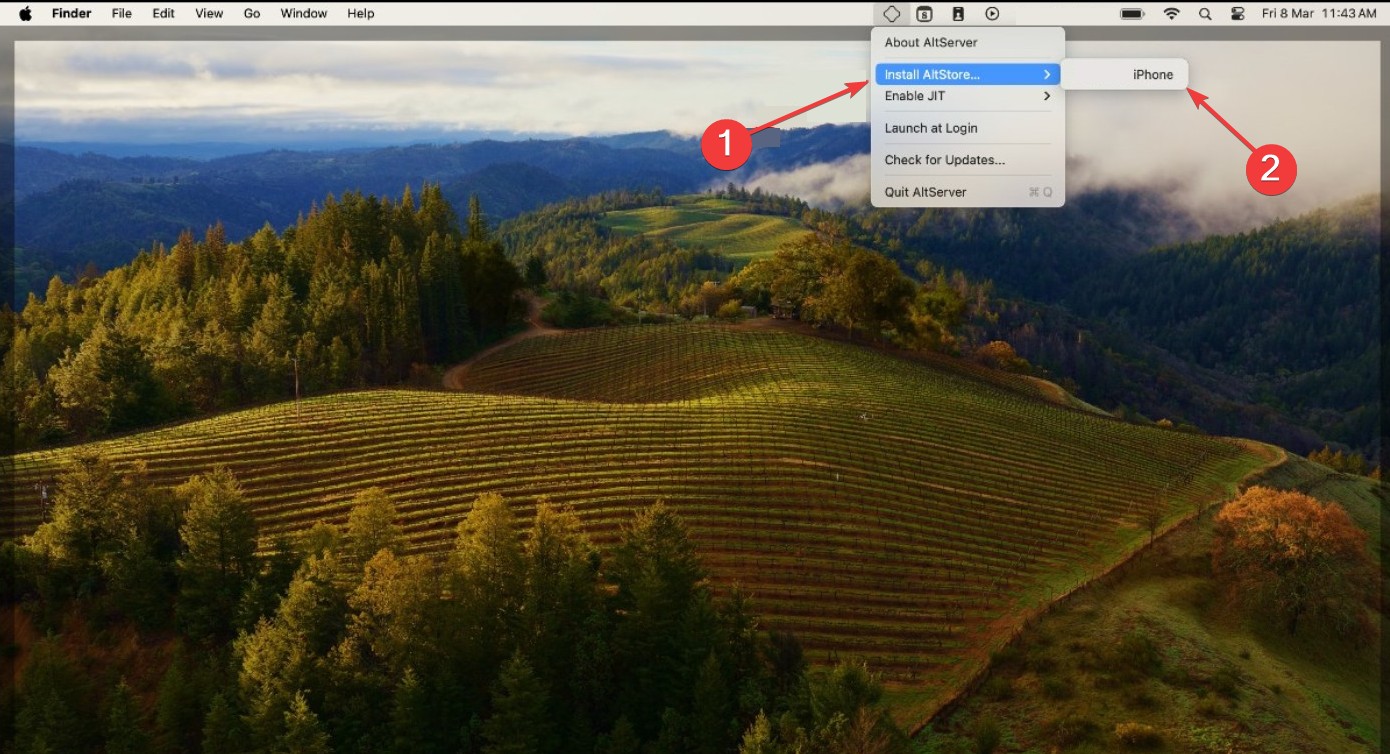

- Enter your Apple ID email and password when prompted.
- Finally, wait for the install to finish, then check your Home Screen for AltStore.
Step 5: Trust AltStore on your iPhone
- Open Settings on iPhone.
- Tap Privacy & Security (or General on some iOS versions).
- Tap Profile & Device Management (or Developer App if that appears).
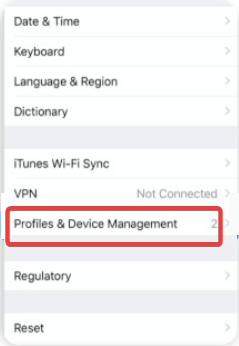

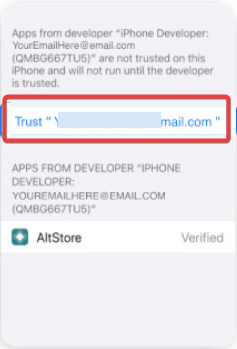
- Tap your Apple ID (Developer) profile, then tap Trust.

Sideload an IPA file with AltStore
After AltStore is on your iPhone, you can install any compatible .ipa file through the My Apps tab.
Step 1: Save the IPA to the Files app
- Download the .ipa file on iPhone.
- Save it to Files in On My iPhone or iCloud Drive.
Step 2: Install the IPA from AltStore
- Open AltStore on iPhone.
- Tap My Apps.
- Next, tap the + button.
- Browse to the .ipa in Files, then tap it.
- Wait for the app to appear under My Apps and on your Home Screen.
Refresh apps so they do not expire
With a free Apple ID, AltStore-signed apps usually expire after 7 days. Refresh them before the timer runs out.
Refresh over Wi-Fi
- Keep AltServer running on your Mac or PC.
- Connect iPhone and computer to the same Wi-Fi network.
- Open AltStore > My Apps.
- Tap Refresh All.
Refresh using USB if Wi-Fi refresh fails
- Connect iPhone to your computer using USB and unlock it.
- Open AltStore > My Apps.
- Tap Refresh All.
Fix common AltStore errors
These fixes solve the most common install and refresh failures with AltStore Classic.
Fix “Could not find AltServer”
- Confirm AltServer is running on your Mac or PC.
- Put iPhone and computer on the same Wi-Fi network.
- Try a USB refresh once, then retry Wi-Fi refresh.
Fix “Untrusted developer”
- Open Settings > Privacy & Security (or General).
- Tap VPN & Device Management (or Developer App).
- Tap your Apple ID profile and tap Trust.
Fix apps expiring after 7 days
- Open AltStore & My Apps
- Next, tap Refresh All while AltServer runs.
- Set a weekly reminder so you refresh before the expiration date.
Other ways to sideload apps on iPhone
Some users prefer alternatives depending on their needs.
TestFlight for beta apps
TestFlight lets developers distribute beta versions of apps legally. It works well for testing but limits the number of testers and expires builds automatically.
Enterprise and developer-signed apps
Some apps use enterprise certificates to bypass App Store distribution. These installs often break when Apple revokes certificates, so reliability remains inconsistent.
EU-only third-party app marketplaces
EU users can install apps from approved alternative marketplaces. These stores still follow Apple’s security rules, but they reduce reliance on tools like AltStore.
Common sideloading problems and fixes
Most sideloading issues follow predictable patterns.
App keeps crashing or won’t open
Expired certificates or missing trust permissions usually cause crashes. Refresh the app or re-trust the developer profile in Settings.
“Untrusted developer” warning
Open Settings, go to Privacy & Security, and manually trust the Apple ID or developer profile linked to the app.
App stopped working after 7 days
Free Apple IDs trigger automatic expiration. Refresh the app through AltStore or upgrade to a paid developer account.
Is sideloading safe on iPhone?
Sideloading itself does not harm your iPhone, but the app source matters.
Privacy and account risks
Avoid sharing your Apple ID with unknown services. Stick to trusted tools that use Apple’s official signing process.
How to avoid malicious sideloaded apps
Only install apps from reputable developers and communities. Check app permissions carefully after installation.
Tips
- Keep your iPhone and computer on the same Wi-Fi network for easier app refreshes
- Refresh sideloaded apps at least once a week
- Avoid enterprise-signed apps that promise permanent installs
- Back up your iPhone before sideloading experimental apps
Summary
- Sideloading installs apps outside the App Store using Apple-approved methods
- AltStore offers the most reliable option for most users
- Free Apple IDs require weekly app refreshes
- EU users get additional marketplace options
If there is an APK you are looking to download on your iPhone, you can easily sideload the IPA instead. Sideloading apps on iPhone gives you more flexibility, but Apple still controls the process tightly.
If you want stability and safety, stick with AltStore or TestFlight and refresh apps regularly. For most users, these methods provide the best balance between freedom and reliability without risking account issues.

Discussion (0)
Be the first to comment.