




Setting up Google Authenticator on your Android phone strengthens your account security by adding a second verification step to your logins. Two-factor authentication reduces unauthorized access, even if someone knows your password. At the time of writing, Google Authenticator remains one of the most reliable ways to generate secure authentication codes on Android.
This guide walks you through downloading the app, setting up your accounts, scanning QR codes, and managing your authentication settings. If you're switching phones or securing multiple accounts, these steps help you use Google’s two-factor authentication smoothly.
Download And Install Google Authenticator
You’ll need to install the Google Authenticator app before setting up authentication codes for your accounts. The app is free and works on all modern Android devices.
- Open the Google Play Store on your Android device.
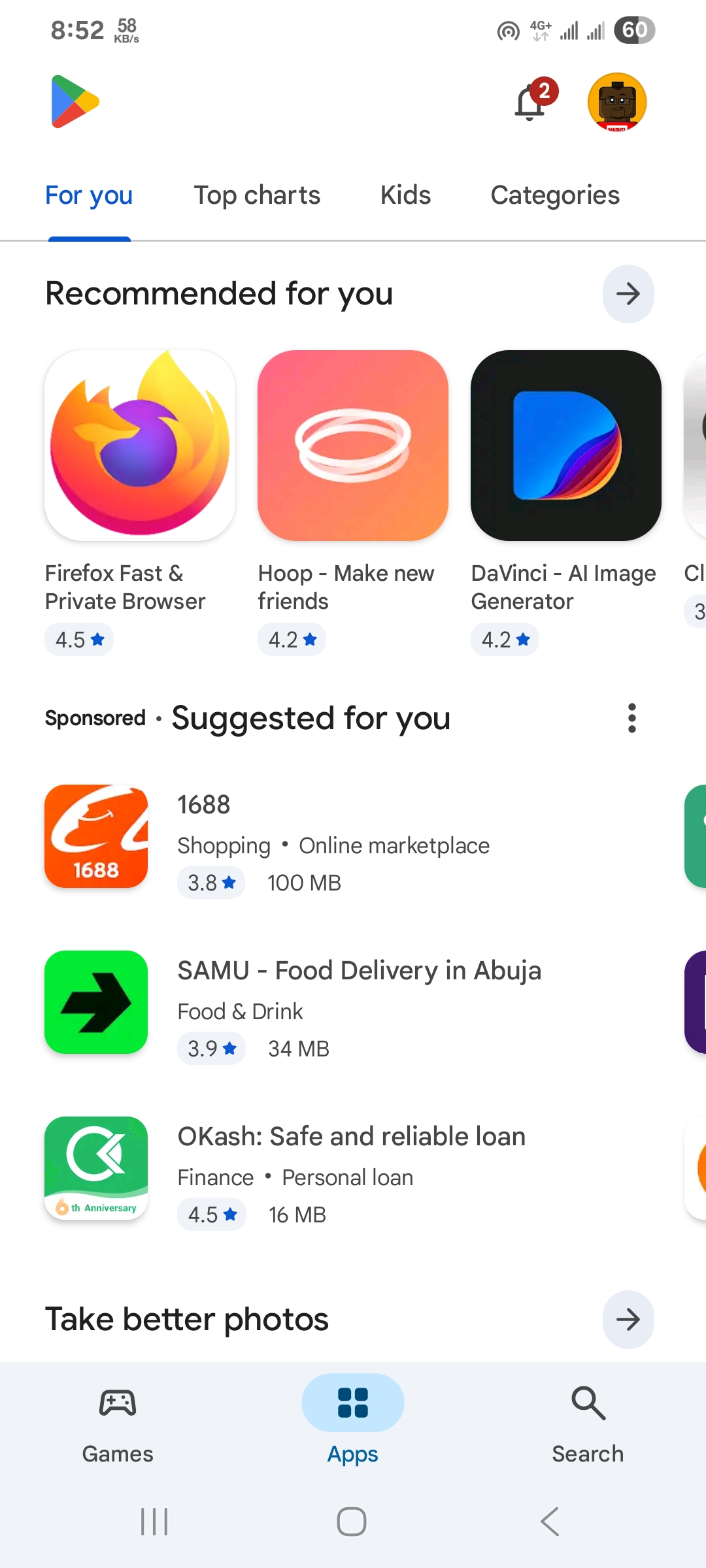
- Search for Google Authenticator.

- Select the official Google app and tap Install.
- Wait for the app to finish installing, then open it from your app drawer.

Setup Google Authenticator For Your Accounts
Most platforms — from email services to banking apps — allow you to enable two-factor authentication using Google Authenticator. The setup takes only a few minutes per account.
- Open Google Authenticator on your phone.
- Tap the + icon to add a new account.
- Select Scan A QR Code or Enter A Setup Key.
- On your computer or another device, open your account’s Security or 2FA settings.
- Choose Authenticator App as the method and display the QR code.
- Scan the QR code using your phone’s camera.
- Enter the six-digit code generated by the app to complete setup.
Generate And Use Authentication Codes
Once your account is connected, Google Authenticator generates rolling six-digit verification codes that refresh every 30 seconds.
- Open Google Authenticator when logging into your account.
- Find the correct account entry in the list.
- Enter the displayed six-digit code when prompted during login.
- Use the code immediately before it refreshes.
Manage Or Remove Accounts In Google Authenticator
You can rename entries, remove old accounts, or reorganize your list if you have multiple authentication codes.
- Open Google Authenticator.
- Tap and hold an account entry to bring up editing options.
- Select Edit to rename it or Remove to delete it.
- Re-add accounts if needed by repeating the original setup steps.
Troubleshooting Common Problems
- Codes Not Working: Make sure your phone’s time is set to automatic. Incorrect time sync causes code mismatches.
- New Phone Setup: Export your Authenticator data using Google’s built-in transfer tool before switching devices.
- QR Code Not Scanning: Increase screen brightness or use the Enter Key option.
- App Crashes: Clear the cache or reinstall from the Google Play Store.
Tips
- Enable two-factor authentication on all major accounts, including email and banking apps.
- Store backup codes in a secure location in case you lose your phone.
- Use a screen lock on your Android device to protect your authentication data.
- Periodically review your enabled 2FA accounts to remove outdated entries.
FAQ
Do I need internet for Google Authenticator?
No. The app generates codes offline.
Can I use Google Authenticator on multiple phones?
Only if you transfer your accounts using Google’s migration tool.
What happens if I lose my phone?
Use your backup codes or contact each service to regain access.
Are the codes the same every time?
No. The app creates a new code every 30 seconds.
Summary
- Install Google Authenticator from the Play Store.
- Enable two-factor authentication on your accounts.
- Scan the QR code or enter the setup key.
- Use the six-digit codes when logging in.
- Manage or remove accounts whenever needed.
Conclusion
Google Authenticator boosts your account security by generating time-sensitive login codes on your Android device. It’s easy to set up, works offline, and provides strong two-factor protection for your most important accounts.
Discussion (0)
Be the first to comment.