




If you want to set up two-factor authentication on your accounts, you need the QR code each service provides during setup. This code links your Google Authenticator app to your account and keeps your login more secure.
This guide shows you how to find, generate, and troubleshoot the QR code across different services.
1) Get a Google Authenticator QR code from any website
You generate the QR code from the service you use, not inside the Google Authenticator app. Open your account on a computer or phone browser and sign in. Next, go to the Security, Password & accounts, Multi-factor authentication, or similar sections.
Now, select the Google Authenticator or Authenticator app option. This creates a new secret key and displays a QR code you can scan. From here, open the Authenticator app on your phone, click the + button, select Scan QR code, and point your phone at the code.
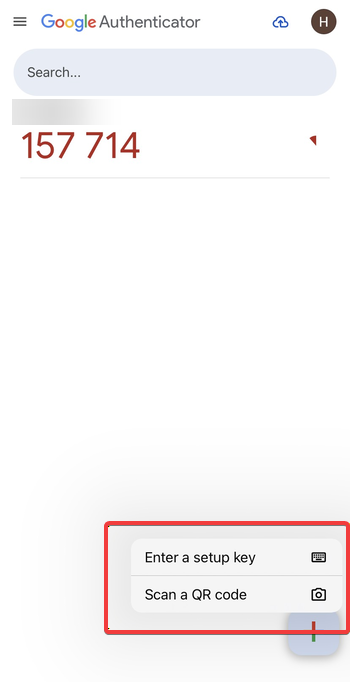
This adds your account to the app, and you will be able to get a verification code from Google Authenticator next time you want to sign in with the account.
2) How to locate the QR code on popular services
Google account
To locate the QR code, you need to set up two-step verification for your Google account. Start by signing in to your account, then go to Security > 2-step verification. Now, choose the Authenticator app option and use the Set up option to display the QR code for your Google login.

Microsoft account
Go to your Microsoft security dashboard, open Account security, and click Manage how I sign in. Add a new sign-in method and pick an Authenticator app option to view the QR code.
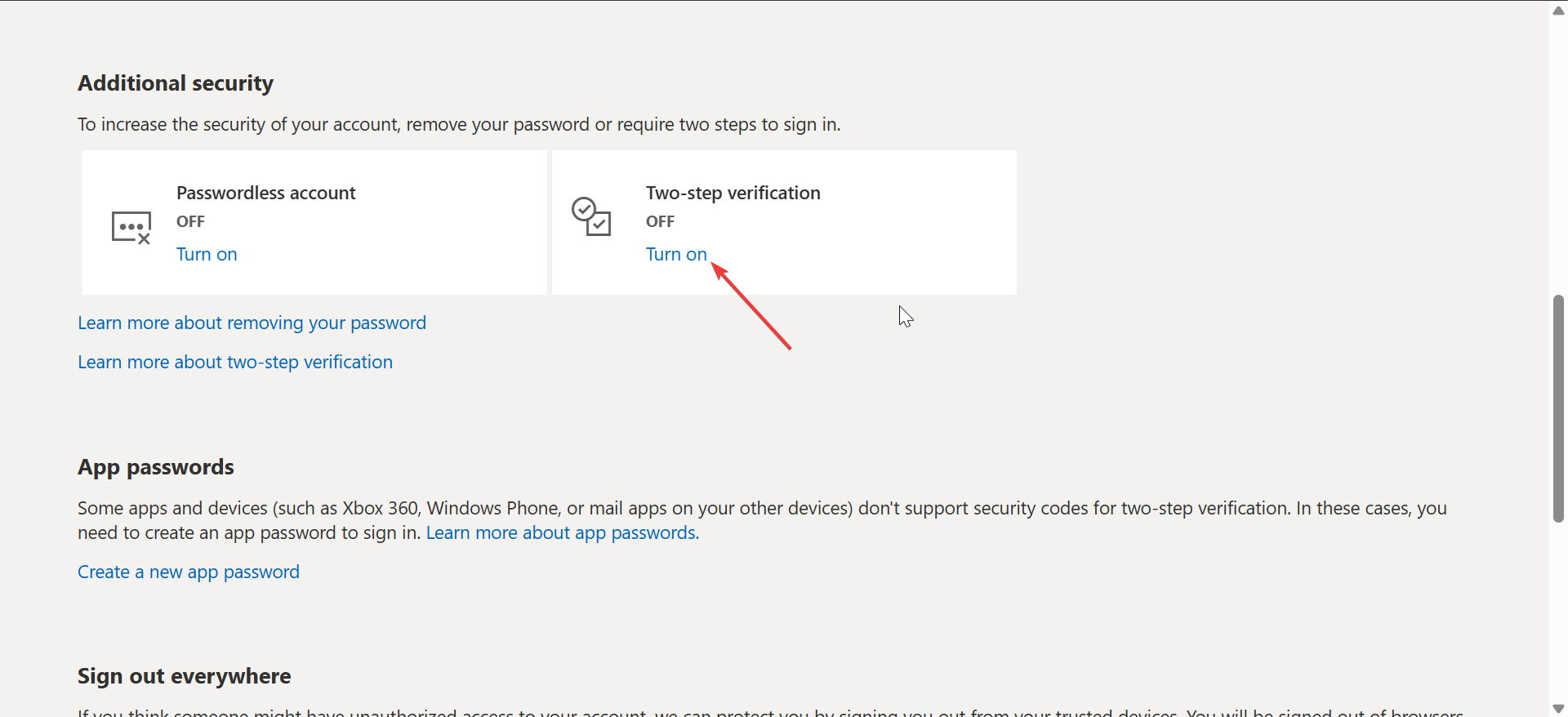
Open Settings & privacy, then Accounts center, and select Password & security. Under Two-factor authentication, click Turn on, and choose an Authentication app to see the QR code.
3) How developers can generate a Google Authenticator QR code
If you manage user authentication or build apps with 2FA, you may need to generate a QR code manually for your own service.
Using the otpauth format
Authenticator apps use an otpauth:// URI that contains the account name and secret key. Any QR code generator can convert this URI into a scannable QR for Google Authenticator or similar apps.
Using code libraries
Languages like Python, Node.js, and Go provide TOTP libraries that can create the otpauth URI and the QR image. You can embed this QR in your app or website to let users set up 2FA easily.
4) How to get a new QR code after losing your phone
- Use backup codes or SMS to sign in: Most services provide recovery codes or an SMS method that bypasses the app. Use one of these options to sign in and regain access to your security settings.
- Replace the authenticator app: Open your security settings and choose to replace, reconfigure, or remove the existing authenticator app. When you set it up again, the service creates a fresh QR code for your new device.
What to do if you can’t find the QR code
- The QR code only appears when you reset 2FA: Many platforms hide the QR code behind Reset, Reconfigure, or Disable and then Enable 2FA again. Turn off 2FA, then enable it again to force the website to generate a fresh QR code.
- The service only shows a manual setup key: Some platforms display the secret key as plain text and skip the QR image. You can enter this key manually in Google Authenticator or create your own QR code from it if you prefer to scan.
- The QR code never loads: A missing QR code may be blocked by pop-up blockers, script blockers, or ad blockers. Try turning these off or using a different browser to load the page correctly.
- Codes fail after scanning: If your codes always show as incorrect, your phone’s date and time may be out of sync. Turn on automatic date and time on your device so TOTP codes match the service.
Backup and recovery tips
- Save your backup codes
- Handle exported QR codes carefully
- Avoid screenshots of QR codes
FAQs
Can I create my own Google Authenticator QR code? Yes. Developers and advanced users can build an otpauth URI and convert it to a QR image with a QR generator or a code library.
Why doesn’t my service show a QR code? Some sites prefer manual keys or only show a QR code when you reset 2FA. Others may restrict 2FA to their own official app instead of Google Authenticator.
Can I reuse an old QR code? No. After you scan and set up the account, you should treat that QR as a one-time setup item. You need to generate a new QR code when you move to a new phone or reset 2FA.
Is the QR code the same as a recovery code? No. The QR code sets up your authenticator app by sharing a secret key. Recovery codes are single-use backup codes that let you sign in when the authenticator app is unavailable.
Summary
- Open your account’s security or two-factor authentication settings.
- Select Google Authenticator or another authenticator app option.
- Scan the QR code with the Google Authenticator app.
- Use the generated codes as your second login step.
- Save backup codes and other recovery methods in a safe place.
- Reset 2FA and generate a new QR code when you switch phones.
Conclusion
Getting the QR code for Google Authenticator becomes simple once you know where each service keeps its two-factor settings. You sign in, open your security or 2FA menu, and scan the QR code the platform generates.
Keep your recovery codes offline, avoid sharing or screenshotting QR codes, and use device syncing when available so you stay protected without risking account lockouts.
Discussion (0)
Be the first to comment.