Microsoft offers two-step verification for your Microsoft account. However, when you try to enable it, the company tries to force you into using their Microsoft Authenticator app. While using this app has some benefits, some users might prefer using another two-step verification app, like Google Authenticator. Here is how to enable two-step verification for your Microsoft account and use any third-party authenticator app you prefer and how to turn it off, when you no longer want to use two-step verification:
NOTE: To enable two-step verification for your Microsoft account, you need to have a smartphone with Android, iOS, or Windows 10 Mobile and your favorite Authenticator app installed on it. If you prefer using Microsoft's Authenticator app, use this guide: Approve or deny sign-in requests to your Microsoft account using Android.
Step 1. Sign into your Microsoft account
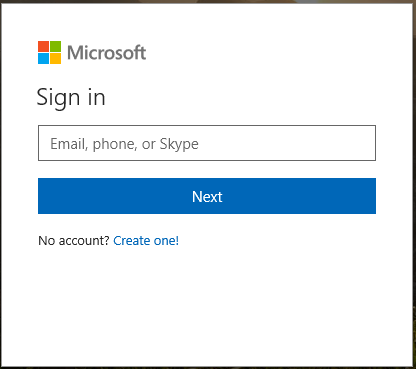
Go to this page and sign in with your Microsoft account. Enter your email, press Next, type your password and press Sign in.
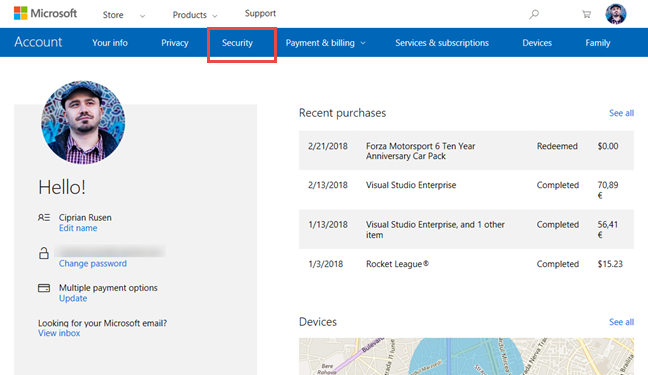
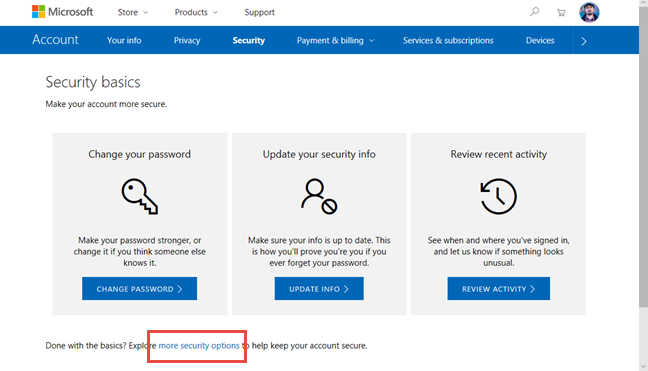
You are shown a screen with security basics like changing your password or updating your security info. Look for the small print on this page and find a text that says: "Explore more security options to help keep your account secure." In that text, click or tap the link that says "more security options." Alternatively, you can click this link to go to the same place.
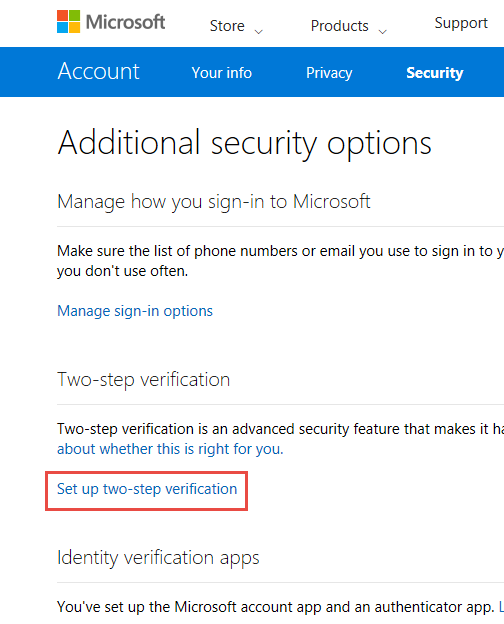
You have found the options that help you enable two-step verification using the apps you prefer. In the "Additional security options" page, click or tap the link that says: "Set up two-step verification."
Step 4: Enable two-step verification using Google Authenticator or another app
You have finally started the wizard for setting up two-step verification. It is imperative that you carefully follow our instructions and not those recommended by Microsoft; otherwise, you will not be able to use your favorite Authenticator app.
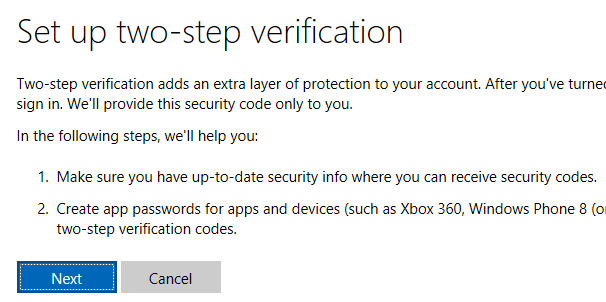
Read what Microsoft has to say about setting up two-step verification. This information will be useful to you in the future. Then, press Next.
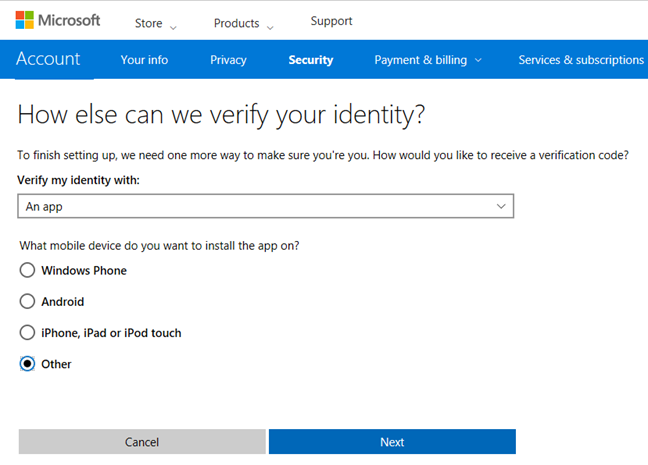
You are asked how Microsoft can verify your identity. You are given many options to choose from. Here, first select "An app." It is essential that you do not choose any of the mobile device choices that are given to you: Windows Phone, Android or iPhone. If you choose them, then Microsoft will push the Microsoft Authenticator app on you, and you will not be able to use your favorite Authenticator app. At this point, you MUST select Other and press Next.
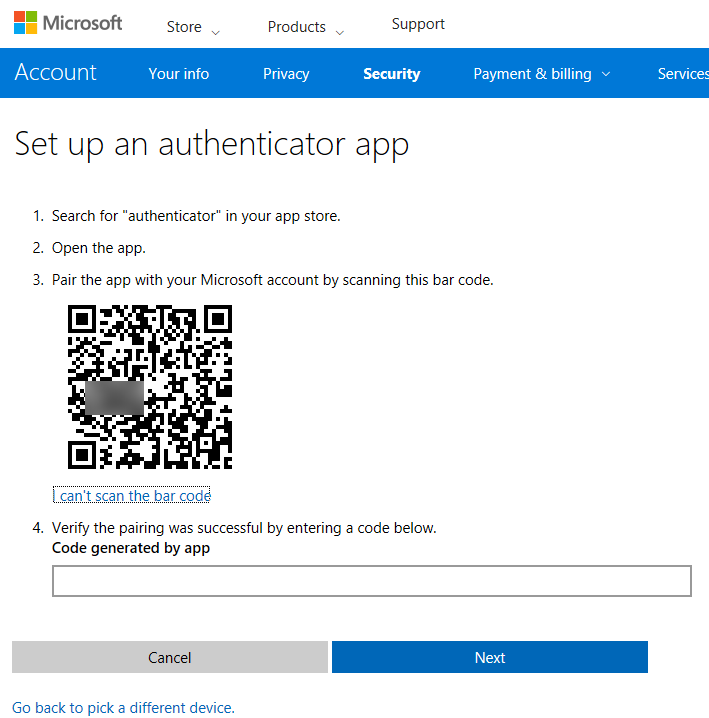
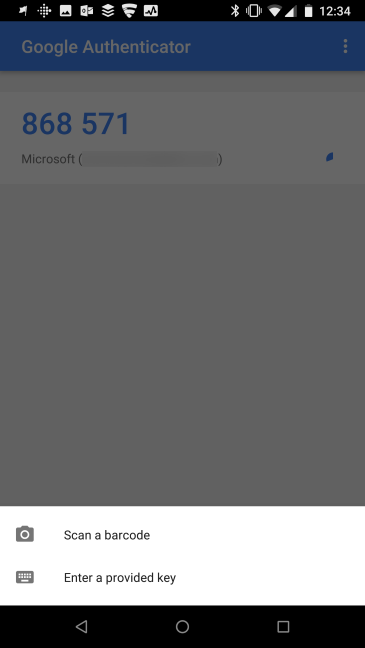
Now, go to your smartphone and open your favorite Authenticator app. We used Google Authenticator, but you can use other apps too. In the mobile app, press the button for adding a new account.
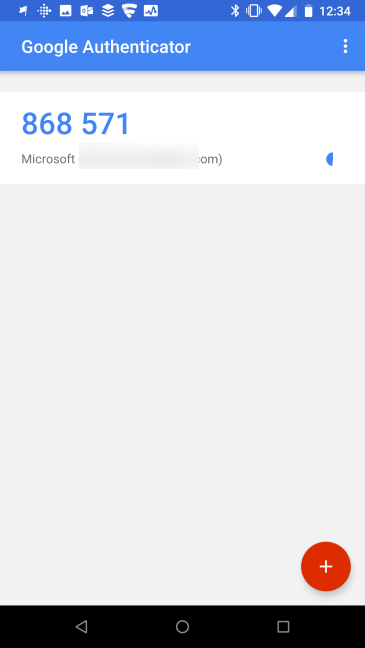
As soon as you do that, your Microsoft account is added to the Authenticator app. The app displays a two-step verification code. Go back to your computer and enter this code on the Microsoft page that you scanned with your smartphone. After entering the code, immediately press Next. You need to do this quickly, as two-step verification codes expire after 30 seconds.
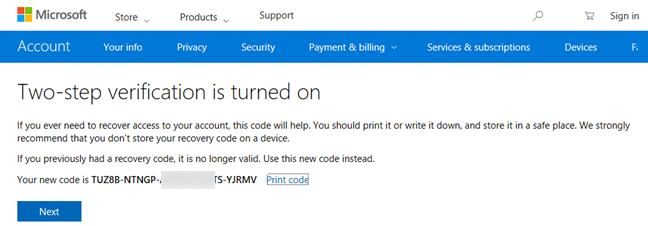
Two step-verification is now enabled for your Microsoft account, using your favorite mobile app for this task. However, Microsoft has not finished, and you are given a recovery code for your account. You should print it or write it down, and store it in a safe place. This recovery code is used to access your account when you cannot use two-step verification (your smartphone is broken, stolen, and so on). Then, press Next.
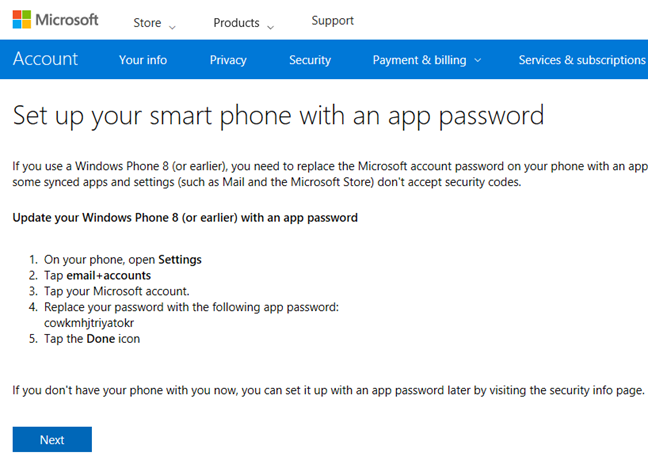
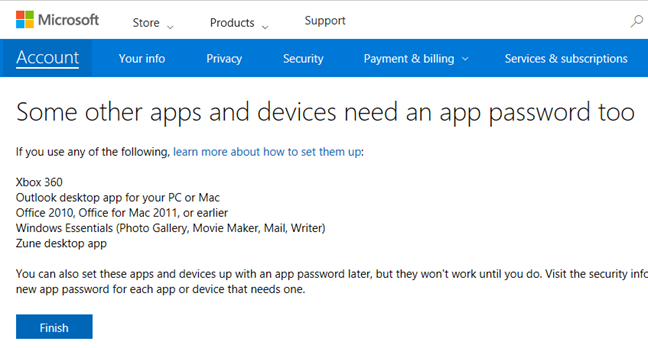
Afterwards, Microsoft tells you that, if you use Windows Phone 8 or earlier, you need an app password. If this information interests you, then read it. Otherwise, press Next.
You can now use two-step verification when authenticating into your Microsoft account, using your favorite mobile app for this task.
How to disable two-step verification for your Microsoft account
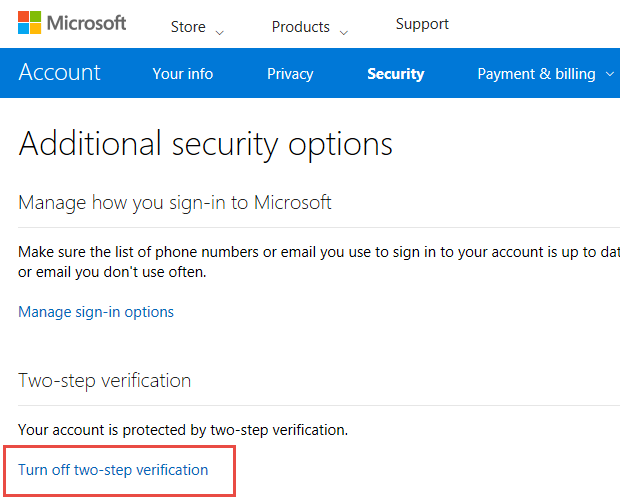
If you need to stop two-step verification, go to this page and sign in with your Microsoft account. You have to enter your email, your password, and your two-step verification code. After you have signed in, go to this link or click Security and then "more security options" as shown in Step 3 of this guide.
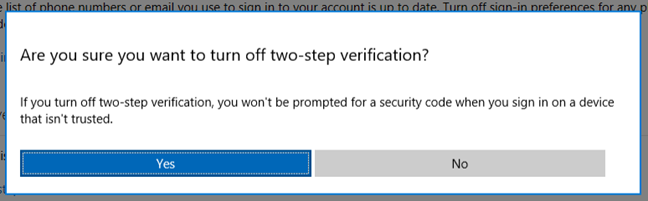
Now you see a link that says: "Turn off two-step verification." Click or tap on it.
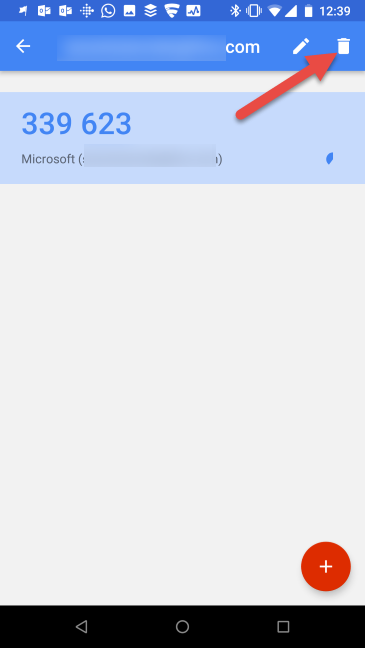
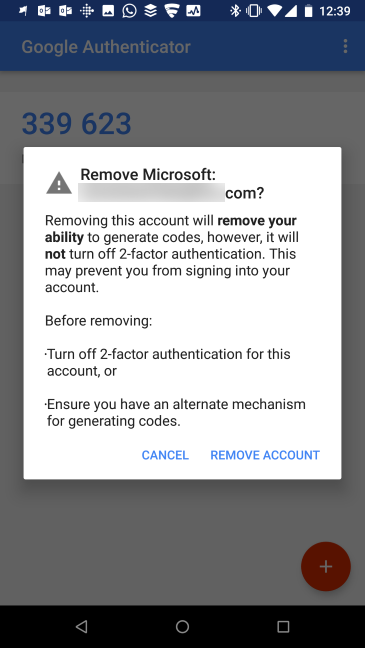
However, the Authenticator app that you are using still has your Microsoft account and generates codes for it. Go to your smartphone, start the Google Authenticator app (or a similar app that you are using). There, press and hold the Microsoft account for which you disabled two-step verification. Once the account is selected, press the Delete button.
The Authenticator app no longer generates two-step verification codes for your Microsoft account.
NOTE: It is vital that you remove the Microsoft account from the Authenticator app only after you disable two-step verification for your account. If you try to perform these steps in reverse, you will not be able to log into your Microsoft account, because you do not have the two-step verification code generated. In this case, the only way to recover your account is to use the recovery code generated at Step 4, in this guide.
What two-step verification app do you prefer?
Now you know how to set up two-step verification for your Microsoft account, using your favorite Authenticator app and not Microsoft Authenticator. Before you close this article, let us know what app you prefer for this task and why. Is it Google Authenticator or another mobile app?
Doesn’t seem to work anymore. they never gave me the ap option, they just asked about what I sync outlook with. Tried several times. Followed your steps. I did have Google authenticaor installed on this account previously, but had to update when I got a new cell phone.
Michelle ·
I have 2 step verification set up for my msn account. My msn account was deleted by my authenticator app. I have tried to reset my password on msn and it’s asking for code on authenticator. I am unable to retrieve. How do I fix this?
Erik ·
Your 2 factor barcode can still be scanned please for security blur all of it
Anonymous ·
Thanks for highlighting the problem.
MrZoolook ·
It can still be scanned. I think anyone wanting to know how to do this sort of thing will know what a QR code looks like. Probably no need to show nearly enough to scan correctly, and you can safely blur out a far greater proportion.
Not least because scanning reveals an e-mail address. I’d just paste a generated ‘congratulations’ message or something instead. Unless this is a dummy account anyway.
Roberta ·
Thank you so much, I was going around in circles trying to set up my account. I *never* would have guessed I needed to choose “other” instead of my device type!
Auth App - Big Mistake ·
Wish I had read this before I started using Microsoft’s Authenticator app.
My phone broke with said app on it. Couldn’t get the code when I tried to reset my password. Now my account is locked and it can take up to 30 days for Microsoft to verify who I am to let me back in.
Worst is that if you google issues with Microsoft Authenticator, you read stories of Microsoft telling people they can’t do anything to help unlock an account because they put in place the two step system with their Authenticator app. In other words, their saying, “Sucks to be you. Btw, make a new account with us!”
Yes, it is their only option other than trying to remember what your password is. Google is so much better.
gyzn ·
It sucks that Microsoft makes people believe they have to use their app by only giving that choice under “iPhone” and the others.. Thanks for your article, now I can keep using Google Authenticator.
Steven McDowell ·
Thank you. MS buried the option that allowed me to use Google Authenticator. Since this page was written, they made another change, removing the “Verify my identify with” … “An app”. Now the list box is not there, you must choose Other and proceed as you described. Thank you again!
Ciprian Adrian Rusen ·
Thanks for sharing this information. We will consider updating the article to reflect the latest changes.
PaulG ·
Thank you very much for this article. I was trying to switch from Google Authenticator to Authy, and was going round in circles. Microsoft insisted that I use its own app. Selecting ‘other’ instead of ‘iphone’ was the solution. Thanks again
Chuck ·
One BIG oversight from MS: when you turn on 2 factor authentication, it will BREAK Family Safety. ON a computer controlled with Family Safety, you cannot use your password anymore and there is no prompt to use the code from Google Authenticator.
Ciprian Adrian Rusen ·
That is indeed a big problem. Thanks for sharing this information.


















Discussion (13)
Doesn’t seem to work anymore. they never gave me the ap option, they just asked about what I sync outlook with. Tried several times. Followed your steps. I did have Google authenticaor installed on this account previously, but had to update when I got a new cell phone.
I have 2 step verification set up for my msn account. My msn account was deleted by my authenticator app. I have tried to reset my password on msn and it’s asking for code on authenticator. I am unable to retrieve. How do I fix this?
Your 2 factor barcode can still be scanned please for security blur all of it
Thanks for highlighting the problem.
It can still be scanned. I think anyone wanting to know how to do this sort of thing will know what a QR code looks like. Probably no need to show nearly enough to scan correctly, and you can safely blur out a far greater proportion.
Not least because scanning reveals an e-mail address. I’d just paste a generated ‘congratulations’ message or something instead. Unless this is a dummy account anyway.
Thank you so much, I was going around in circles trying to set up my account. I *never* would have guessed I needed to choose “other” instead of my device type!
Wish I had read this before I started using Microsoft’s Authenticator app.
My phone broke with said app on it. Couldn’t get the code when I tried to reset my password. Now my account is locked and it can take up to 30 days for Microsoft to verify who I am to let me back in.
Worst is that if you google issues with Microsoft Authenticator, you read stories of Microsoft telling people they can’t do anything to help unlock an account because they put in place the two step system with their Authenticator app. In other words, their saying, “Sucks to be you. Btw, make a new account with us!”
Yes, it is their only option other than trying to remember what your password is. Google is so much better.
It sucks that Microsoft makes people believe they have to use their app by only giving that choice under “iPhone” and the others.. Thanks for your article, now I can keep using Google Authenticator.
Thank you. MS buried the option that allowed me to use Google Authenticator. Since this page was written, they made another change, removing the “Verify my identify with” … “An app”. Now the list box is not there, you must choose Other and proceed as you described. Thank you again!
Thanks for sharing this information. We will consider updating the article to reflect the latest changes.
Thank you very much for this article. I was trying to switch from Google Authenticator to Authy, and was going round in circles. Microsoft insisted that I use its own app. Selecting ‘other’ instead of ‘iphone’ was the solution. Thanks again
One BIG oversight from MS: when you turn on 2 factor authentication, it will BREAK Family Safety. ON a computer controlled with Family Safety, you cannot use your password anymore and there is no prompt to use the code from Google Authenticator.
That is indeed a big problem. Thanks for sharing this information.
What Windows version are you using?