




If you’re wondering how to make a Discord account, the process is quick on web, desktop, and mobile. This guide shows you how to create a Discord account, verify it, add basic security, and start using servers and chats—without confusion or extra steps.
Step 1: Open Discord on Web, Desktop, or Mobile
At the time of writing, you can sign up from a browser, the Windows or macOS app, or the Android/iOS app. Using the web is fastest if you’re on a shared computer; using the app is best if you’ll stay logged in.
- Web: Go to the Discord website.
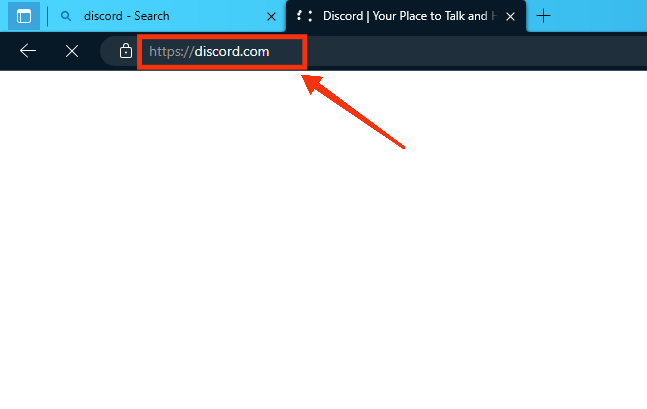
- Desktop (Windows/macOS): Install the app, launch it, and click Register.
- Mobile (Android/iPhone): Install the app, open it, and tap Register.
Step 2: Enter Your Registration Details
- Click Login at the top right corner of the platform.
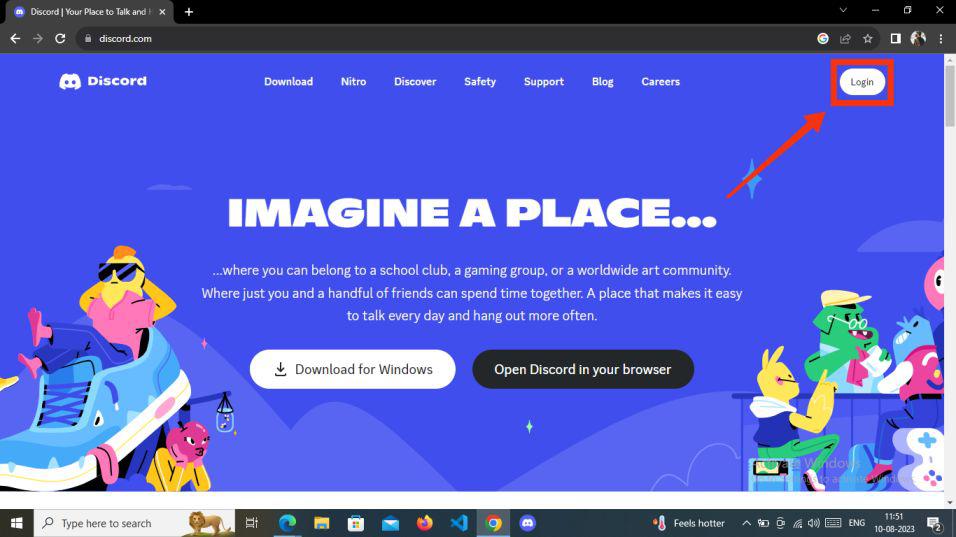
- Click Register on the bottom left of the welcome screen.

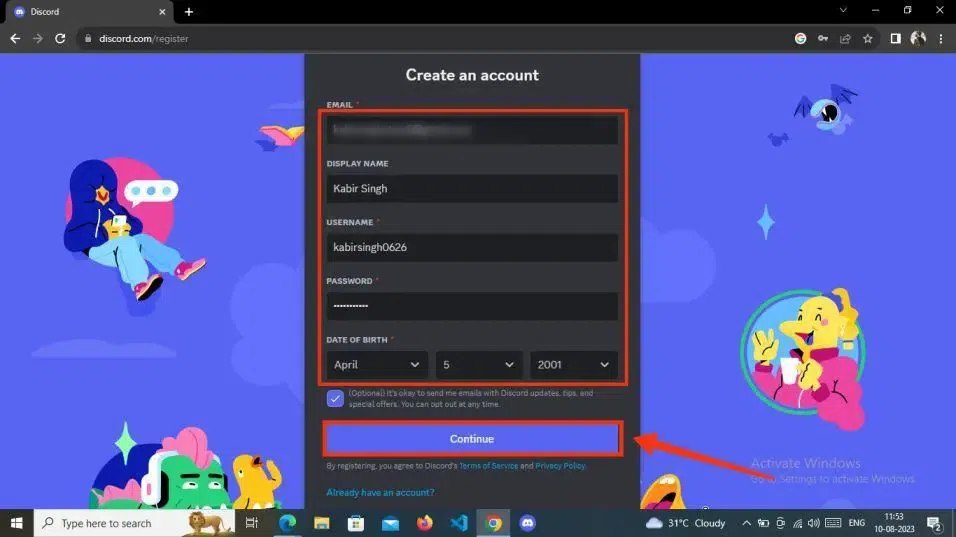
Fill in the necessary information:
- Type your email (or phone number) and a strong password.
- Add a display name people will see and a unique username.
- Select your date of birth to confirm age eligibility (Discord requires 13+ in many regions).
- Agree to the Terms and Privacy Policy, then choose Create Account.
Step 3: Verify Your Email or Phone
Discord sends a verification link (email) or a 6-digit code (SMS). Complete verification to unlock all features and keep your new Discord account secure.
- Click the link in your inbox to confirm.
- If you used SMS, enter the code in the app.
- Didn’t get it? Check spam, then request a new verification.
Step 4: Protect Your Account (Strongly Recommended)
Enable extra security right away so you don’t lose access later.
- Two-Factor Authentication (2FA): In User Settings > My Account, turn on 2FA via an authenticator app and save your backup codes.
- Privacy & Safety: In Privacy & Safety, review direct message scanning, friend request settings, and who can add you.
- Family Center (for teens): Parents can monitor activity if the account owner opts in.
Step 5: Get Started — Friends, Servers, and Profile
- Add friends: Use their Discord tag (username#1234) or the Add Friend button.
- Join or create a server: Click the + icon in the left sidebar to join public communities or start your own.
- Customize profile: Upload an avatar, add a bio, and set a status in User Settings.
Optional: Make a Second (Alt) Discord Account
If you need an alt for separate communities or work, repeat the sign-up using a different email or phone number. Then use Switch Accounts from your profile menu to toggle between profiles without logging out.
Troubleshooting: Common Sign-Up Issues
- No verification email: Check spam and filters; resend from My Account.
- “Rate limited” errors: Wait a few minutes before trying again.
- Username taken: Change the handle slightly; your display name can stay the same.
- Phone verification requested: It’s optional in most cases, but Discord may require it for security.
Summary
You’ve learned how to make a Discord account on any device: open Discord, complete registration, verify your email or phone, secure the account with 2FA, and start adding friends and servers. If you need a second profile, create an alt and use Switch Accounts to move between them.
FAQs
Can I sign up without a phone number? Yes. Phone verification is optional unless Discord flags the account for security.
What’s the minimum age? Discord is generally 13+, with higher limits in some regions. Check your local rules.
Do I need the app? No. You can use Discord in a browser, but the app is better for notifications and voice.
Can I change my username later? Yes, you can adjust your handle in My Account.


Discussion (0)
Be the first to comment.