




Logging into Discord via a browser is easy when you know the quickest methods. Whether you prefer to use your password, a QR code, or backup codes for two-factor authentication (2FA), this guide covers all three options and the fixes to apply if you run into issues.
Quick Start: 3 Fast Ways to Sign In
Here’s how to sign in quickly:
- Browser login: Go to the web login, enter email/phone and your password, then click Log In.
- QR login: Open the Discord app, scan the QR on your computer, and approve the login.
- Backup code: If you use 2FA and cannot access your authenticator, enter a saved backup code.
1) Log in with email or phone and password

Open the Discord login page in your browser and enter your Email or Phone number and Password. Now, click Log In and complete 2FA if prompted.
If you see “New device detected,” approve the verification email to continue.
2) Log in with a QR code

On the login page on your browser, wait for the QR code to appear. Open the Discord app on your phone and go to Profile → Scan QR. Point your phone’s camera at the QR code on your screen. Tap Approve on your phone to log in.
3) Use Passkeys
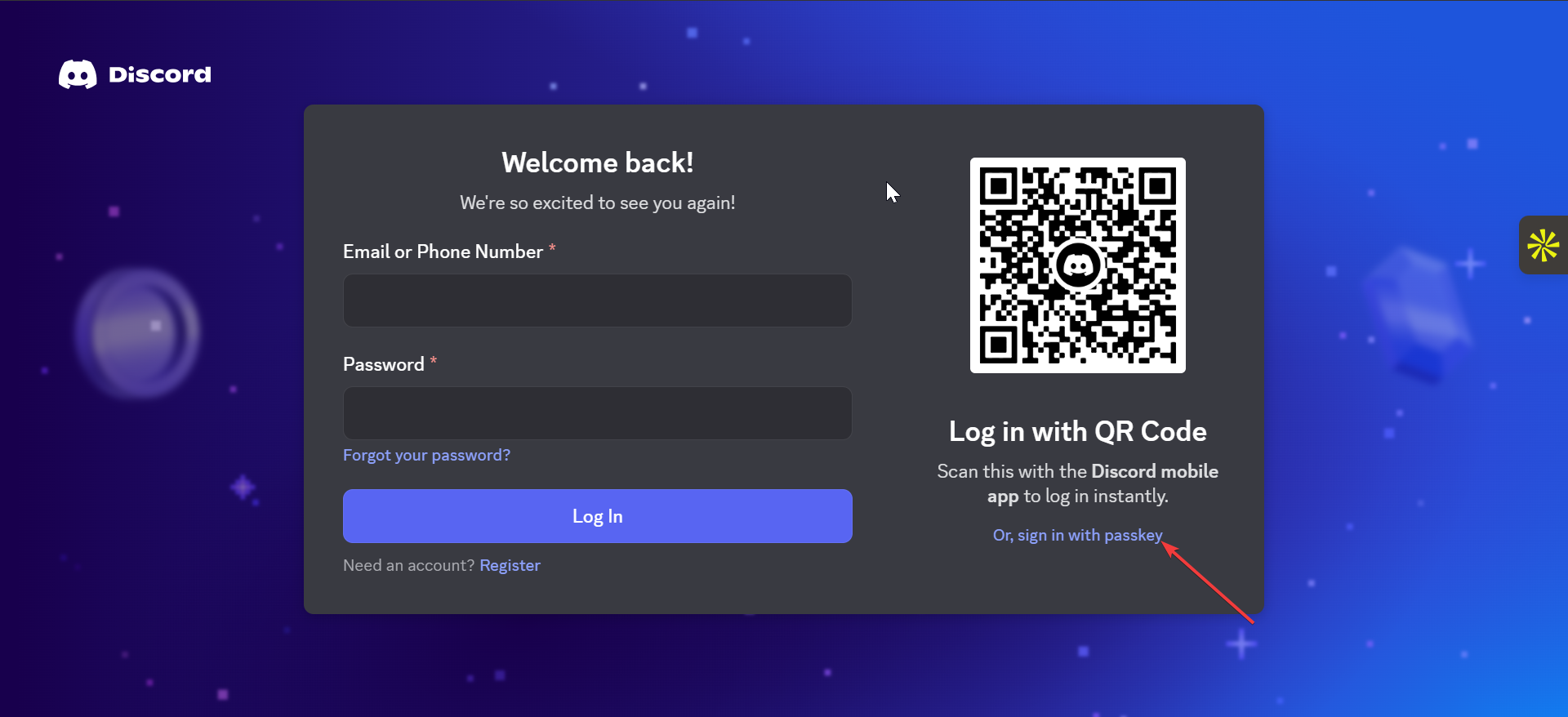
On the login page, click the Or, sign with passkey link under the QR code. Now, select your passkey storage method and enter the key. This grants you immediate access to your account.
4) Troubleshoot Discord login issues
- Stuck on CAPTCHA or login loop: Allow third-party cookies, disable blockers, clear site data, and reload the page.
- Blank page or infinite spinner: Hard refresh, clear site data, and try an incognito window to rule out extensions.
- QR code will not approve: Refresh the QR, confirm internet connection, and verify you’re signed into the correct account.
- Lost access to codes and authenticator: Use account recovery options or contact Discord support from a trusted device.
- QR will not scan: Increase your screen brightness, clean the camera lens, and reload the page. Ensure your phone is connected to the internet.
- Forgot your password: Click Forgot password to reset it. Check your inbox and spam folder for the reset link.
Tips for logging into Discord on a browser
- Use QR when you have your phone. It’s the fastest method.
- Turn off blockers during login, then re-enable them.
- Store backup codes safely for emergencies.
- Stay safe. Verify the URL, enable 2FA, and avoid phishing.
FAQs
Can I stay signed in on multiple browsers? Yes. Each browser keeps its own session. For shared devices, do not enable Remember me.
Why do I see "new device detected"? Discord is confirming your identity. Approve the verification email to continue.
Can I log in without email access? You must have access to your email for password resets and device approvals. Keep recovery details up to date.
Is the web version missing features? While core chat functions work in the browser, desktop apps offer a better experience for voice or video features.
What can I do if Discord is blocked at work or school? Try another network or change DNS, but ensure to stay compliant.
Summary
- Sign in using Browser, QR, or Backup code.
- If stuck, clear cookies, clear site data, or use a private window.
- Try another connection if Discord is blocked on a restricted network.
- Enable 2FA and store backup codes once logged in.
Conclusion
Start with the fastest method - QR or saved credentials. Apply browser-specific fixes, try a private window, and enable 2FA to secure your account.
Discussion (0)
Be the first to comment.