




ITVX is ITV’s updated streaming service that replaced the old ITV Hub app. At the time of writing, most Smart TVs support ITVX directly through the built-in app store, making it easy to stream shows, live channels, and full ITV box sets on the big screen.
This guide explains how to get ITVX on your Smart TV, how to install it on major brands, how to sign in with the pairing code, and how to troubleshoot common issues such as the app not appearing or not loading. Whether you want to stream live ITV, binge box sets, or catch up on missed episodes, these steps help you set up the app quickly.
If you previously used ITV Hub, you’ll now install the ITVX app instead, since ITV Hub is no longer supported on Smart TVs.
Requirements For ITVX On Smart TV
Most modern Smart TVs support ITVX, but your device must meet a few basic requirements before you can install the app.
- A Smart TV with app store access (Samsung Tizen, LG webOS, Android TV, Google TV, Hisense VIDAA, and most newer models).
- A stable internet connection for smooth streaming.
- Updated TV firmware, since older software versions may hide or block the ITVX app.
- A remote control or Smart TV keyboard to search and navigate the ITVX interface.
- A UK region setting on your TV; ITVX does not appear when the TV is set to a non-UK region.
If your TV meets these requirements, you can download ITVX from your TV’s app store.
How To Download The ITVX App On Smart TV
You can install ITVX directly from your Smart TV’s built-in app store. The steps below apply to most major TV brands.
- Turn on your Smart TV and open the app store (Samsung Apps, LG Content Store, Google Play Store, or the Apps section).

- Use the search bar to type ITVX.
- Select the ITVX app from the search results.
- Choose the Install or Download option.
- Wait for the installation to finish.
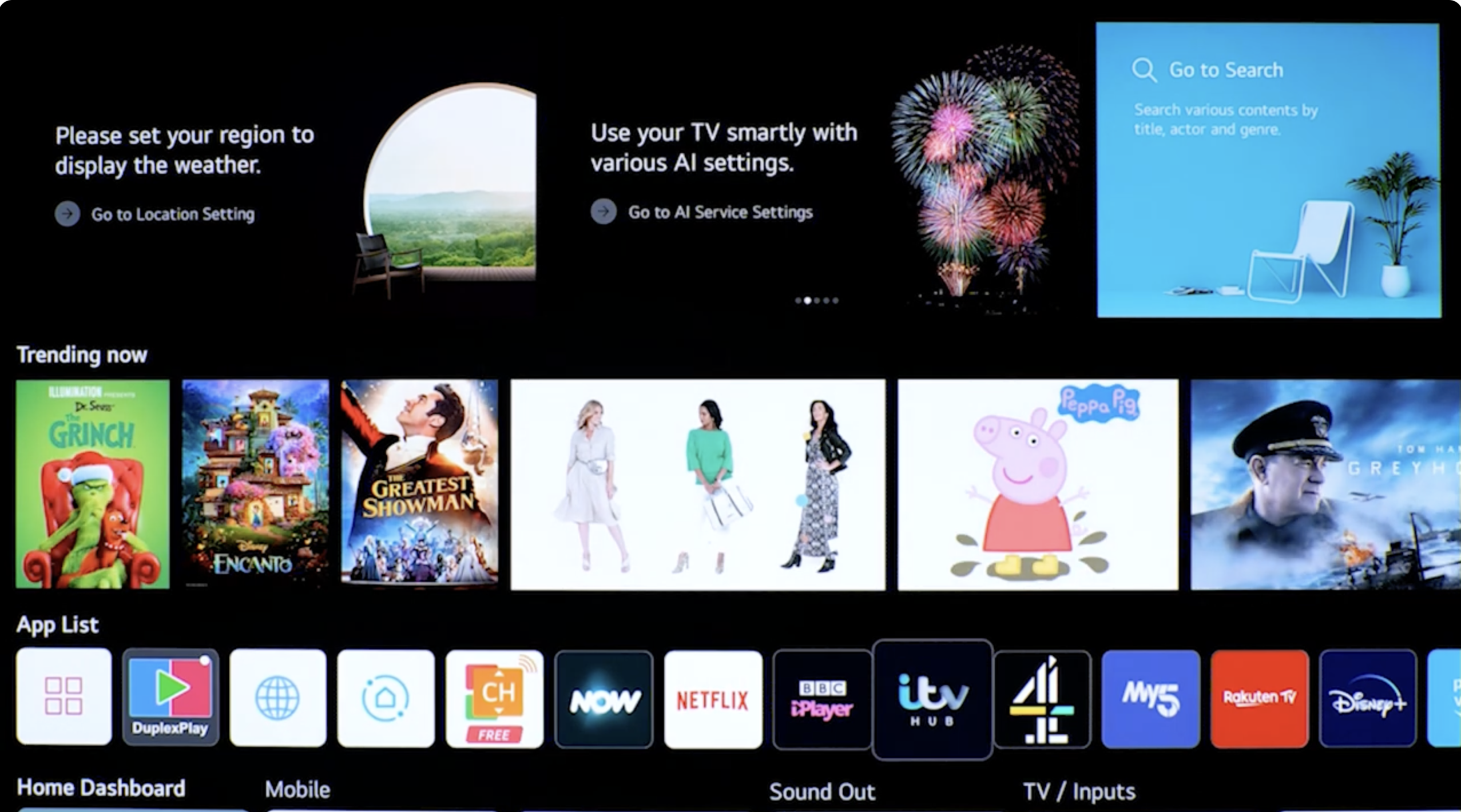
- Return to your home screen and open the newly installed ITVX app.

If ITVX doesn’t appear in your app store, your TV may be an older model or may require a region change to the UK. You can still access ITVX through a streaming device such as Roku, Fire TV Stick, Apple TV, or Chromecast.
How To Install ITVX On Samsung Smart TV
Samsung Smart TVs running Tizen OS support ITVX through the Apps menu.
- Press Home on your Samsung remote.
- Go to Apps.
- Search for ITVX.
- Select the app and choose Install.
- Open ITVX from your home screen once installation finishes.
How To Install ITVX On LG Smart TV
ITVX is available on almost all LG webOS models.
- Press Home and open the LG Content Store.
- Type ITVX into the search box.
- Select the app and choose Install.
- Launch ITVX from your apps list.
How To Install ITVX On Android TV or Google TV
Android TV and Google TV models add ITVX through the Google Play Store.
- Open the Google Play Store on your TV.
- Search for ITVX.
- Select the ITVX app and choose Install.
- Open ITVX from the app list once installation completes.
How To Sign In To ITVX On Smart TV
Most ITVX Smart TV apps use a pairing code system to link your account.
- Open the ITVX app on your Smart TV.
- Choose Sign In or select any show to trigger the sign-in prompt.
- Your TV will display a six-digit pairing code.
- On your phone or laptop, visit the ITVX sign-in page.
- Enter the code shown on your TV and confirm.
- Your ITVX account will sync automatically, unlocking all available content.
Once paired, your Smart TV stays signed in unless you reset the app or clear your TV’s data.
How To Navigate ITVX On Smart TV
After signing in, you can browse ITVX content directly from the home screen.
- Browse curated sections such as Recommended, New, Live TV, Movies, and Box Sets.
- Use the search option to find specific ITV shows.
- Select a title to open its show page.
- Choose an episode and press Play.
- Add titles to your watchlist for quick access.
- Use the remote to pause, rewind, or adjust playback settings.
ITVX automatically syncs your progress across devices when you are signed in.
Troubleshooting ITVX Issues On Smart TV
If the ITVX app doesn’t work properly, these fixes resolve most common problems.
- App Not Showing: Update your TV firmware and ensure your region is set to the UK.
- Buffering or Lag: Check your internet speed or restart your router.
- App Crashing: Clear the app cache or reinstall ITVX.
- Login Issues: Verify your password or use the pairing code method instead of typing credentials manually.
- Missing Episodes: ITVX rotates content based on licensing, so some shows may not be available.
- Poor Picture Quality: Improve your Wi-Fi signal or reduce congestion on your network.
Conclusion
Setting up ITVX on your Smart TV only takes a few steps, and once installed, you can stream ITV shows, live channels, and exclusive box sets on the big screen. Since ITVX replaces the older ITV Hub app, make sure your TV is running the latest software and supports UK apps. With the app installed and your account paired, you can enjoy a fast, seamless streaming experience across all your devices.


Discussion (0)
Be the first to comment.