



Connecting your laptop to a Samsung Smart TV has become easier with the transition from Allshare to the SmartThings app. SmartThings allows you to wirelessly sync devices, stream content, and mirror your screen without cables. Whether you’re looking to stream media from your laptop or mirror content from your phone to your TV, SmartThings offers a streamlined experience.
In this guide, we will walk you through how to connect your Samsung Smart TV to the SmartThings app on your phone, sync your laptop, and enjoy seamless media sharing and screen mirroring.
Before you begin, ensure the following requirements:
- A laptop connected to the same Wi-Fi network as your Samsung Smart TV
- The SmartThings app installed on your smartphone (available for both iOS and Android)
- Both devices signed into the same Samsung account
Let’s get started with the steps to connect your laptop to your Samsung Smart TV using SmartThings.
What is SmartThings?
SmartThings is Samsung's all-in-one app for controlling and managing smart devices within your home. It replaces the older Allshare app and provides a seamless experience for syncing and controlling Samsung devices like your TV, phone, and laptop.
With SmartThings, you can easily stream media from your laptop to your Samsung TV and mirror your phone's screen for sharing content. By using the app, you ensure that all devices on your home network are connected, making it simple to control your multimedia experience from one platform.
Requirements for Connecting Laptop to Samsung Smart TV Using SmartThings
Before proceeding with the connection process, you need the following:
- A Laptop Connected to the Same Wi-Fi Network: Ensure that both your laptop and Samsung Smart TV are on the same Wi-Fi network.
- SmartThings App: Install the SmartThings app on your smartphone and log into your Samsung account.
- Smart TV Signed Into the Same Samsung Account: Make sure your Samsung Smart TV is signed into the same Samsung account as your phone.
Once these requirements are met, you can begin the process of connecting your laptop to the Samsung Smart TV.
Step 1: Connect Your Devices to the Same Wi-Fi Network
Before you can start using SmartThings, both your laptop and Samsung Smart TV need to be connected to the same Wi-Fi network. Here’s how to check and connect them:
- Turn On Your Samsung Smart TV: Use your remote to power on the TV.
- Check TV Network Settings: Navigate to the “Settings” menu on the TV, then go to the “Network” section and ensure that it’s connected to your Wi-Fi network.
- Connect Laptop to Wi-Fi: On your laptop, confirm it is connected to the same Wi-Fi network as your TV.
With both devices connected to the same network, you can now proceed with setting up SmartThings.
Step 2: Set Up SmartThings on Your Smartphone
To connect your Samsung Smart TV to SmartThings, you’ll need to use the app on your smartphone. Here’s how:
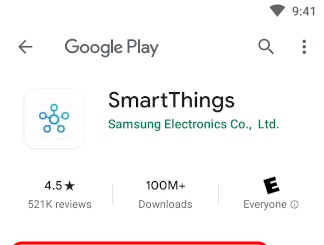
- Download SmartThings: If you haven’t already, download and install the SmartThings app from your app store (available for both Android and iOS).
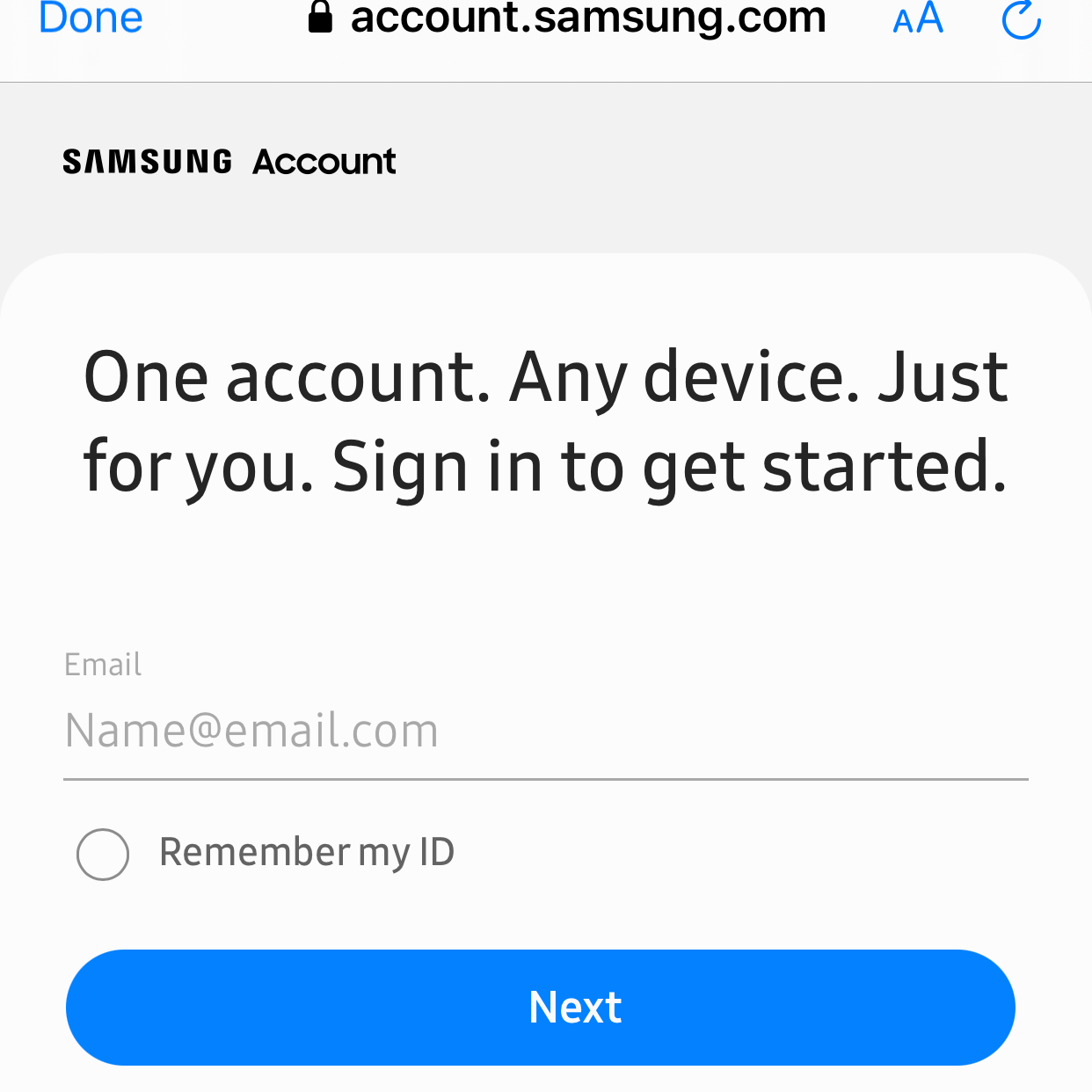
- Log Into Samsung Account: Open the app and sign in using your Samsung account.
- Select the Device Tab: Tap the “Device” tab on the app’s home screen, then select the location where you want to add your TV.
- Add Your TV: Tap the plus sign (+) to add a device, then select “TV” under the "By device type" tab, and choose “Samsung.”
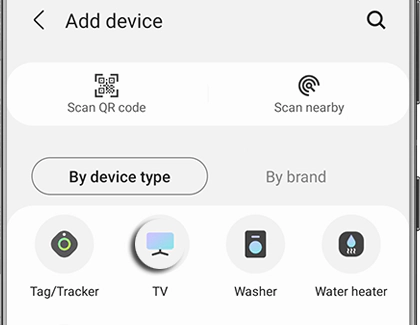
Once your TV is detected by the app, follow the on-screen instructions to add it to the SmartThings app.
Step 3: Pairing Your TV with SmartThings
Now that your TV is selected in SmartThings, follow these steps to complete the connection:
- 2020-2023+ Models: Use the remote to select “OK” on the TV screen to confirm the connection.
- 2017-2019 Models: Input the PIN shown on the TV screen into the SmartThings app and tap “Done.”
- 2016 Models: Use the remote to select “Allow” when prompted on the TV screen.
After completing these steps, the TV will be added to your SmartThings app. You can now rename the device if needed and proceed to enjoy wireless media sharing.
Step 4: Stream Media from Laptop to TV Using SmartThings
Once your TV is connected to the SmartThings app, you can start streaming media from your laptop:
- Open SmartThings App: On your smartphone, launch the SmartThings app.
- Select Your TV: Tap on the TV in your device list.
- Choose Media to Share: Tap on the media sharing option to stream photos, videos, or music from your laptop to your Samsung Smart TV.
- Start Streaming: Once selected, press “Play” to start streaming content to your TV.
Enjoy your media on the big screen with SmartThings, which allows for effortless sharing across your devices.
Step 5: Mirror Your Phone’s Screen to Samsung TV
If you want to mirror your phone’s screen to the Samsung Smart TV, follow these steps:
- Enable Screen Mirroring: On your phone, swipe down to access the Quick Settings and tap “Smart View” or “Screen Mirroring.”
- Select Your TV: Choose your Samsung Smart TV from the list of available devices.
- Start Mirroring: Once connected, your phone’s screen will be mirrored on your TV.
Now you can share your phone’s content, such as videos, apps, or presentations, on a larger screen using the screen mirroring feature.
Troubleshooting Common Issues
If you face any issues while connecting, try these troubleshooting tips:
- Ensure both your TV and laptop are on the same Wi-Fi network.
- Check that your SmartThings app and TV firmware are up to date.
- Restart both your laptop and TV to reset the connection.
- If screen mirroring isn’t working, ensure the feature is enabled on your phone.
Conclusion
Connecting your laptop to a Samsung Smart TV using SmartThings is an easy process that enhances your viewing experience. Whether you’re streaming media from your laptop or mirroring your phone’s screen, SmartThings simplifies the connection. Just ensure both devices are connected to the same Wi-Fi network and that your SmartThings app is set up properly.
Start using SmartThings today and enjoy a smooth, wireless connection between your devices!

Discussion (0)
Be the first to comment.