




If you want more streaming options than Vizio SmartCast provides, learning how to get Roku on Vizio Smart TV is the way to go. Roku opens access to thousands of free and paid apps, giving your TV a cleaner interface and faster performance for everyday streaming.
WHY ADD ROKU TO YOUR VIZIO SMART TV
Vizio Smart TVs run SmartCast, which limits app installations. By connecting Roku to your Vizio Smart TV, you unlock the full Roku experience, streaming apps like Netflix, Disney+, Hulu, and live channels from one simple interface. It’s fast, stable, and supports 4K on compatible models.
Roku also includes dedicated remotes, voice control, and universal search across apps, making it easier to find shows compared to SmartCast navigation.
METHOD 1: CONNECT ROKU VIA HDMI PORT
The simplest method to use Roku on Vizio Smart TV is by connecting an external Roku device (like Roku Express, Roku Streaming Stick, or Roku Ultra) through an HDMI port.
- Plug the Roku device into an open HDMI port on your Vizio Smart TV.
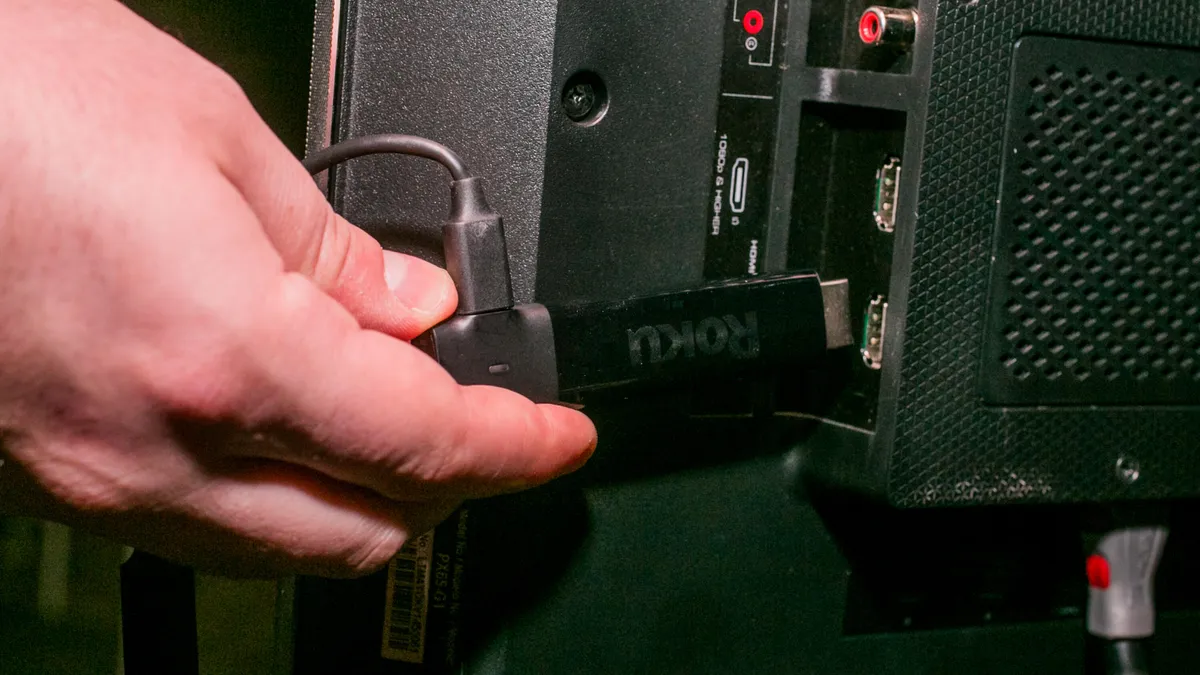
- Connect the Roku’s power cable to a wall outlet or USB port on your TV.
- Turn on your Vizio Smart TV and press Input on your remote.
- Select the HDMI input that matches the port used for Roku.
- Insert batteries into the Roku remote and follow the on-screen setup instructions.
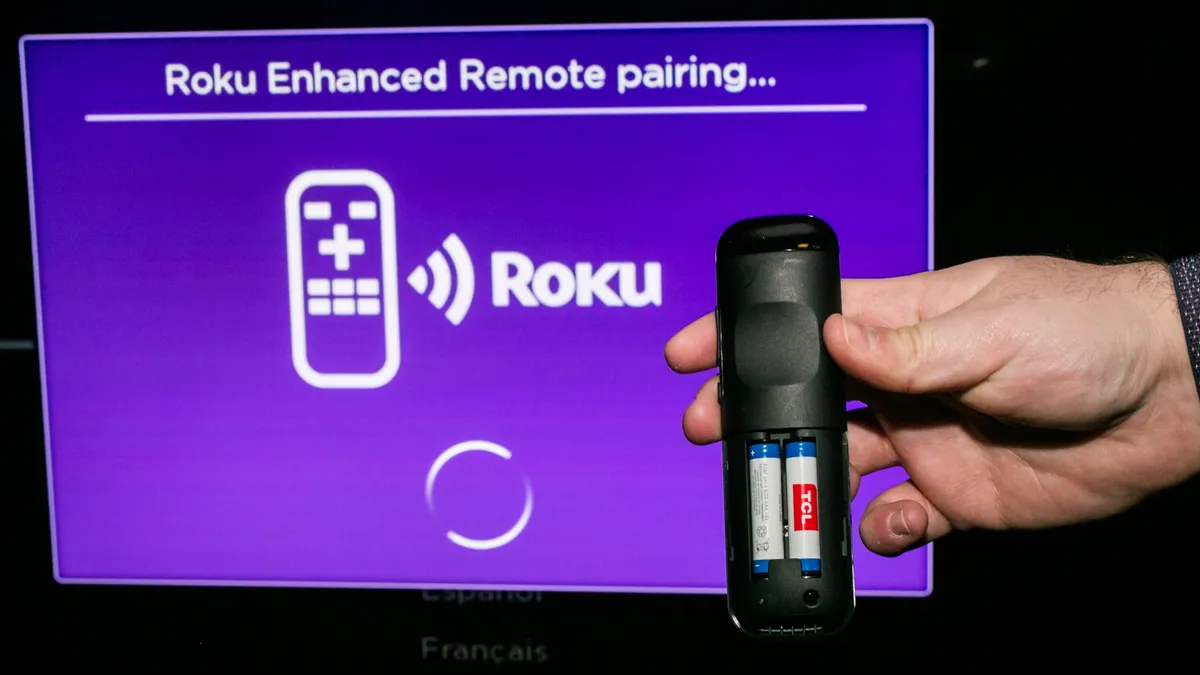
- Connect to Wi-Fi and sign in or create a Roku account.
Once setup completes, you’ll see the Roku home screen. You can now browse and install apps directly from the Roku Channel Store.
METHOD 2: USE THE ROKU CHANNEL APP
If you prefer not to connect extra hardware, you can access Roku content through the Roku Channel app available on some Vizio Smart TVs running SmartCast.
- Press the V button on your Vizio remote to open SmartCast.
- Go to the Apps section and search for The Roku Channel.
- Select and install the app.
- Open it and sign in with your Roku account.
- Start streaming free or premium Roku content directly on your Vizio Smart TV.
Note: this method doesn’t replace SmartCast with Roku OS; it only provides access to Roku’s free movies and shows within the Vizio interface.
METHOD 3: SCREEN MIRROR ROKU ONTO YOUR VIZIO TV
You can also use screen mirroring to project content from a Roku device or smartphone onto your Vizio Smart TV.
- Connect both your Roku device (or phone) and Vizio Smart TV to the same Wi-Fi network.
- On Roku, go to Settings → System → Screen Mirroring and enable mirroring.
- On your TV, choose Input → Screen Mirroring.
- On your phone or PC, select your Vizio TV from the list of available devices.
- Approve the connection and start casting or mirroring content.
This method works best for occasional streaming or sharing mobile content without installing new apps.
METHOD 4: SET UP A ROKU STREAMING STICK
Roku Streaming Stick devices are ideal if your Vizio TV is mounted and you prefer a compact setup. Here’s how to connect:
- Insert the Roku Streaming Stick directly into an HDMI port.
- Plug the USB power cable into your TV or wall outlet.
- Switch to the correct HDMI input.
- Follow on-screen prompts to connect to Wi-Fi and complete setup.
The Roku Stick draws power through the TV’s USB port and stays hidden behind your Vizio TV, creating a clutter-free installation.
TROUBLESHOOTING CONNECTION ISSUES
- No HDMI signal? Try another port or reseat the Roku stick firmly.
- Roku not powering on? Use the included power adapter instead of TV USB power.
- Lag or freezing? Check Wi-Fi strength or restart both devices.
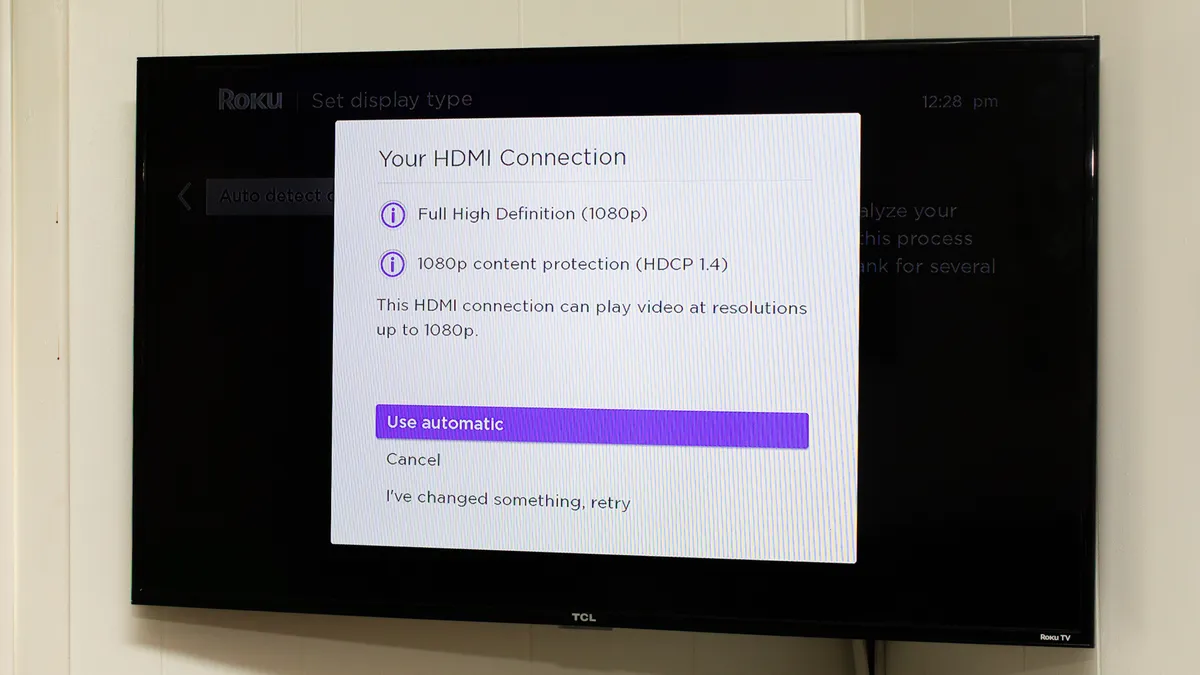
- Missing Roku Channel? Update SmartCast firmware or reinstall the app. After updating, your Roku will ask you to detect the type of Smart TV you have.
FAQS
Can you download Roku OS on a Vizio TV?
No. Vizio TVs use SmartCast OS, so Roku can’t be installed directly. You can only connect or stream it externally.
Which Roku is best for a Vizio Smart TV?
Roku Express and Streaming Stick 4K are popular for their compact size and 4K streaming support.
Does every Vizio TV support Roku?
Yes, as long as it has at least one HDMI port that supports 720p or higher resolution.
SUMMARY
- Connect Roku via HDMI for full functionality.
- Use The Roku Channel app for limited access within SmartCast.
- Try screen mirroring for wireless viewing.
- Streaming Sticks offer compact setups for wall-mounted TVs.
CONCLUSION
Knowing how to get Roku on Vizio Smart TV helps you unlock far more content and better performance than SmartCast alone. Whether you connect a Roku device through HDMI, install The Roku Channel app, or use screen mirroring, the setup takes just minutes and instantly enhances your streaming experience.


Discussion (1)
My Roku stick is plugged into a working HDMI port on my new Visio Smart TV. It does show the Roku is plugged into but the only thing playing in the Roku advertisement. Any ideas?