




Roku TV delivers a great streaming experience, but it doesn’t come with a built-in browser. If you want to get a web browser on Roku TV to surf the internet, check emails, or access sites not available through Roku channels, you can still make it happen. This guide explains three reliable methods that let you browse the internet on Roku TV easily, without needing to switch devices.
Roku OS was designed primarily for streaming entertainment. That’s why there’s no native internet browser on Roku TV. The operating system focuses on performance and simplicity instead of loading full web-rendering components like Chrome or Firefox.
As confirmed on the Roku Community, Roku removed most private browser channels over time. You’ll need a workaround to access the web, such as mirroring, using a third-party app, or attaching an external device.
Method 1: Use Screen Mirroring or Casting
This is the easiest way to get a web browser on Roku TV. By mirroring your phone, tablet, or PC screen, you can project your browser onto the TV. It’s compatible with Android, iOS, Windows, and macOS devices.
- Connect your Roku TV and device to the same Wi-Fi network.
- On Android: open Quick Settings → tap Cast or Smart View → select your Roku TV.
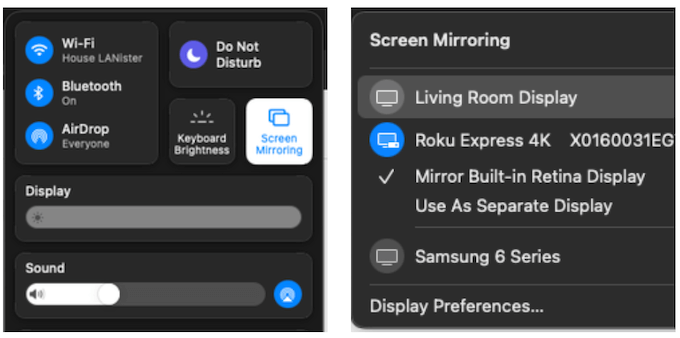
- On iPhone or iPad: open Control Center → tap Screen Mirroring → choose your Roku TV.
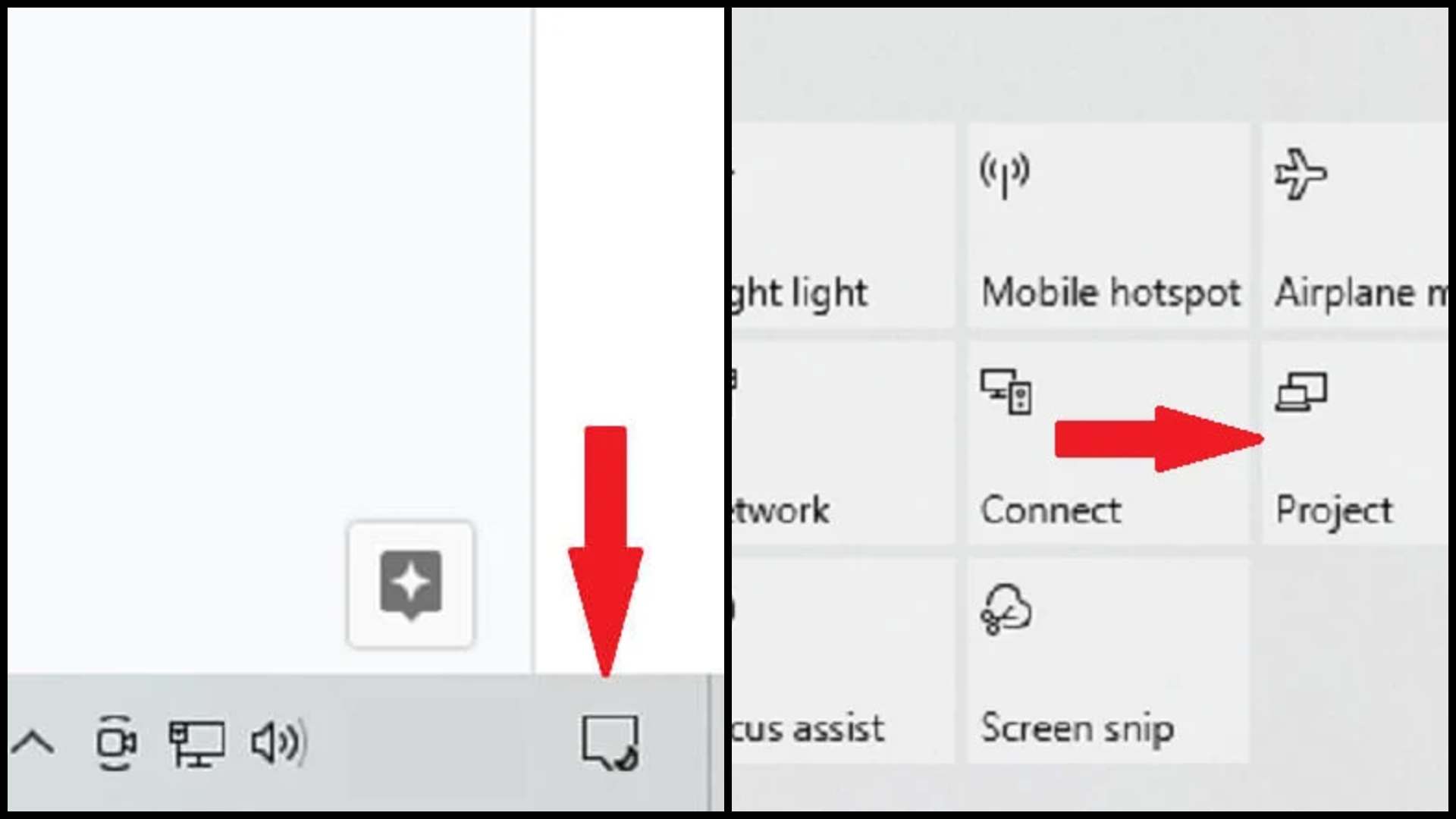
On Windows: press Windows, click the Notifications tab, choose Project.
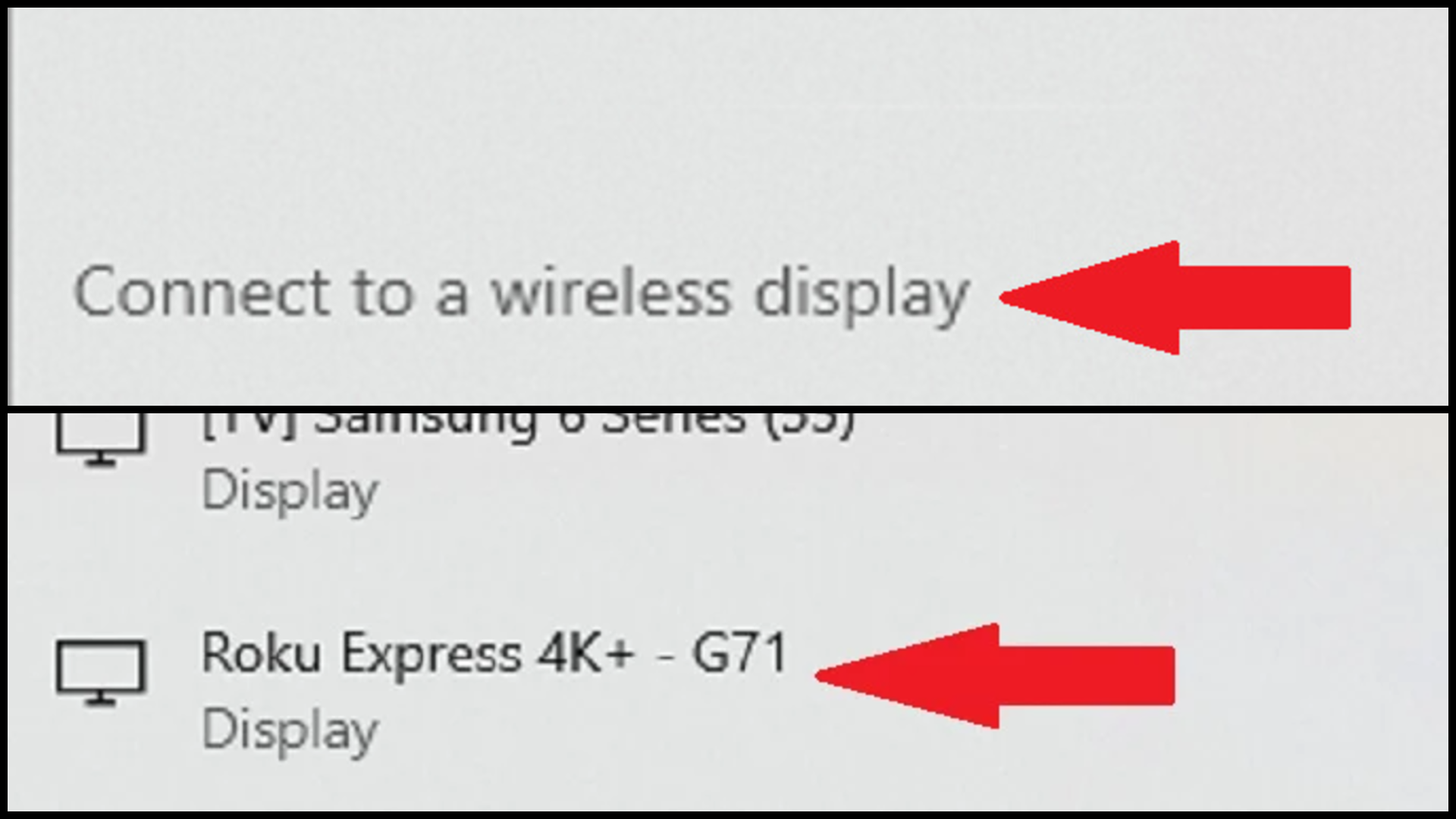
Click Duplicate, then Connect to a wireless display, and then select your Roku TV.
On Mac: click the AirPlay icon → select Roku TV → open Safari or Chrome to start browsing.
This method mirrors everything on your device, including your web browser. It’s the most stable option for browsing on a large screen and works with any modern browser, including Chrome, Safari, and Edge.
Method 2: Install a Third-Party Web Browser App
Even though Roku lacks a built-in browser, you can install limited third-party apps that function as browsers. The Roku Channel Store lists options like Fast Internet Browser, Web Browser X, and POPRISM Browser. These allow you to browse the web on Roku directly using your remote.
- Go to the Roku Channel Store on your TV.
- Search for “Fast Internet Browser” or “Web Browser X.”
- Install your preferred browser app.
- Launch it from your Roku Home screen.
- Use the arrow keys on your remote to navigate or type URLs.
These apps provide basic browsing functions but can’t handle advanced media sites or dynamic content. If you just need to check text-based sites or simple pages, they get the job done.
Method 3: Use a Casting or Streaming Device
Adding a casting device such as Google Chromecast, Amazon Fire TV Stick, or Android TV stick is another way to get a web browser on Roku TV. These devices include full browsers like Chrome, Firefox, or Silk.
- Plug your streaming stick into an available HDMI port on Roku TV.
- Switch the TV input to that HDMI source.
- Install a browser on the external device (Chrome, Silk, or Firefox).
- Browse normally; the Roku TV displays the output from the casting stick.
This method delivers a complete browsing experience since the connected device handles rendering. It’s ideal if you often need full web access, not just simple site viewing.
Best Option for Most Users
If you only need occasional browsing, screen mirroring is the simplest. If you prefer to control everything with your Roku remote, try a Roku web browser app. For a full-featured experience, adding a casting stick like Chromecast is the best way to get a web browser on Roku TV.
Conclusion
While Roku doesn’t include a native browser, it’s still possible to browse the internet on Roku TV using one of these methods. Screen mirroring offers quick results, third-party apps bring limited browsing, and external casting devices unlock full functionality. Pick what matches your needs — and enjoy web access directly on your Roku TV.


Discussion (0)
Be the first to comment.