




Losing the Google Chrome icon slows you down, especially when you want quick access to your browser. The icon can disappear after updates, profile resets, or accidental cleanup. This guide shows the fastest ways to add Chrome back to your desktop on Windows or macOS.
1) Basic ways to add the Chrome icon on Windows 11
Windows 11 includes multiple ways to restore the Chrome icon. These steps use current Start menu labels and work for most users.
Drag Chrome from the Start menu to your desktop
Open the Start menu and select All apps. Scroll to Google Chrome. Drag it onto your desktop to create a new shortcut. This method works without any settings changes.

Use Open file location to create a direct shortcut
Open Start, search for Google Chrome, and choose Open file location. Right-click the Chrome shortcut in File Explorer and select Send to > Desktop (create shortcut). This creates a reliable shortcut based on the actual Chrome installation.

2) Other reliable Windows 11 and Windows 10 methods
These approaches help when the Start menu entry is missing or Chrome is installed in a custom directory.
Create a shortcut manually from File Explorer
Open File Explorer and go to: C:\Program Files\Google\Chrome\Application\
Right-click chrome.exe, select Show more options, then Create shortcut. Move the shortcut to your desktop.
Restore the icon using Desktop icon settings
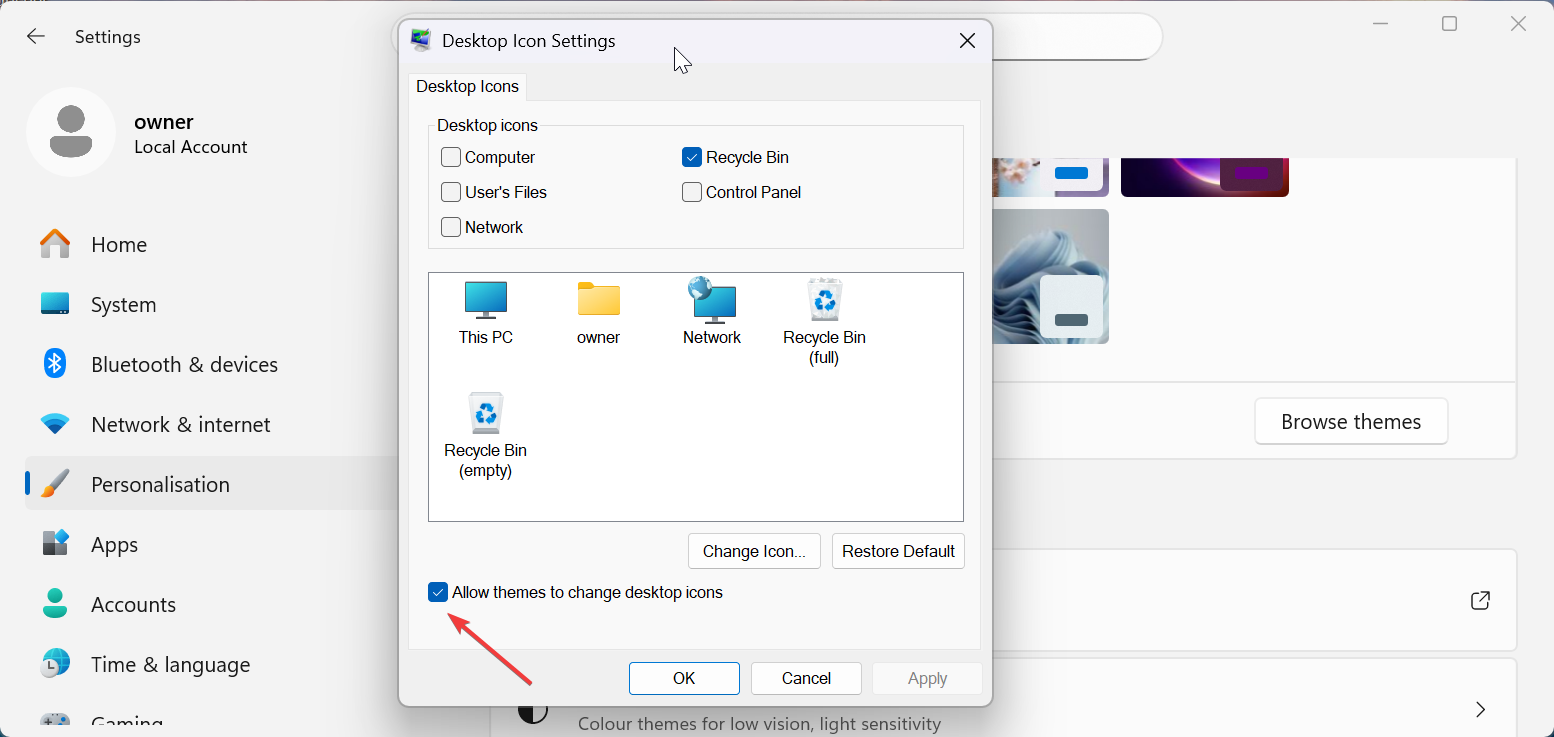
Right-click your desktop, choose Personalize, then Themes. Select Desktop icon settings. Toggle Allow themes to change desktop icons off if Chrome disappears after theme changes.
Pin Chrome to the taskbar or Start (alternative access)
Some users prefer quick access without desktop clutter. Right-click Google Chrome in Start and choose Pin to Start or Pin to taskbar. This ensures fast access even without a desktop shortcut.

3) Add the Google Chrome icon on macOS
macOS handles shortcuts differently, but you can still create a Chrome alias or pin the browser for quick access.
Create a desktop alias from the Applications folder
Open Finder and go to Applications. Right-click Google Chrome and choose Make Alias. Drag the alias to your desktop for one-click access.
Pin Chrome permanently to the Dock
Open Chrome, then right-click its Dock icon. Choose Options > Keep in Dock. This gives you a consistent quick-launch option similar to a desktop shortcut.
4) Use Chrome’s built-in feature to create website shortcuts
Chrome can generate shortcuts for individual websites. Open the site, select Menu > Cast, save, share > Create shortcut, and place it on your desktop. This helps when users want a Chrome icon for a specific site instead of the browser itself.

5) Troubleshooting the Chrome icon missing or not showing
If the icon still does not appear, your system may have a corrupted cache or Chrome installation.
- Rebuild the Windows icon cache: Press Windows + R, open cmd, and run:
ie4uinit.exe -ClearIconCache. Restart your PC to rebuild the icon cache. This works when icons appear blank or incorrect. - Repair or reinstall Google Chrome: If Chrome does not appear in Start > All apps, reinstalling can restore the correct shortcut. Remove the app on Windows by going to Settings > Apps > Chrome > Uninstall, then install it again through the standard installer.
Quick tips for managing desktop shortcuts
- Keep shortcuts organized in folders if you use multiple browsers
- Rename your Chrome shortcut for easier identification
- Avoid enabling settings that hide desktop icons.
FAQs
Why doesn’t Chrome appear in my Start menu? Your Windows profile may have refreshed, or Chrome may have been installed without Start menu entries. Reinstalling usually restores the shortcut.
Where is Chrome installed on Windows? Most systems store Chrome at C:\Program Files\Google\Chrome\Application\. Custom installations may use the AppData folder instead.
Can I move the Chrome shortcut to another folder? Yes, you can move any shortcut, including your Chrome icon, to any folder or drive.
Why does the Chrome icon look blank? Your icon cache may be corrupted. Rebuilding it restores proper icons on the desktop and Start menu.
Summary
- Drag Chrome from the Start menu to create a shortcut.
- Use Open file location for a stable desktop icon.
- Create a manual shortcut from Chrome’s install folder.
- Use macOS aliases or Dock pinning for quick access.
- Rebuild the icon cache or reinstall Chrome if the icon is missing.
Chrome shortcuts disappear for many reasons, but restoring them takes only a few clicks. These Windows and macOS methods give you dependable ways to add the Chrome icon back to your desktop and keep it accessible the way you prefer.

Discussion (0)
Be the first to comment.