



Learning how to add apps to Chromecast depends on which Chromecast you own. Chromecast With Google TV lets you install apps directly on the device, while older Chromecast models rely on Chromecast-compatible apps on your phone, tablet, or laptop. This guide covers both, so you can start streaming quickly.
Check Which Chromecast Model You Have
Before you start adding Chromecast apps, confirm which device sits behind your TV. The setup flow and app options vary by model.
- Chromecast With Google TV: Includes a remote and an onscreen Google TV interface. You install apps from the Google Play Store directly on the Chromecast.
- Older HDMI Chromecast dongles: Show only a backdrop on your TV. You “add apps to Chromecast” by installing Chromecast-compatible apps on your phone, tablet, or computer and using the Cast button.
Once you know which Chromecast you own, follow the matching section below to add apps and start casting.
How To Add Apps To Chromecast With Google TV
If you use Chromecast with Google TV, you install apps directly on the device just like on an Android TV. This works for popular streaming services, music apps, and many casual games.
Install Apps From Google Play On Chromecast With Google TV
Follow these steps to install new Chromecast apps on the Google TV interface:
- Turn on your TV and switch to the HDMI input with your Chromecast With Google TV.
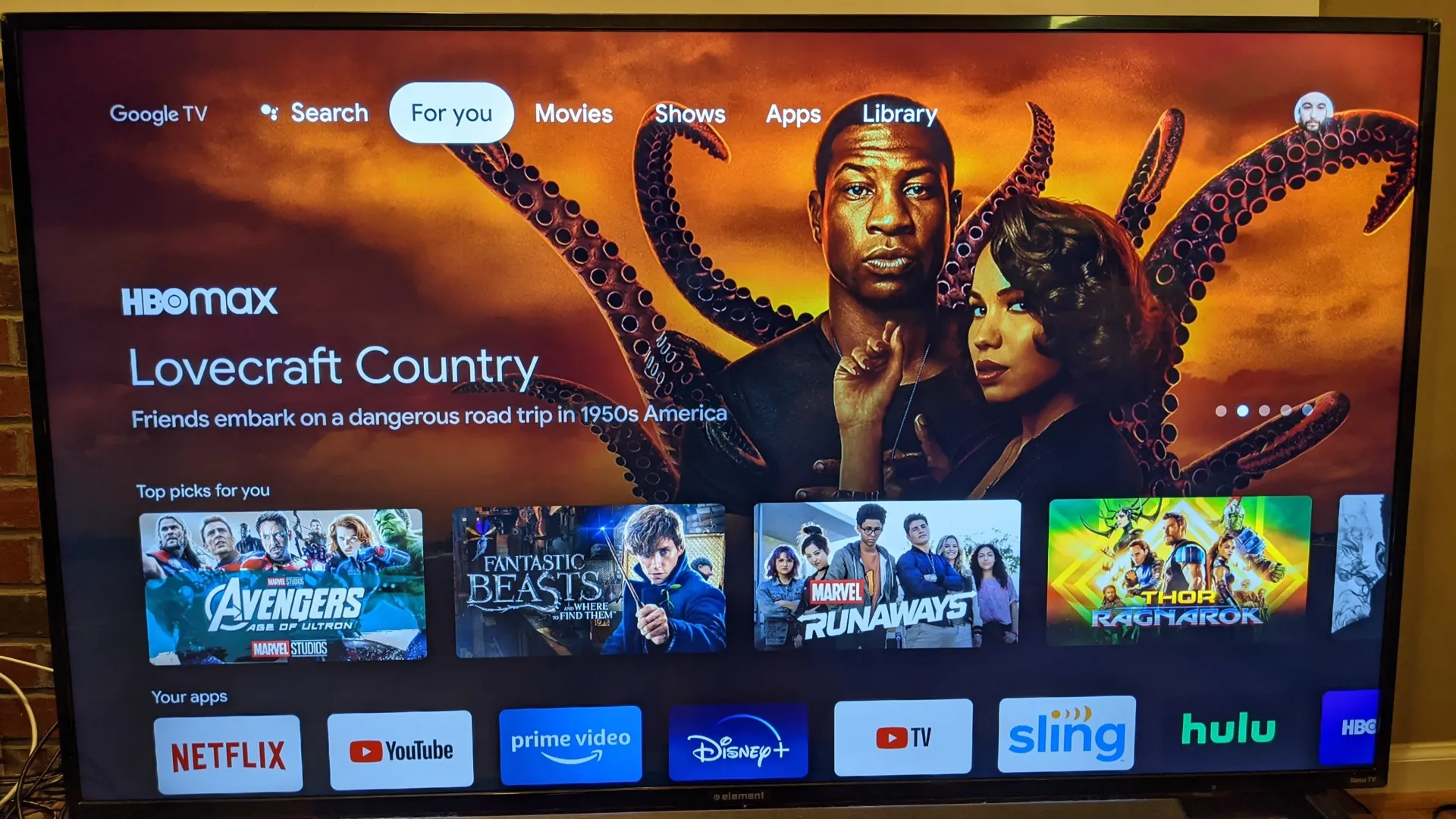
- From the Google TV home screen, move to the Apps tab at the top.
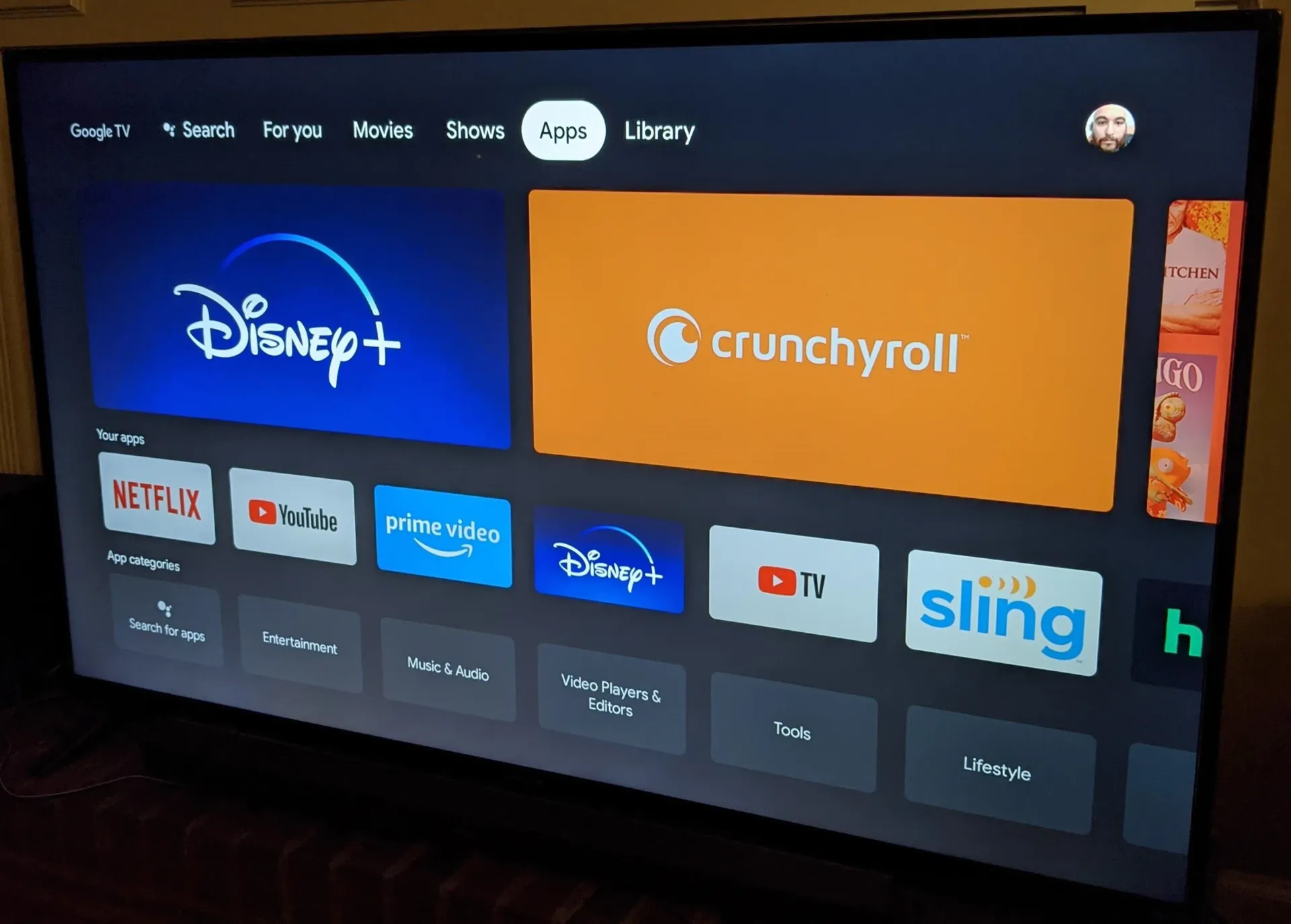
- Browse featured apps or use the Search option to look for a specific app, such as Netflix or Spotify.
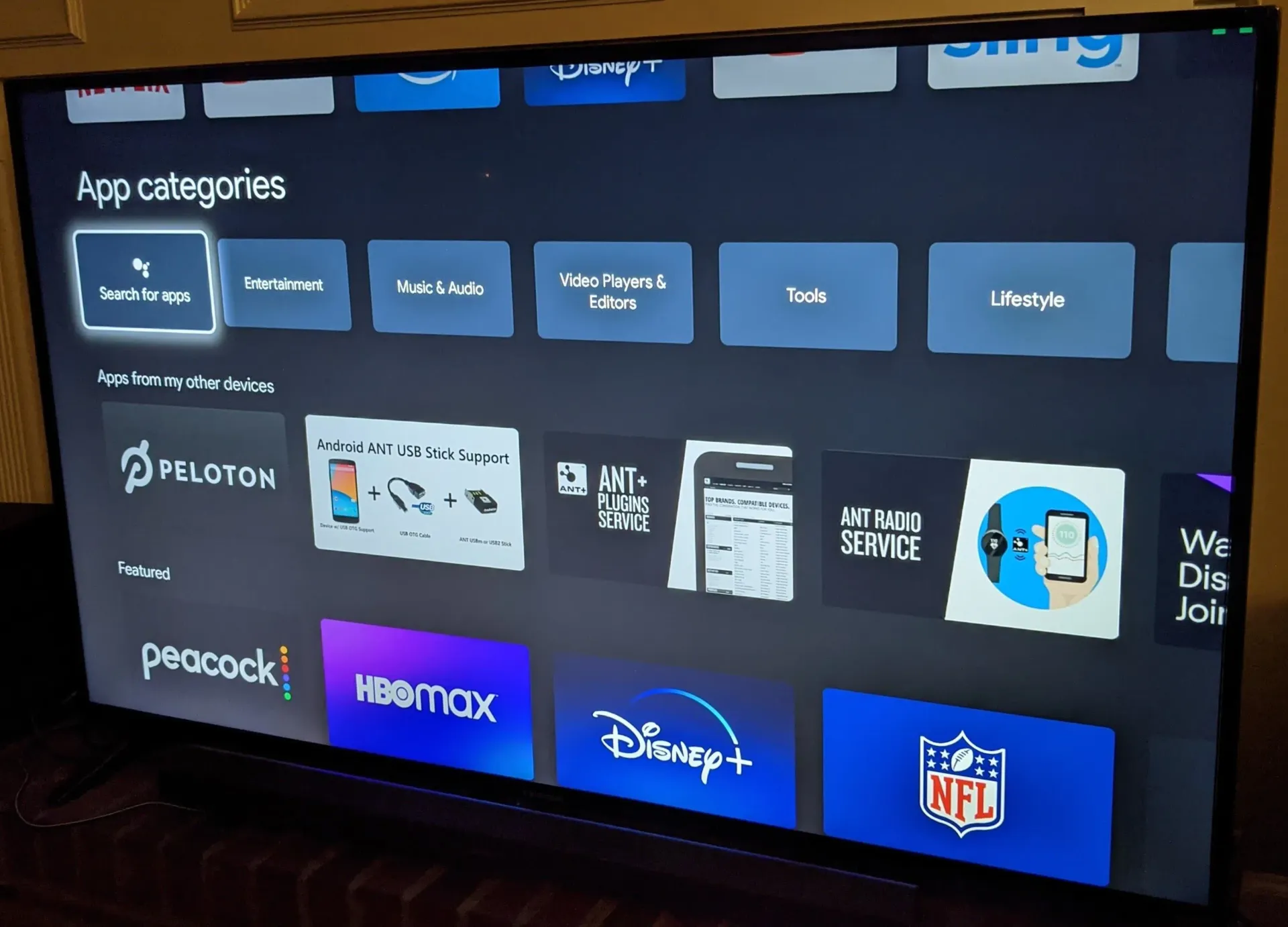
- Select the app you want to install to open its details page.
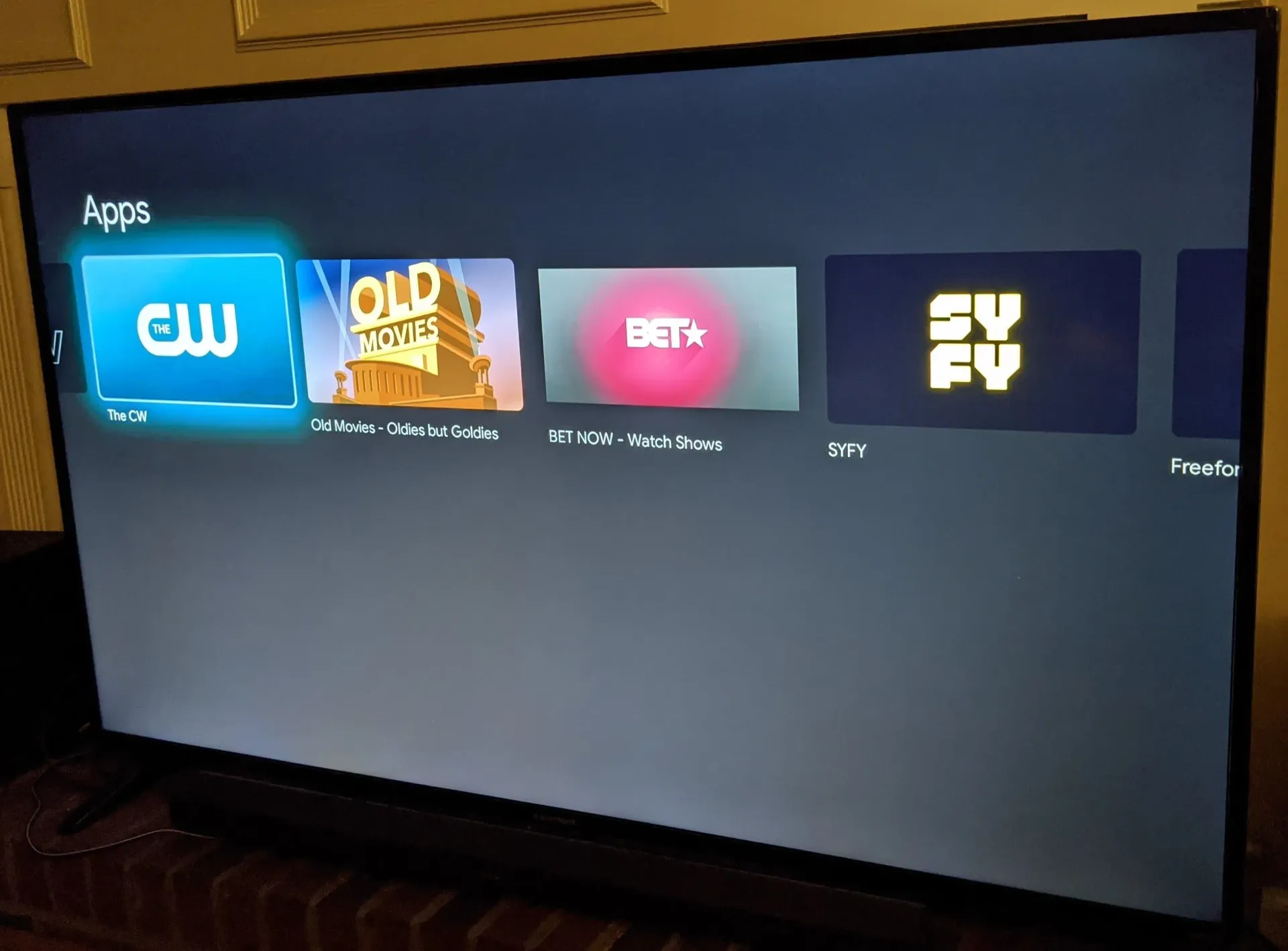
- Choose Install and wait while Google TV downloads the app.
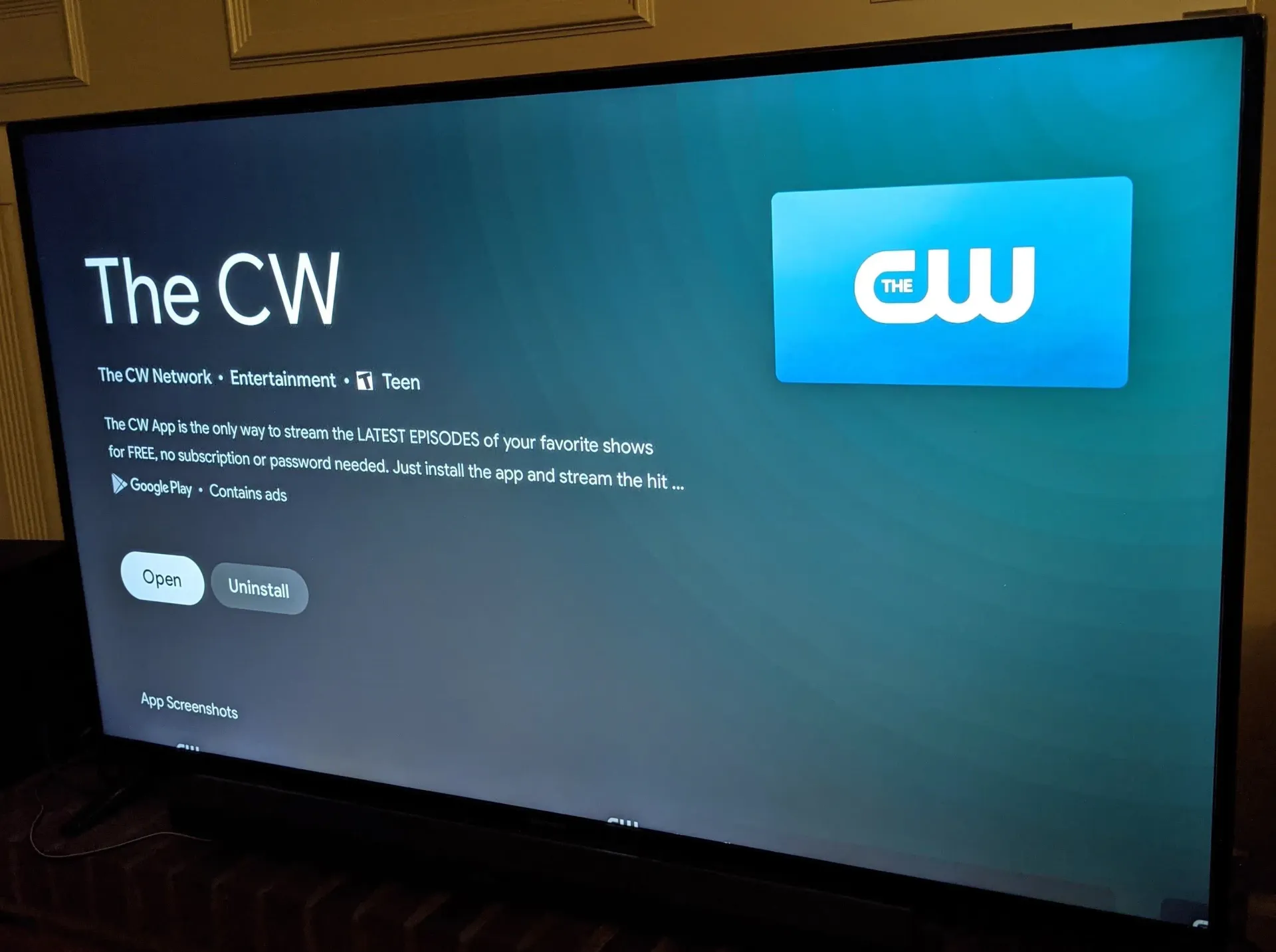
- Return to the home screen and scroll to the Your Apps row to find and open the new app.
This process works for most Chromecast apps, including streaming services, music apps, and Chromecast games optimized for TV.
Reorder Or Remove Apps On Chromecast With Google TV
After you add apps to Chromecast With Google TV, you can tidy the layout so your favorites stay near the top.
- From the Google TV home screen, scroll to the Your Apps row.
- Highlight the app you want to move.
- Hold the Select button on the remote until a small menu appears.
- Choose Move and use the remote to reposition the app icon.
- Press Select again to lock the new position.
- To uninstall an app, open its details page and choose Uninstall.
Reordering apps keeps your most-used Chromecast apps, like YouTube and Netflix, one click away on the Google TV home screen.
How To Add Apps To Older Chromecast Models
Older Chromecast dongles do not store apps on the device. Instead, you install Chromecast-compatible apps on your phone, tablet, or laptop. When you tap the Cast icon, the app connects to your Chromecast and the TV starts playing the content.
Add Chromecast Apps On Android Or iPhone
Use these steps to add apps to Chromecast from your phone or tablet:
- Install a Chromecast-compatible app such as YouTube, Netflix, Disney+, or Spotify from the Google Play Store or App Store.
- Connect your phone or tablet to the same Wi-Fi network as the Chromecast.
- Open the app you just installed.
- Look for the Cast icon, which looks like a small screen with Wi-Fi waves in the corner.
- Tap the Cast icon and select your Chromecast device from the list.
- Choose the video, song, or playlist you want and start playback.
Every time you install a new Chromecast app on your phone, you effectively “add” it to your Chromecast because you can cast from that app to the TV.
Cast From Chrome Browser On Windows, Mac, Or Chromebook
You can also add web-based apps to Chromecast by casting browser tabs from Google Chrome.
- Open Google Chrome on your computer and connect to the same Wi-Fi network as your Chromecast.
- Visit the website or web app you want to watch on the TV.
- Click the three-dot menu in the top right corner of Chrome.
- Select Cast from the menu.
- Choose your Chromecast from the list of devices.
- Pick whether you want to cast the current tab, an entire window, or your desktop, then start playback on the site.
This method works well for niche streaming sites, web-only apps, or presentations that do not offer dedicated Chromecast apps.
Set Up Google Home So Apps Can Find Your Chromecast
The Google Home app helps you manage Chromecast devices, Wi-Fi, and linked services. If apps fail to see your Chromecast, check your Google Home setup.
- Install the Google Home app on your Android phone or iPhone.
- Sign in with the same Google account you used when you set up the Chromecast.
- Make sure your phone, Chromecast, and router use the same Wi-Fi network.
- Open Google Home and confirm that your Chromecast appears as an available device.
- Tap the Chromecast tile to adjust room name, Wi-Fi, and other device settings if needed.
Once Google Home recognizes the Chromecast, most Chromecast apps discover it automatically when you tap the Cast icon.
Fix Problems When You Cannot Add Apps to Chromecast
If you have trouble adding Chromecast apps or seeing the Cast button, try a few quick checks.
- Confirm that the Chromecast and your phone or computer share the same Wi-Fi network.
- Restart the Chromecast by unplugging it for a few seconds, then plugging it back in.
- Close and reopen the app to see if the Cast button appears.
- Update the app from the Google Play Store or App Store to support the latest Chromecast features.
- Open the Google Play Store and install any available system updates.
- Reboot your router if multiple devices are having trouble seeing the Chromecast.
If you still cannot add apps to Chromecast or cast from a specific app, check the app’s help section. Some services limit casting by region or subscription type.
Tips For Getting The Most From Chromecast Apps
Once you know how to add apps to Chromecast and Chromecast With Google TV, a few habits help you keep everything running smoothly.
- Keep Google Home, Google TV, and your key streaming apps updated.
- Use 5 GHz Wi-Fi when possible for smoother 4K and HDR streaming.
- Pin your favorite apps near the front of the Google TV “Your Apps” row.
- Enable parental controls in streaming apps if kids use the Chromecast.
- Try Chromecast-compatible music and podcast apps to turn your TV into a sound system.
Conclusion
Adding apps to Chromecast looks different on each model, but the idea stays the same. Chromecast With Google TV installs apps directly from Google Play, while older Chromecast devices rely on Chromecast-compatible apps on your phone, tablet, or computer. Once you set up Google Home, join the same Wi-Fi network, and learn where the Cast icon lives, you can send almost any supported app to the biggest screen in your home.
Use this guide whenever you add a new Chromecast app, change phones, or upgrade to Chromecast With Google TV. With a few quick steps, you can keep your favorite streaming services, music apps, and games just one tap away on your TV.
Discussion (0)
Be the first to comment.